Overview
You can enable Case Search in the app configuration when creating your app or editing it in the App Designer editor. This enables a Search Cases text field allowing you to enter a case number, view matching rows in your Inbox and access Activity Forms, regardless of whether the control is present on the page.
In the App Designer editor, this is only a preview and cannot be used.
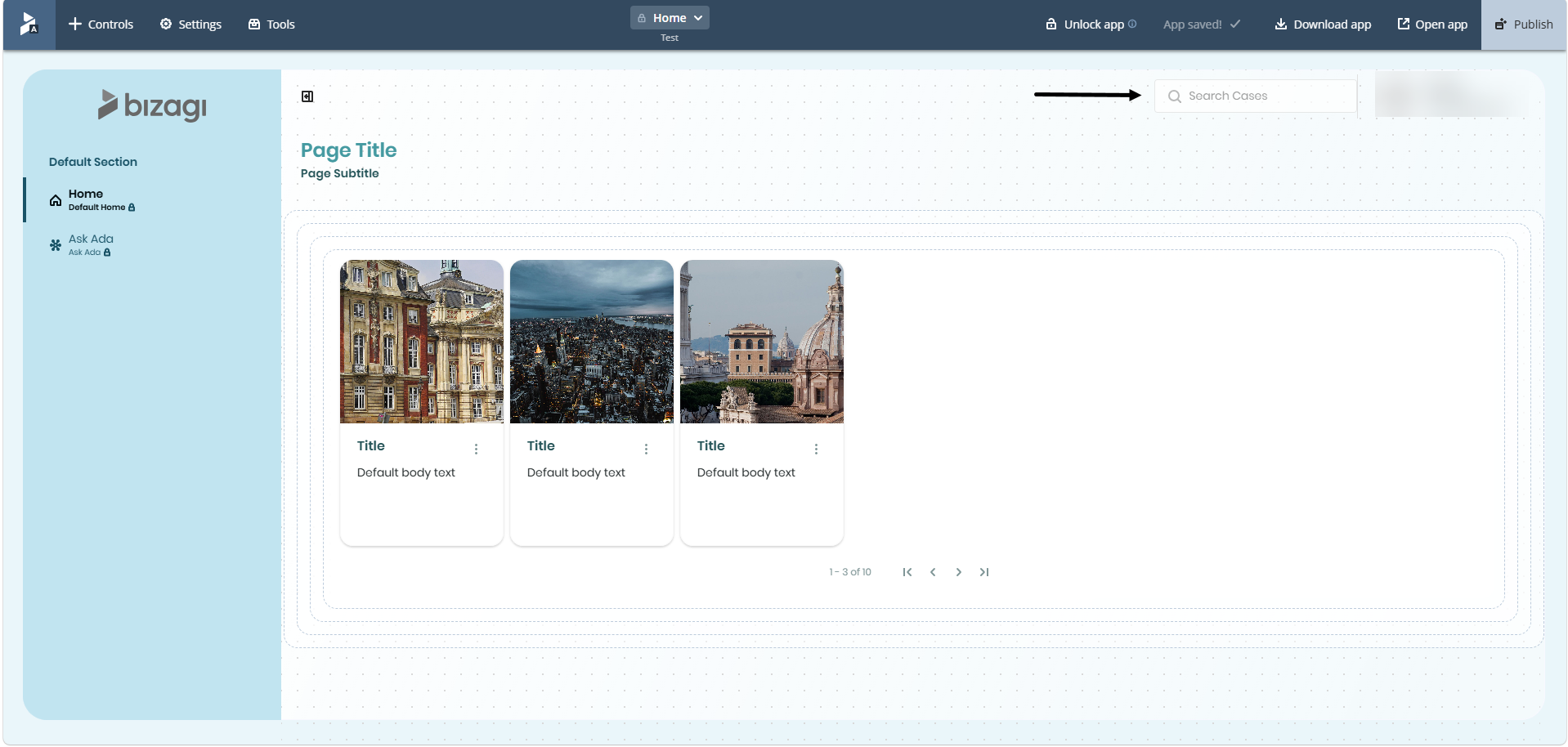
Case Search in published apps
Desktop view
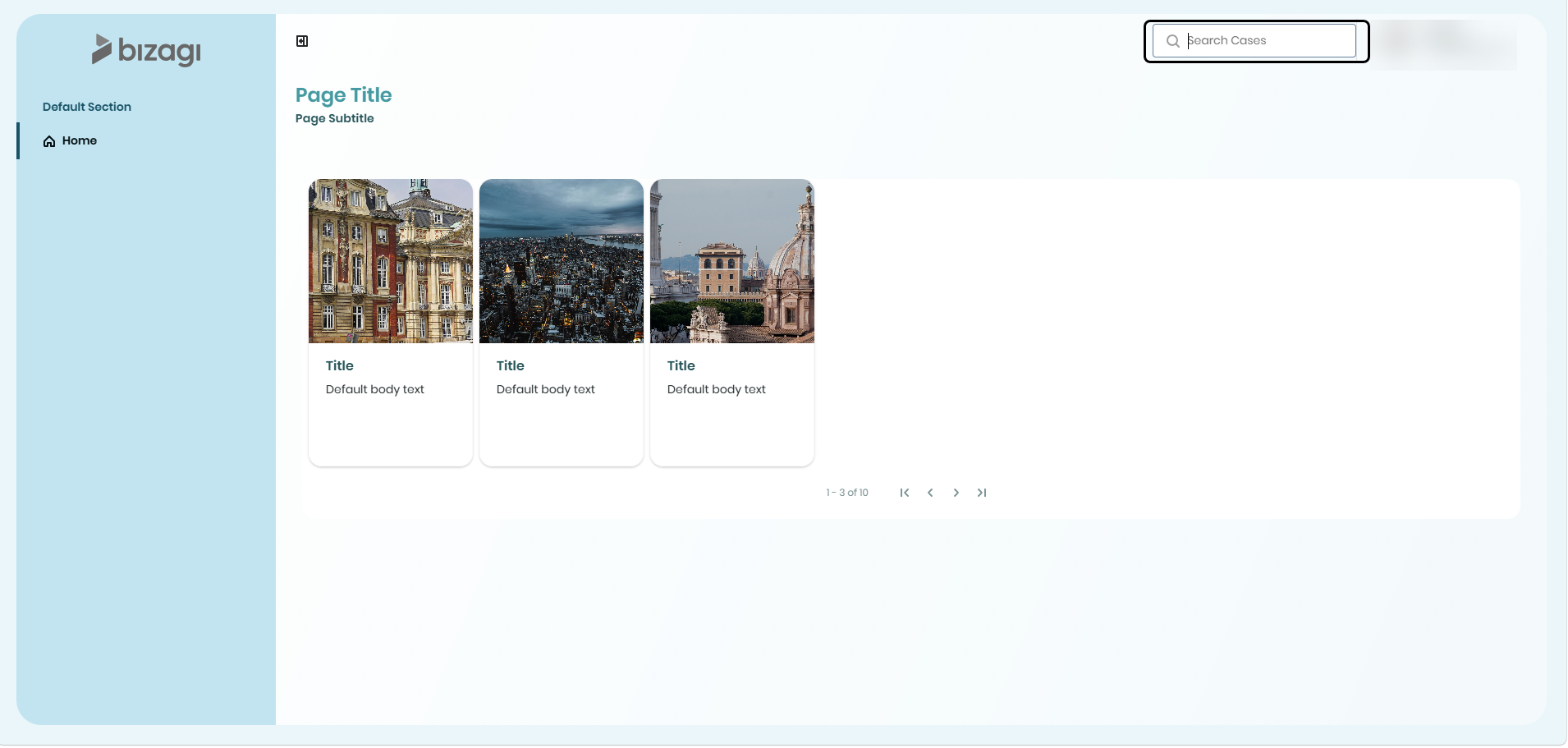
On the top right of the screen, there is a search field labeled Search Cases, Search Cases and Activities, or Search Activities, depending on the Inbox type used in your app. Click the field, enter a case number, and press Enter.
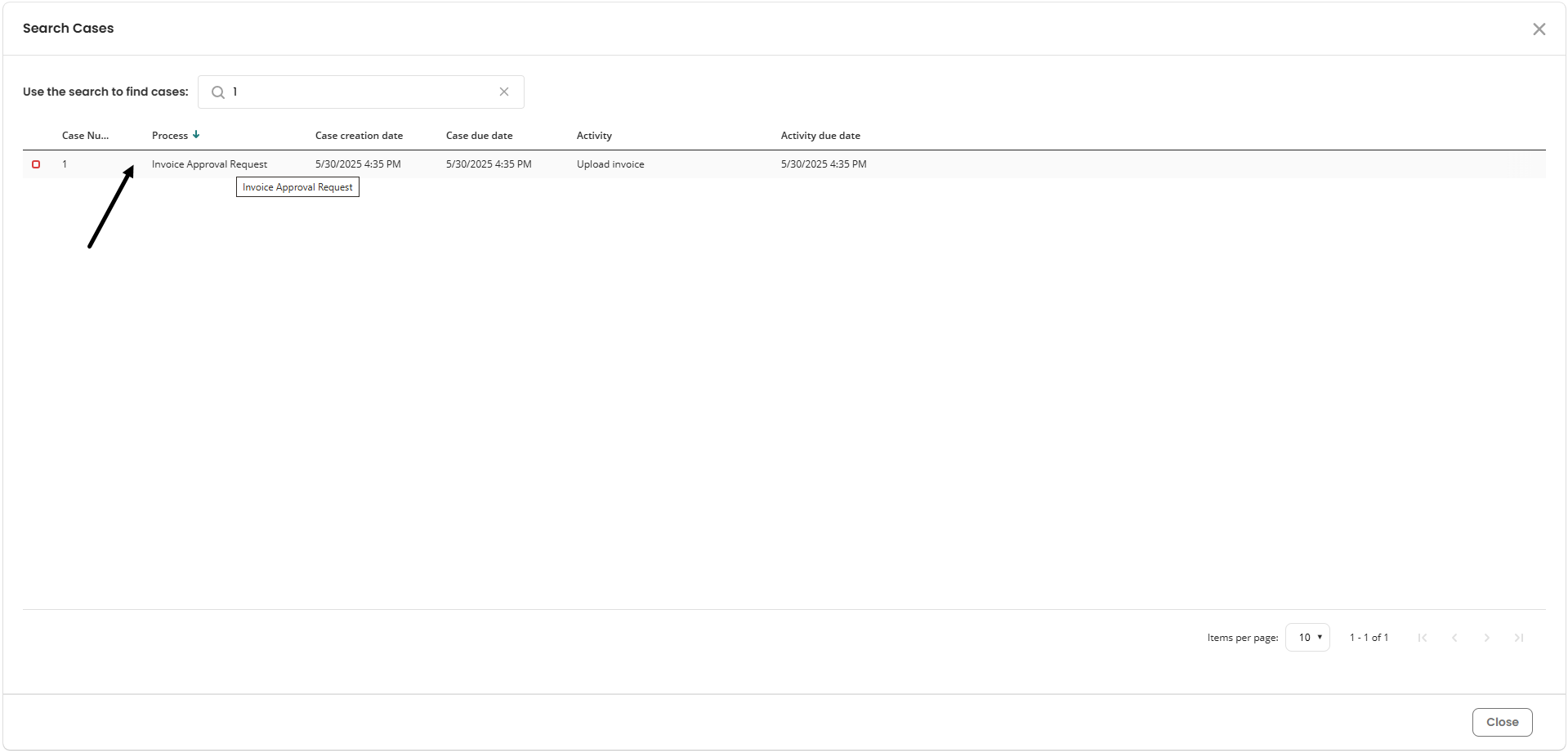
The Search Cases window opens and displays matching cases or activities. If customized columns have been configured, they are included in the results.
To open a result, click the corresponding row. This opens the associated Activity Form.
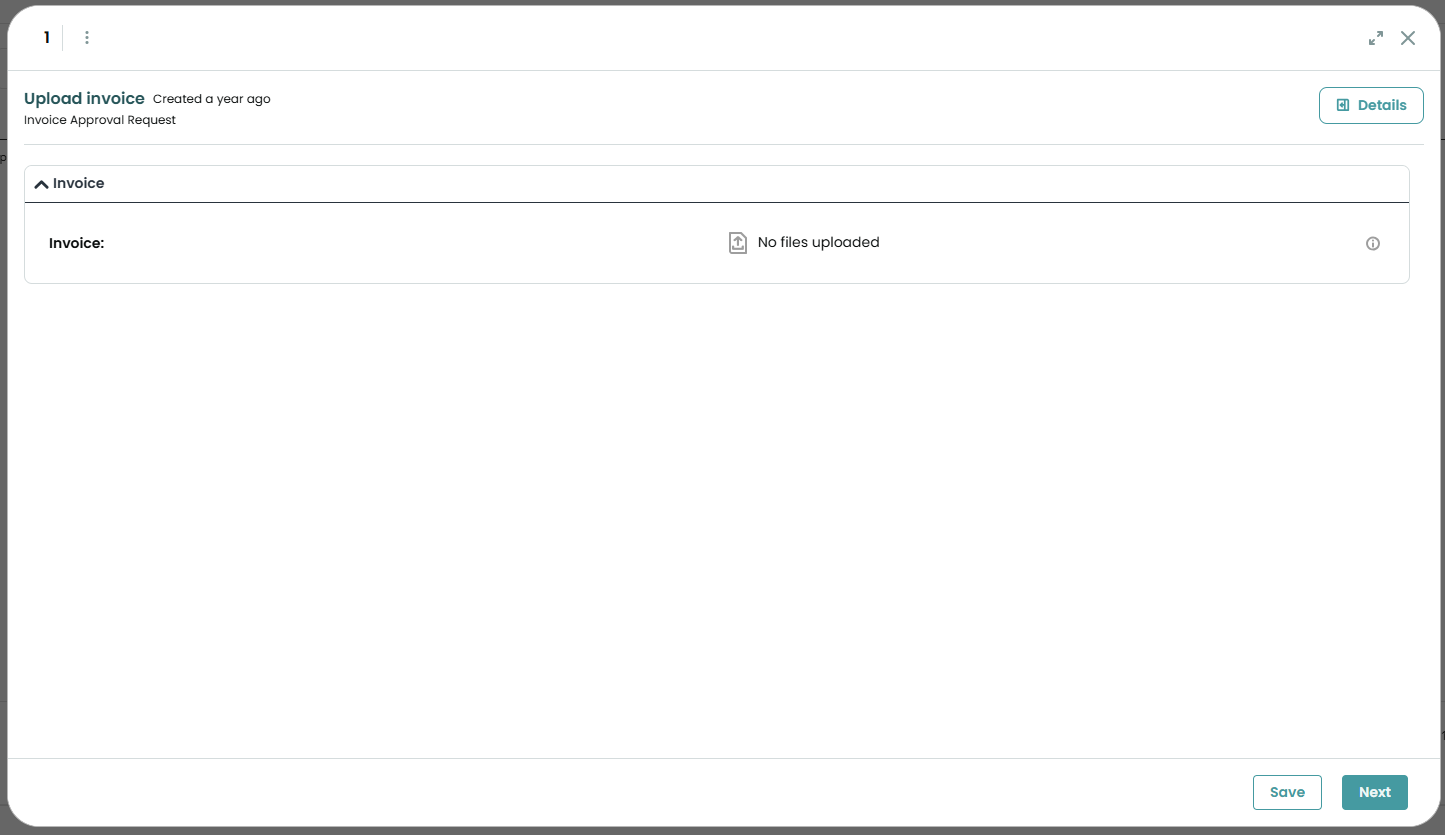
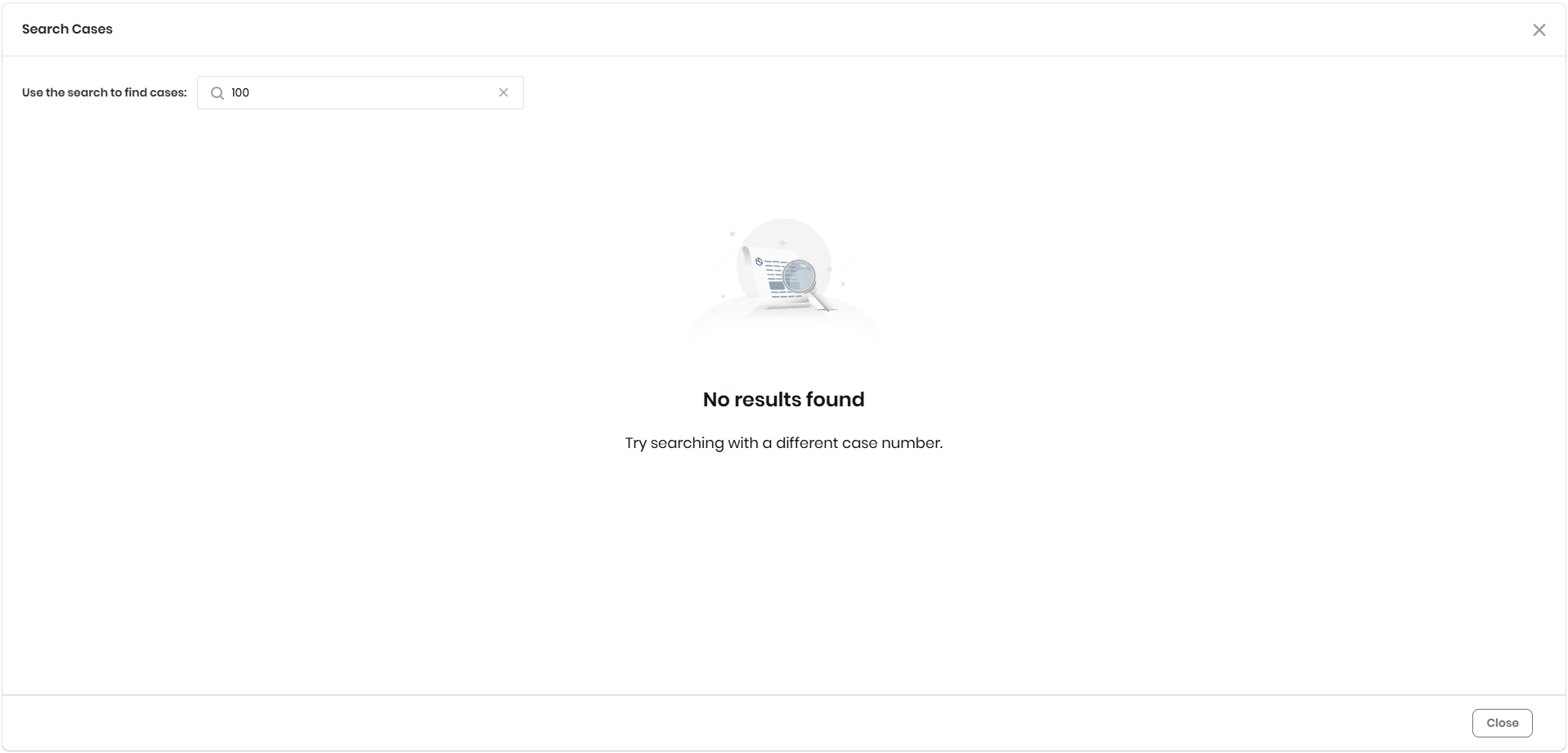
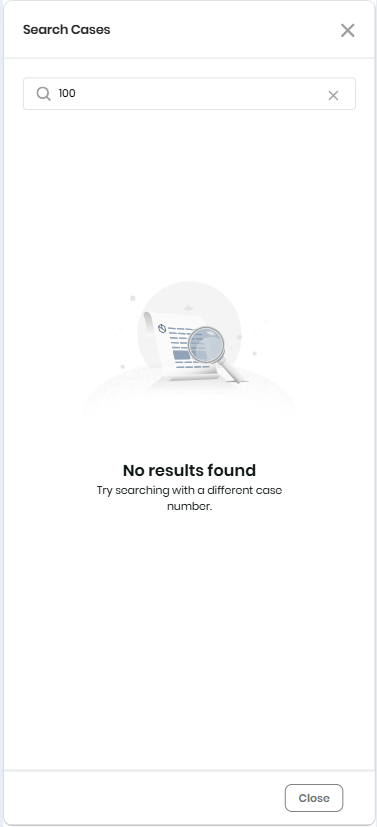
If no records match, a message indicates that no results were found. The search only matches the case number.
Mobile view
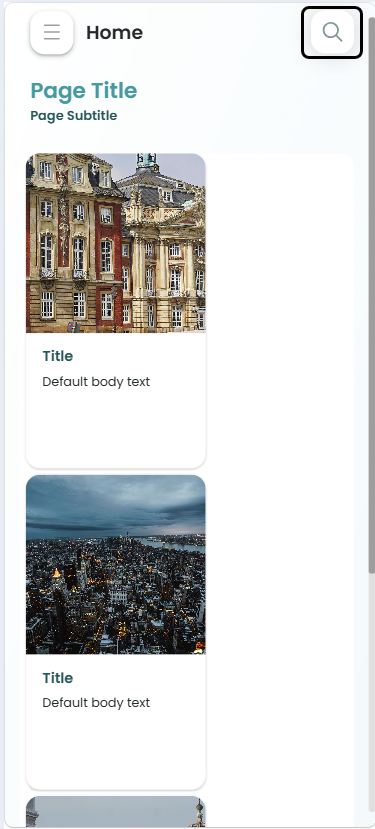
On the top right of the screen, tap the magnifying glass icon to open the Search Cases view.
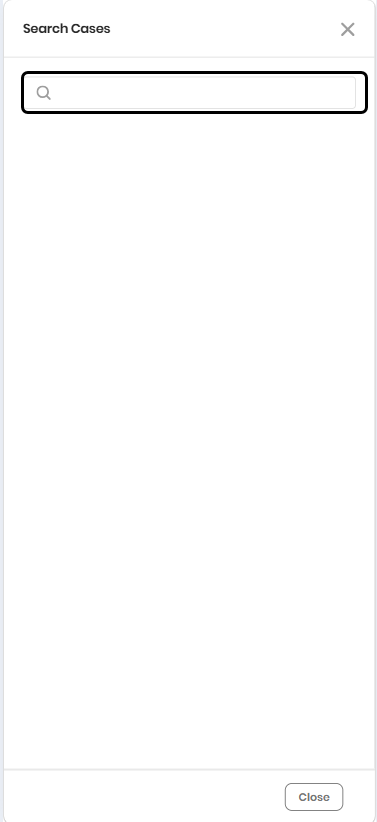
In this view, tap the text field located at the top of the screen. Enter the case number you want to search for, and then tap Enter to run the search.
The results are displayed as cards, each showing summarized information about a matching case or activity. To see additional details for a record, tap View more.
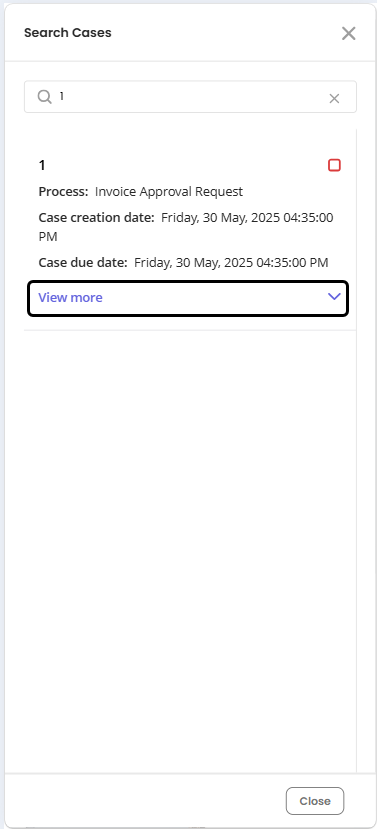
To open a result, tap the corresponding card. This opens the associated Activity Form.
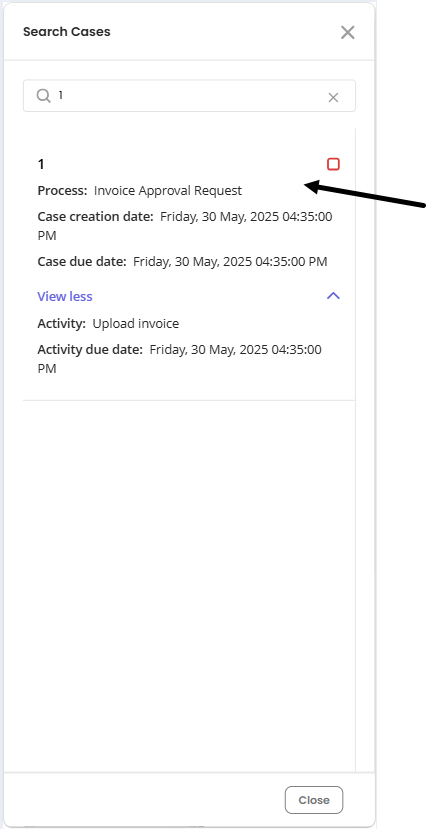
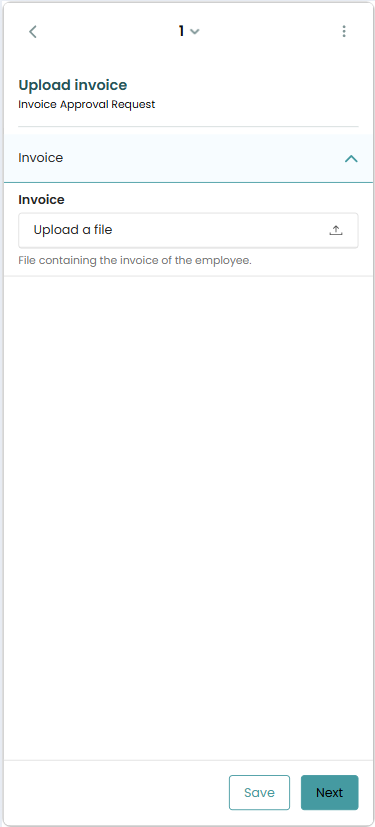
If no records match the case number you entered, a message is displayed indicating that no results were found.
|
Closed cases can be included in search results. |

Last Updated 7/16/2026 9:58:52 AM