Overview
The HTML iFrame control in the App Designer editor allows you to display external web content within your app by embedding a website through an iFrame.
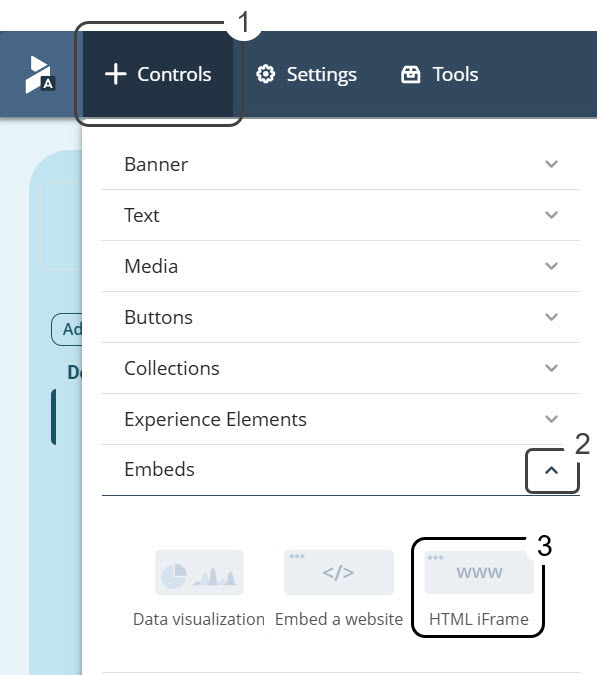
Setting up the control
Manage tab
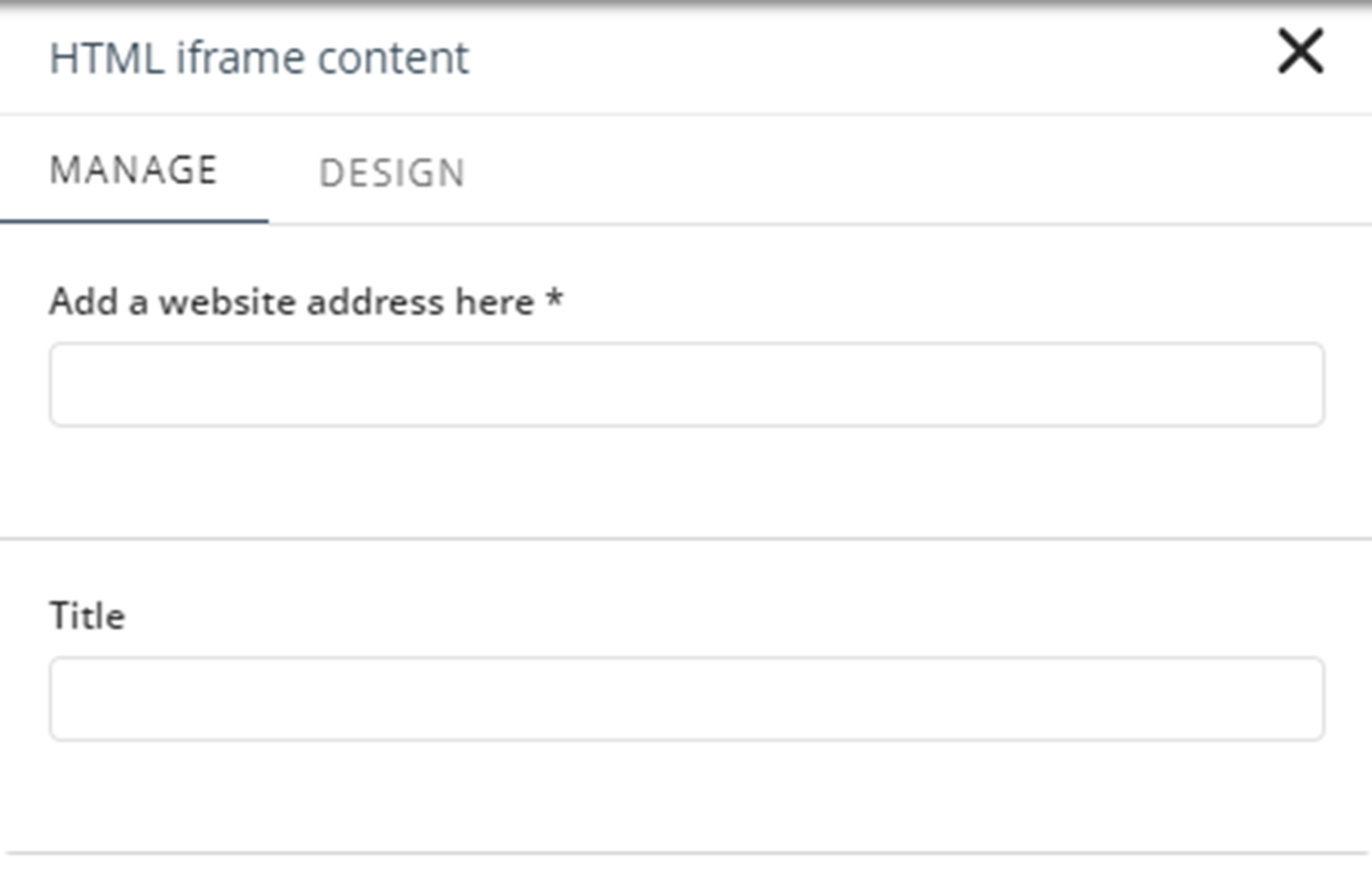
The Title field lets you define a title for the embedded website.
The Add a website address here field allows you to enter the URL of an external website that will be displayed within the HTML iFrame control.
Detail pages
When the page is configured as a Detail page, you can define whether the embedded content is static or dynamic by selecting Fixed or Contextualized, respectively.
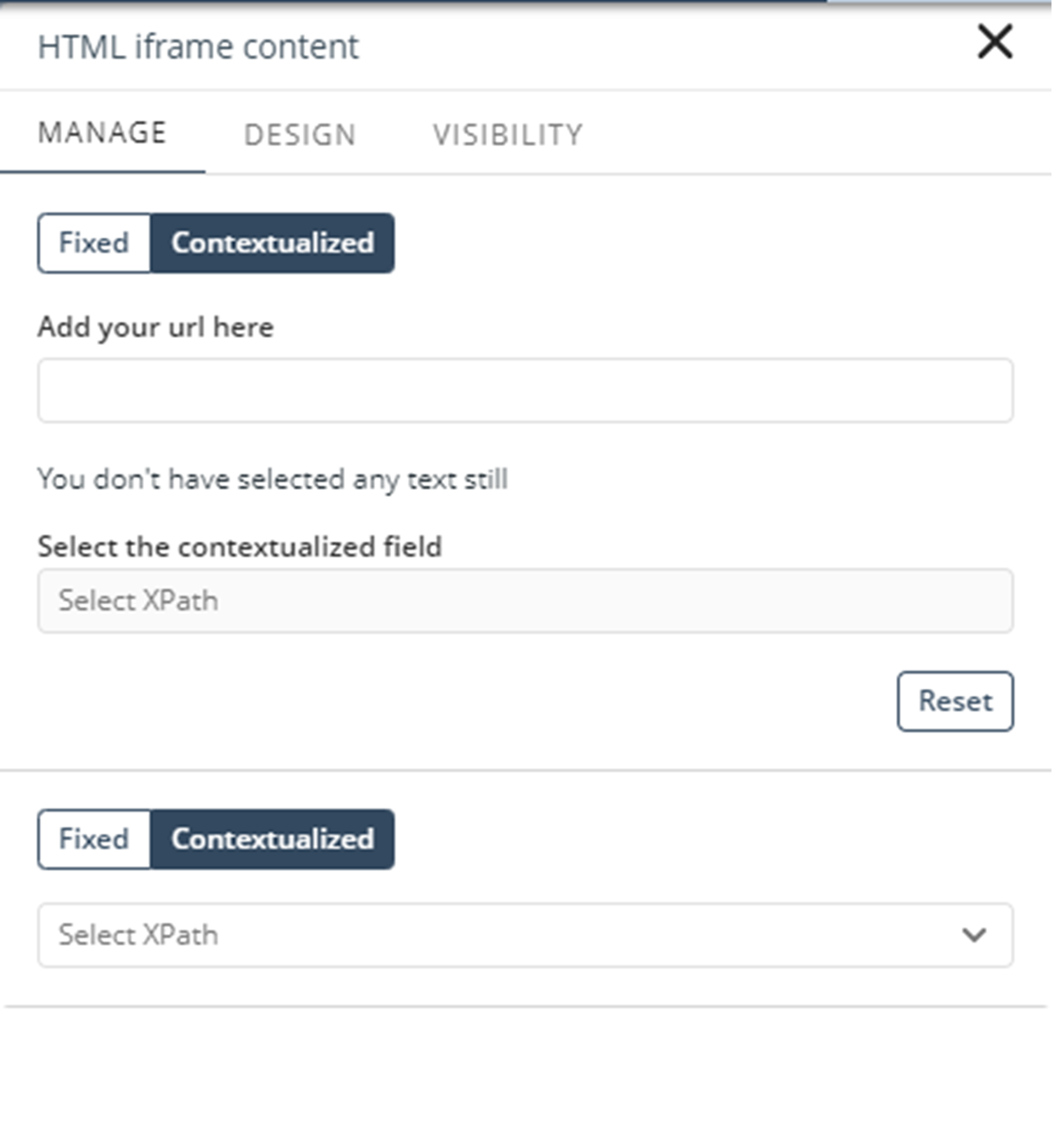
When Contextualized is enabled, you can create dynamic URLs for the HTML iFrame control. To configure a dynamic URL, define the source URL, select the text segment to replace, and then choose the XPath that provides the replacement value. Different URL segments can be mapped to different XPaths.
Design tab
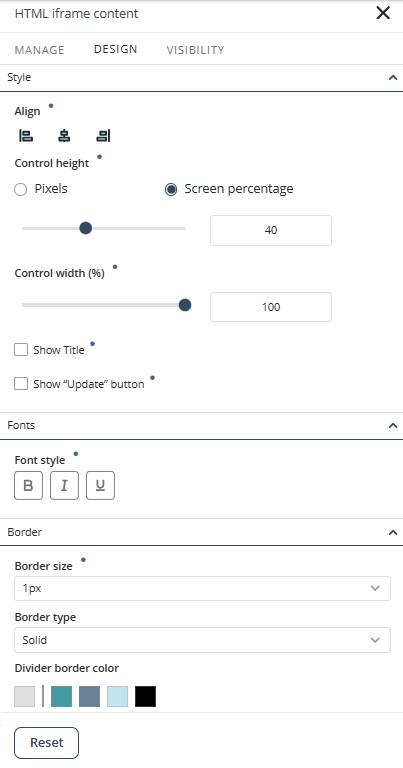
The properties in the Design tab allow you to customize the appearance of the HTML iFrame control. To restore the original settings, click Reset.
Style
•Align: Sets the alignment of the control to left, center, or right.
•Control height: Defines the height of the control. You can configure the height in pixels or as a percentage of the available screen space.
•Control width: Defines the width of the control. You can configure the width as a percentage of the available screen space.
•Show Title: Determines whether the title defined in the Title field is displayed.
•Show "Update" Button: Adds an Update button to the HTML iFrame control, allowing users to refresh the embedded content.
Border
•Border size: Defines the border width in pixels.
•Border type: Defines the border style applied to the control.
•Border color: Defines the color of the control border.
|
Properties with inherited values display a blue dot. Hover over it to see the source. When modified, a Reset option appears for that specific property. |

Visibility tab
You can define the control's visibility from the VISIBILITY tab.
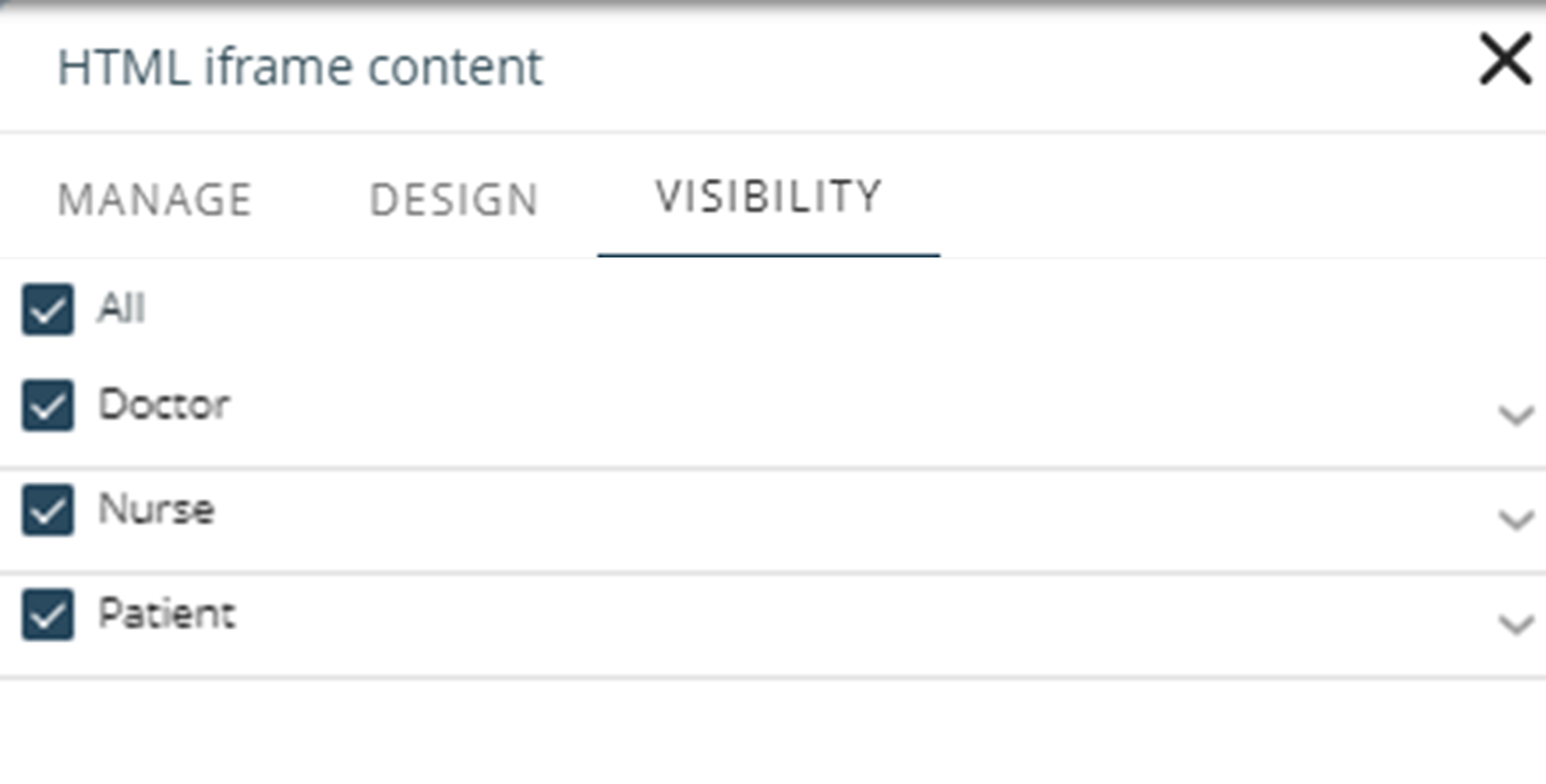
This option contains two sections:
•In the Personas section, you can select the entities or Personas that are allowed to view the control.
•In the Devices section, you can configure the control's visibility by device (Desktop, Tablet or Mobile). For further information, refer to Control visibility by device.
Last Updated 7/20/2026 9:47:37 PM