Overview
The Home pages option allows users to create and modify a distinct Home page for each Persona in the project. In general, when an app is created in the App Designer editor, the Default Home page is created and assigned as the Home page for every Persona in the project.
In Bizagi Apps, the Home page is the first page a specific Persona will see once the logging process is completed. Multiple Home pages allow users to define the first page a specific Persona will see after logging in the app. With this feature, customizable experience for each Persona goes further.
|
If you want to set a specific page as a Persona home page, consider that:
•The page can be either public or private. If you want unauthenticated users to access the page, go to Configure a Home page for unauthenticated users. •Subpages are not supported. •Once you configure a specific page as a Persona Home page, the Visibility settings have to be managed from the Home pages option in the Settings tab as shown in the previous image. |

Configure a Home page
Consider we have three Personas in our project. As a default behavior, all the Personas will have the same Home page when an app is created. To modify this behavior, we need to access the Home pages option in the Settings tab.
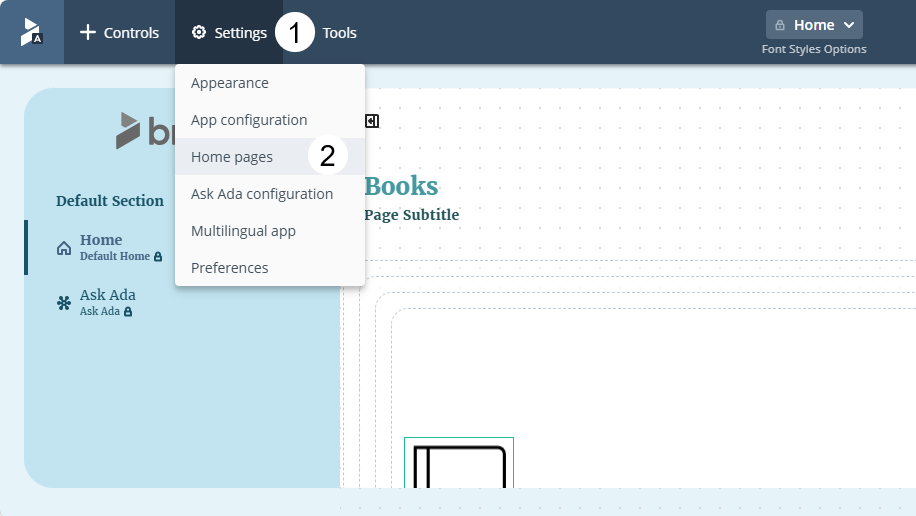
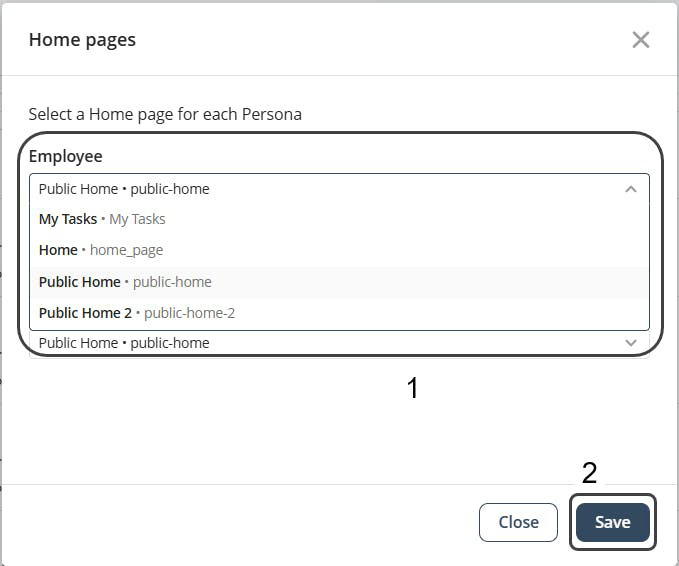
Here you can decide what page is going to be used as Home page for every Persona in the project; a specific page can be used as Home page for more than one Persona.
You can always select the Default Home page as a Persona Home page using this menu.
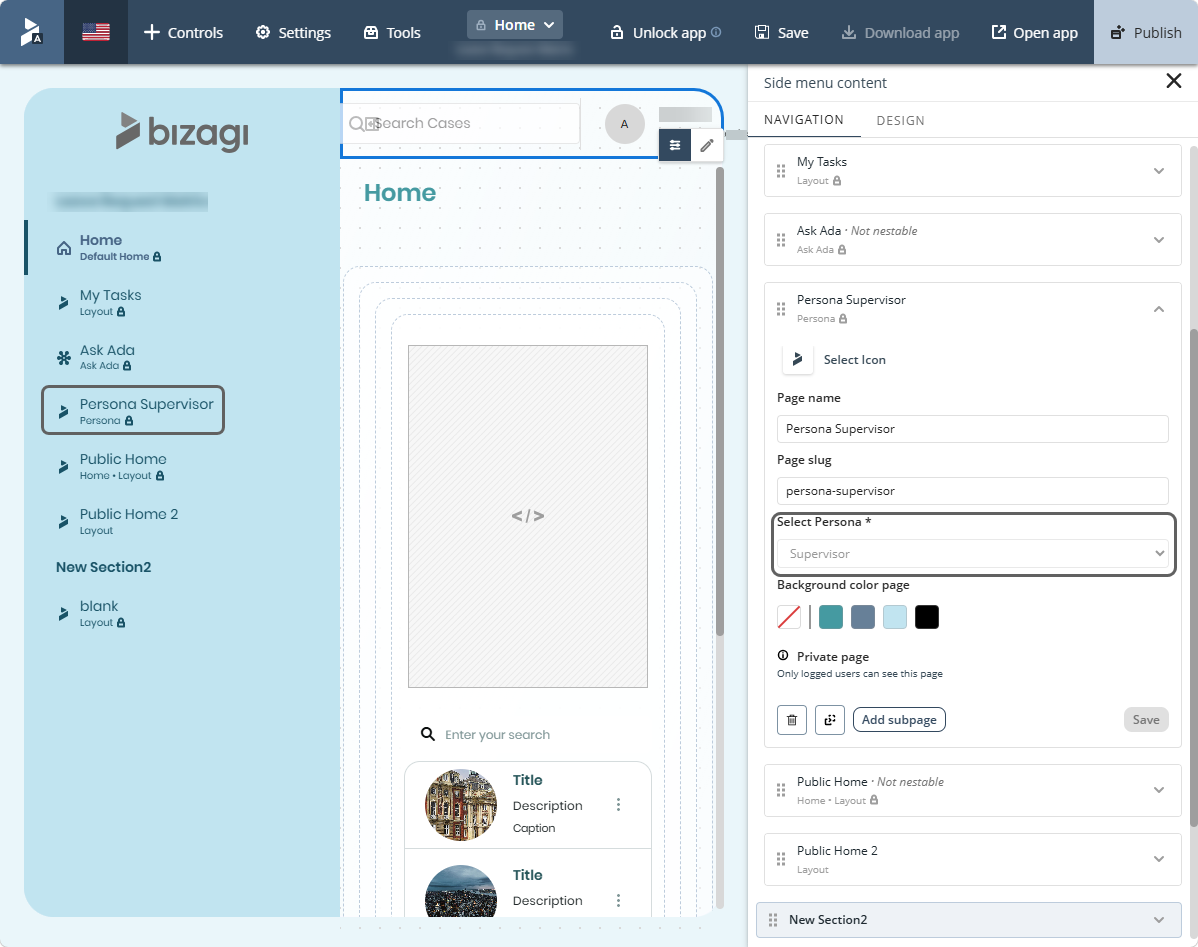
In this example, we modified the Home page for the Supervisor Personas. When configuring each custom Home page, the Personas option is not shown anymore as they are now Home pages.
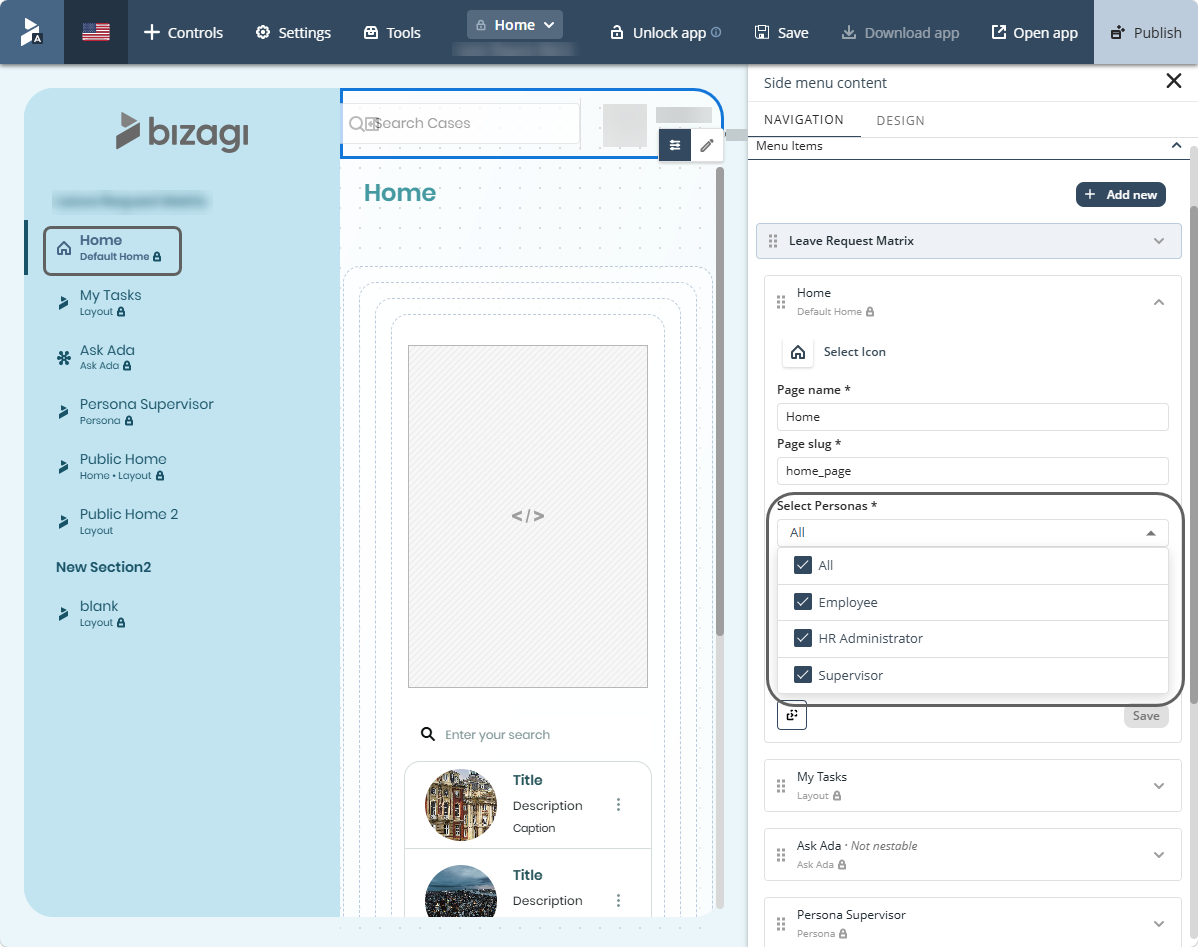
However, other pages that we create have this option in the page settings menu.
Configure a Home page for unauthenticated users
To configure the Home page for unauthenticated users, open your app in the App Designer editor and click the app header. Click the newly displayed Manage button.

On the left side of the screen, the Header configuration panel will open. In this section, locate the Default public page for guests toggle button, click it to enable it.
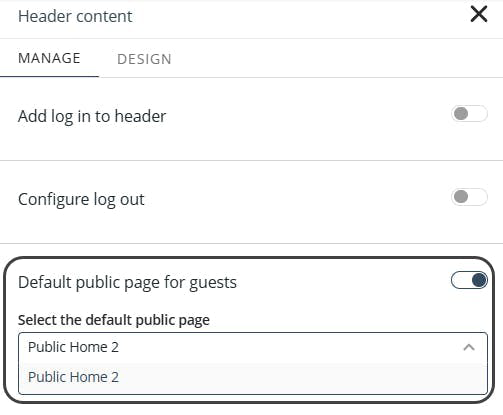
Once enabled, you can select the page that unauthenticated users will be redirected to when they access the application.
|
Only public pages are available for selection. Private pages will not appear in this list. |
Last Updated 7/16/2026 4:19:58 PM