Overview
The Background options in the Appearance menu in the App Designer Editor let you configure how your app’s background and content area are displayed. You can choose between color or image backgrounds and define if your app displays content inside a container and the level of transparency it has.
Customizing your background and container
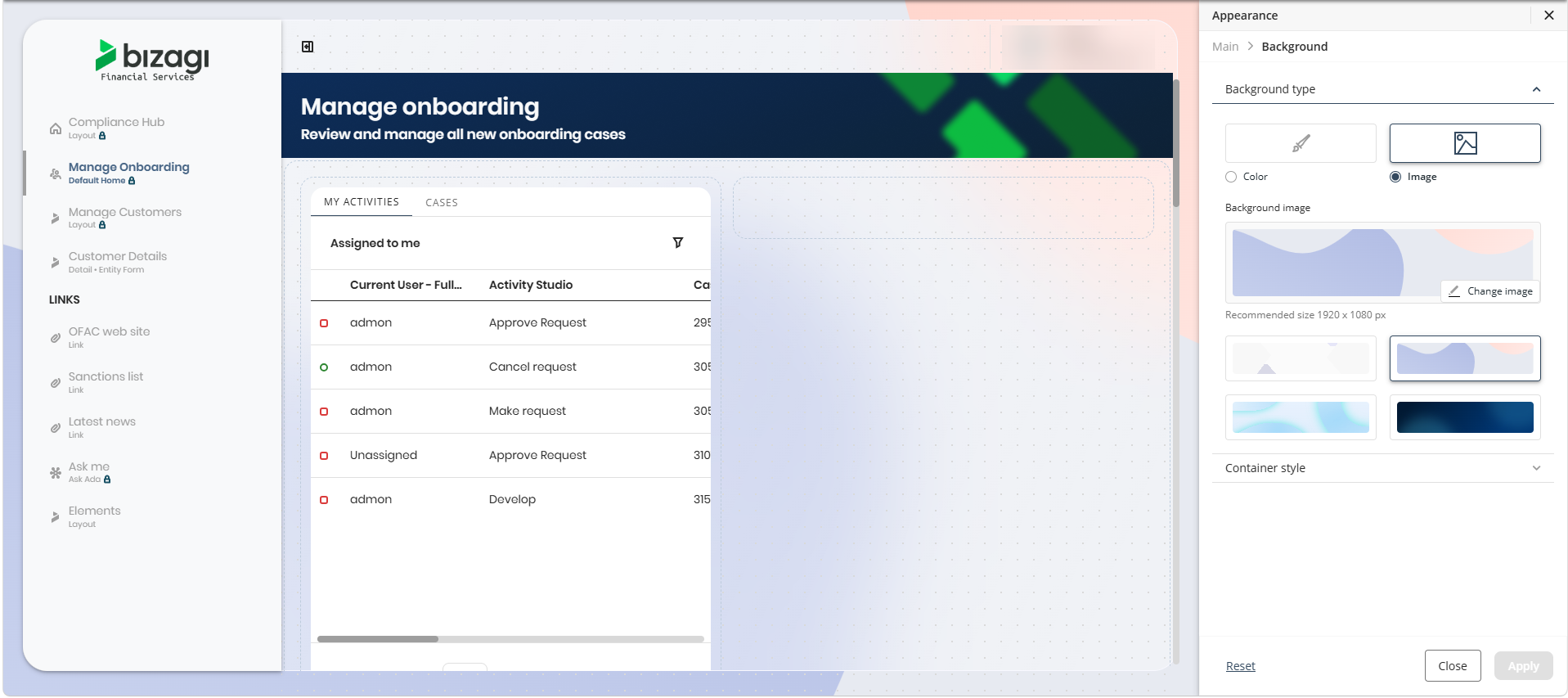
Visualizing Background and Container in the Appearance menu
To access these settings:
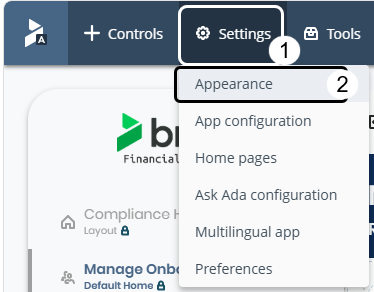
1.In the App Designer editor, click Settings.
2.Select Appearance.
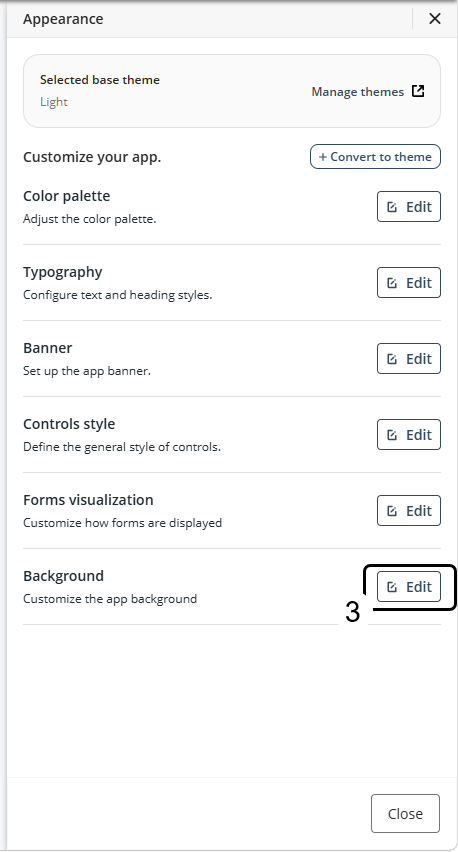
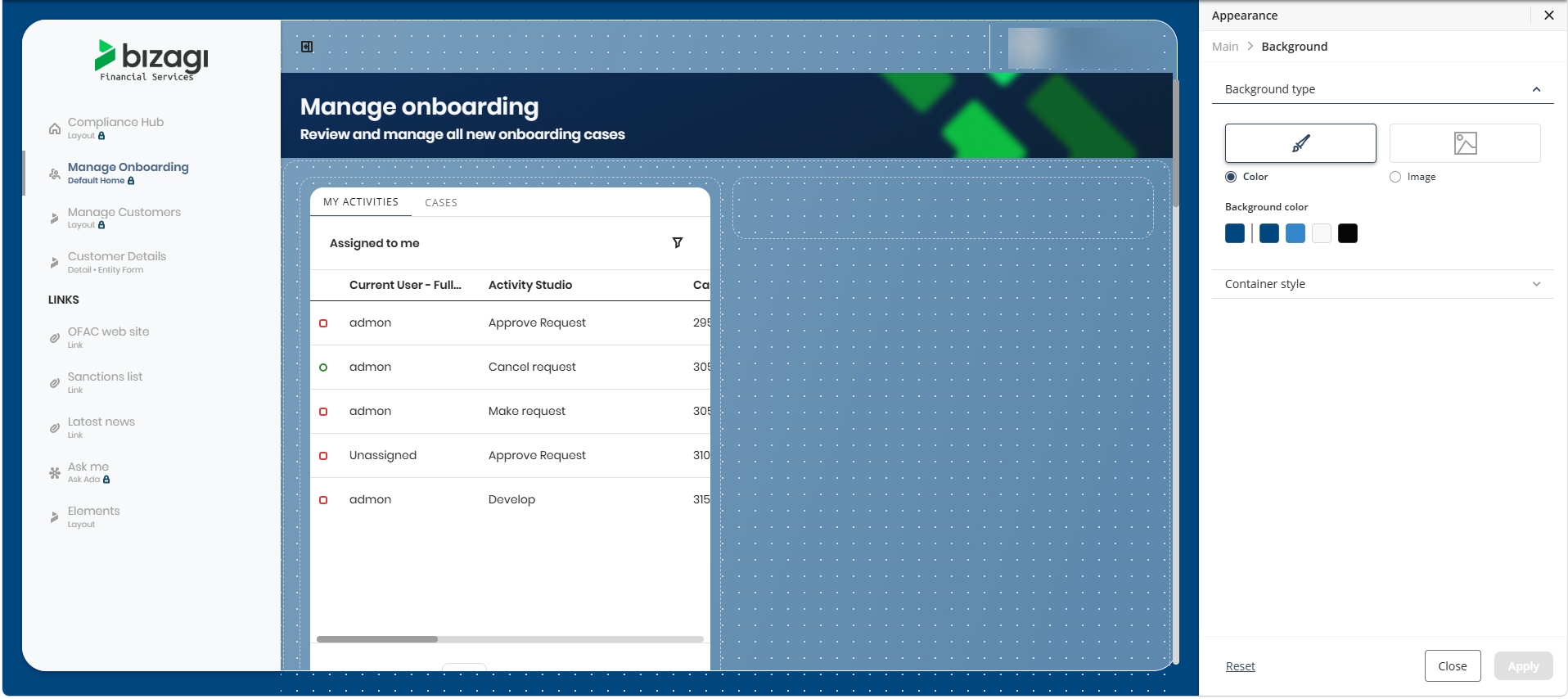
3.The right panel displays the Appearance menu. Click the Edit button next to Background.
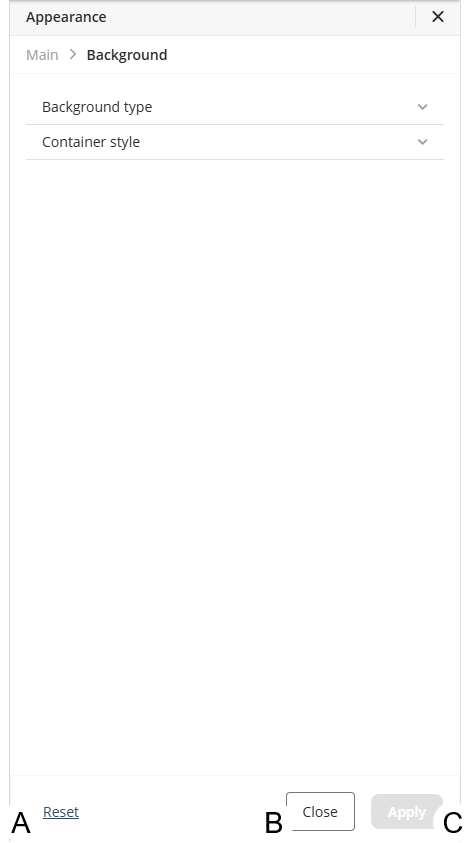
The Background settings in the Appearance menu includes two sections: one for Background type and another for Container style.
The bottom bar includes three options:
•A: Reset, located on the far left, to revert the last change.
•B: A Close button, to minimize the panel.
•C: An Apply button, which remains disabled until you make a change and choose to apply it to your app.
Background settings
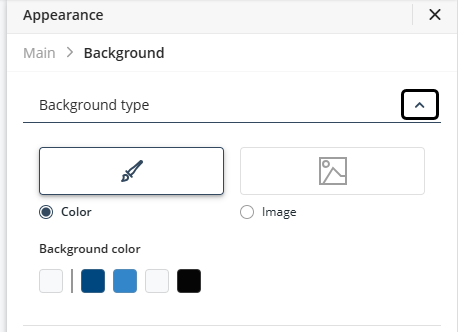
Click the dropdown button next to Background type to display the available options. By default, the menu shows the Color settings.
Configure a background color
Select one of the colors in the predefined palette and click Apply to save your changes.
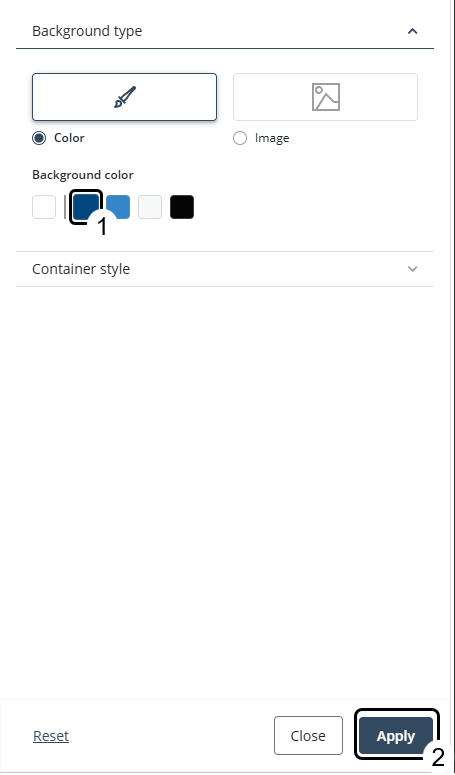
Your customization is previewed in the editor.
|
To display changes in your live app, you must Update Publication. |

To use advanced color settings, click the main color cell to open the configuration window.
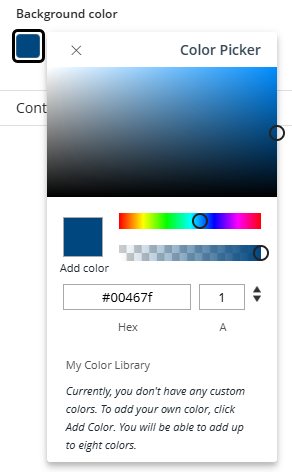
These color settings behave the same as in Container Background Customization; for further information see Background options.
Configure an image background
Click the image rectangle button or select the Image radio button.
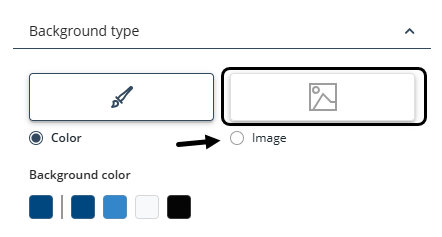
Select one of the available images and click Apply to save your changes.
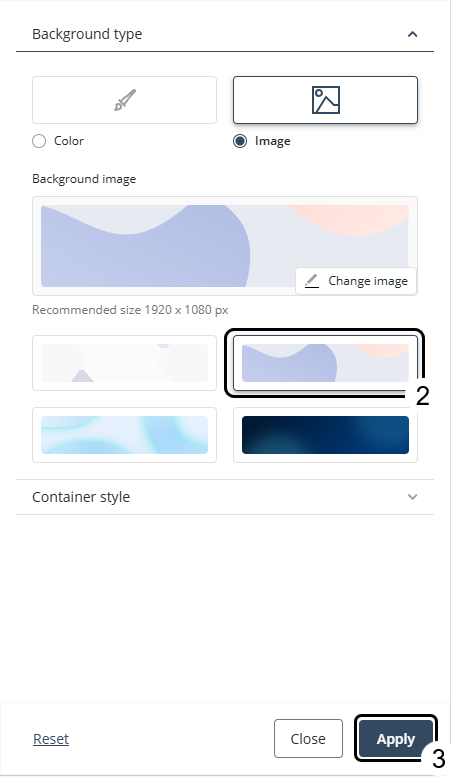
Your customization is previewed in the editor.
|
To display changes in your live app, you must Update Publication. |
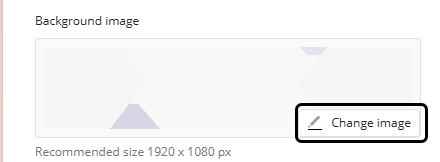
You can upload a .png, .jpg, .svg, or .jpeg file to use a custom image. To do so, click the Change image button.
|
The recommended size for custom images is 1920x1080 px. The maximum file size allowed is 500 KB. |
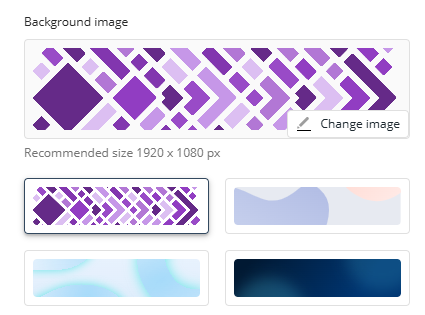
After selecting a file from your device, your custom image is listed as one of your background options.
Container settings
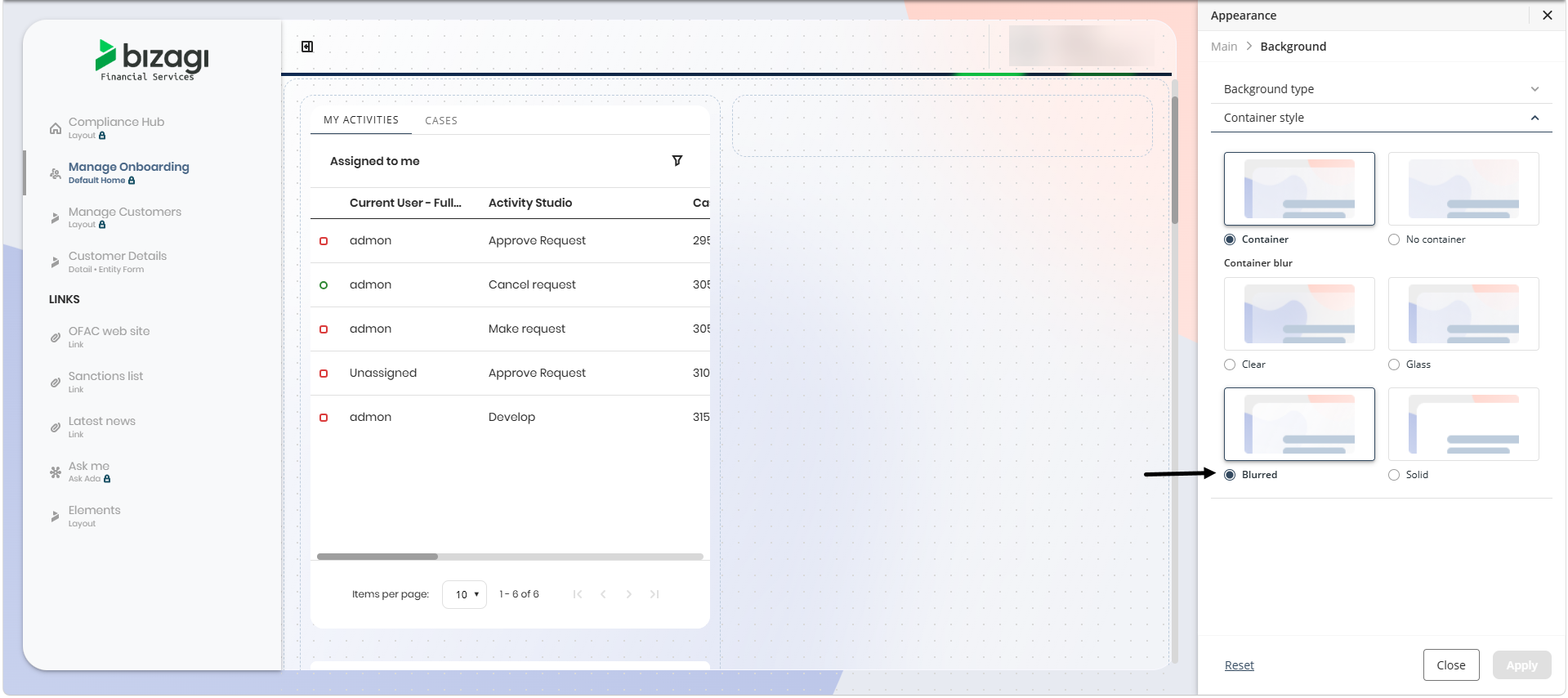
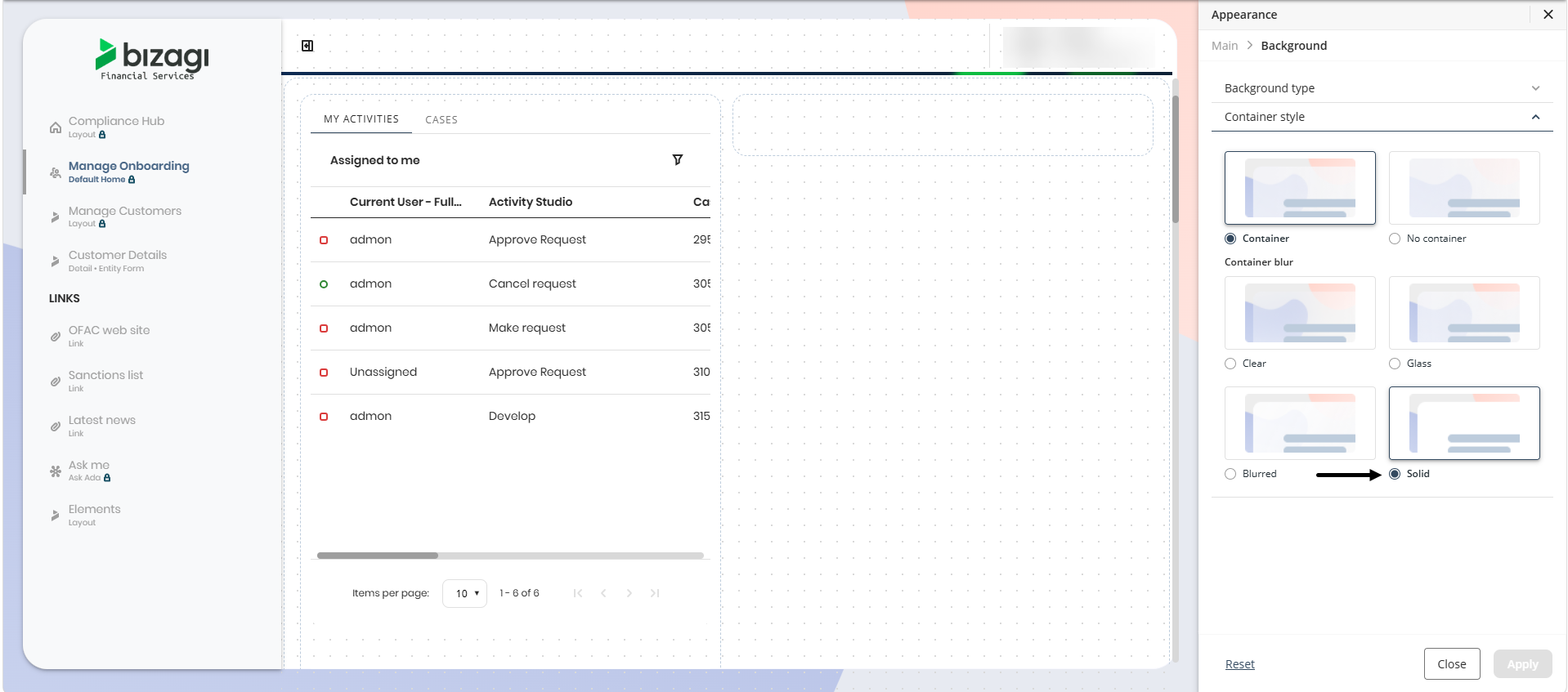
Click the dropdown button next to Container style to display the available options. The available Container customizations include the Container / No container option and the Container blur setting.
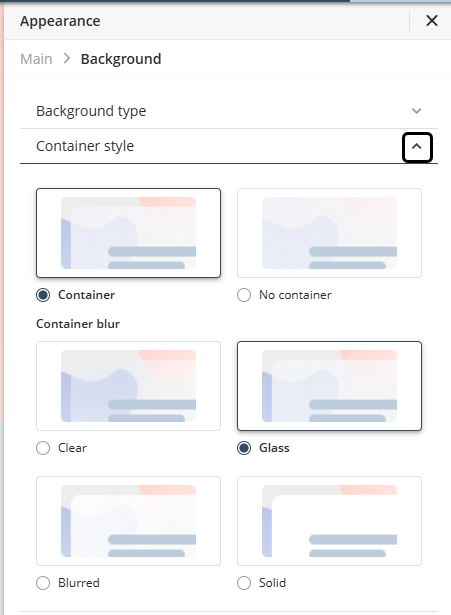
•Container: Displays the background within a defined content area.
•No container: Background fills the entire available space.
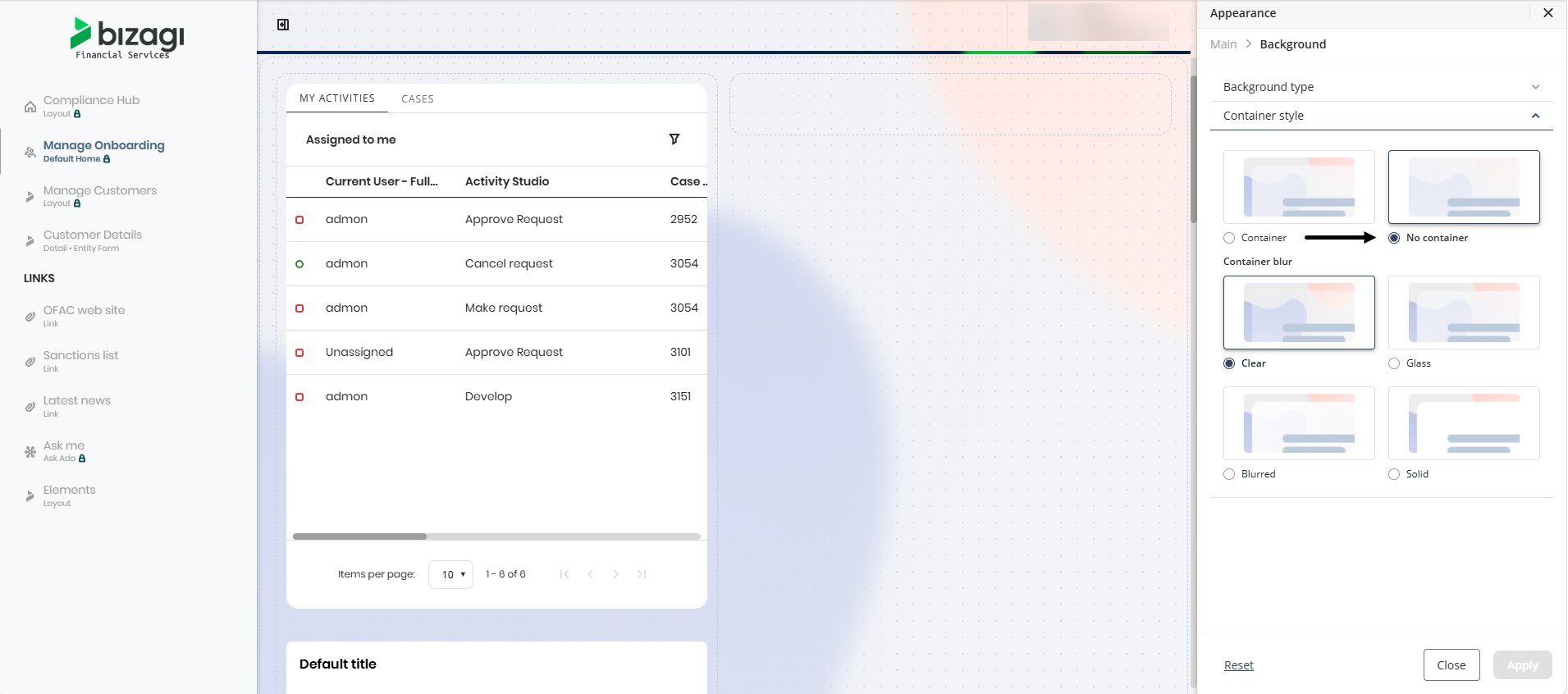
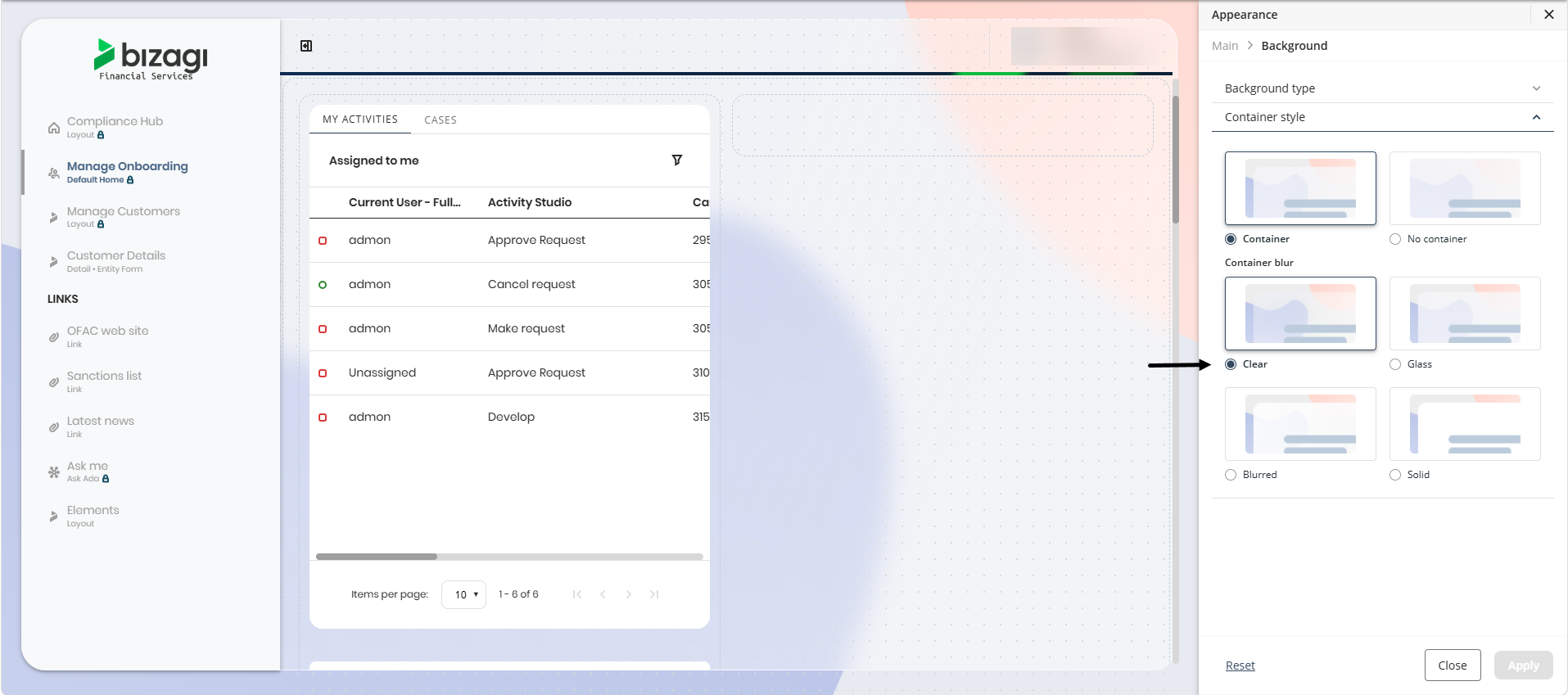
•Clear: Transparent with no blur. Background content stays sharp.
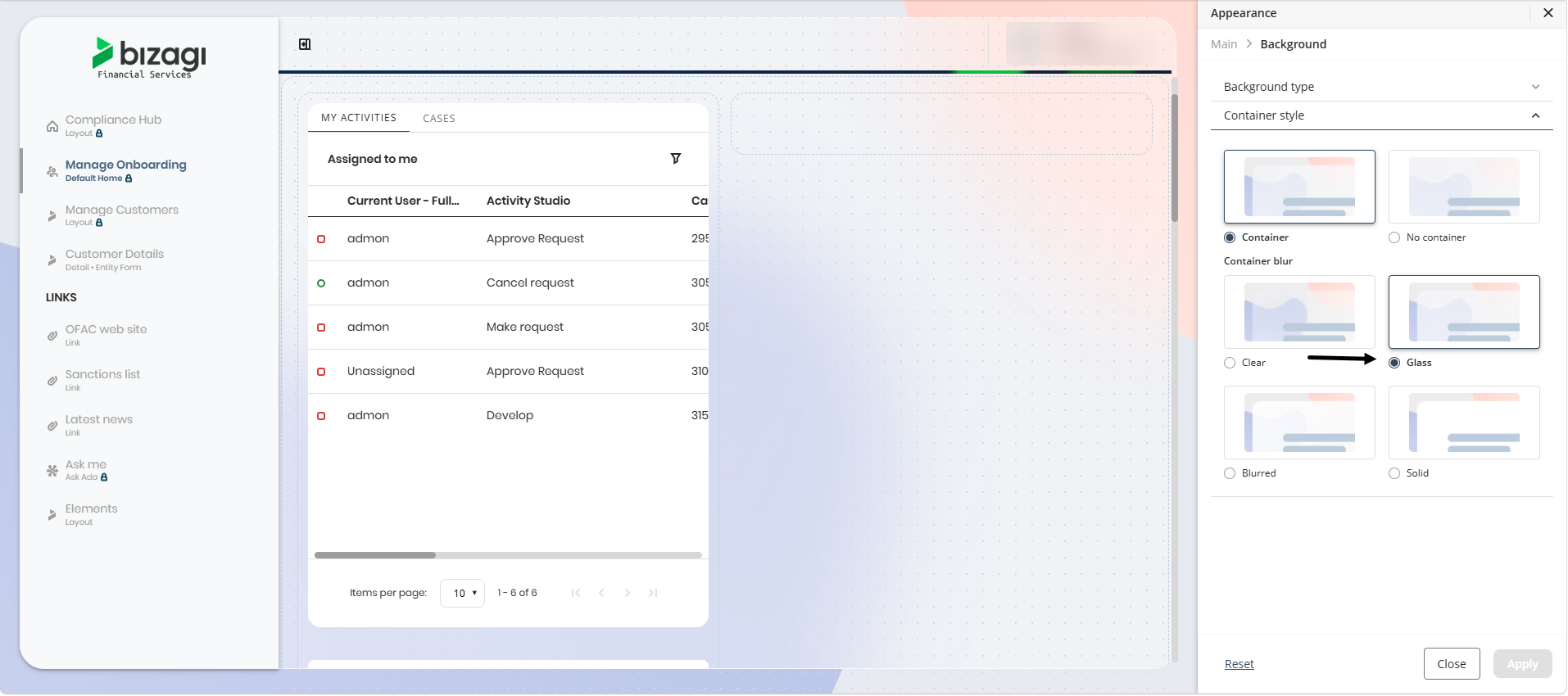
•Glass: Translucent with blur. Background content appears softened.
•Blurred: Softens background content through reduced sharpness.
•Solid: Fully opaque. Background content is hidden.
Last Updated 7/15/2026 4:32:48 PM