Overview
The Enterprise Knowledge module, located in the AI Hub section of the Management Console (MC), enables intelligent behavior through Catalog-driven learning and context-aware assistance. This sub-menu allows you to manage and monitor the status of artifacts related to the AI Agent's and AI Worker's Enterprise Knowledge configured in Studio, including viewing the status of each item, checking whether it has been processed (vectorized), and confirming its availability for use.
Additionally, this section includes the Environment category, which lets you create, edit, and delete Knowledge Base Catalogs specific to your Test and Production environments directly from the MC, complementing the Studio-based knowledge base catalogs and categories found in the File Knowledge and Bizagi Data Knowledge tabs. You can also visualize catalogs of Bizagi Data Knowledge type in the MC from the Development, Test, and Production environments.
The creation of Enterprise Knowledge implies defining the data sources that your AI capabilities will use during process execution. These sources help drive automated decisions, provide business context, and enable intelligent actions across your operations. From Studio, you can choose to configure either:
•Bizagi Files Knowledge: Connects fixed (static) knowledge like manuals, policies, or reference documents. These files are manually updated and apply to AI Agents and AI Workers. For more information about how this feature behaves in the Management Console, refer to the section Managing Bizagi Files Knowledge Catalogs for Test and Production Environments in this article.
•Bizagi Data Knowledge: Leverages historical process data so the system can learn and recognize patterns, applicable to AI Agents. This enables more contextual responses based on similar past cases, offering consolidated insights that are regularly updated to help you better understand your business environment. For more information about how this feature behaves in the Management Console, refer to the section Visualizing Bizagi Data Knowledge Catalogs in this article.
In Studio, you can distinguish between the types of Knowledge Base Catalogs by their icons in the Enterprise Knowledge tree. Catalogs of Bizagi Files Knowledge type are represented by a standard file icon, while those with Bizagi Data Knowledge type are identified by a file icon with incoming arrows.
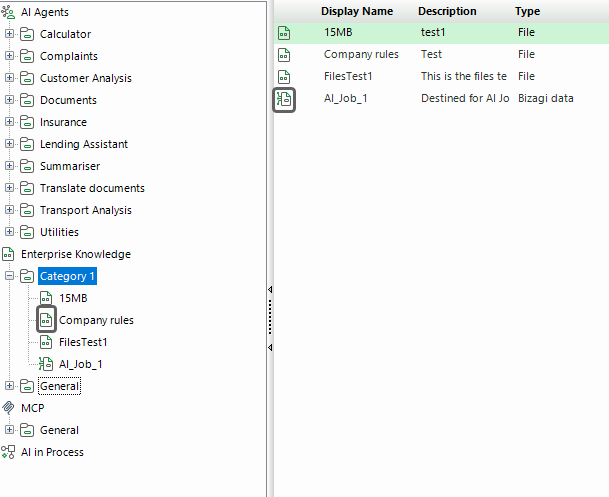
Each time a Knowledge Base Catalog of Bizagi Data Knowledge type is created, an AI Job is automatically added.
|
Initial Considerations:
•Any updates to artifacts or Knowledge Base Catalogs require appropriate handling through the MC interface and may involve deployments to ensure the changes are reflected across environments. •Take into account that Bizagi's Management Console is used to manage Test and Production environments. •The documents listed in this section appear as a result of a .bex or .btex import. See How to generate a deployment package for more information. |

Enterprise Knowledge contents overview
The Enterprise Knowledge module displays both types of Knowledge Base configurations defined in Studio: Bizagi Files Knowledge and Bizagi Data Knowledge.
For each section, you can view the list of all registered artifacts organized by the categories defined in Studio. When you expand a category and select a specific artifact from a Knowledge Base Catalog, a table appears showing detailed information about that artifact. Each row in the table represents an individual artifact entry and includes the following details:
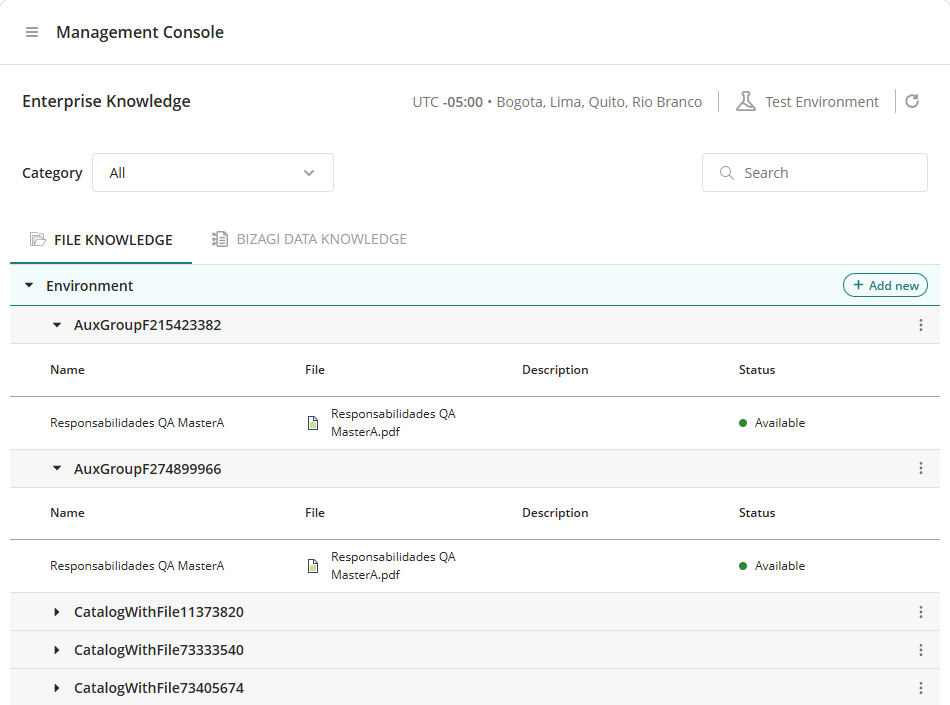
Column |
Description |
|---|---|
Name |
The title or identifier assigned to the artifact within the Knowledge Base Catalog. |
File |
The file associated with the artifact, typically indicating the type and format. |
Description |
A brief description or label that helps identify the purpose or content of the file. |
Status |
The current availability of the artifact. |
Artifact statuses
The Enterprise Knowledge module displays the processing status of each artifact to help you track its readiness and availability in the AI Agent's and/or AI Worker's Knowledge Base Catalog. These statuses reflect the stage of the vectorization process that transforms artifacts into structured knowledge usable by AI services.
Status |
Description |
|---|---|
ToLoad |
File has been uploaded but not yet saved. |
ToProcess |
The artifact has been imported but has not yet started the vectorization process. It is in a pending state and will require processing before it can be used by any AI service. |
Processing |
The artifact is currently undergoing vectorization. This means the system is extracting and structuring the information to make it usable by AI agents. The artifact will be marked as "Available" once the process is complete. |
Available |
The artifact has been successfully processed and is now available in the AI Agent’s Knowledge Base catalog. It can be queried and used by AI Agents as part of their intelligent behavior. |
Failed |
Processing failed. A retry option is available to attempt processing again. |
Unknown |
Document is in an unidentified or unexpected state. |
Managing Bizagi Files Knowledge Catalogs in Test and Production Environments in the MC
The Environment category, available in the File Knowledge tab, allows you to create, edit and delete Knowledge Base Catalogs specific to your Test and Production environments directly from the MC.
Creating a New Knowledge Base Catalog in the Environment Category
To add a new Knowledge Base Catalog to the Environment category:
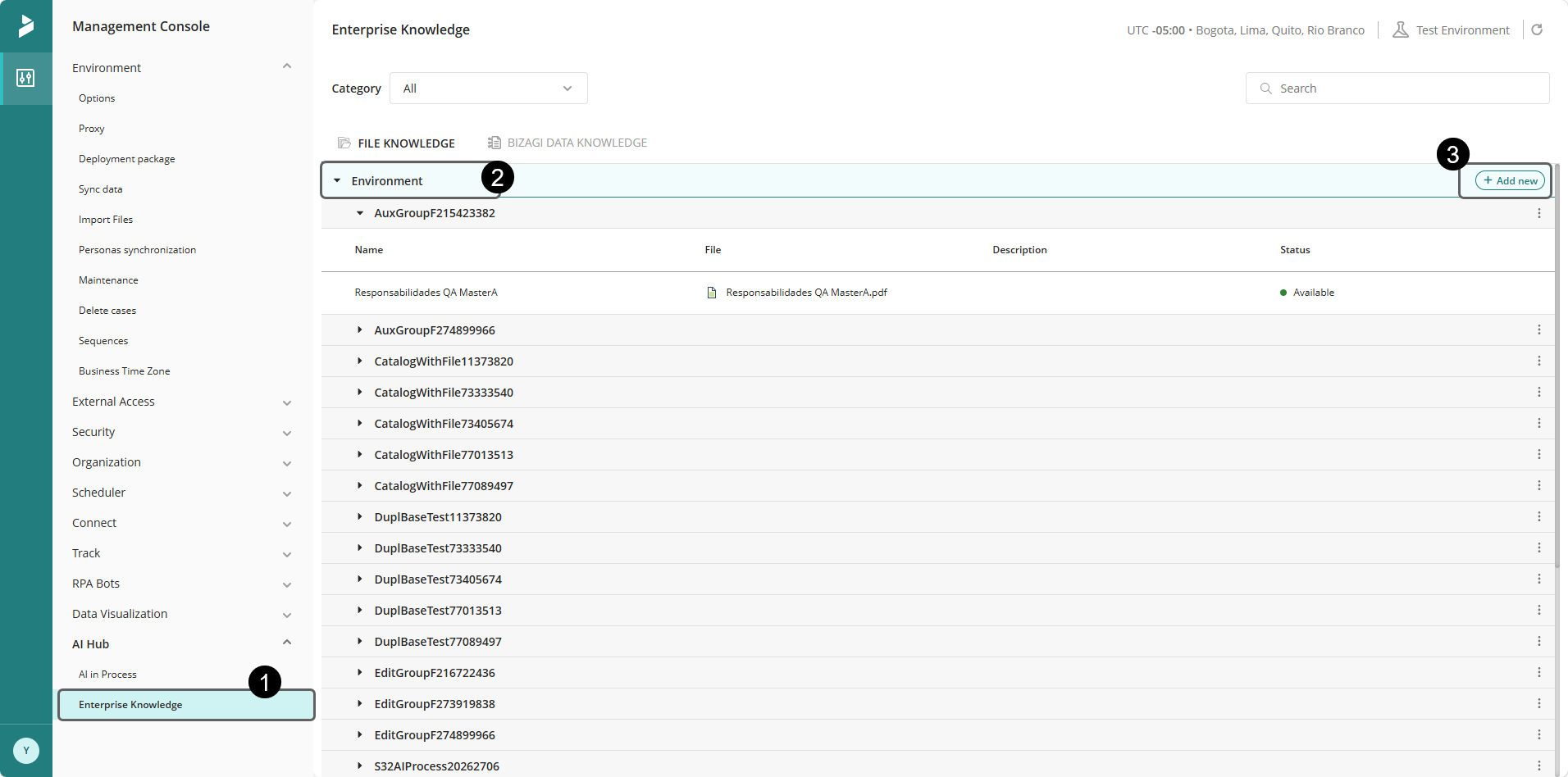
1.Go to AI Hub and select the Enterprise Knowledge submenu.
Note: To use this feature, you must be in either the Test or Production environment within the Management Console. Files uploaded to the Environment category are exclusive to the selected environment and are not synchronized with Bizagi Studio.
2.Go to the File Knowledge tab and select the Environment category.
3.Click the Add new button.
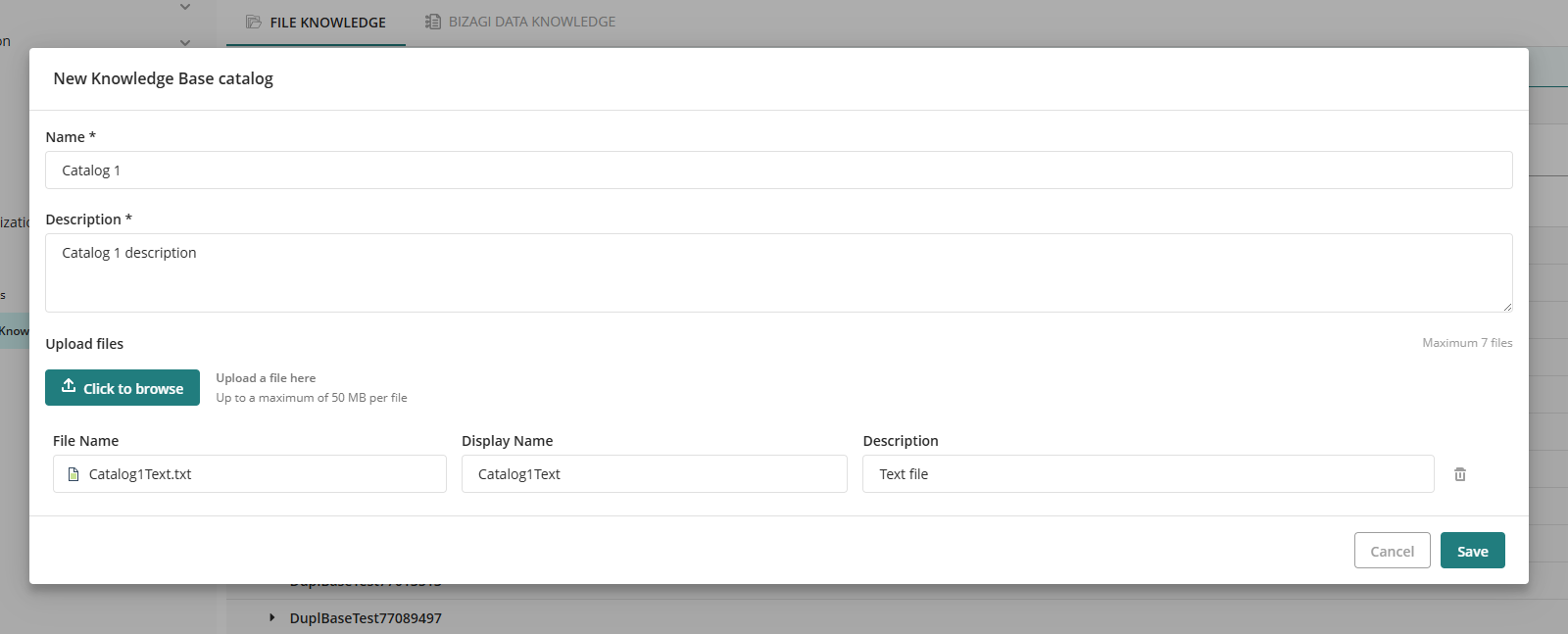
4. Fill-in the required fields in the pop-up window. Uploaded files are validated to ensure:
•File names are unique within the Knowledge Base Catalog.
•Proper file size (up to 50 MB per file).
•Supported formats (.docx, .pdf, .xlsx).
•Maximum of 7 files per Knowledge Base Catalog.
5. Click Save.
6. The status of the processing of the files will initially be displayed as To Process and will change to Processing during the vectorization process.
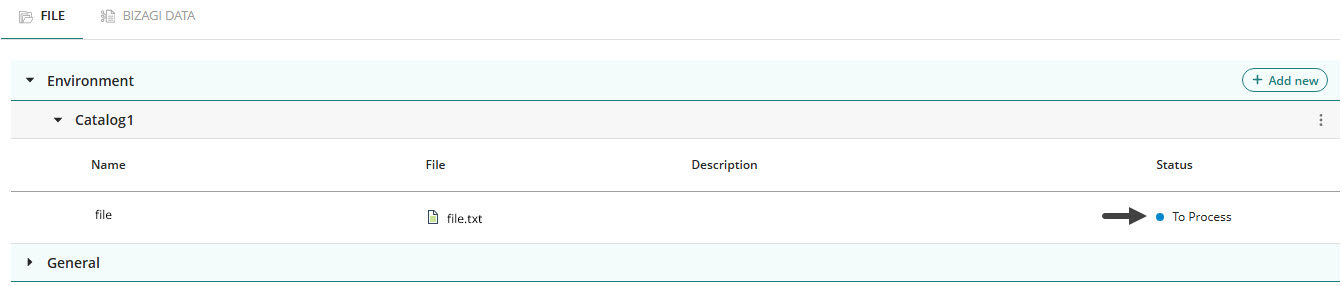
If successful, the status will then change to Available; otherwise, it will change to Failed. To update or check the status of your documents, there's an icon in the top right corner of the MC's screen, click it to refresh the status.
|
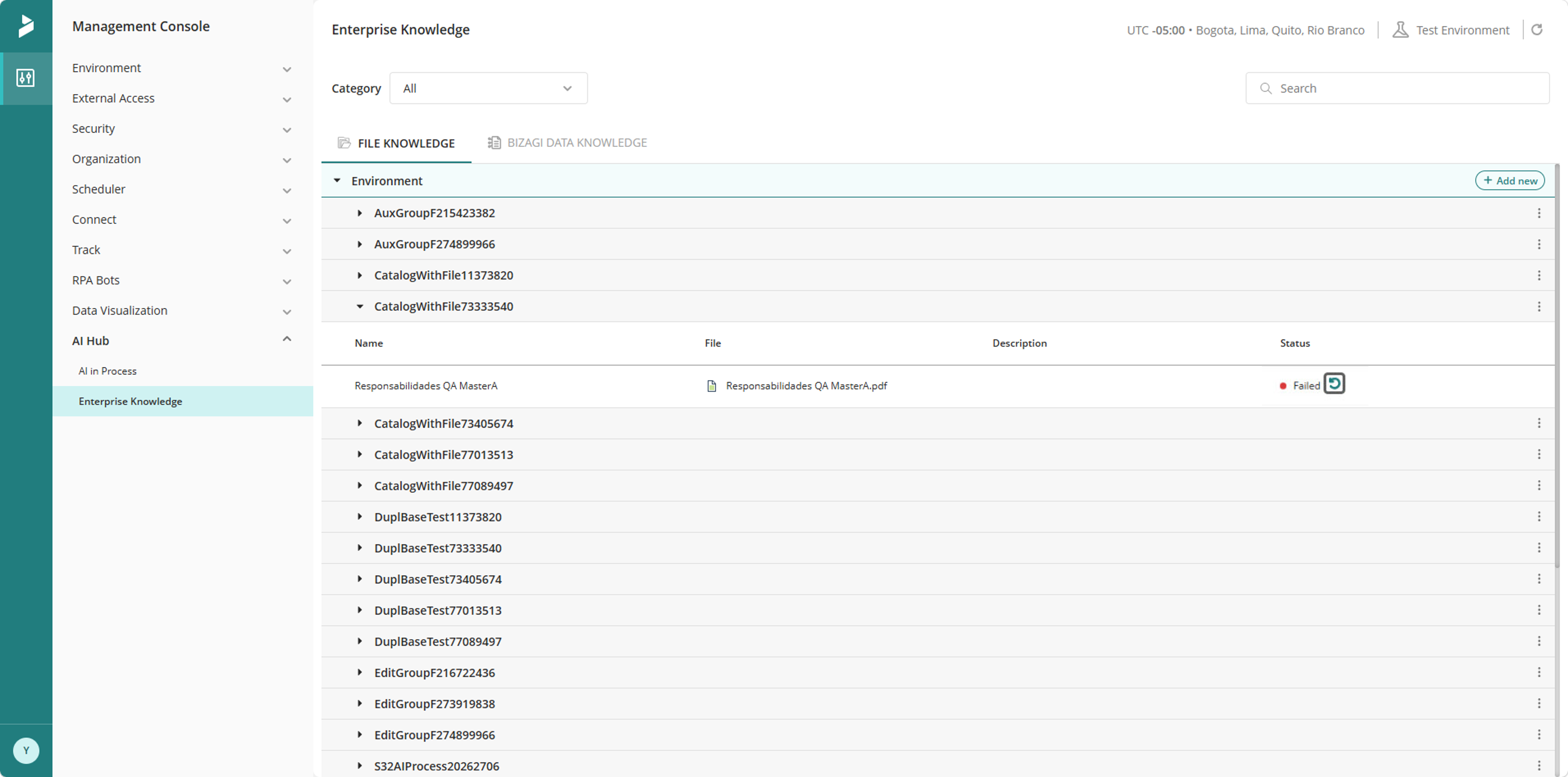
If a file cannot be processed, the system will display a Failed status. Click the retry icon next to the Failed item to attempt vectorization again.
The status will then change to In Process, indicated by a yellow icon.
Wait until the process completes, then reload the page to verify whether vectorization was successful. If the error persists, review the Tracing option for more details or contact support for further analysis. |
7. Once your Catalog is ready, you can associate it with the desired node in the AI in Process menu.
Editing a Knowledge Base Catalog in the Environment Category
To modify an existing Knowledge Base Catalog, click the three-dot icon next to it and select Edit. You can update the name or description, and also add, remove, or replace its files as needed.
Deleting a Knowledge Base Catalog in the Environment Category
To delete an existing Knowledge Base Catalog, click the three-dot icon next to it, select Delete, and then confirm the deletion.
Note: Knowledge Base Catalogs cannot be deleted if they are still referenced by AI in Process. The next section in this article provides instructions on how to manage references prior to deletion.
Managing References Prior to Knowledge Base Catalog Deletion
You need to remove references to a Knowledge Base Catalog before deleting it permanently from the system. Follow these steps to ensure proper removal:
1.Navigate to the AI Hub section and select AI in Process.
2.Identify any processes that are currently using the Knowledge Base Catalog you want to delete.
3.Deselect the Knowledge Base Catalog from each process.
4.Go to the Enterprise Knowledge submenu within the AI Hub and click the File Knowledge tab.
5.Proceed with the deletion of the Knowledge Base Catalog.
|
Important Considerations:
•Unlike in Studio, it will not be possible to create new categories in the Management Console. There is only one category called Environment and new catalogs can be generated from this category. •Files uploaded to the Environment category are not synced with Studio; they belong only to the Test or Production environment. •In the Development environment, Knowledge Base Catalogs are managed only from Studio and are not displayed in the MC. •For Test and Production environments, after deployment, imported information is displayed in read-only mode in the MC. Only content in the Environment category is editable in the MC. •You can use Knowledge Base Catalogs from categories configured in Studio and Knowledge Base Catalogs in the Environment category of the MC in the same process. |
Visualizing Bizagi Data Knowledge Catalogs in the MC
You can visualize the vectorization and execution status of deployed Bizagi Data Knowledge type catalog from Studio within the Management Console (MC), providing complete visibility into the processing of historical data for AI capabilities. This feature is available in all environments: Development, Test, and Production.
You can navigate up to four hierarchical levels—Category, Knowledge Base Catalog, Entity, and Subset—while managing multiple entities with flexibility.
Filtering Bizagi Data Knowledge Catalogs by a specific category
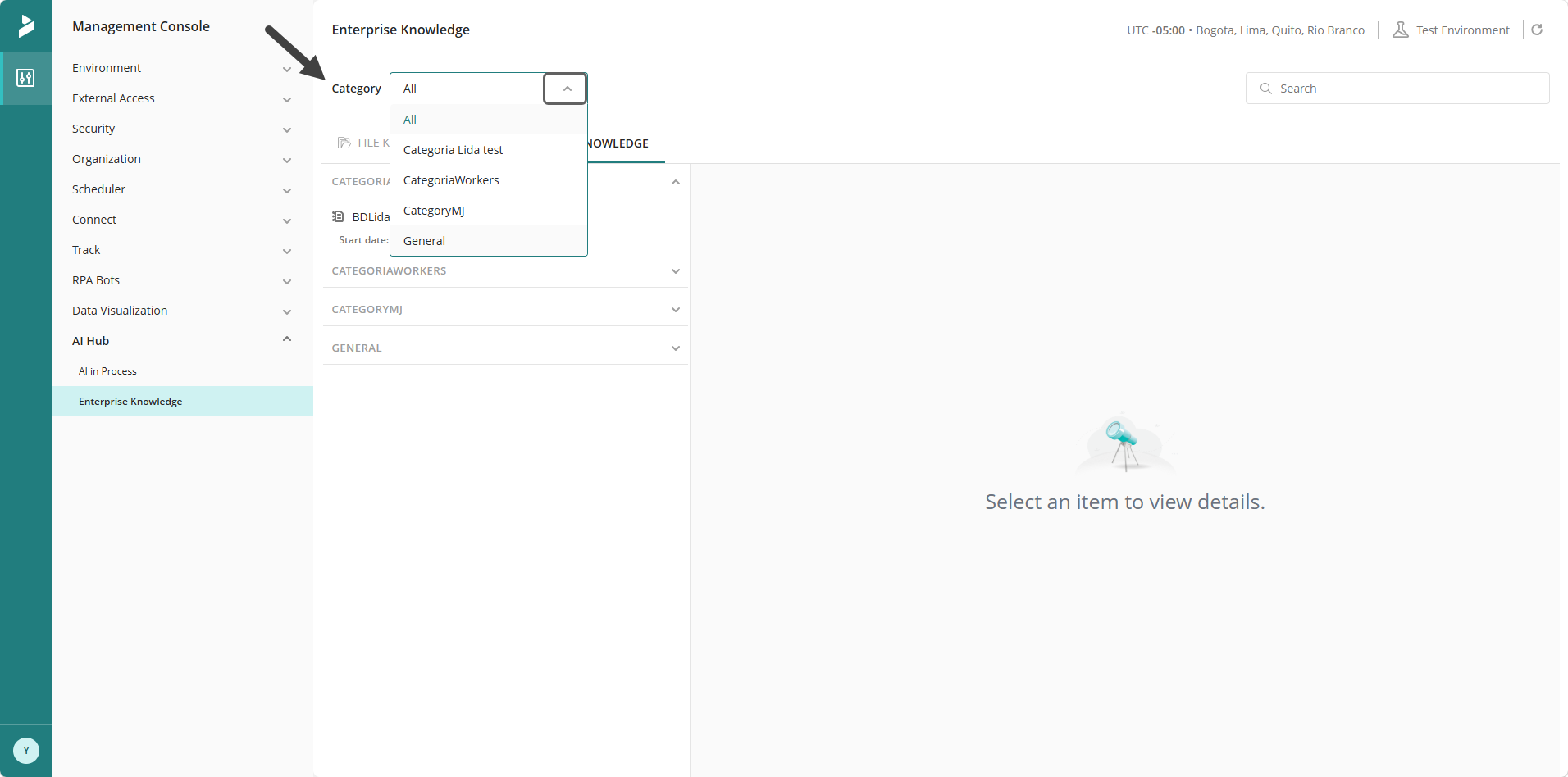
To focus on a particular set of data, you can filter Bizagi Data Knowledge type catalog by selecting a specific category. Locate the category dropdown menu above the table and choose the desired category. The table will then display only the Bizagi Data Knowledge artifacts that match your selection.
Bizagi Data Knowledge Catalog search
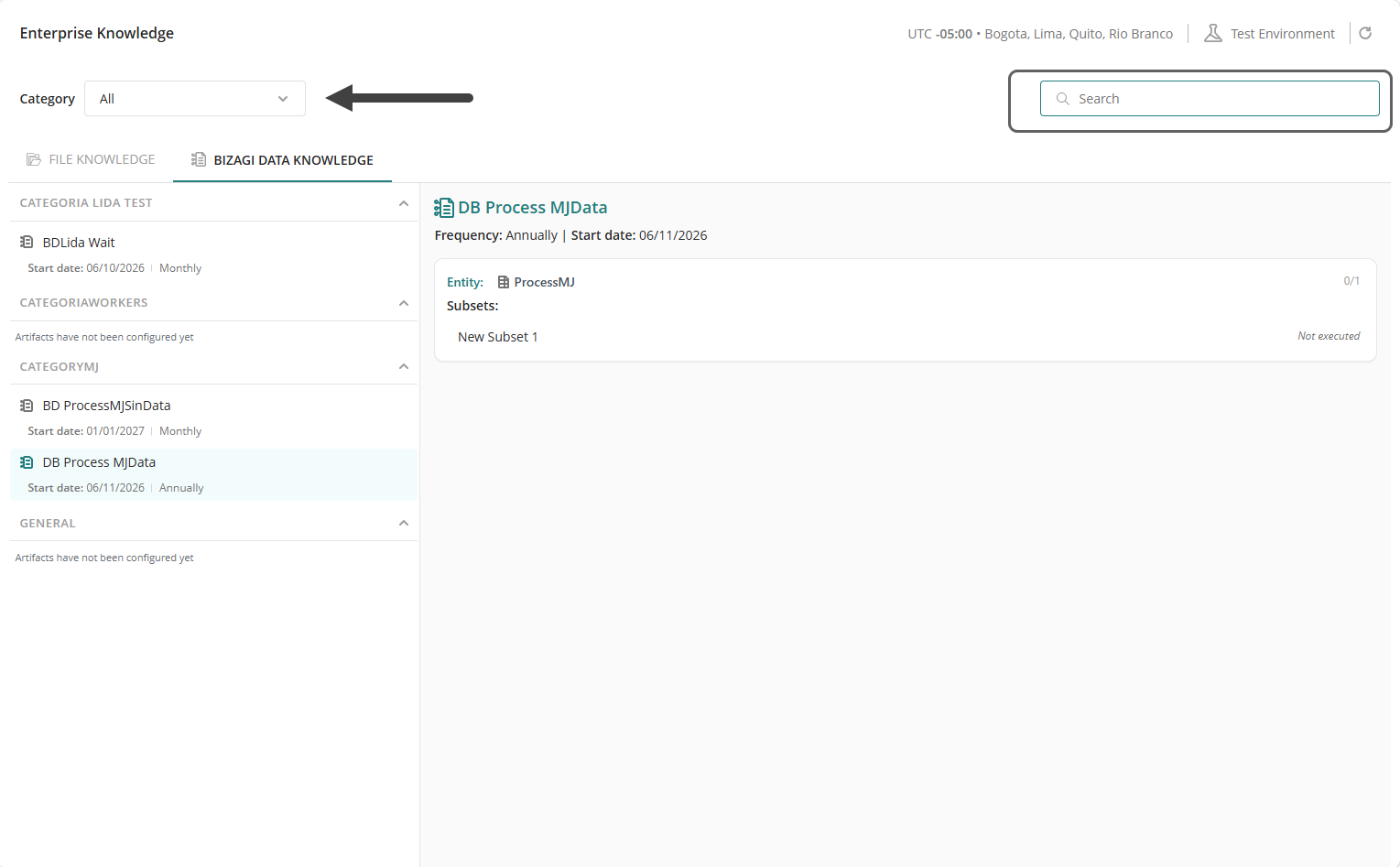
To find specific Bizagi Data Knowledge items by name, enter text into the search field located at the top right of the screen, above the table. The table will display results that match either category names or Bizagi Data Knowledge items.
Note: When performing a search, the category automatically changes to All.
Checking the status of Bizagi Data Knowledge Catalog artifacts
You can check the status of all configured Bizagi Data Knowledge artifacts to monitor the vectorization process and detect potential errors as follows:
1.In the Management Console, go to AI Hub.
2.Select the Enterprise Knowledge submenu.
3.Click the Bizagi Data Knowledge tab. Expand a category to see the associated Bizagi Data Knowledge items.
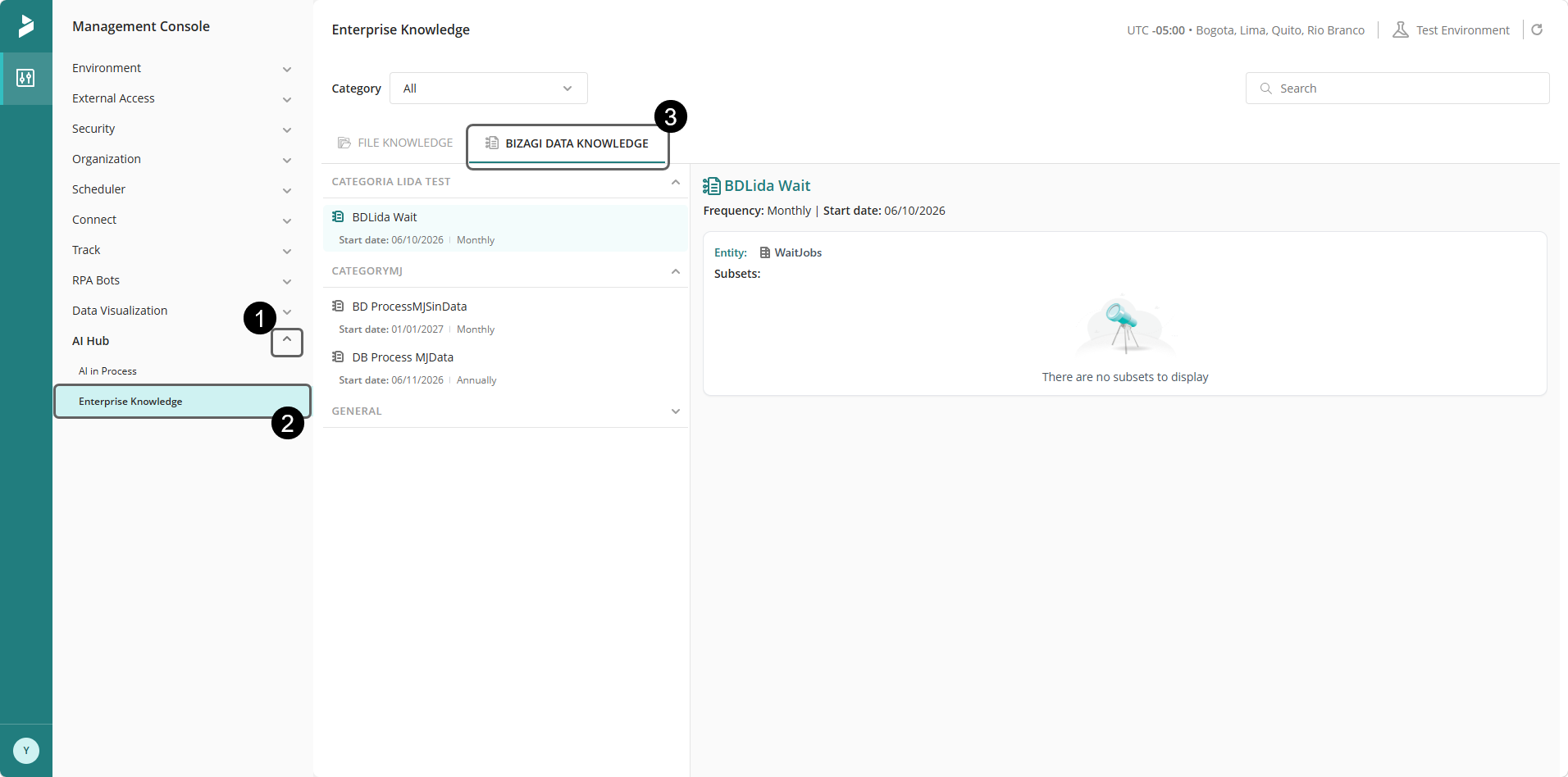
4. Review the status of each item under the Status column in the table.
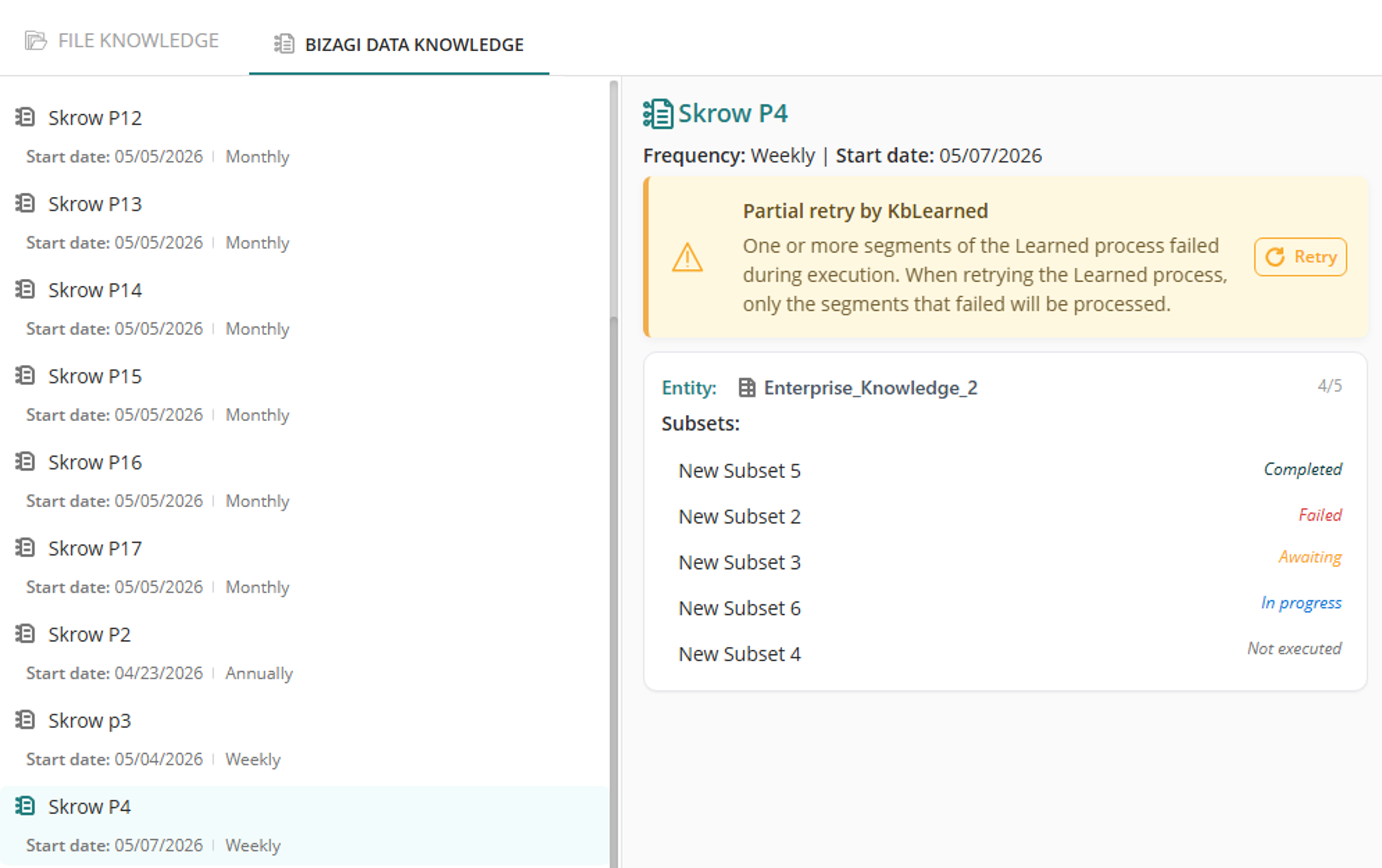
The following are the possible states for a Bizagi Data Knowledge item:
•Completed (Green): indicates that vectorization and execution were successful. No additional actions are required.
•Awaiting (Yellow): indicates that vectorization is pending.
•In progress (Blue): indicates that vectorization is currently underway. No actions are available while processing is ongoing.
•Failed (Red): indicates that the process has failed. A retry option to attempt processing again is available in the message shown on the catalog information, as described in the following section.
•Not executed (Gray): indicates that the Scheduler has not run for this item yet, typically because the Start Date has not been reached or it has not been executed for the first time. The default status remains Not executed in this state, and no actions are available until the Scheduler is initiated.
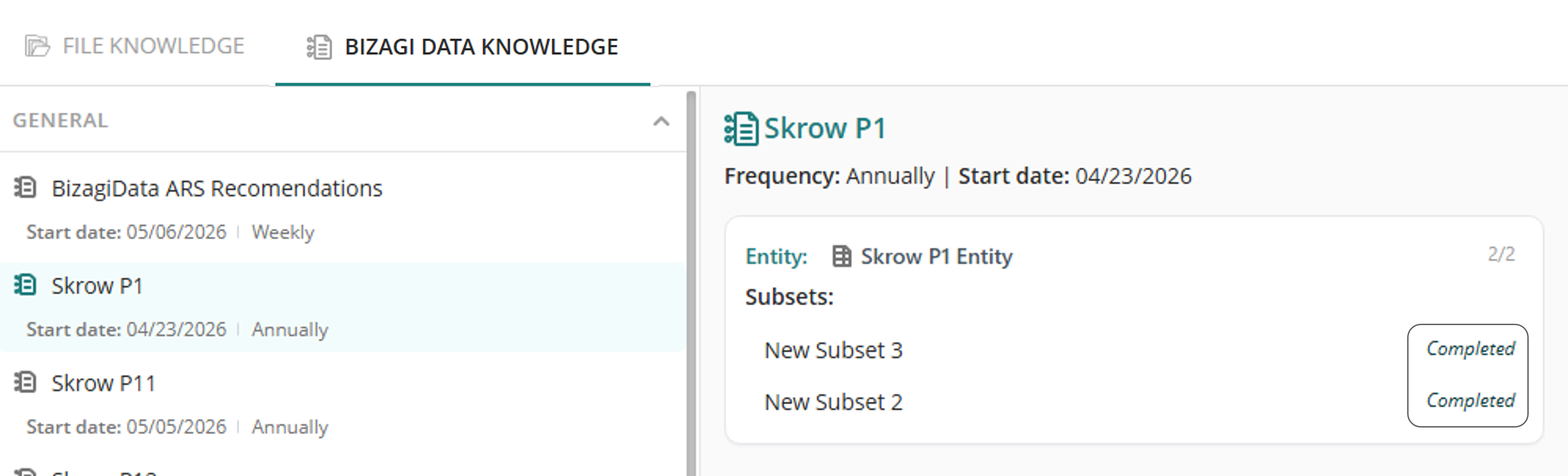
When a catalog has associated subsets and all execution are successful, the system shows each subset with Completed status.
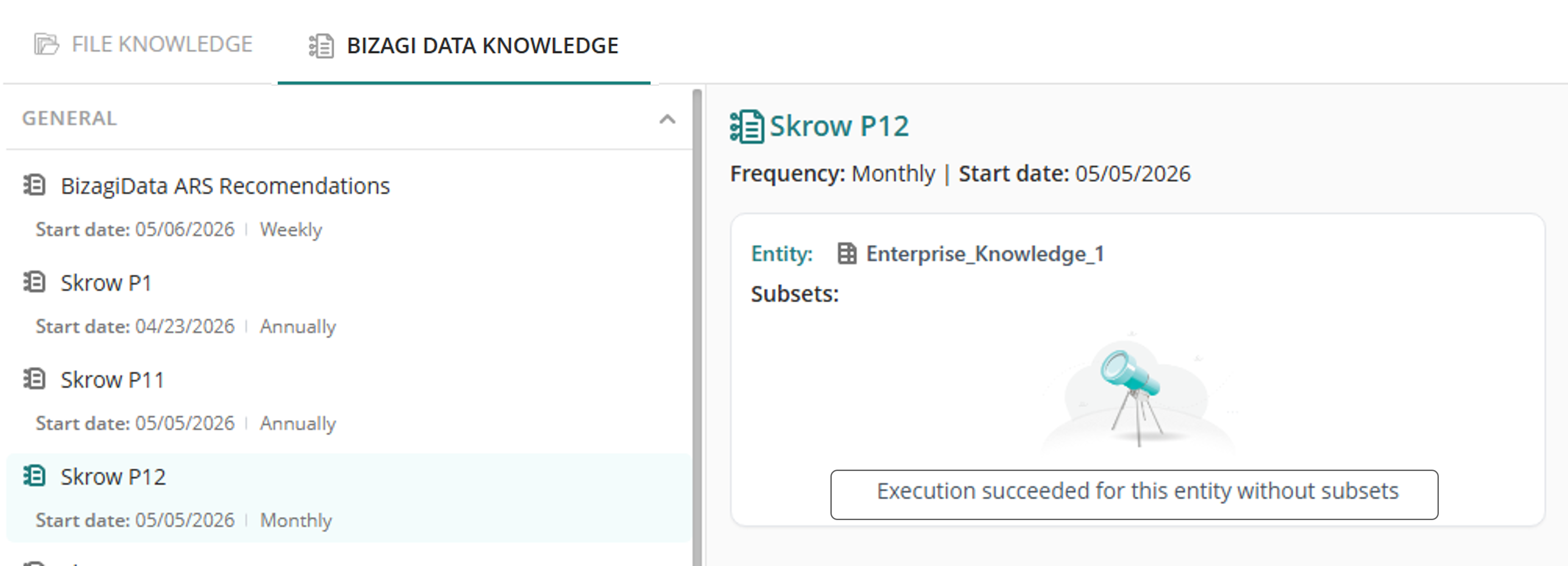
When a catalog is successfully executed but it has no associated subsets, the entity associated with the catalog is shown and a confirmation message is displayed below.
If a catalog contains multiple subsets and one or more of them are deleted after a successful execution, the system identifies the affected subsets in the list. These subsets will be removed after the next execution.
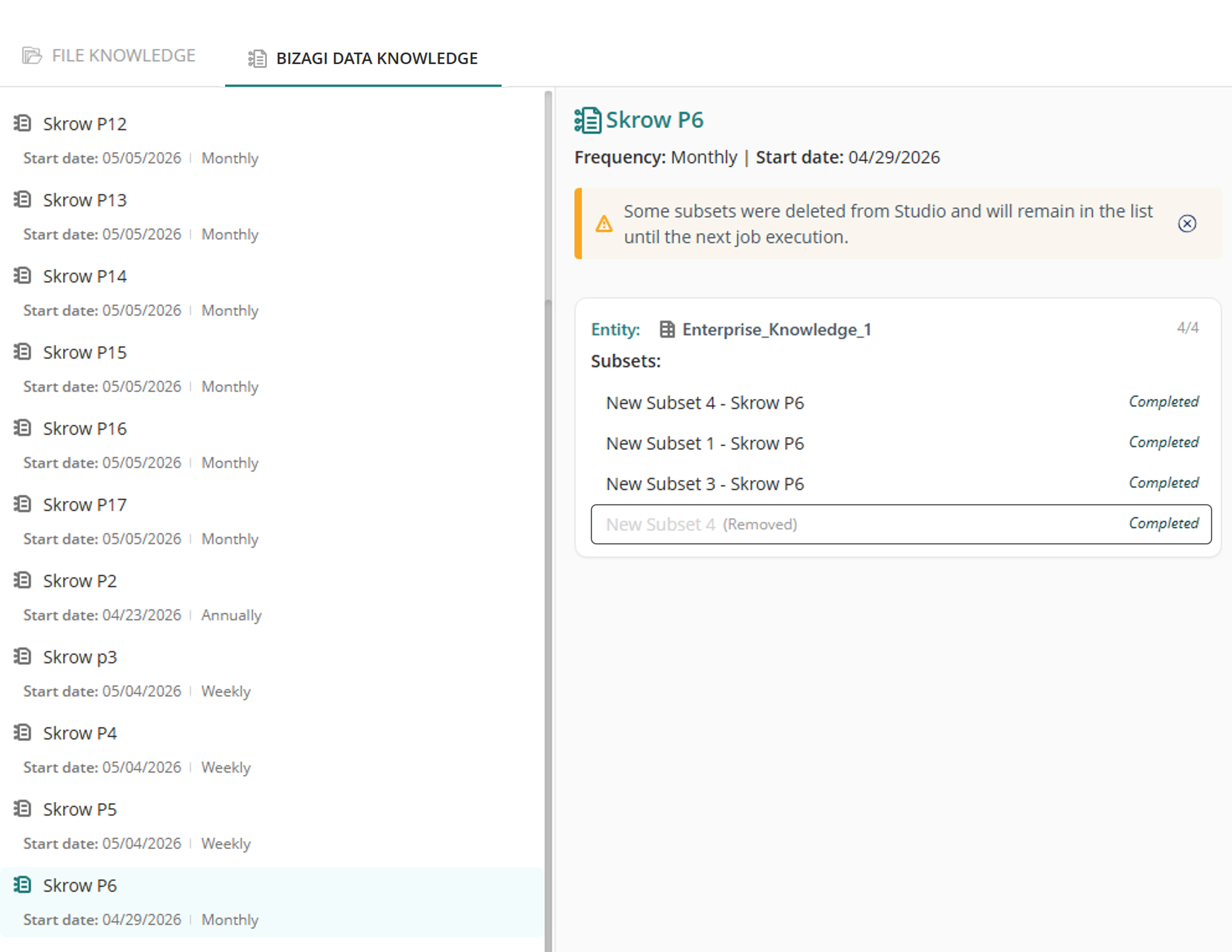
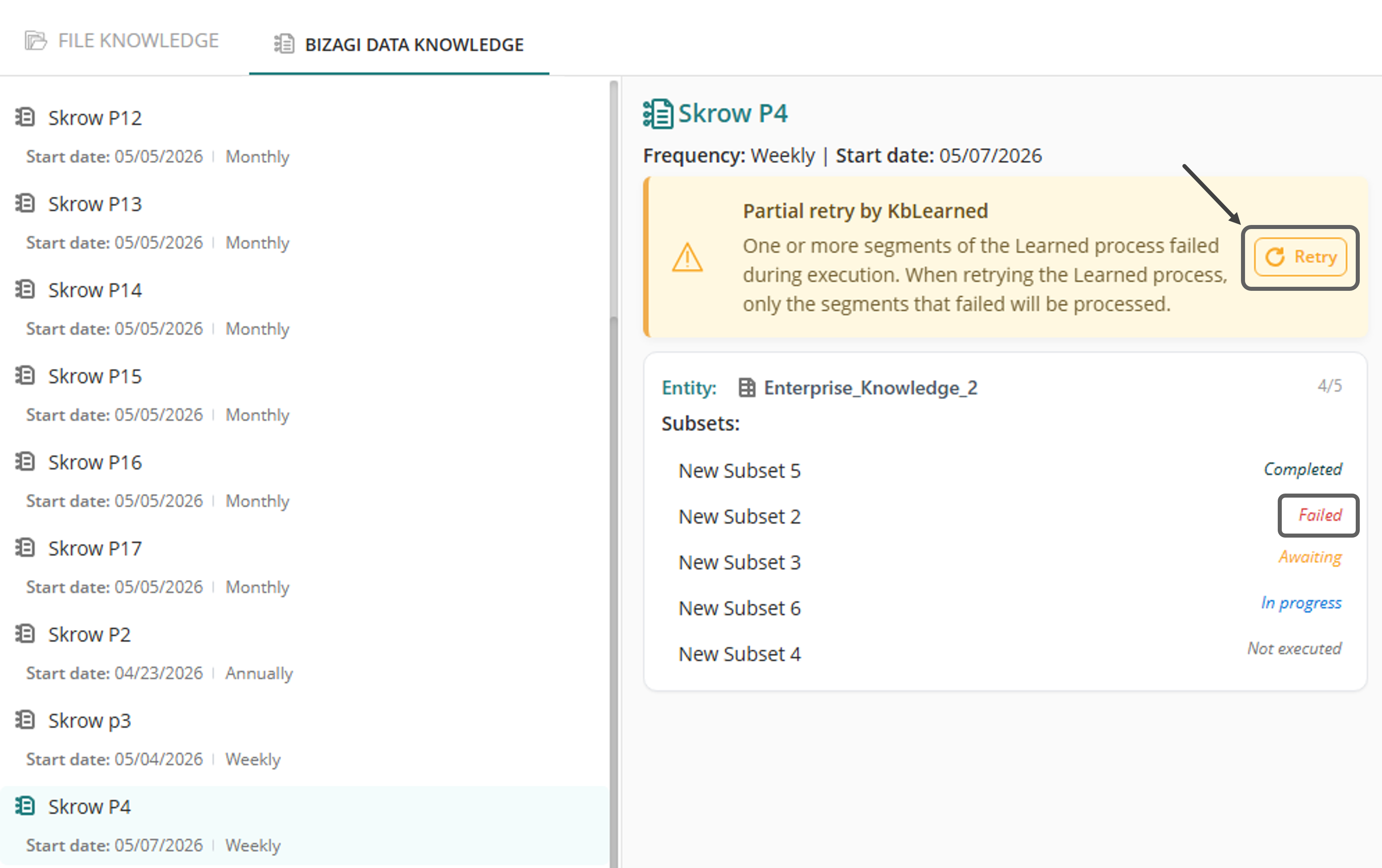
If the execution of one or more items within a Bizagi Data Knowledge catalog fails, you can retry the process to recover data processing without needing to reconfigure it in Studio.
If the failed item is a subset, a list of subsets is displayed. Identify the subset with the Failed status, then click the retry icon in the message. The status will change to In progress. Wait for the process to complete, and then refresh the page to verify whether the execution was successful.
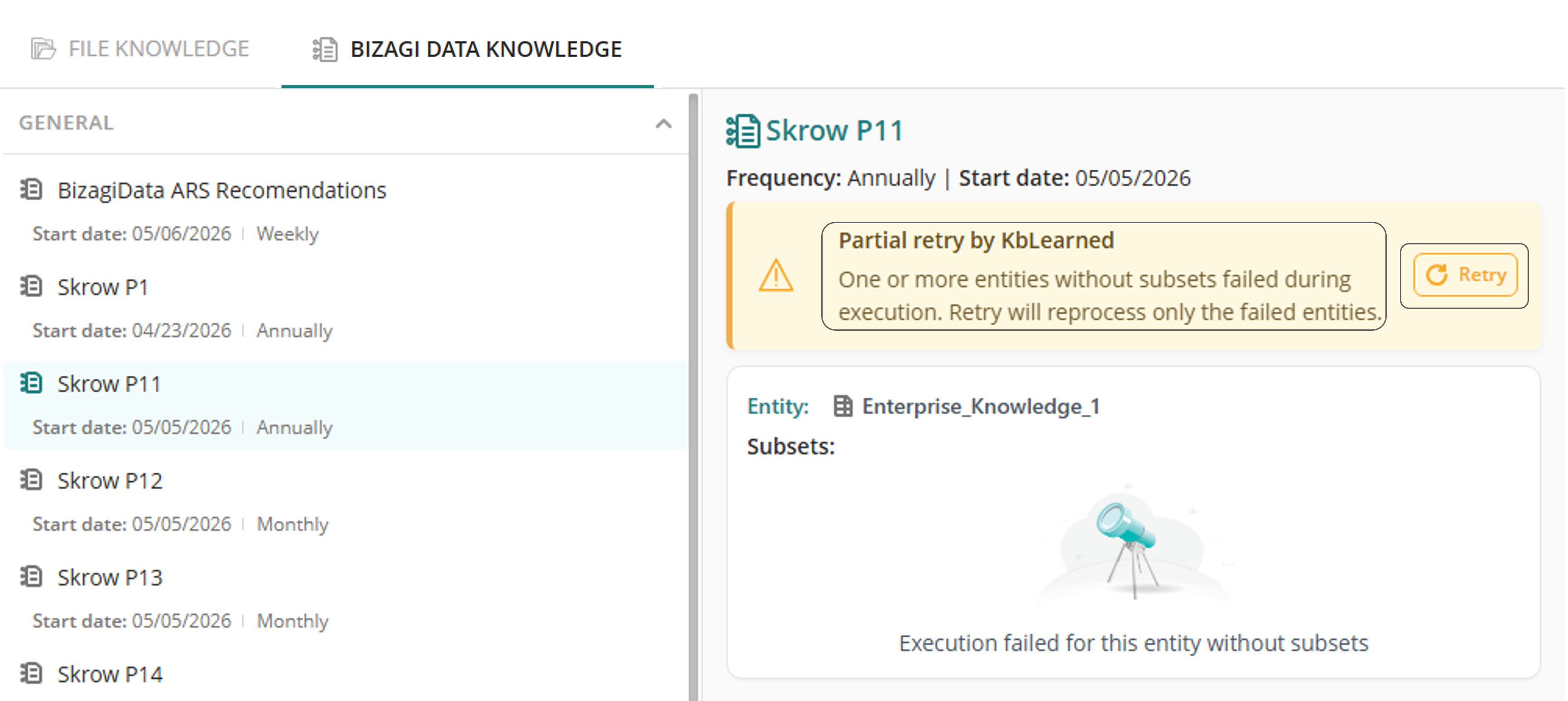
If the catalog processing fails and no subsets are associated with it, the system displays an error message indicating the failure and the related entity. To retry the operation, click Retry.
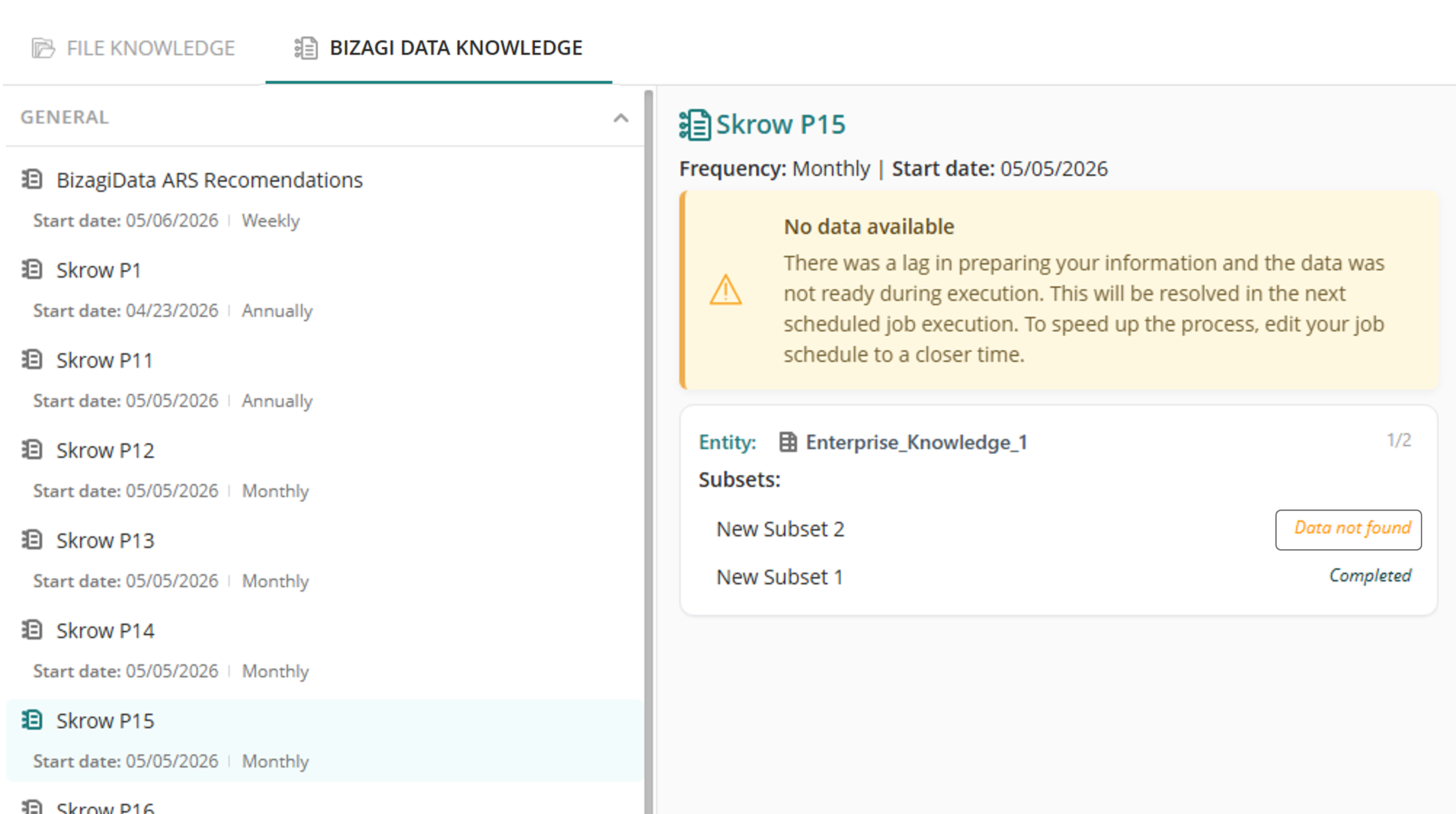
If vectorization fails because one of the processed subsets contains no data, the system displays a list of subsets. Identify the subset with the no data found status. To resolve the issue, the process must be scheduled and executed again after the required data becomes available.
If vectorization fails in a catalog without subsets, the system displays an error message indicating the failure and the associated entity that contains no data. To resolve the issue, the process must be scheduled and executed again after the required data becomes available.
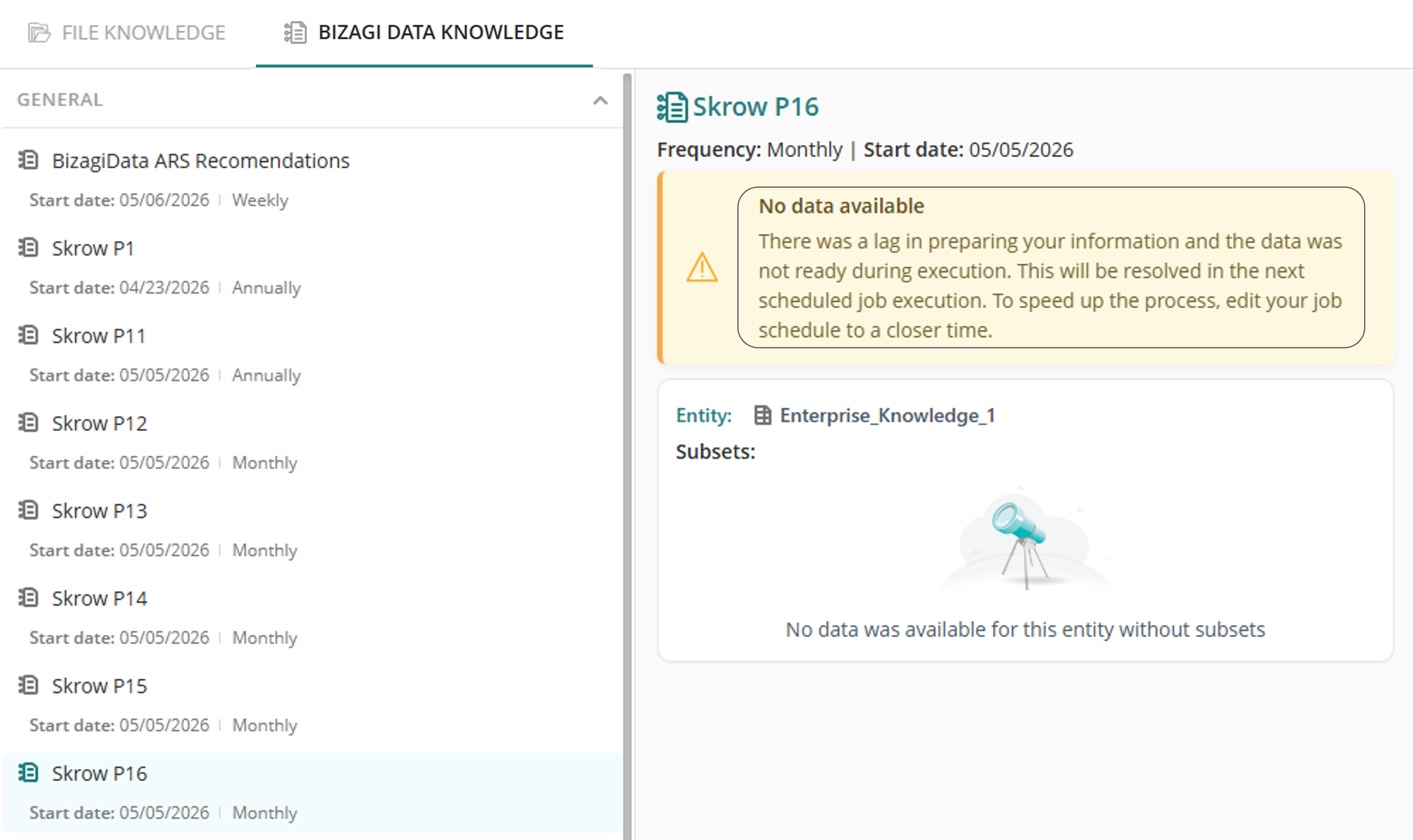
Wait for the process to complete, then reload the page to check if it was successful.
|
Additional Considerations:•All information is read-only, Bizagi Data Knowledge items cannot be created or deleted from MC. •You can modify Data Sync settings for Bizagi Data Knowledge from the Management Console in the AI Jobs sub-menu. •When restoring a backup or project, the vectorial database is not included in the restoration process—only the main database is backed up. As a result, any previously vectorized data will be cleared, and you will need to re-initiate the vectorization process manually. |
Last Updated 7/19/2026 12:31:41 PM