Overview
Single Sign-On (SSO) configurations that use SAML 2.0 require periodic maintenance to ensure uninterrupted authentication.
When Bizagi is integrated with an Identity Provider (IdP) through SAML 2.0, the authentication process uses certificates configured in the IdP. These certificates can change because of expiration, renewal, replacement, or revocation.
The most common IdP certificates are:
•IdP signing certificate, used by the IdP to sign SAML assertions and authentication responses sent to Bizagi.
•IdP encryption certificate, used when SAML messages sent to the IdP are encrypted.
It is your responsibility to monitor the expiration date of the certificates used by your IdP. For example, if you are using Azure AD, you can review the certificate details and expiration date in the Azure portal.
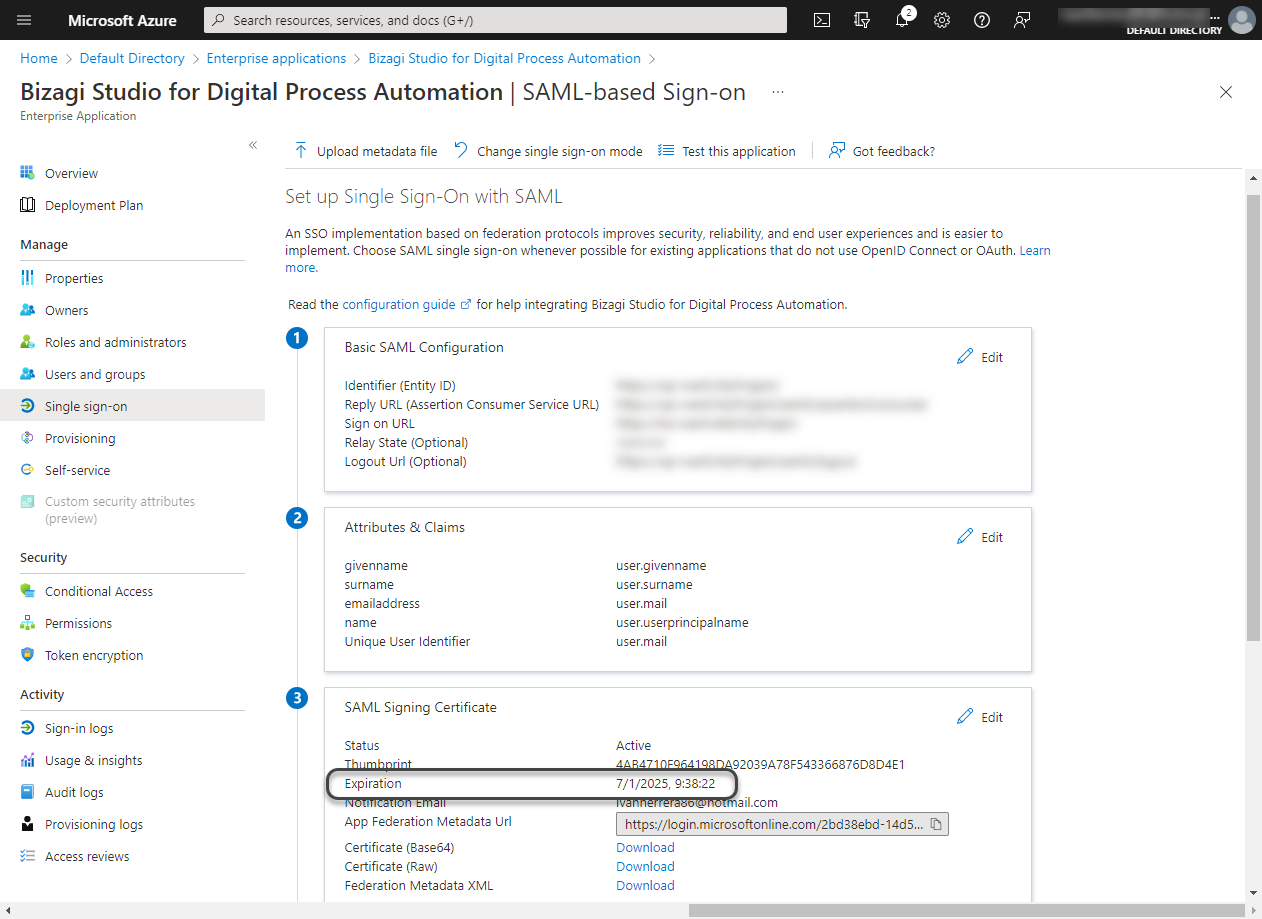
Maintenance tasks when an IdP certificate changes
When an IdP certificate changes, the actions required in Bizagi depend on how the IdP metadata was configured.
To verify the current configuration:
1.In the Customer Portal, go to Settings > Security > Authentication Protocols.
2.Open the SAML authenticator.
3.In the Identity Provider Metadata file section, verify how the metadata was configured:
•Paste URL
•Paste XML
•Upload file
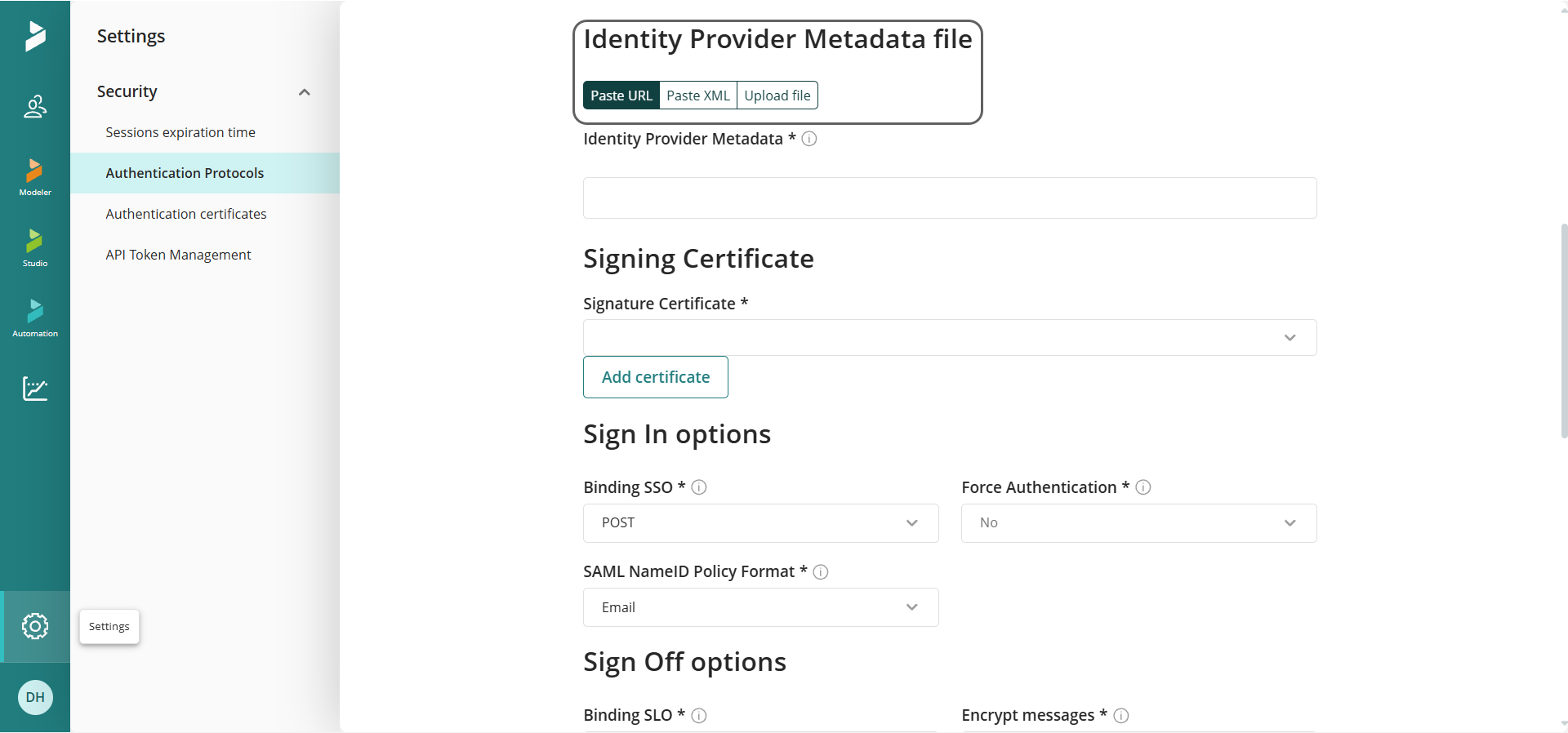
Metadata configured using Paste URL
If the configuration uses Paste URL, Bizagi retrieves metadata from the IdP URL. After the IdP updates its metadata, Bizagi uses the updated certificate automatically.
No additional action is required in Bizagi, provided that the IdP metadata available at the configured URL has already been updated.
Metadata configured using Paste XML or Upload file
If the configuration uses Paste XML or Upload file, Bizagi cannot automatically retrieve updated metadata.
In this scenario:
1.Download the updated metadata from the IdP.
2.Return to Settings > Security > Authentication Protocols.
3.Open the corresponding SAML authenticator.
4.Replace the existing metadata with the updated metadata from the IdP.
5.Save the changes.
Considerations
•When an IdP signing certificate or IdP encryption certificate is renewed, update the IdP metadata configured in Bizagi unless the authenticator uses the IdP metadata URL.
•If metadata is configured through Paste URL, Bizagi retrieves certificate updates automatically from the IdP metadata.
•Authentication failures often occur when a certificate is updated on one side and the corresponding metadata or certificate configuration is not updated on the other side.
•If multiple authenticators or applications are configured, always verify that the metadata is updated in the corresponding authenticator and IdP application.
Last Updated 10/1/2026 2:34:38 PM