Overview
Single Sign-On (SSO) configurations that use SAML 2.0 require periodic maintenance to ensure uninterrupted authentication.
When Bizagi is integrated with an Identity Provider (IdP) through SAML 2.0, Bizagi can use certificates to sign SAML requests and support assertion encryption.
The most common Bizagi certificates are:
•Bizagi signing certificate, used by Bizagi to sign SAML requests sent to the IdP.
•Bizagi encryption certificate, used when SAML assertions sent by the IdP are encrypted before being delivered to Bizagi.
These certificates can be renewed before their expiration date or replaced because of a security policy, certificate revocation, or other administrative requirements.
Unlike IdP certificates, which are updated through IdP metadata, Bizagi certificates require changes in the Bizagi configuration when they are renewed or replaced.
Review your SAML configuration to determine whether you maintain the signing certificate, the encryption certificate, or both.
It is your responsibility to monitor the expiration date of these certificates and replace them before they expire.
Bizagi signing certificate
The Bizagi signing certificate is used to sign SAML requests sent from Bizagi to the IdP.
Some IdPs validate the signature of SAML requests sent by Bizagi. If signature validation is enabled, update the Bizagi metadata or upload the new signing certificate in the IdP after renewing the certificate.
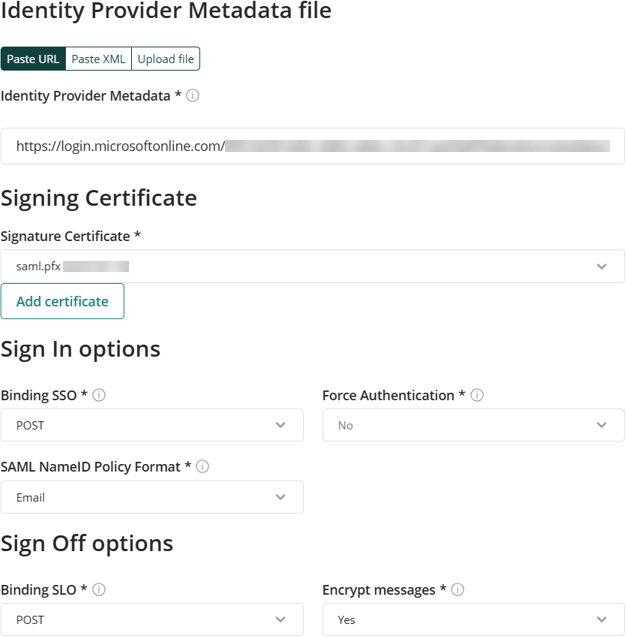
The following image shows the signing certificate configured in the SAML authenticator.
Bizagi encryption certificate
When assertion encryption is enabled, the IdP uses the Bizagi encryption certificate to encrypt SAML assertions before sending them to Bizagi.
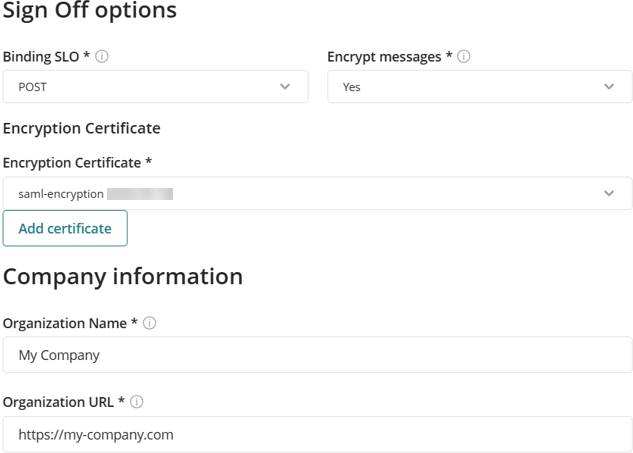
The following image shows the encryption certificate configured in the SAML authenticator.
Update certificates in Bizagi
Before the certificates expire, generate new certificates using the Customer Portal authentication certificates option (recommended), OpenSSL, or another suitable tool.
To update a certificate:
1.Generate the new signing and encryption certificates.
2.Update the certificates in Bizagi:
a.For the Development environment, use Bizagi Studio.
b.For Test and Production environments, use the Management Console.
3.Verify that the updated certificates are selected in the Customer Portal.
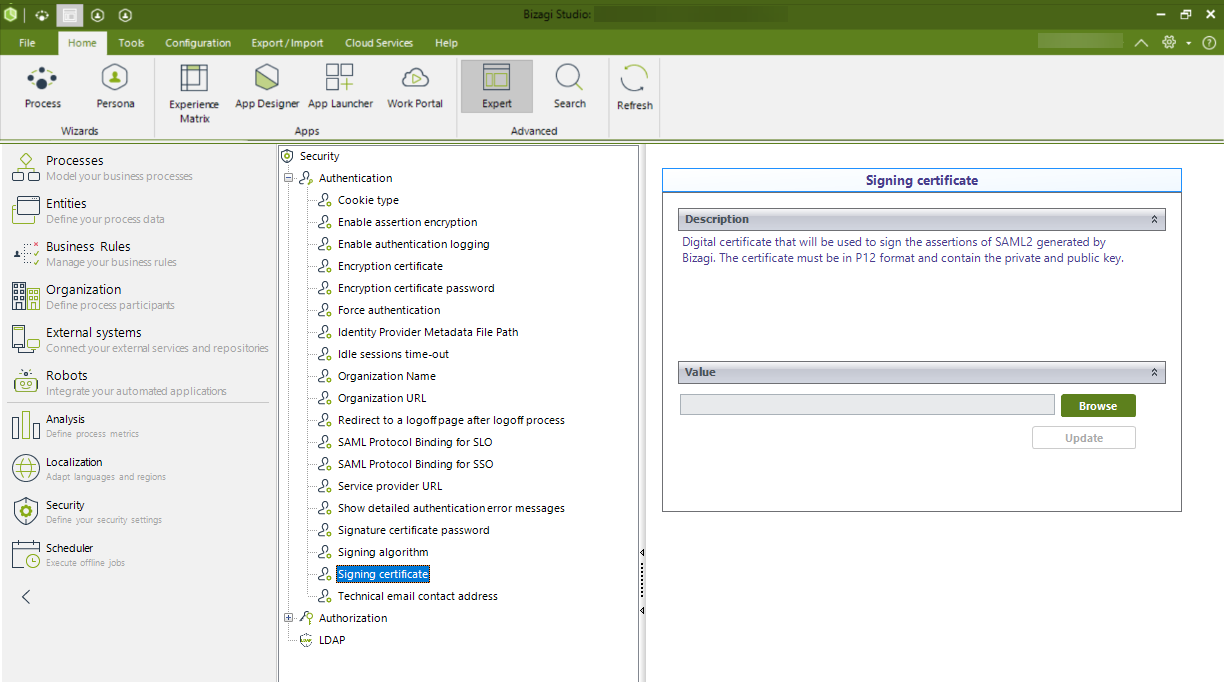
Development environment (Bizagi Studio)
1.Open Bizagi Studio.
2.Go to the Expert view.
3.Expand Security > Authentication.
4.Verify that Federated Authentication with SAML v2.0 is configured.
5.Select Signing certificate or Encryption certificate.
6.Browse for and upload the new P12/PFX certificate.
7.Select Signature certificate password or Encryption certificate password.
8.Enter the password defined for the new P12/PFX certificate.
9.Click Update to save the changes.
Test and Production environments (Management Console)
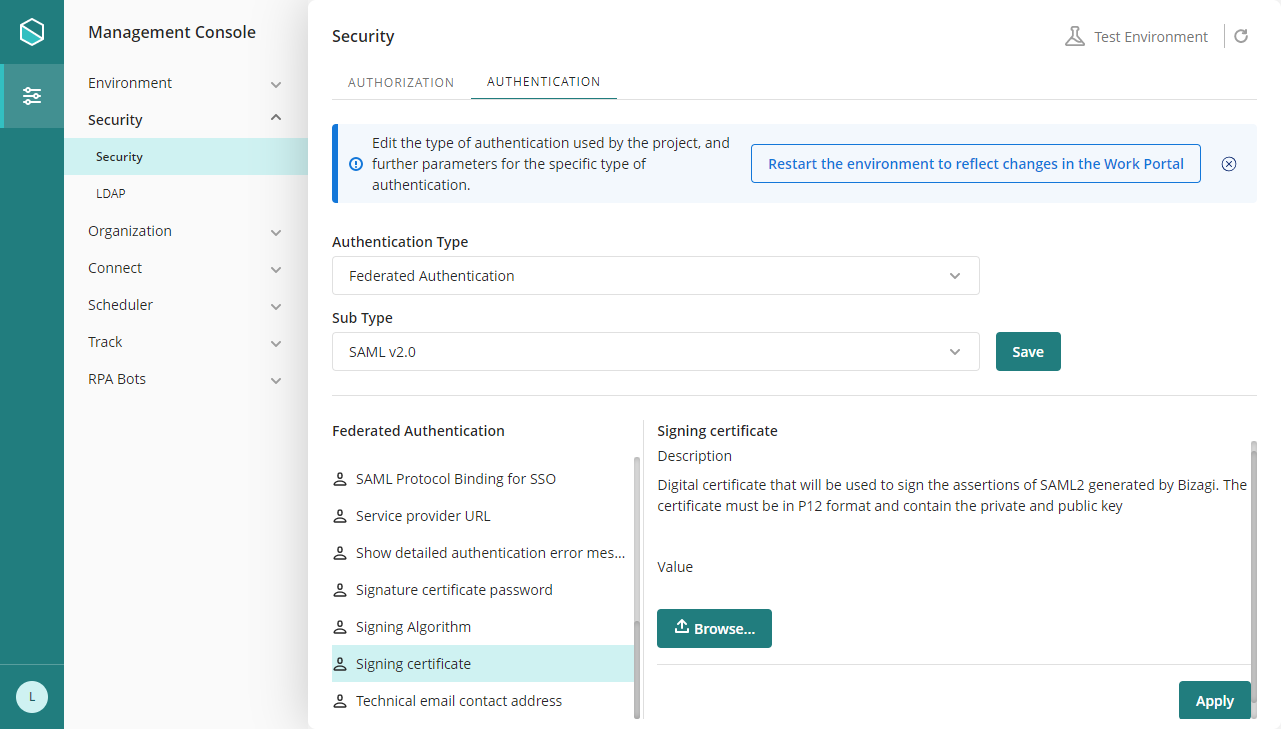
1.Open the Management Console.
2.Before modifying the authentication configuration, set the environment status to Maintenance from the Maintenance window.
3.Go to Security > Authentication.
4.Verify that Federated Authentication with SAML v2.0 is configured.
5.Select Signing certificate or Encryption certificate.
6.Browse for and upload the new P12/PFX certificate.
7.Select Signature certificate password or Encryption certificate password.
8.Enter the password defined for the new P12/PFX certificate.
9.Click Apply to save the changes.
|
After completing the changes, restart the environment so that the new configuration takes effect. |

Verify the selected certificates in the Customer Portal
1.Open the Customer Portal.
2.Go to Settings > Security > Authentication Protocols.
3.Open the SAML authentication configuration.
4.Verify that the updated certificates are selected in the Signature Certificate and Encryption Certificate fields.
For example, if the updated certificates are saml-signature-cp (2026-11-06) and saml-encryption-cp (2026-11-06), verify that those certificates are selected in the corresponding fields.
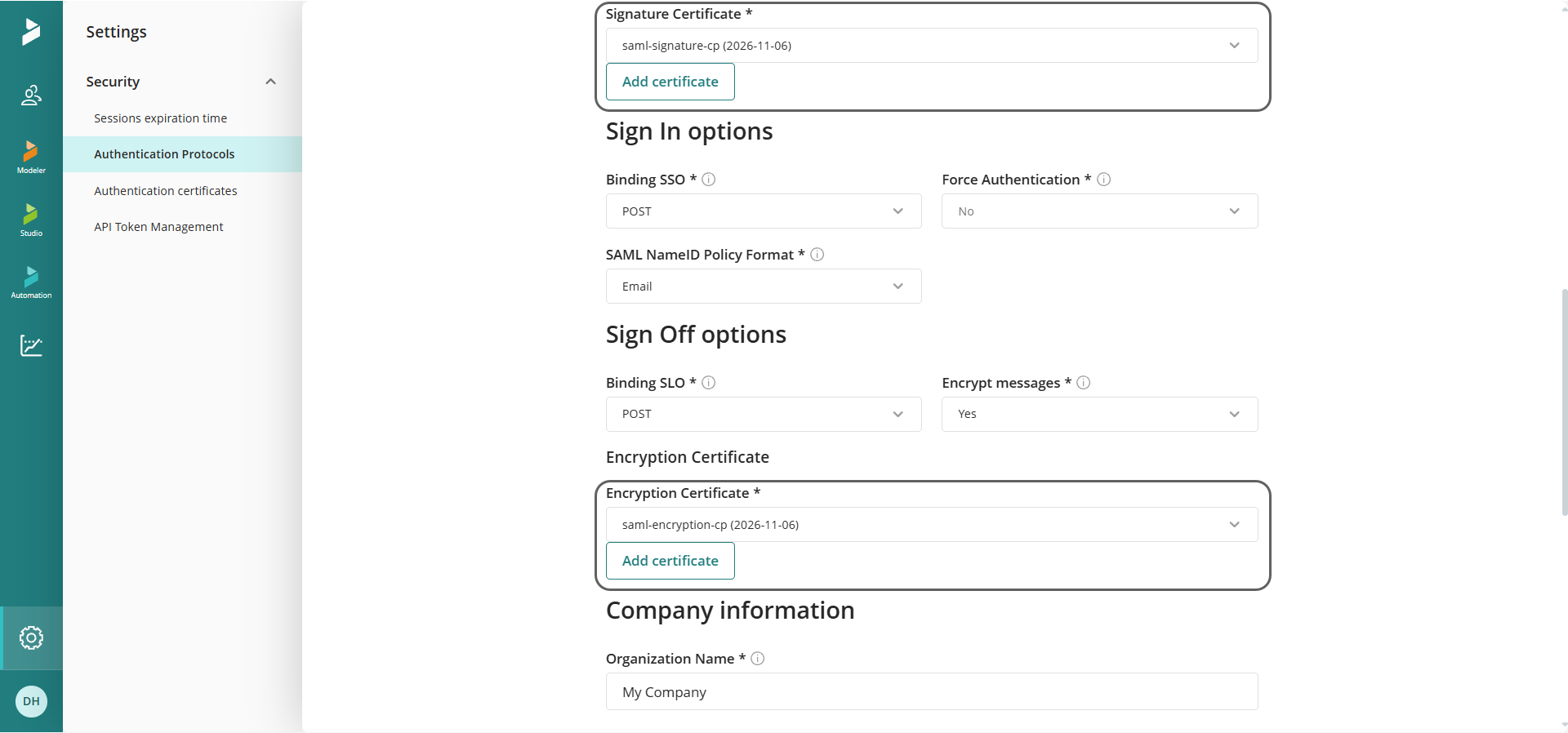
|
Updating the certificates in Bizagi Studio or the Management Console does not automatically update the certificate selection in the Customer Portal. After updating the certificates, verify that the correct certificates are selected in the authentication protocol configuration. |
Update the IdP configuration
After updating the certificate in Bizagi, download the updated metadata using the following URL:
https://[environment]-[project]-[company].bizagi.com/saml2/metadata.xml?mode=attachment
Once the metadata file has been downloaded, open the corresponding application in your IdP and upload the updated metadata file.
For example, if you are using Azure AD, upload the metadata file to the Enterprise Application configured for the Work Portal.
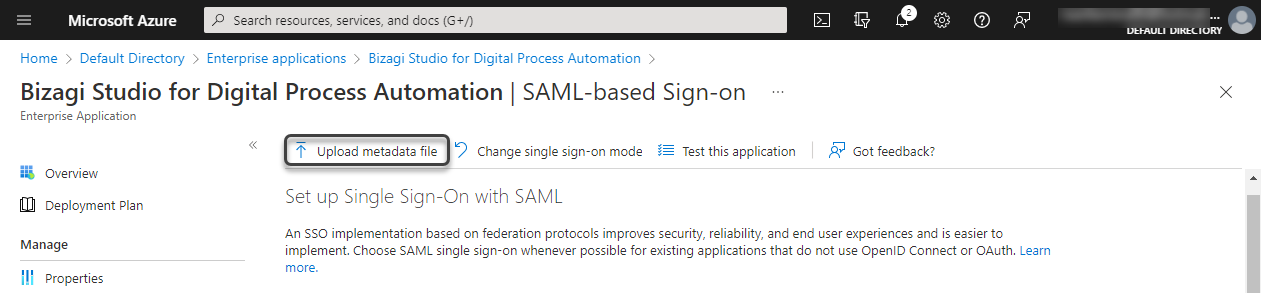
This allows the IdP to obtain Bizagi's updated public certificates and continue validating signatures or encrypting assertions according to the configured SAML settings.
Considerations
•If your IdP validates SAML request signatures, update the Bizagi metadata in the IdP after renewing the Bizagi signing certificate.
•If assertion encryption is enabled, update the Bizagi metadata in the IdP after renewing the Bizagi encryption certificate.
•Authentication failures often occur when a certificate is updated on one side and the corresponding metadata or certificate configuration is not updated on the other side.
•If multiple authenticators or applications are configured, always verify that the metadata is updated in the corresponding authenticator and IdP application.
Last Updated 10/5/2026 2:37:52 PM