|
Important Notice: End of Support for ACS in SharePoint Microsoft announced that SharePoint stopped supporting ACS (Access Control Service) in 2025. If you want to continue using solutions with application-only permissions, it is recommended to migrate to Azure AD-based models. Below you will find the official links with detailed instructions for making this transition: |

Overview
The SharePoint online connector for Bizagi is available for download at Bizagi Connectors Xchange.
Through this connector, you can connect your Bizagi processes to your SharePoint account and services.
For more information about this connector's capabilities, visit Bizagi Connectors Xchange.
|
This connector was developed based on the specifications of the API and the information provided by SharePoint. Bizagi and its subsidiaries do not offer any guarantees regarding the content or potential errors resulting from calls to the API services. Furthermore, Bizagi and its subsidiaries assume no responsibility for any loss, cost, or damage arising from the use of SharePoint’s API. |
Before You Start
To test and use this connector, you need:
1.Bizagi Studio installed.
2.This connector installed, via the Connectors Xchange as described in the Conectors Exchange article, or through a manual installation as described in the article Connectors Setup.
3.An account at https://products.office.com/sharepoint/collaboration.
4.Obtain the connection parameters of your SharePoint service:
a.URL
b.Tenant name
c.Tenant ID
d.Resource ID
5.Create a new app and save your application parameters
a.Client ID
b.Client secret
6.Add permissions to your new SharePoint application
URL and Tenant name
•URL: Is the base URL you use to access your SharePoint services. Usually, it is https://[company-name].sharepoint.com but you can create a SharePoint integration for each of your individual sites.
•Tenant name: Name of your tenant in SharePoint. Its the section of the URL right before the sharepoint.com.
Resource and Tenant ID
To obtain your Resource and Tenant ID go to http://[sharepointURL]/_layouts/15/appprincipals.aspx and save the text under the App Identifier section of your Office 365 SharePoint Online App. Store it in a safe and accessible location.
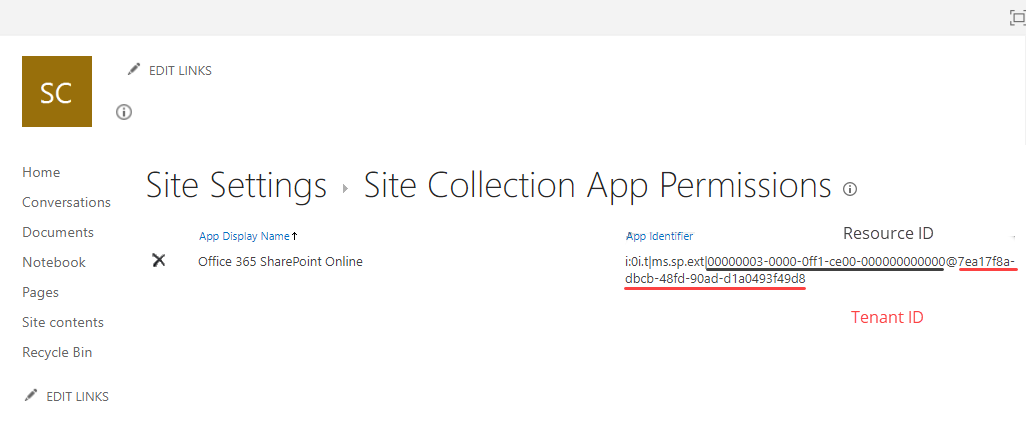
This text contains your Resource ID and your Tenant ID separated by the @.
•Resource ID: Is the part of the saved text between the | and the @. This ID is always the same for SharePoint applications. You may copy this ID from here: 00000003-0000-0ff1-ce00-000000000000. For more information about the Resource ID, refer to the OAuth Context Tokens documentation.
•Tenant ID: Is the part of the saved text after the @.
Create Your New App
To create your new App, go to http://[sharepointURL]/_layouts/15/appregnew.aspx and fill all the Title, App Domain and Redirect URL. These fields are mandatory, but you can give them any value you want since Bizagi will not use them.
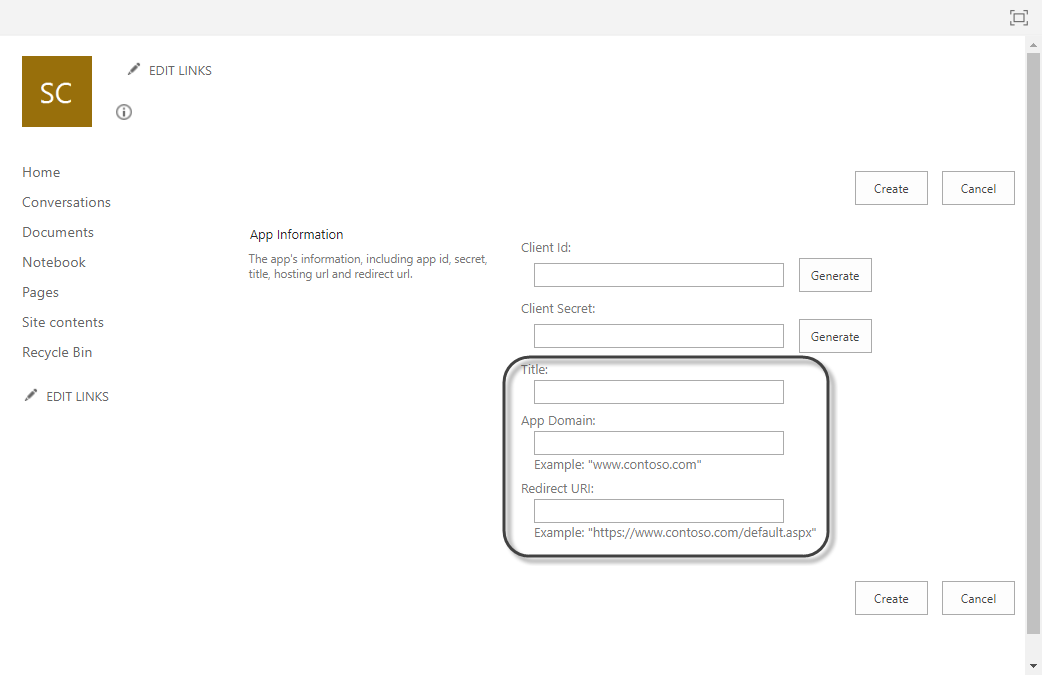
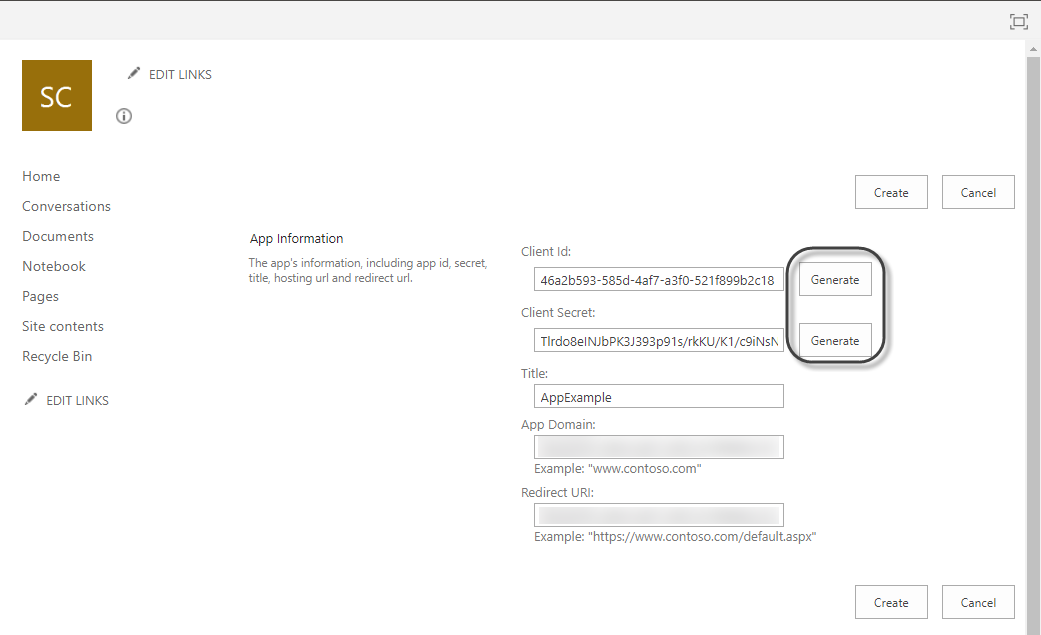
Generate both the Client Secret and Client Id, and click Create.
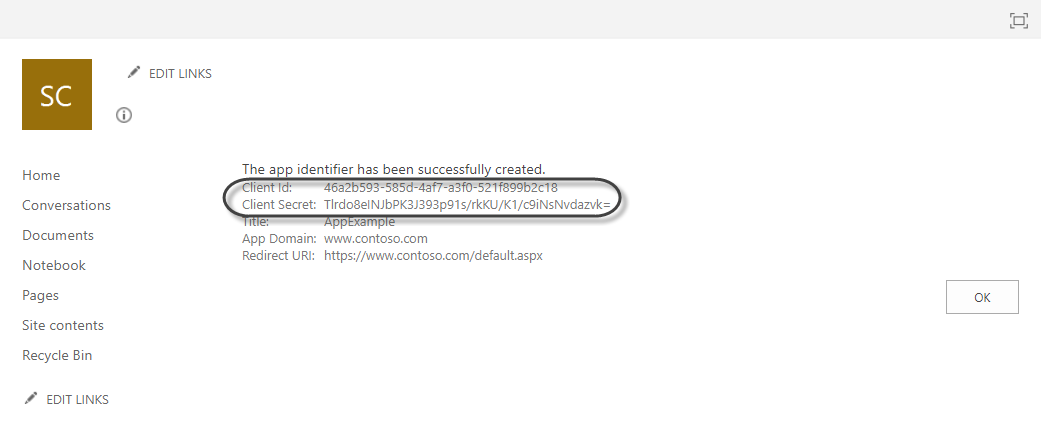
Save your Client Id and Client secret in a safe and accessible location.
Add Permissions to Your App
Your SharePoint app needs special permissions to use the Bizagi connector.
To configure them, go to http://[sharepointURL]/_layouts/15/appinv.aspx, paste your Client Id in the App Id field and click Lookup.
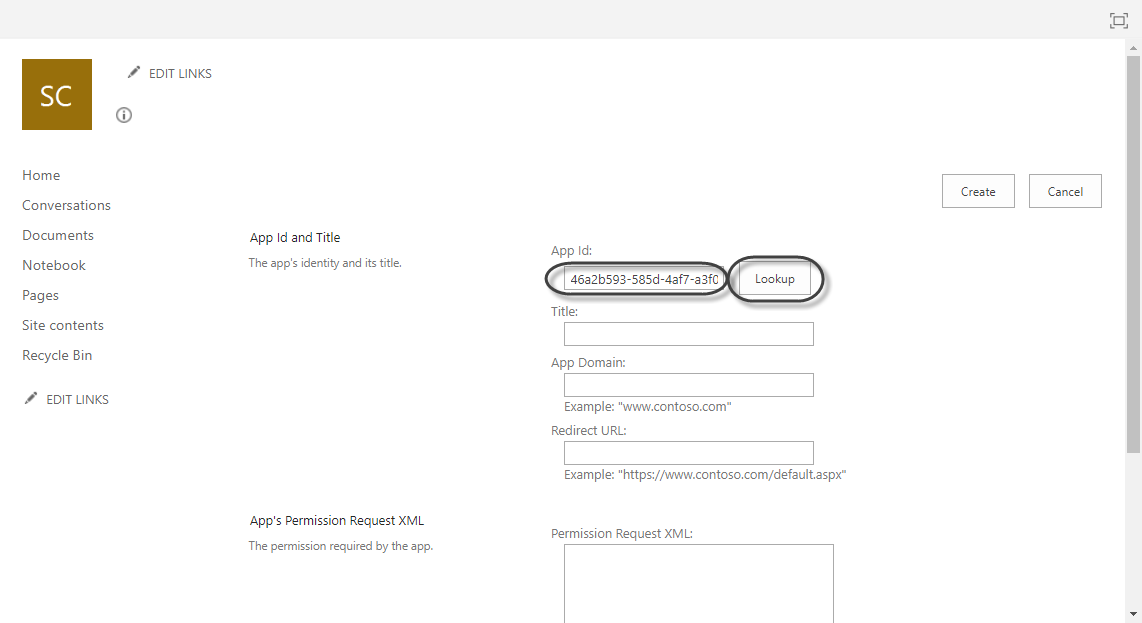
Once your App information loads, paste the following XML in the App's Permission Request XML field.
<AppPermissionRequests AllowAppOnlyPolicy="true">
<AppPermissionRequest Scope="http://sharepoint/content/sitecollection/web" Right="FullControl" />
</AppPermissionRequests>
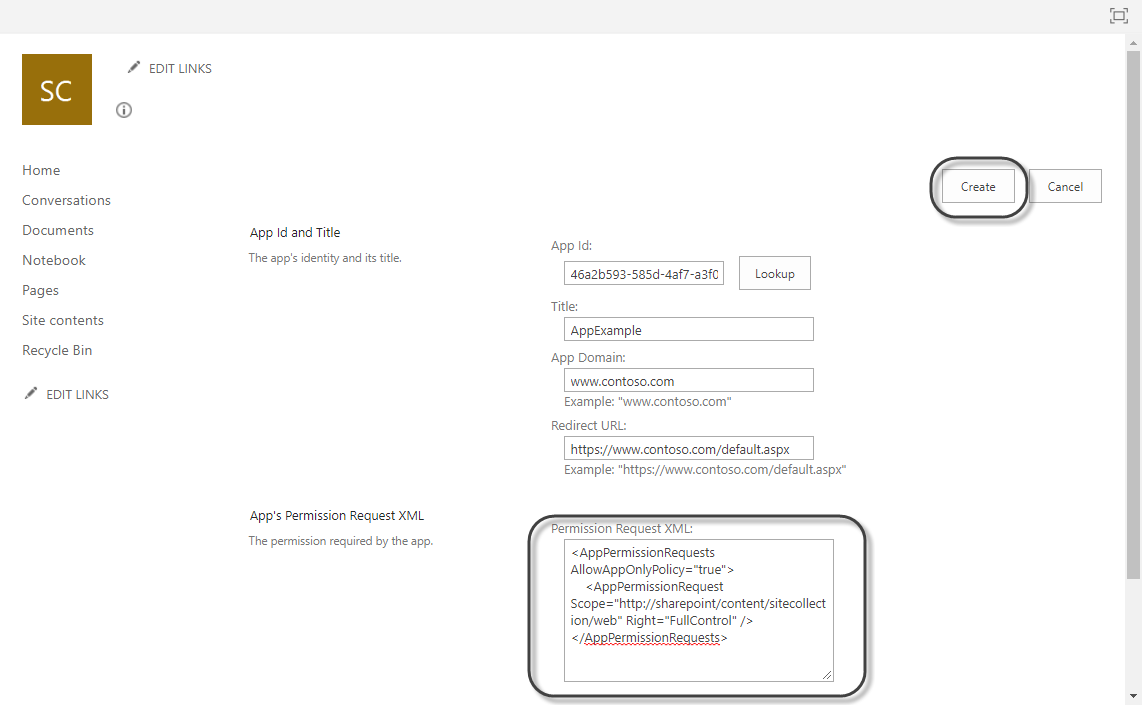
Click Create to save your changes.
Configuring the Connector
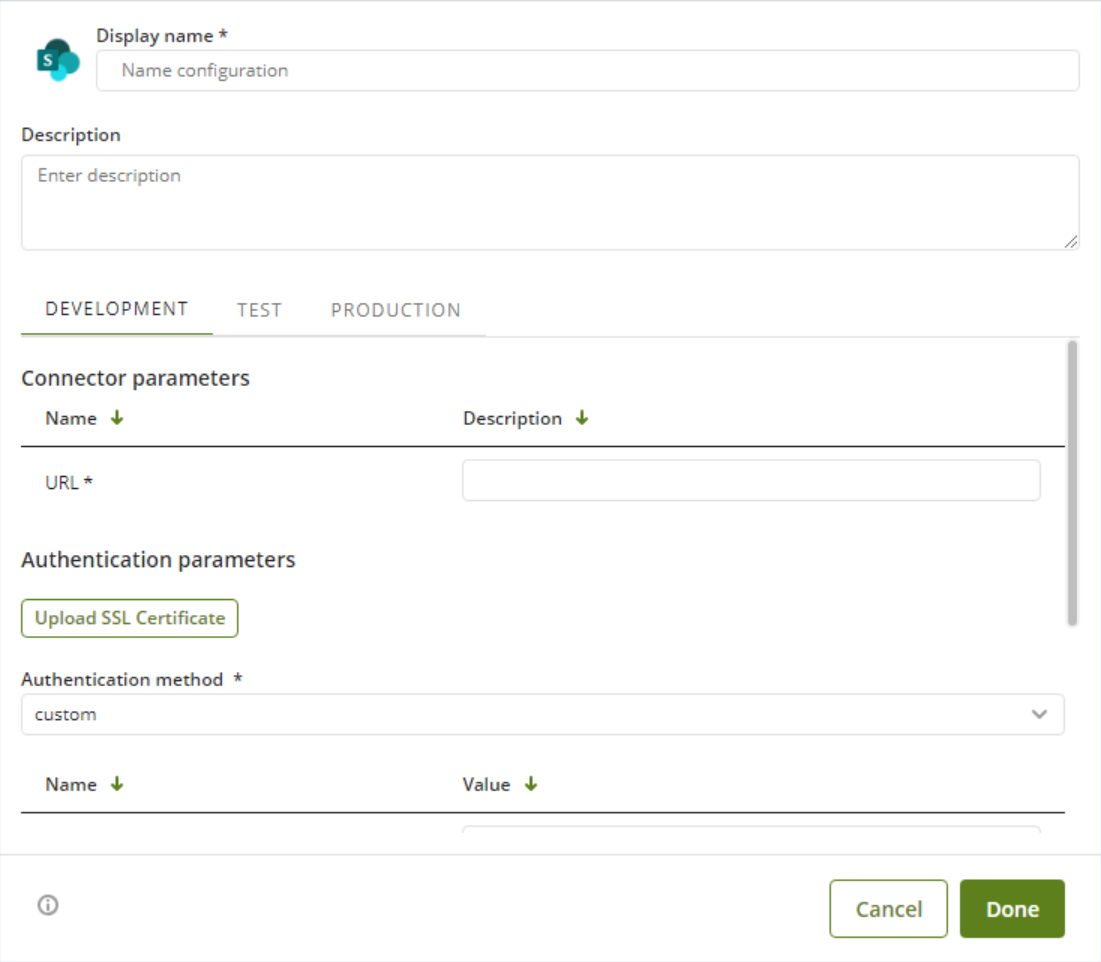
To configure the connector (in particular its authentication parameters), follow the steps presented at the Configuration chapter in the article Installing and managing connectors.
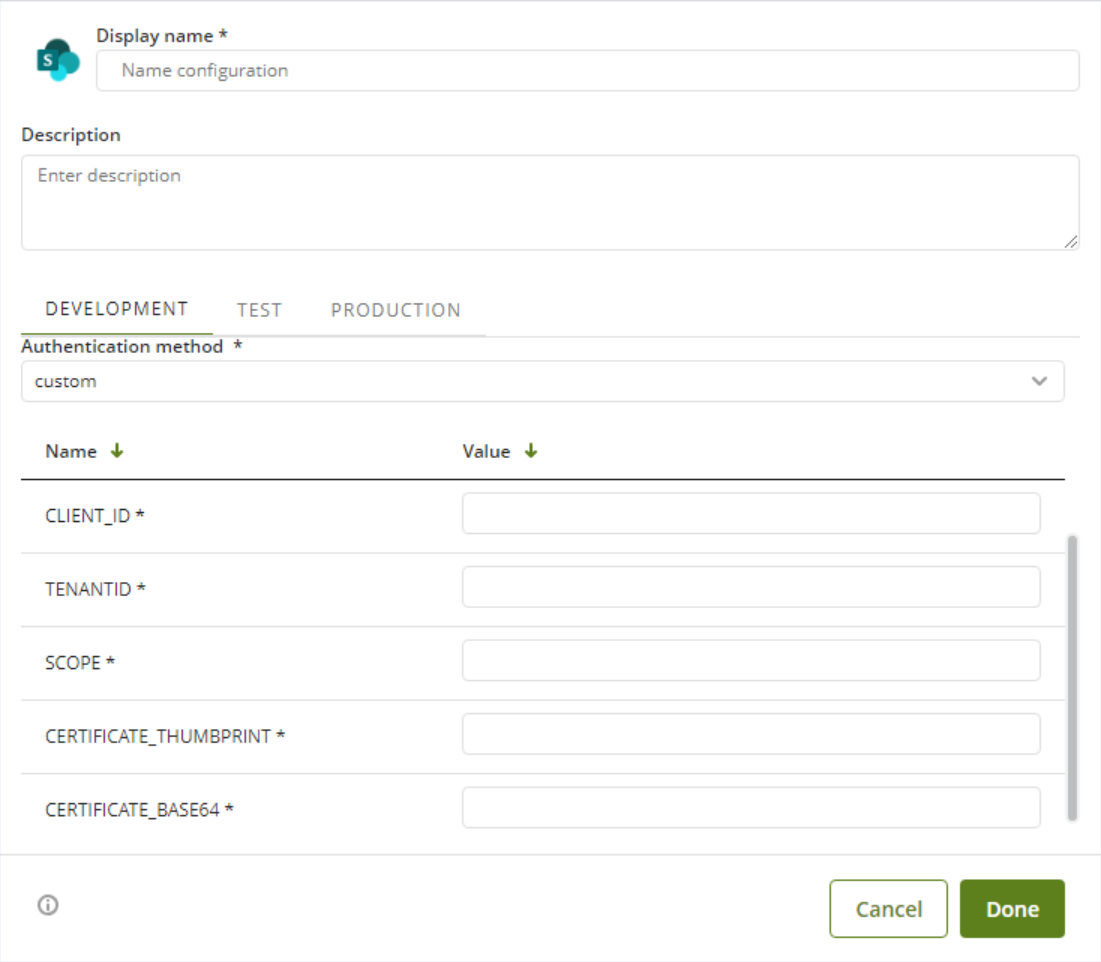
For this configuration, consider the following authentication parameters:
•Authentication method: Custom.
•CLIENT_ID: This is the unique identifier of the application registered with Azure.
•TENANTID: This is the identifier of the organization's Azure directory. It ensures that the connector only searches for users and permissions within the specified domain.
•SCOPE: This defines the specific permissions that the connector requests on the SharePoint API. For Client Credentials, this is typically the resource followed by /.default (e.g., https://graph.microsoft.com/.default), indicating that all application permissions previously approved by the administrator will be used.
•CERTIFICATE_THUMBPRINT: This is the "digital fingerprint" of the certificate (a hexadecimal hash). It allows Azure to quickly identify which of the certificates uploaded to the portal to use to validate the token request signature.
•CERTIFICATE_BASE64: This is the content of the public certificate (a .cer or .crt file) encoded in text format. This value is what the connector will programmatically use to sign the request or prove identity without exposing physical files on the server.
Using the Connector
This connector features a set of methods to help you take advantage of the capabilities of SharePoint's API services.
To learn how/where to configure the use of a connector, refer to the article Using connectors.
When using the connector, keep in mind the following details for the available method.
Copy File
This action copies a file to a new folder.
To configure its inputs, take into account the following descriptions:
•file_path: Full file path, including name and extension.
•destination_path: New path of the file, including name and extension. You can change the file name in the new folder using this field.
To configure the outputs of this action, you can map the output object to the corresponding entity in Bizagi. Make sure you map the attributes of the entity appropriately.
For more information about using this method, refer to SharePoint's official documentation at https://docs.microsoft.com/en-us/sharepoint/dev/sp-add-ins/working-with-folders-and-files-with-rest.
Create File
This action creates a new file in the specified SharePoint folder.
|
If a file with the same name and extension exists inside the folder, this action overwrites it without throwing an error. |
To configure its inputs, take into account the following descriptions:
•folder_path: Full path of the folder where the file will be created. This folder must exist.
•file_name: Name and extension of the file.
•file: File encoded in base64 format. The maximum weight of the file is restricted by Bizagi's file size configuration.
To configure the outputs of this action, you can map the output object to the corresponding entity in Bizagi. Make sure you map the attributes of the entity appropriately.
For more information about using this method, refer to SharePoint's official documentation at https://docs.microsoft.com/en-us/sharepoint/dev/sp-add-ins/working-with-folders-and-files-with-rest.
Delete a Folder
This action deletes a specific folder. If the folder doesn't exist, this action doesn't throw an error.
To configure its inputs, take into account the following descriptions:
•folder_path: Full path of the folder. You can't delete a folder that contains a file inside it. You must first delete all the files in the folder.
To configure the outputs of this action, you can map the output object to the corresponding entity in Bizagi. Make sure you map the attributes of the entity appropriately.
For more information about using this method, refer to SharePoint's official documentation at https://docs.microsoft.com/en-us/sharepoint/dev/sp-add-ins/working-with-folders-and-files-with-rest.
Create a Folder
This action creates a new folder.
|
If a folder with the same name and path exists no new folder will be created and the information of the existing folder will be retrieved. |
To configure its inputs, take into account the following descriptions:
•folder_path: Full path of the folder. It must include the folder name at the end.
To configure the outputs of this action, you can map the output object to the corresponding entity in Bizagi. Make sure you map the attributes of the entity appropriately.
For more information about using this method, refer to SharePoint's official documentation at https://docs.microsoft.com/en-us/sharepoint/dev/sp-add-ins/working-with-folders-and-files-with-rest.
Delete File
This action deletes a file using its full path. If the file doesn't exist, this action doesn't throw an error.
To configure its inputs, take into account the following descriptions:
•file_fullpath: File path, including name and extension
To configure the outputs of this action, you can map the output object to the corresponding entity in Bizagi. Make sure you map the attributes of the entity appropriately.
For more information about using this method, refer to SharePoint's official documentation at https://docs.microsoft.com/en-us/sharepoint/dev/sp-add-ins/working-with-folders-and-files-with-rest.
Get File Content
This action downloads a specific file.
To configure its inputs, take into account the following descriptions:
•folder_path: Path of the folder that contains the file
•file_name: Name and extension of the file
To configure the outputs of this action, you can map the output object to the corresponding entity in Bizagi. Make sure you map the attributes of the entity appropriately.
For more information about using this method, refer to SharePoint's official documentation at https://docs.microsoft.com/en-us/sharepoint/dev/sp-add-ins/working-with-folders-and-files-with-rest.
Get Files in Folder
This action gets a list of all the files in a folder.
To configure its inputs, take into account the following descriptions:
•folder_path: Folder path
To configure the outputs of this action, you can map the output array to the corresponding collection in Bizagi. Make sure you map the attributes of the entity appropriately.
For more information about using this method, refer to SharePoint's official documentation at https://docs.microsoft.com/en-us/sharepoint/dev/sp-add-ins/working-with-folders-and-files-with-rest.
Update a File
This action updates an existing file.
To configure its inputs, take into account the following descriptions:
•folder_path: Path of the folder that contains the file.
•file_name: Name and extension of the file.
•file: new data of the file encoded in base64.
To configure the outputs of this action, you can map the output object to the corresponding entity in Bizagi. Make sure you map the attributes of the entity appropriately.
For more information about using this method, refer to SharePoint's official documentation at https://docs.microsoft.com/en-us/sharepoint/dev/sp-add-ins/working-with-folders-and-files-with-rest.
Get Lists
This action shows all the available lists.
To configure its inputs, take into account the following descriptions:
•list_hidden: Whether hidden lists must be included. This parameter should be a boolean in your Bizagi model.
To configure the outputs of this action, you can map the output array to the corresponding collection in Bizagi. Make sure you map the attributes of the entity appropriately.
For more information about using this method, refer to SharePoint's official documentation at https://docs.microsoft.com/en-us/sharepoint/dev/sp-add-ins/working-with-lists-and-list-items-with-rest.
Create a List
This action creates a new SharePoint list.
To configure its inputs, take into account the following descriptions:
•title: Title of the list.
•description: Description of the list.
To configure the outputs of this action, you can map the output object to the corresponding entity in Bizagi. Make sure you map the attributes of the entity appropriately.
For more information about using this method, refer to SharePoint's official documentation at https://docs.microsoft.com/en-us/sharepoint/dev/sp-add-ins/working-with-lists-and-list-items-with-rest.
Update List by ID
This action updates a list using its id.
To configure its inputs, take into account the following descriptions:
•id: GUID of the list.
•title: Title of the list.
•description: Description of the list.
To configure the outputs of this action, you can map the output object to the corresponding entity in Bizagi. Make sure you map the attributes of the entity appropriately.
For more information about using this method, refer to SharePoint's official documentation at https://docs.microsoft.com/en-us/sharepoint/dev/sp-add-ins/working-with-lists-and-list-items-with-rest.
Create a Custom Field for a List by ID
This action creates a new custom field for a list.
|
This action can create duplicated custom fields. |
To configure its inputs, take into account the following descriptions:
•guid_list: GUID of the list.
•title: Title of the custom field.
•description: Description of the custom field.
•is_required: Whether the custom field is required. This parameter should be a boolean in your Bizagi model.
•field_type: Type of the custom field.
To configure the outputs of this action, you can map the output object to the corresponding entity in Bizagi. Make sure you map the attributes of the entity appropriately.
For more information about using this method, refer to SharePoint's official documentation at https://docs.microsoft.com/en-us/previous-versions/office/sharepoint-server/ee540543(v%3Doffice.15).
Get Fields From a List
This action gets a field from a list.
To configure its inputs, take into account the following descriptions:
•list_name: Name of the list.
•list_hidden: whether hidden fields must be included. This parameter should be a boolean in your Bizagi model.
To configure the outputs of this action, you can map the output array to the corresponding collection in Bizagi. Make sure you map the attributes of the entity appropriately.
For more information about using this method, refer to SharePoint's official documentation at https://docs.microsoft.com/en-us/sharepoint/dev/sp-add-ins/working-with-lists-and-list-items-with-rest.
Delete a List
This action deletes a list. If the list doesn't exists this action doesn't throw an error.
To configure its inputs, take into account the following descriptions:
•guid: GUID of the list.
To configure the outputs of this action, you can map the output object to the corresponding entity in Bizagi. Make sure you map the attributes of the entity appropriately.
For more information about using this method, refer to SharePoint's official documentation at https://docs.microsoft.com/en-us/sharepoint/dev/sp-add-ins/working-with-lists-and-list-items-with-rest.
Create List Item
This action creates a new item in a list.
|
This action can create duplicated list items. |
To configure its inputs, take into account the following descriptions:
•list_name: Title of the list.
•list_itemName: Name of the new item.
To configure the outputs of this action, you can map the output object to the corresponding entity in Bizagi. Make sure you map the attributes of the entity appropriately.
For more information about using this method, refer to SharePoint's official documentation at https://docs.microsoft.com/en-us/sharepoint/dev/sp-add-ins/working-with-lists-and-list-items-with-rest.
Get List Items
This action shows all the items of a list.
To configure its inputs, take into account the following descriptions:
•list_name: Name of the list
To configure the outputs of this action, you can map the output array to the corresponding collection in Bizagi. Make sure you map the attributes of the entity appropriately.
For more information about using this method, refer to SharePoint's official documentation at https://docs.microsoft.com/en-us/sharepoint/dev/sp-add-ins/working-with-lists-and-list-items-with-rest.
Update List Item
This action updates the title of a specific item from a list.
To configure its inputs, take into account the following descriptions:
•list_itemId: Id of the item inside the list
•list_itemName: New name of the list item
•list_name: Name of the list that contains the item
To configure the outputs of this action, you can map the output object to the corresponding entity in Bizagi. Make sure you map the attributes of the entity appropriately.
For more information about using this method, refer to SharePoint's official documentation at https://docs.microsoft.com/en-us/sharepoint/dev/sp-add-ins/working-with-lists-and-list-items-with-rest.
Delete List Item by ID
This action deletes a specific item from a list.
To configure its inputs, take into account the following descriptions:
•list_itemId: Id of the item inside the list.
•list_name: Name of the list that contains the item.
To configure the outputs of this action, you can map the output object to the corresponding entity in Bizagi. Make sure you map the attributes of the entity appropriately.
For more information about using this method, refer to SharePoint's official documentation at https://docs.microsoft.com/en-us/sharepoint/dev/sp-add-ins/working-with-lists-and-list-items-with-rest.
Create a File Attachment to a List Item
This action attaches a file to a specific list.
To configure its inputs, take into account the following descriptions:
•list_name: Name of the list that contains the item.
•item_id: id of the item inside the list (not its GUID).
•file: file in base 64 format.
•file_name: name of the file.
To configure the outputs of this action, you can map the output object to the corresponding entity in Bizagi. Make sure you map the attributes of the entity appropriately.
For more information about using this method, refer to SharePoint's official documentation at https://docs.microsoft.com/en-us/sharepoint/dev/sp-add-ins/working-with-lists-and-list-items-with-rest.
Create List Item with Multiple Fields
This action creates a new item in a list with multiple custom fields.
|
This action can create duplicated list items. |
To configure its inputs, take into account the following descriptions:
•list_name: Name of the list.
•custom_fields: List of the object's custom fields and its values.
•field_name: name of the custom field.
•field_value: value of the custom field.
To configure the outputs of this action, you can map the output object to the corresponding entity in Bizagi. Make sure you map the attributes of the entity appropriately.
For more information about using this method, refer to SharePoint's official documentation at https://docs.microsoft.com/en-us/previous-versions/office/sharepoint-server/ee540543(v%3Doffice.15).
Get File Metadata
This action gets the metadata of a specific file.
To configure its inputs, take into account the following descriptions:
•file_full_path: Full file path, including name and extension.
To configure the outputs of this action, you can map the output object to the corresponding entity in Bizagi. Make sure you map the attributes of the entity appropriately.
For more information about using this method, refer to SharePoint's official documentation at https://docs.microsoft.com/en-us/sharepoint/dev/sp-add-ins/working-with-folders-and-files-with-rest.
Troubleshooting
After configuring the SharePoint online connector, you may encounter some of the following error messages in the Work Portal:
When the message shown in the image appears, you must check the path of the action that is being executed. Generally, the path for all the SharePoint connections is: Shared Documents/[Folder]

In case the following message appears, additionally to the path specification, make sure that the CLIENTID, the CLIENT_SECRET and the RESOURCEID are correctly configured.

Last Updated 12/17/2025 5:34:23 PM