Overview
Global query options and Navigation Properties expansion in GET ALL actions, and Second-level Navigation in CREATE actions provide greater control when configuring SAP integrations. Define record limits, pagination, sorting criteria, attribute selection, and related entity expansion through Navigation Properties when retrieving data. When configuring CREATE actions, navigate entity relationships up to a second level to identify the attributes required for complex payloads. Global query options and second-level navigation are available for both OData V2 and OData V4 connections.
Before you begin
Make sure the following prerequisites are met:
•Configure an SAP Cloud connection using SAP BTP
•Select a valid OData V2 or OData V4 service
•Configure an SAP action of one of the following types:
oGET ALL, to use Global query options and Navigation Properties expansion
oCREATE, to use Second level navigation
Query optimization with Global query options in a GET ALL action
Global query options in GET ALL actions provide precise control over how Bizagi retrieves data from SAP S/4HANA Cloud. You can define the number of records returned, the order in which they are retrieved, and the specific attributes included in the response, reducing the amount of data transferred and improving integration performance when working with large data sets.
Available options
The following query options are available:
•Result pagination: Controls the amount of data returned by defining a maximum number of records to retrieve.
•Result sorting: Defines the order in which records are returned in the query results.
•Attribute selection: Specifies which attributes are included in the response so that only information required by the process is retrieved.
Behavior by OData version
•OData V2: Optimization options apply only to the main entity. Pagination, sorting, and attribute selection affect only the results returned for that entity.
•OData V4: Optimization options apply to the main entity and to related entities included through Navigation Properties expansion, providing more precise control over the information returned.
How to configure Global query options in a GET ALL action
To configure Global query options in GET ALL actions, follow these steps:
1.In the SAP action creation wizard, select the GET ALL action.
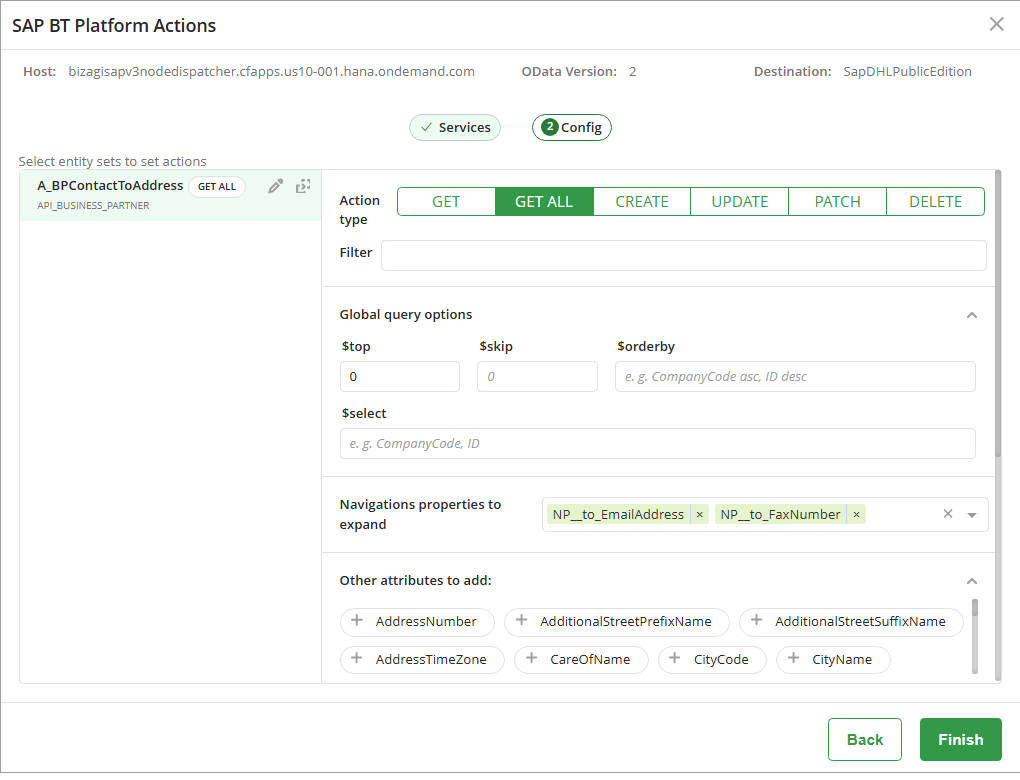
The optimization options are displayed.
2.Configure the required parameters:
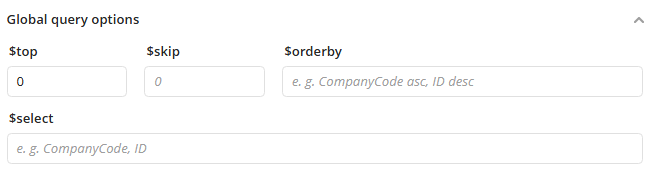
•Pagination: Use $top to define the maximum number of records and $skip to define the offset.
•Sorting: Use $orderby to define the result order
•Projection: Use $select to choose which main entity attributes to retrieve
|
$top and $skip directly control how many records are retrieved by the query. |

Expanding Navigation Properties in a GET ALL action
Navigation Properties expansion allows you to include related entity data in a single GET ALL request. This approach reduces the need for additional requests, simplifies integration configuration, and improves data retrieval efficiency. Navigation Properties expansion is available in GET ALL actions and for entities with defined relationships.
Behavior by OData version
•OData V2 – Simple expansion: Returns all attributes of expanded related entities. Individual attributes cannot be selected.
•OData V4 – Controlled expansion: Allows you to select specific attributes from expanded related entities, so that only the required information is returned.
How to expand Navigation Properties in a GET ALL action
To expand Navigation Properties, follow these steps:
1.In the SAP action creation wizard, select a GET ALL action where Navigation Properties configuration is available.
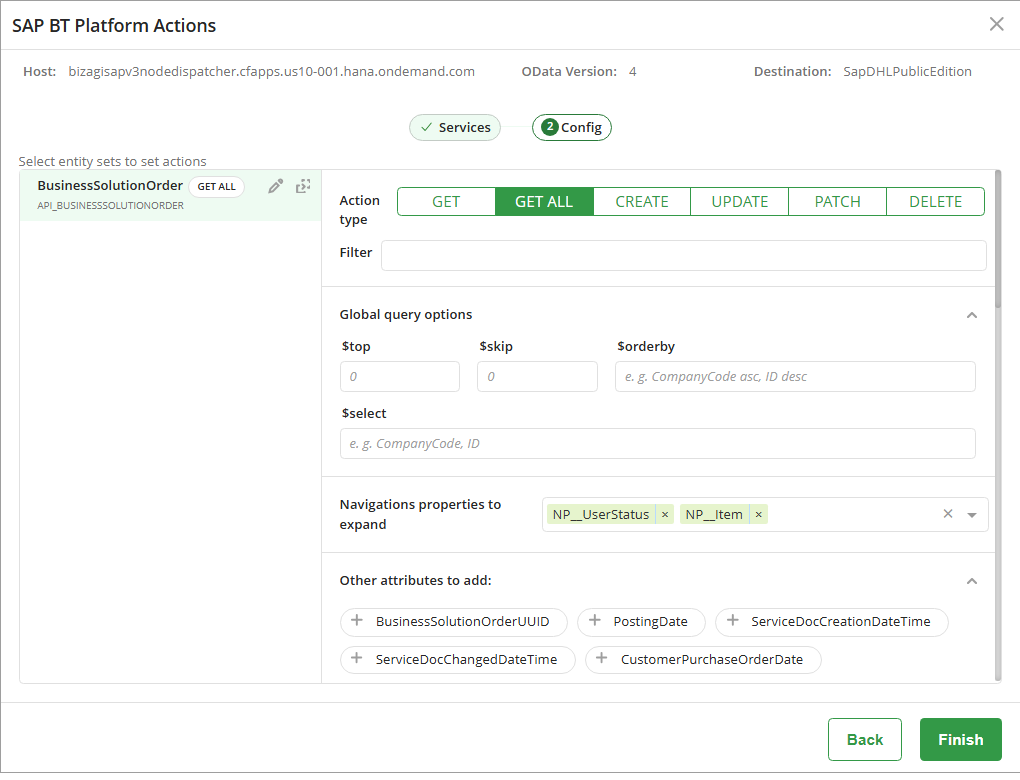
2.Locate the Navigation Properties to expand and select one or more relationships from the dropdown list.
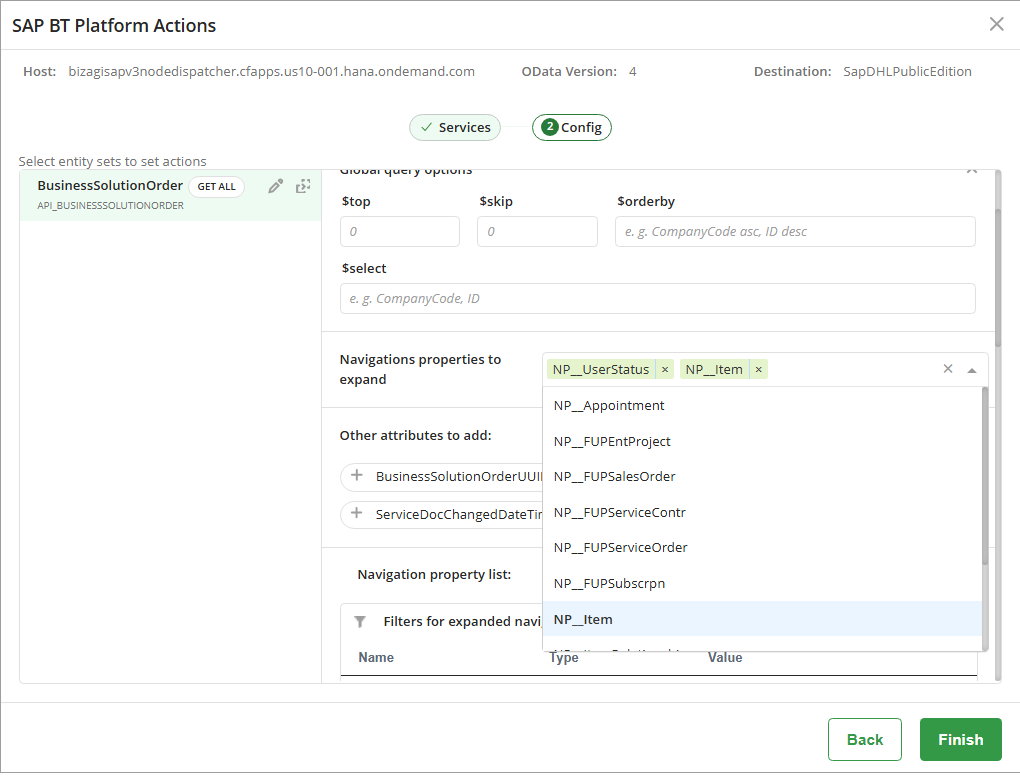
Each selected Navigation Property is automatically added to the action configuration.
Second level navigation in a CREATE action
Second level navigation in a CREATE action allows you to visually explore and understand the hierarchical structure of related entities when sending data from Bizagi to SAP S/4HANA Cloud.
When the main entity exposes Navigation Properties, this navigation helps you identify attributes by level, understand nested structures in the JSON payload, and perform data mapping more accurately during CREATE configuration.
Navigation model
The navigation model is structured as follows:
•Level 0 – Main entity: Represents the base entity on which the CREATE action is defined.
•Level 1 – First relationship: Represents the first level of related information, typically used for dependent structures such as items, details, or assignments associated with the main entity.
•Level 2 – Relationship of a relationship: Represents a deeper hierarchical level where related data is organized across multiple dependency layers.
|
Second level navigation is available only for visual exploration and does not change the data structure submitted to SAP. |
How to use Second level navigation in a CREATE action
To use second level navigation in a CREATE action, follow these steps:
1.In the SAP action creation wizard, select an entity and choose the CREATE method.
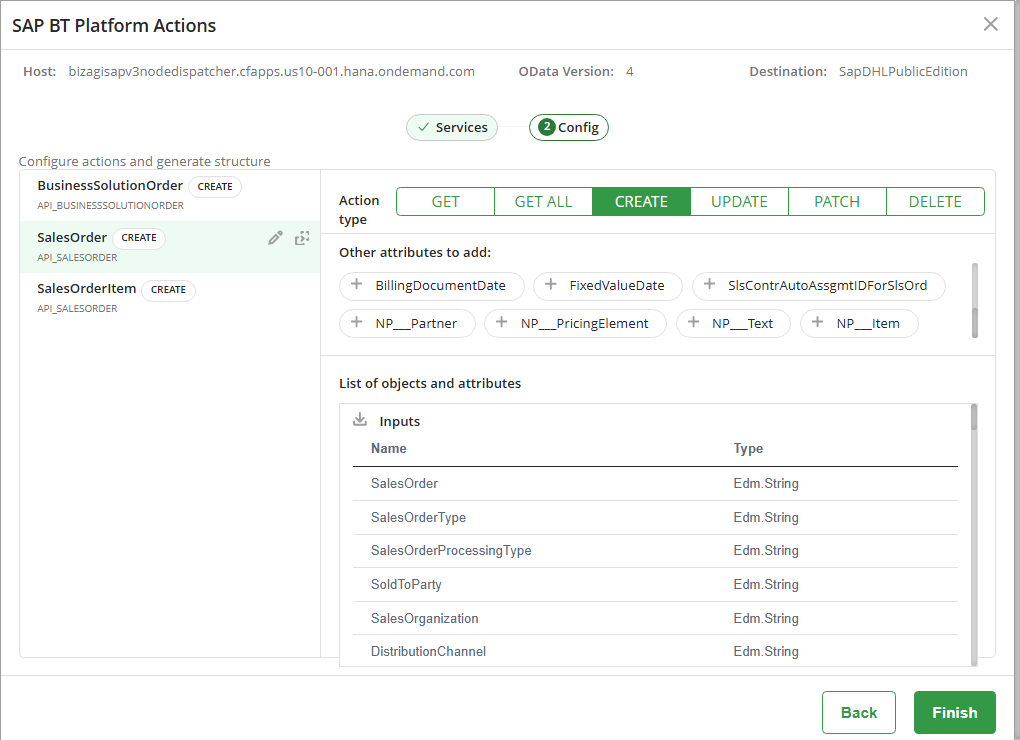
2.From the attribute list, select an attribute that contains Navigation Properties. For example, NP__Item.

3.In the List of objects and attributes Outputs, select the Navigation Property associated with the main entity. For example, NP__Item.
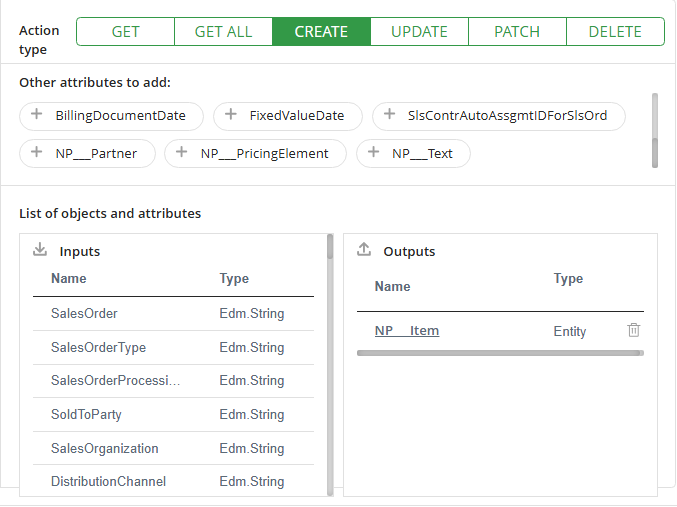
4.You are now at the first navigation level. Select a related Navigation Property, such as NP__ItemPartner.
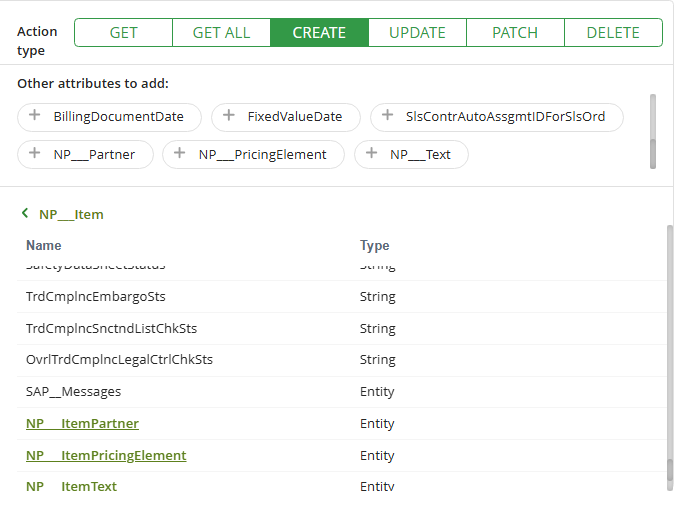
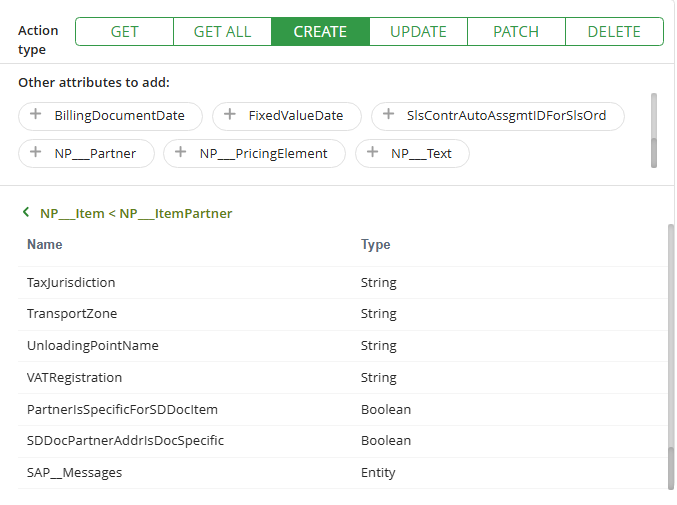
5.At the second level, review the attributes of the related entity. The breadcrumb displays the complete navigation path, for example: NP__Item < NP__ItemPartner.
Last Updated 7/17/2026 12:58:05 PM