Overview
The Image tagger Widget for Bizagi is available for download at Bizagi Widget Xchange.
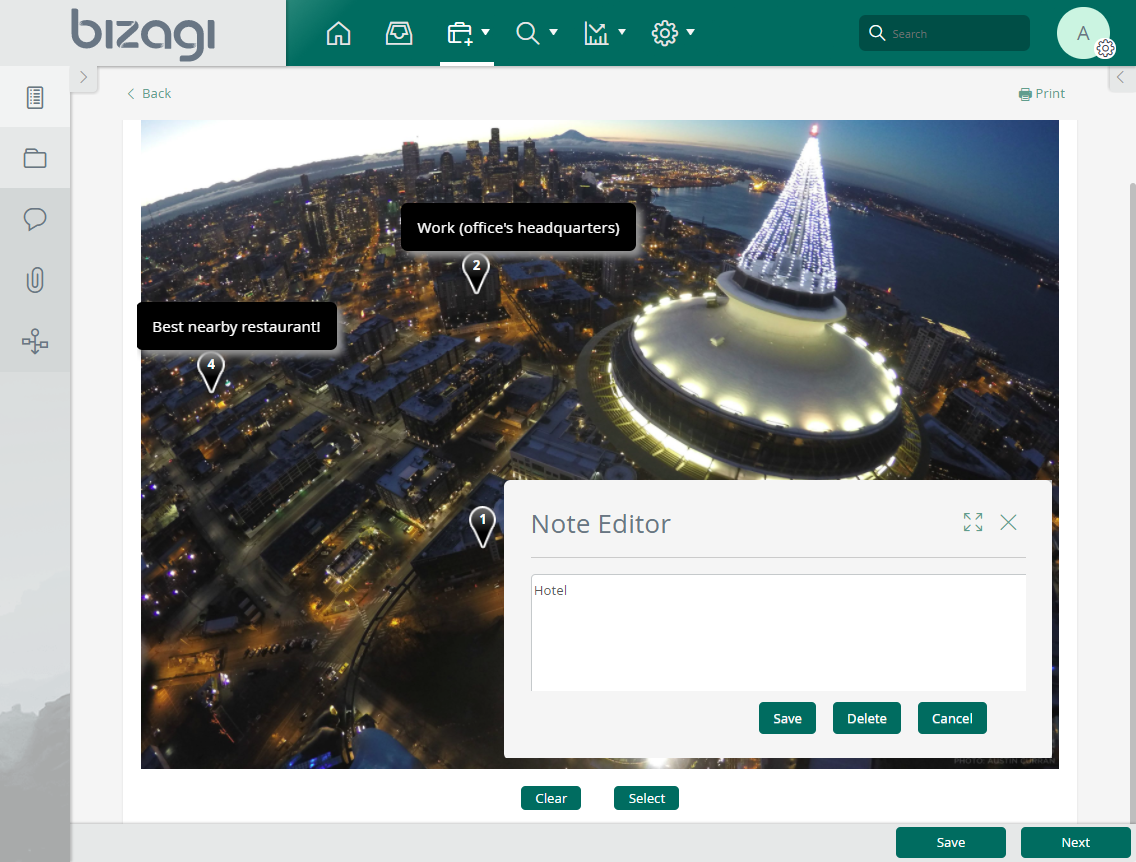
This widget allows you to add notes directly to an image by placing tags or pins.
Before You Start
To test and use this widget, you will need:
1.Bizagi Studio previously installed.
2.This widget installed, either by following the steps in the Bizagi Widget Xchange article or the Widget Management article.
Data Model Considerations
To use this widget, your data model must include:
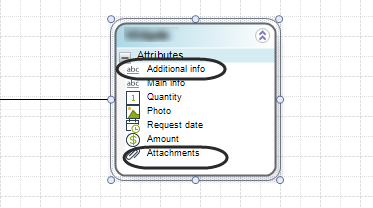
•A file-type attribute to store the image file you want to tag.
•A String-type attribute to store the metadata generated by the widget (such as coordinates and related information), following a predefined format.
|
This widget is designed to work with one—and only one—image. Since a file-type attribute in Bizagi can store multiple files, ensure that: •Only image files are attached (e.g., .png, .jpg, .gif). •Only one image is uploaded. If multiple images are present, the widget will use the first image. |

Properties Configuration
To configure this widget after installation, add it to any Form and set its properties in the Forms Designer, just as you would for any other Bizagi control. The widget is available in the Utilities section of the Controls tab.
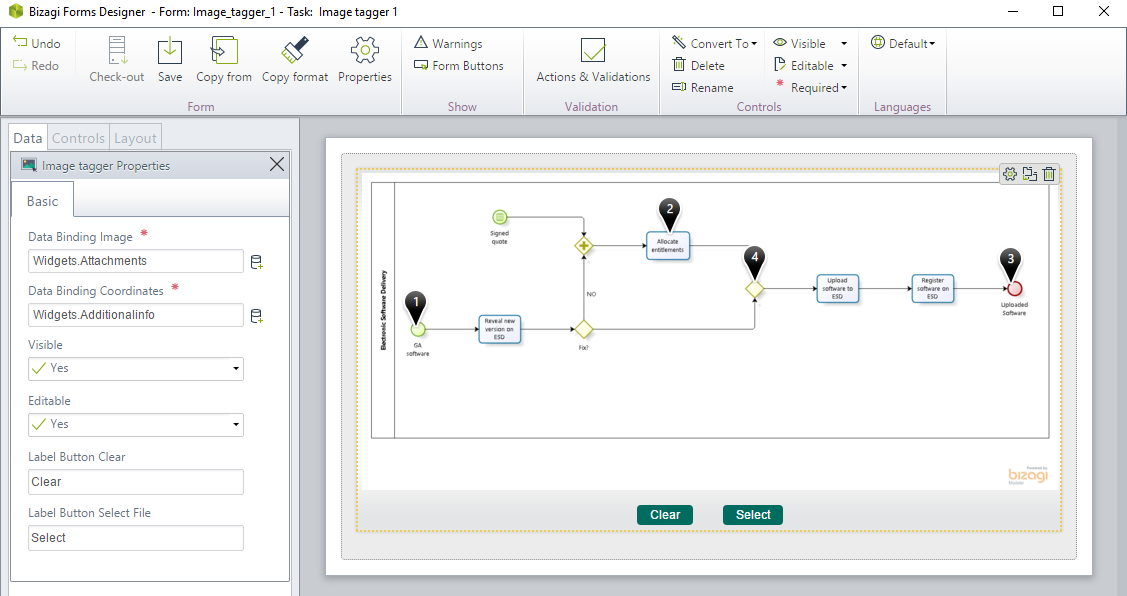
Consider the following properties:
PROPERTY |
POSSIBLE VALUES |
DEFAULT VALUE / SUGGESTED |
|---|---|---|
Data binding Image |
A file type attribute holding the image file to place tags/pins on. |
Not applicable. This property is mandatory. |
Data binding coordinates |
A needed attribute to store the metadata as managed by this widget to store coordinates and information of the tags/pins. |
Not applicable. This property is mandatory. |
Label button clear |
A setting to customize the label displayed for the button that clears all tags/pins in the image (applicable when editable). |
Clear |
Label Button Select File |
A setting to customize the label displayed for the button that uploads a new image (applicable when editable). |
Select |
|
•All Bizagi controls and widgets include a Visible property, which lets you define whether the control should be displayed in a Form (for example, by applying a Business rule). •This widget supports both editable and read-only modes: oEditable: Users can upload an image and add tags. oRead-only: Other users can view the image along with its tagged information. |
Using the Image Tagger Widget
Follow these steps to upload an image and add tags:
1.Click Select to upload an image.
2.Then, click on any spot within the image and enter a label that will appear as a tooltip for that location.
At any time, you can click Clear to remove all tags or pins and start over.
Last Updated 1/19/2026 9:04:54 AM