Overview
You can select the time zone in which you want to view dates and times. Bizagi Studio supports the following time zones:
•UTC: Coordinated Universal Time is a standard time zone that does not change with seasons or geographic location.
•Local Time: This setting uses the time zone of the user's browser, allowing dates and times to display according to the user's geographic location.
•Business Time Zone: This setting allows the Management Console administrators to define a specific time zone relevant to the business, which will be available across all environments (Test, Development, Production).
You can also change the Time Zone visualization in the Management Console.
Select time zone
|
•The time standard you select will only affect the display of date and time during your session. It will not impact any internal processes or calculations performed by Bizagi, as these will convert all dates and times to the UTC time zone. •Time zones compatible with Daylight Saving Time (DST) are automatically updated through the application of the rules defined for each zone. DST refers to seasonal adjustments in a time zone's offset from UTC. The offset is the difference between local time and UTC at any given moment. The Management Console automatically applies the correct offset based on the configured IANA time zone, ensuring that time calculations, visualizations, and scheduled processes accurately reflect both spring-forward and fall-back transitions. |

To change the time zone follow the following steps:
1.Click the settings button located in the upper right corner of your screen.
2.Click the Display Time Zone option.
3.Select the time zone you want to use.

How the selected time zone modifies visualization
|
There are some dates and times that are not modified by the time zone you select, this dates and times are:
•Dates and times used in Vocabulary. •Dates and times specified in Forms. •Dates and times specified in Business Rules.
In this cases, the time zone for this dates is UTC. |
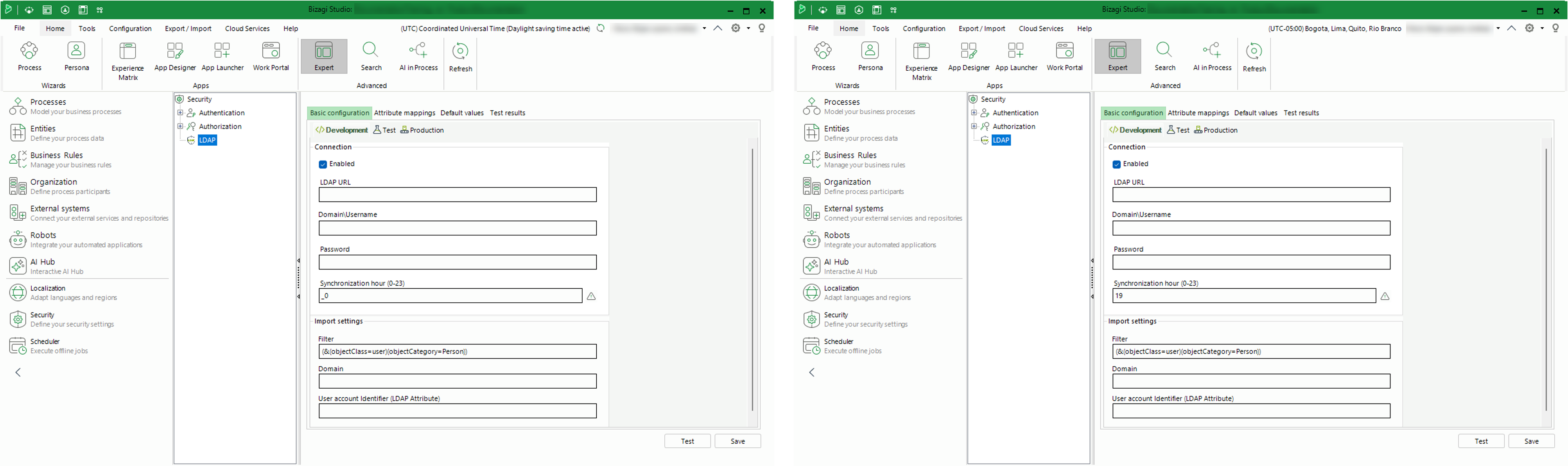
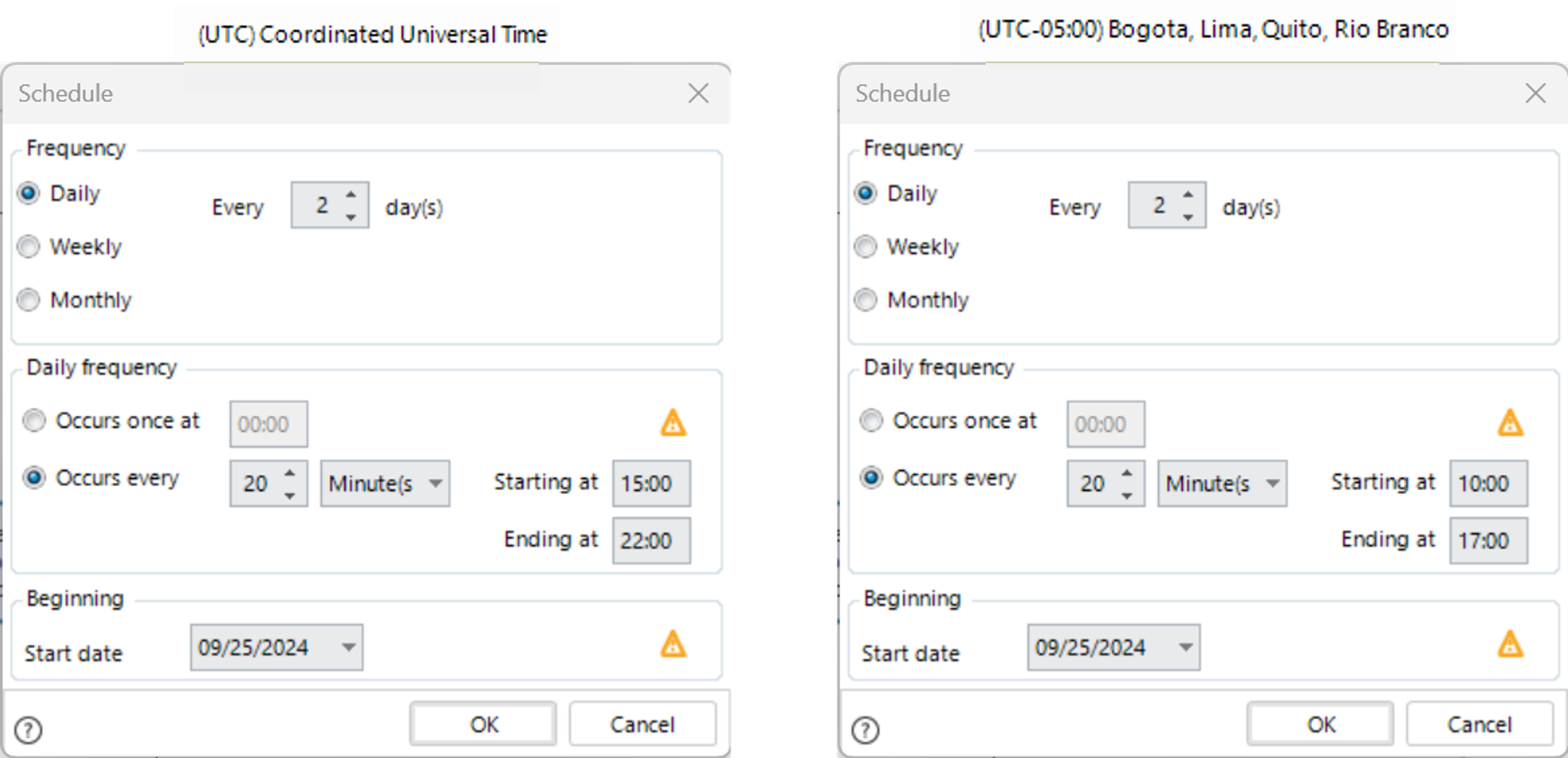
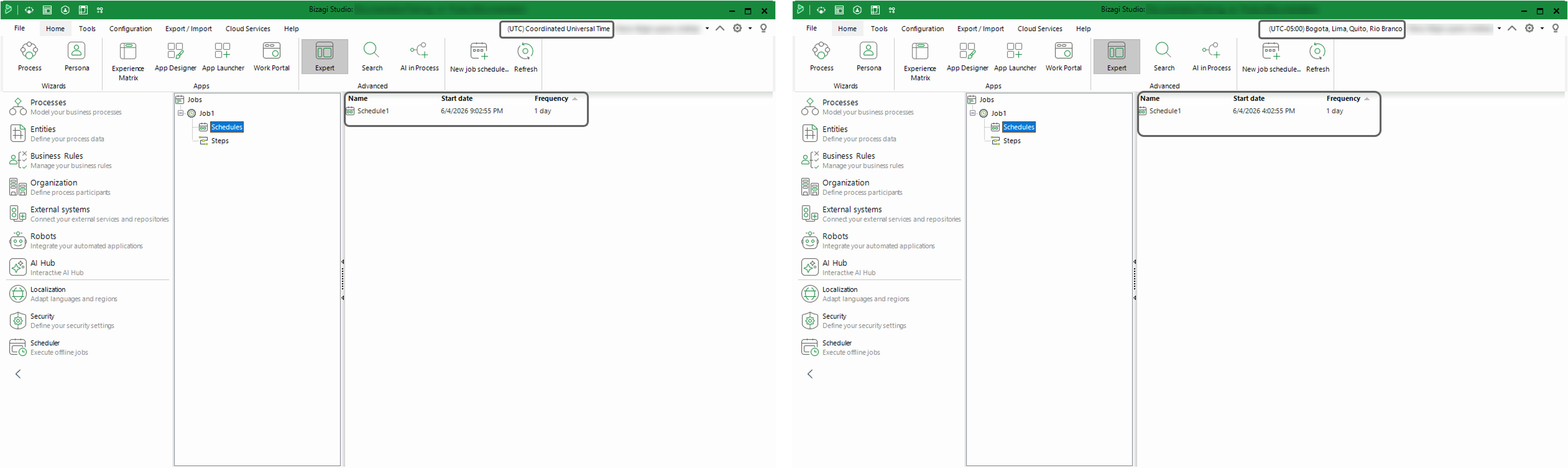
The following examples show how dates and time are modified by the selected time zone during your session.
Some of the various dates and times that are modified by the time standard you select are:
•LDAP
•Jobs (user, wait, alert)
•Schedule property of events
Last Updated 7/14/2026 4:53:05 PM