Overview
The following example illustrates a simplified Emergency Room (ER) scenario in which a patient arrives with a particular condition, and the medical team works to provide immediate care. This example does not include hospital admission; if necessary, the patient would be transferred by ambulance to another clinic.
The process begins when the patient arrives at the ER and ends once a treatment plan is in place to address the patient’s condition.
This Emergency Room process demonstrates how Bizagi's features and options leverage the Experience Design concept to effectively manage unstructured processes. These processes are highly dynamic and unpredictable, often involving numerous possible workflow alternatives. In such cases, Personas—knowledge workers—must make real-time decisions to define the case flow, which cannot be predetermined. The scope of this example focuses solely on attending to the patient.
Through Experience Design, organizations can empower knowledge workers, deliver personalized user experiences, and apply contextualized BPM capabilities, among other benefits.
Please note that this is not a complete Emergency Room process; a full implementation would require more detailed definitions.
To install this accelerator in your project, follow the steps outlined in the Process Xchange article.
Bizagi Modeler Process Description (BPM)
The complete documentation of this process can be found within its Bizagi Modeler file (.bpm). From there, you can generate a Word document with all its information.
Identify the General Process and Milestones
Define the general process, or standard process flow, by providing a high-level business description of what will be automated. Focus on the most common outcomes (excluding exceptions at this stage) and outline the main stages of the case, referred to as milestones.
The milestones for the Bizagi Emergency Room process are:
•Triage and registration
•Examination
•Tests
•Treatment
•Transfer of the patient to a clinic for surgery
Not all milestones need to be reached in every case instance. In fact, some are mutually exclusive. Additionally, certain milestones may be revocable: even after a milestone has been marked as reached, Personas can decide to revert that decision if necessary.
Personas
Bizagi's Work Portal enables knowledge workers to make informed decisions—such as when to initiate a process or update data—thereby enhancing agility and productivity.
Multiple Personas can be associated with a case, and each may influence it directly or indirectly. However, not all Personas need to participate in every case instance. Identifying Personas (stakeholders) is essential to personalize their experience and ensure relevant interactions.
Typical Personas in the Emergency Room process include:
•Doctor
•Nurse
•Patient
•External stakeholders (evaluated to determine whether they should be included in the automation)
Experience Design
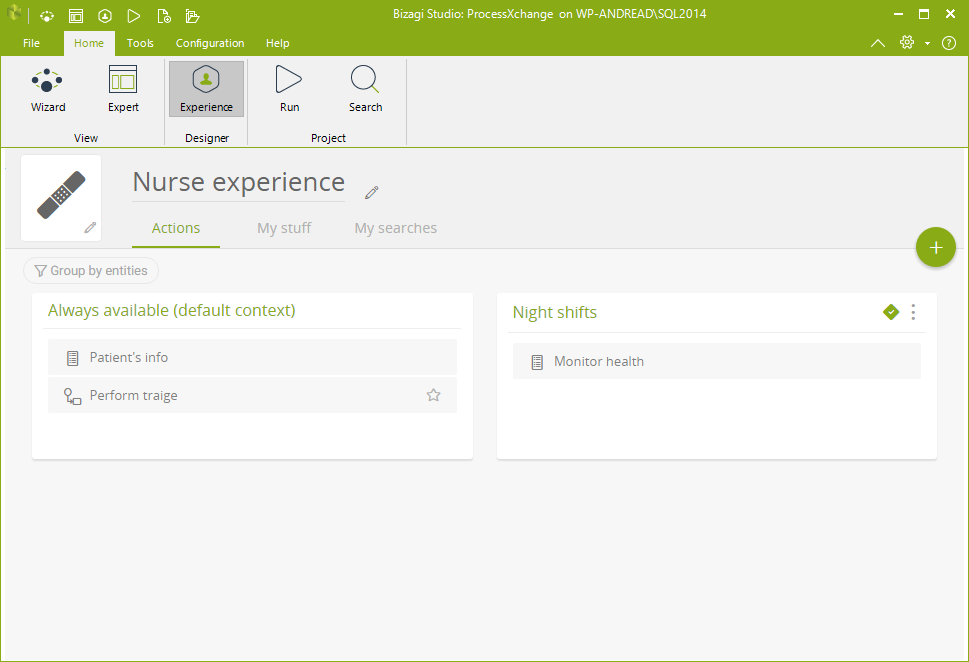
In Bizagi Studio, each Persona’s Experience is configured through the Persona menu located in the Wizards section in the Home tab. Actions, My Stuff, My Searches and Relevant—are defined based on the options available to each user.
To make a group visible in the My Stuff section, the Persona must have a direct or indirect collection linked to an entity. For example, a Nurse has a collection related to Medical Equipment. This means each nurse owns one or more pieces of equipment and can view them in the Work Portal. If actions are available for managing equipment, the nurse will also be able to perform those actions directly from the Work Portal.
Manage Personas
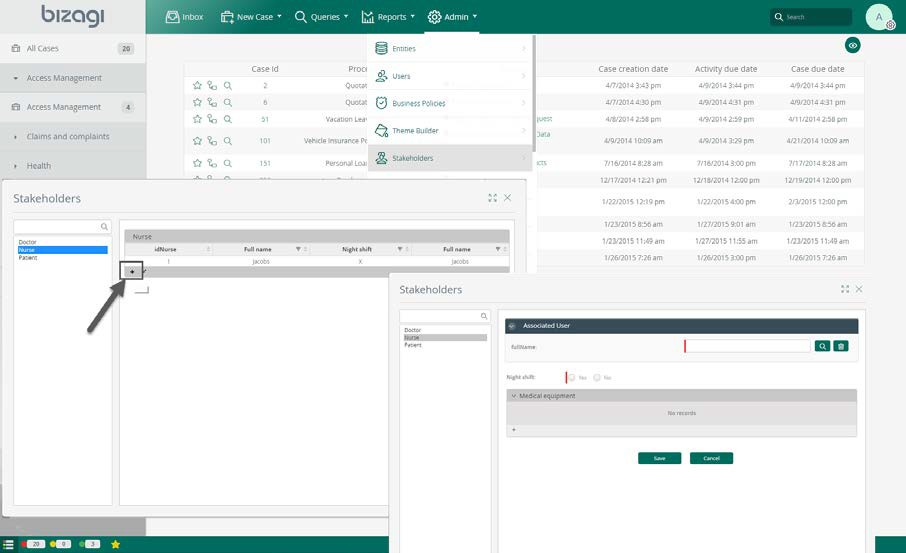
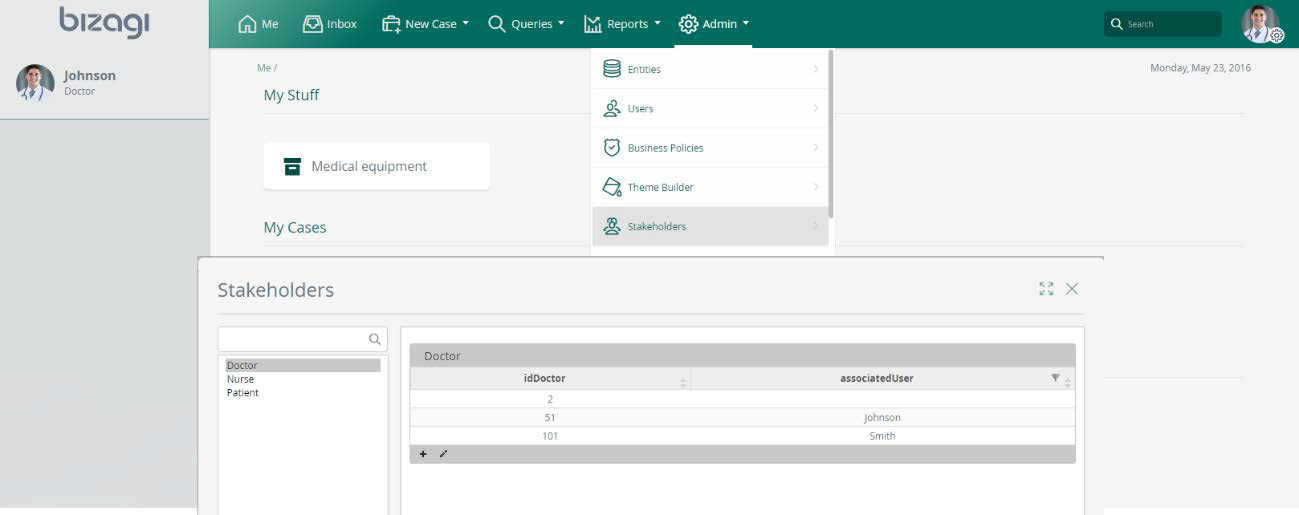
If you plan to use this template, make sure you have created at least one user for each Persona and configured them in the Admin section of the Work Portal. Without an assigned user for every Persona, the template will not work as expected.
To configure this, go to the Admin tab, select User Management and click the Personas option. Create a new record for each Persona by adding a user and completing all required details.
Keep in mind that Persona management in the Work Portal relies on predefined management Forms. These Forms determine the information displayed and requested when configuring a user as a Persona.
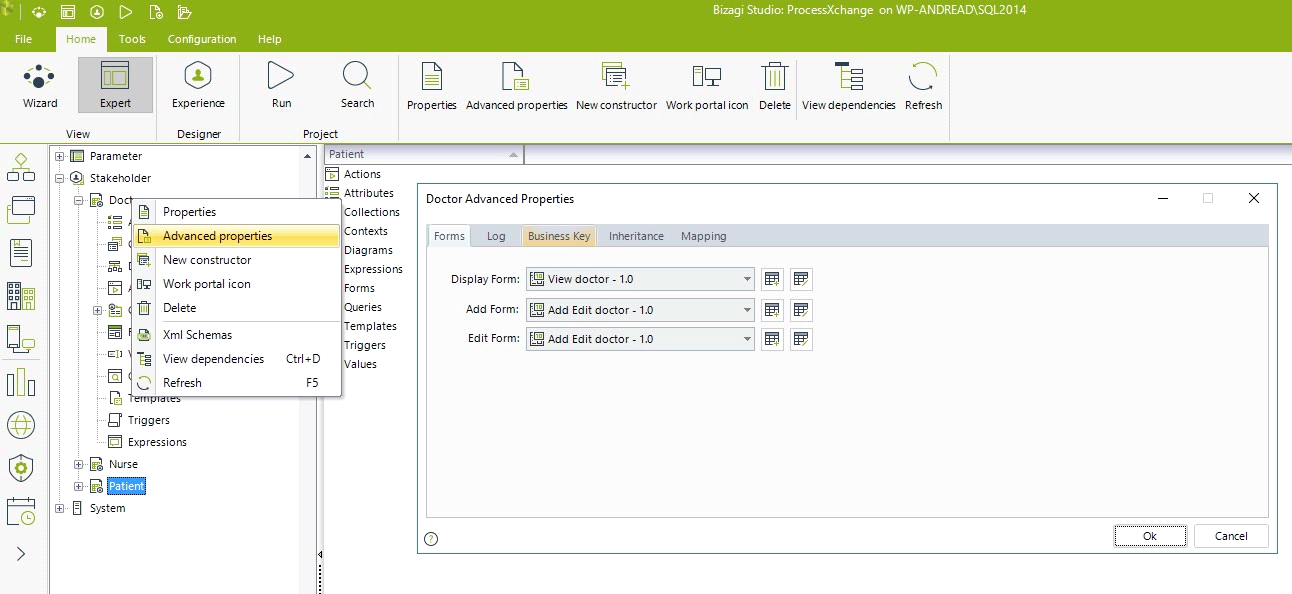
In Bizagi Studio, we have defined:
•A Display Form, which specifies the columns shown in the Persona’s main view.
•Add and Edit Forms, which define how a Persona record is created and modified.
Identify Activities | What Can Personas do?
This step focuses on defining the activities that Personas can initiate, as well as other case-related operations they are allowed to perform. It categorizes their permitted interactions with the work that will be enabled for them.
Determining whether activities are mandatory under specific circumstances or optional at the Persona’s discretion helps classify them as actions within an unstructured process.
Keep in mind that many activities in a case are not always available for execution. They become applicable only when certain milestones are reached or specific conditions are met. Additionally, activities can be withdrawn: if they are no longer relevant, they should not be presented to Personas.
Persona |
Activity Description |
When This Action/Activity Can Be Performed |
Comments |
|---|---|---|---|
Nurse |
Patient registration and Triage |
When in shift, as a patient arrives |
The nurse searches for a patient and then includes a date and time of arrival |
Choose Triage category |
When performing a triage |
|
|
Send a Patient to surgery |
When performing a triage |
|
|
Update Patient’s information |
Anytime |
|
|
Monitor health |
In night shifts |
Monitor blood pressure and others |
|
View / manage medical equipment |
Anytime |
|
|
Doctor
|
Examine patients: Very urgent, urgent and standard |
When patients are in the waiting room and doctor is someone who attends patients |
|
Request laboratory or radiology exams |
When examining patients |
Exams should be updated automatically if one or more are included in the supported exams list |
|
Review exams |
When patients have been sent for exams |
Only available when all exams have been performed |
|
Take blood sample |
|
|
|
Perform radiology procedure |
|
|
|
Send to surgery |
When examining patients and when reviewing exams |
|
|
View medical equipment |
Anytime |
|
|
Send equipment to repair |
Anytime |
Several pieces of equipment can be sent at once |
|
Patient |
View Exams, Triage and Doctors |
Anytime |
|
Search Doctors |
Anytime |
|
Identify Actions, Activities, Contexts and Data
Nurse
Activity Description |
Context |
Availability |
Action / Activity |
|---|---|---|---|
Patient registration and Triage |
When in shift, as a patient arrives |
Via Search for patients, always available |
Action: Start Triage to launch Emergency process |
Choose Triage category |
When performing the triage |
Mandatory |
Activity: Triage |
Send a Patient to surgery |
When performing a triage |
Mandatory |
Activity: Triage |
Update Patient’s information |
Always without the need of being in a particular case |
At discretion |
Action: Update info |
Monitor health |
In night shifts |
At discretion |
Collection in My Stuff Action: Add monitoring / Add collection item: |
View allocated equipment |
Always without the need of being in a particular case |
Through the data records in My Stuff |
Collection in My stuff |
Data Description |
Context |
Availability |
Action / Activity |
|---|---|---|---|
Patients |
Always |
Via Search for patients, |
Action: Start Triage to launch Emergency process |
Medical equipment |
Always |
Always available |
|
Health monitoring |
In night shifts |
Mandatory |
Activity: Add monitoring |
Doctor
Activity Description |
Context |
Action / Activity |
Activity Description |
|---|---|---|---|
Examine patients reviewing triage level: Very urgent, urgent and standard |
When patients are in the waiting room and doctor is someone who attends patients |
Mandatory |
Activity: Examine patient |
Request laboratory or radiology exams |
When examining patients |
At discretion |
Action within Examine patient |
Review exams |
When requested exams have been finished |
Mandatory |
Activity: Review exams |
Take blood sample |
When allocated |
Mandatory |
Activity: Take blood sample within Blood test process |
Perform radiology procedure |
When allocated |
Mandatory |
Activity: Perform radiology within Radiology process |
Send to surgery |
When examining patients and when reviewing exams |
At discretion |
Activity within Examine patient Activity within Review exams |
Repair equipment |
Anytime |
At discretion |
Batch action in My Stuff |
Data Description |
Context |
Availability |
Action / Activity |
|---|---|---|---|
Patients |
Always |
Via Search for patients, |
Action: Start Triage to launch Emergency process |
Medical equipment |
Always |
Always available |
Action: Start a repair process including one or more equipments |
Patient
Data Description |
Context |
Availability |
Action / Activity |
|---|---|---|---|
Doctors, Exams, Triage |
Always |
Via My Stuff, only to view |
None |
Process Description
After reviewing the actions available, we can create the structure of a core process and processes that will be launched via Actions to support the case structure.
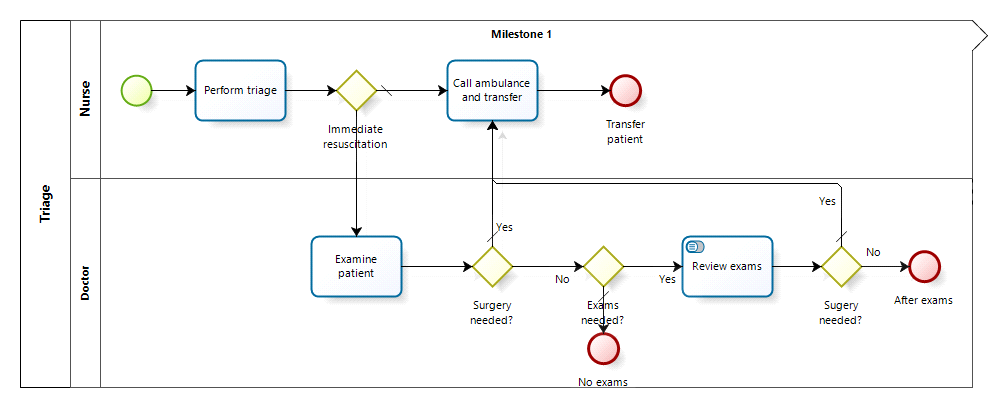
1.The process starts with a patient arriving at the ER. A nurse examines the Patient and determines the scale of the emergency. The patient continues to a medical examination by a doctor, or is sent to surgery.
2.The Doctor can request the exams needed to identify the illness.
3.The requested exam’s processes are launched, as part of the ER case. As all exams are finished, the Review Exams activity is enabled.
4.The Patient can be dismissed after the exams review or sent to surgery.
Main process: Triage
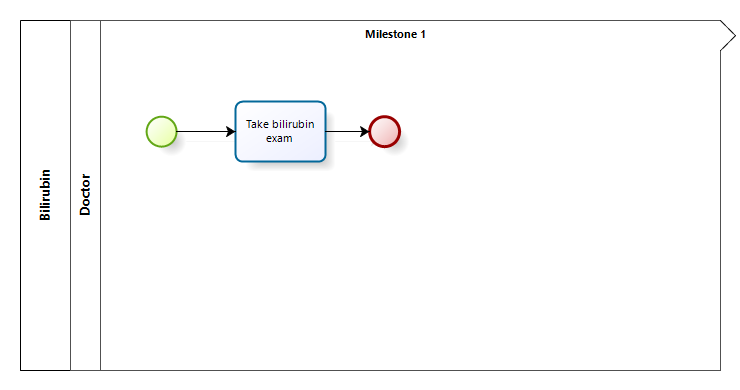
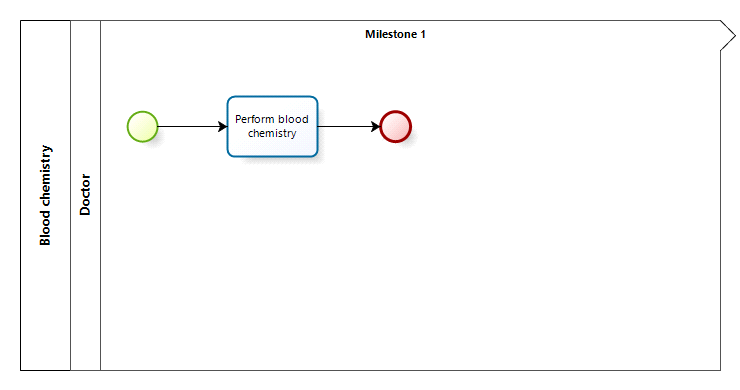
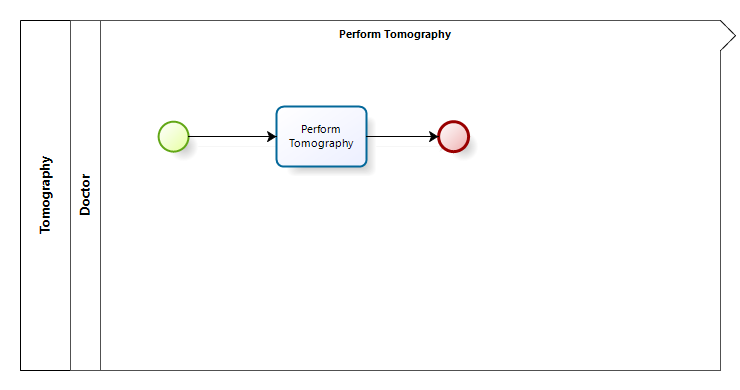
Exams processes (supporting processes for unstructured management):
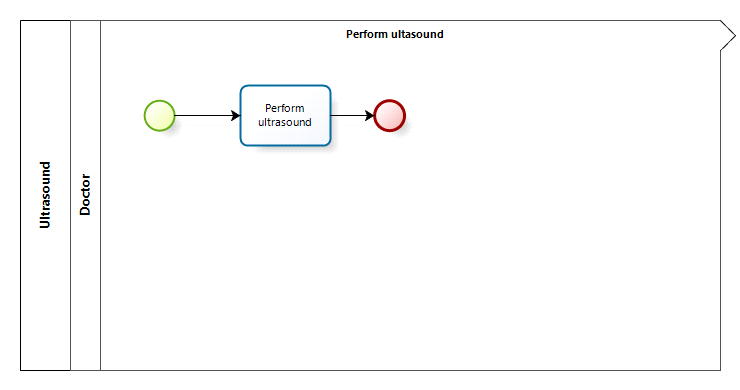
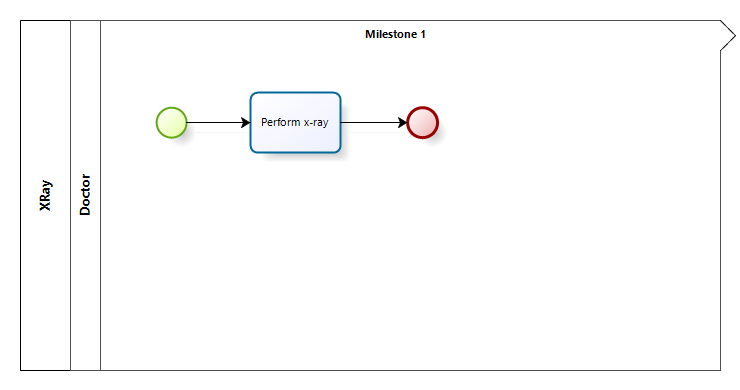
Foundations for Process Construction
Data Model
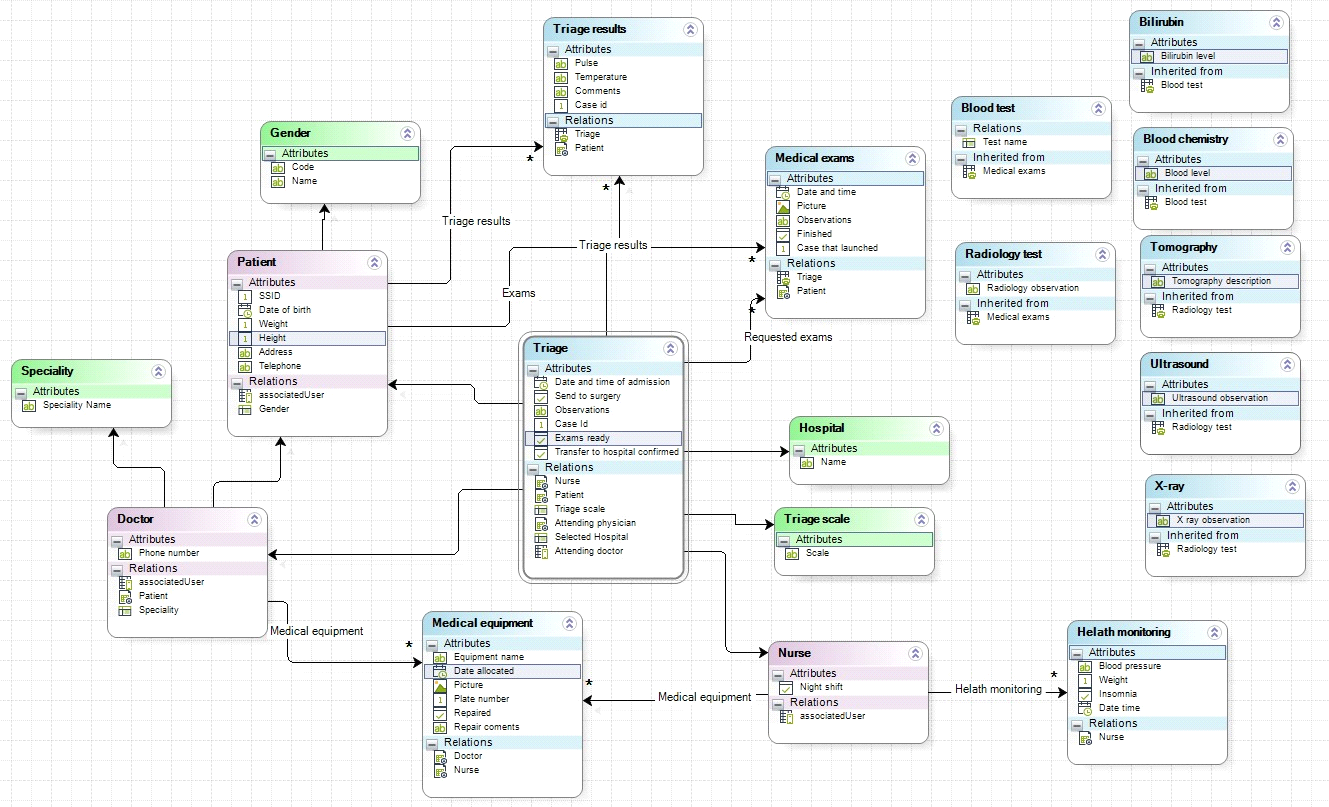
The process entity for the Triage process is “Triage”, which contains all the attributes and relationships required to store the main case information.
Additionally, three stakeholders have been defined, each with a tailored Experience in the Work Portal to provide a personalized interface:
1.Doctor
2.Patient
3.Nurse
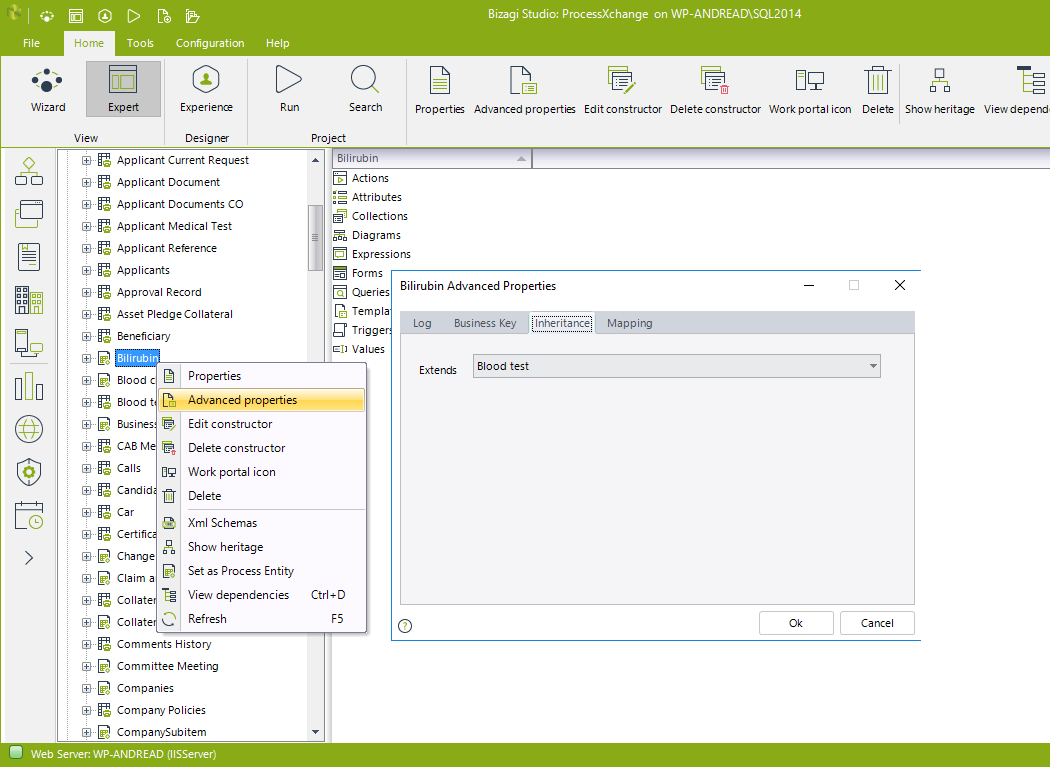
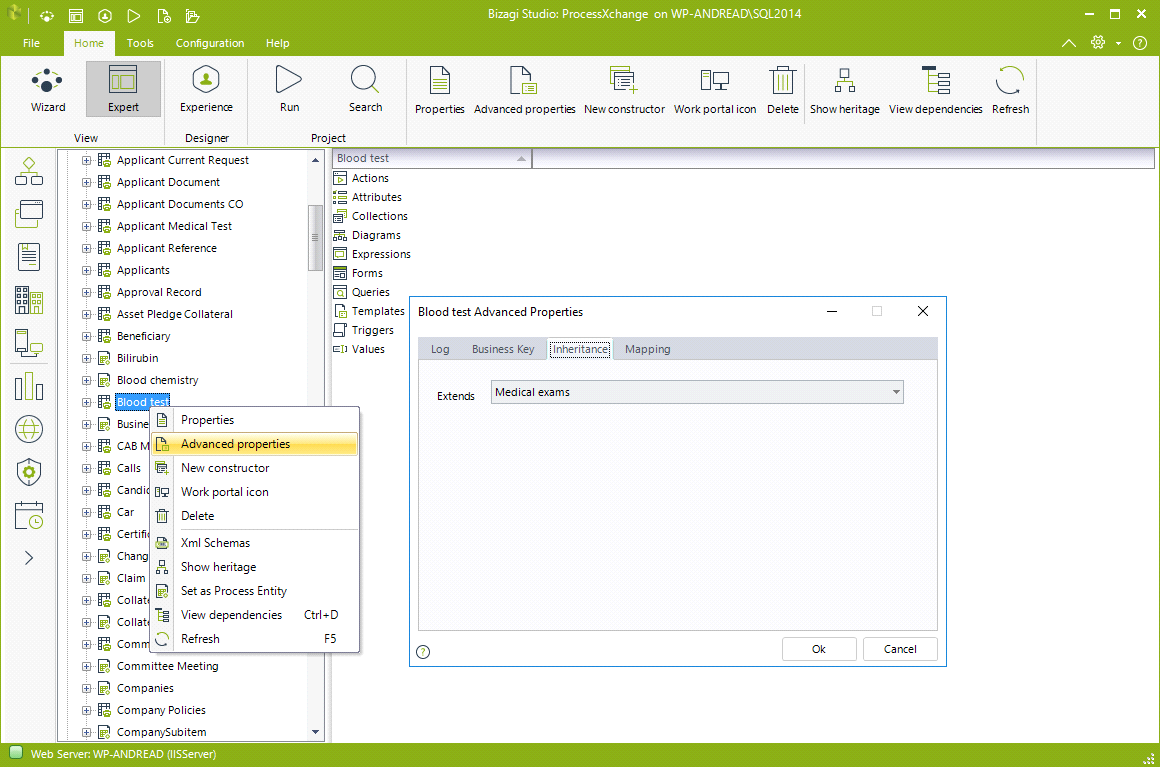
Inheritance Configuration
Several process entities support the case by providing access to Medical exams. These Medical exams are structured using a Hierarchical model, which enables the use of the polymorphic launcher in the Examine Patient activity.
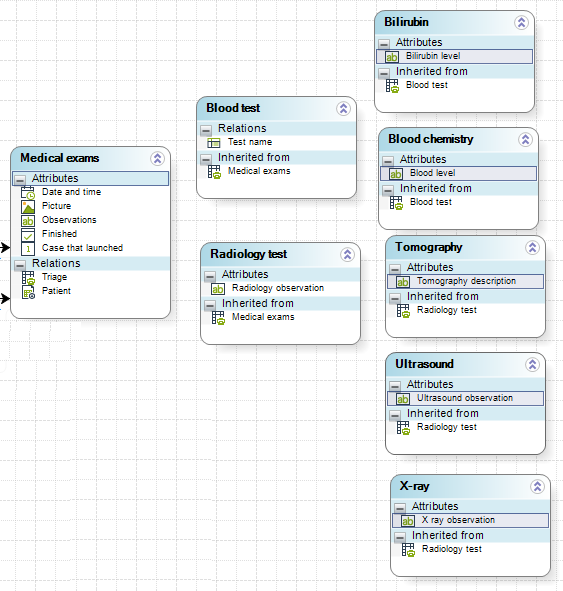
Constructors
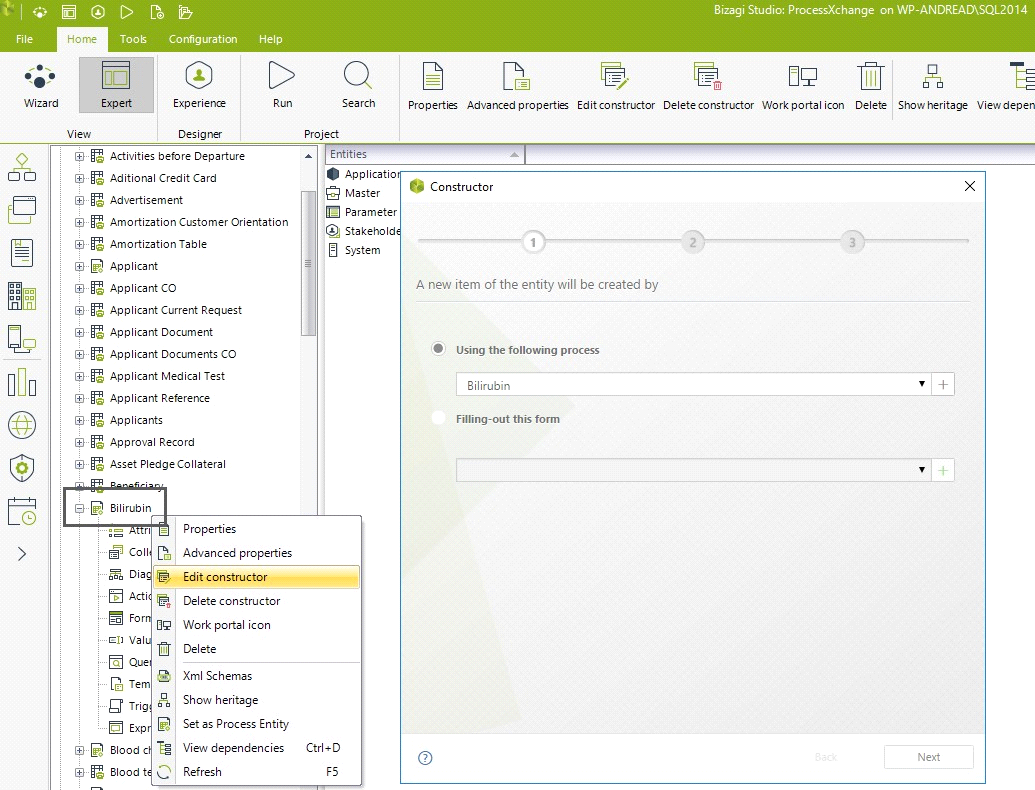
To display the polymorphic launcher in the Work Portal, each supporting exam process must have a Constructor defined. A Constructor specifies how a record for each entity is created.
For this template, we defined a process for each exam, ensuring a Constructor exists for:
•Bilirubin
•Blood Chemistry
•Tomography
•Ultrasound
•X-ray
In Bizagi Studio, the Constructor Wizard was used to configure these processes and define the corresponding Constructors.
Templates
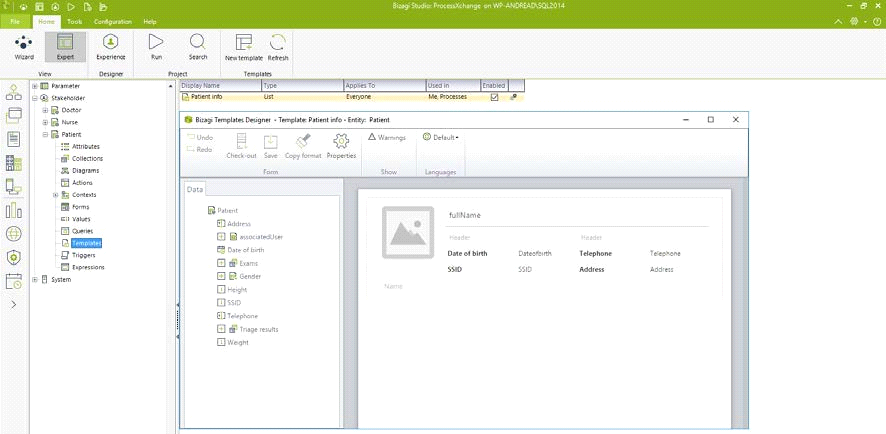
When browsing data—whether viewing search results or lists of information in My Stuff—you can customize the details displayed for these records.
By default, Bizagi applies a basic template that selects random attributes from the entity associated with each record.
For this template, we have defined data templates for the most relevant entities: Patient, Doctor, each of the exam entities, and Triage.
Triggers and Conditional Activity
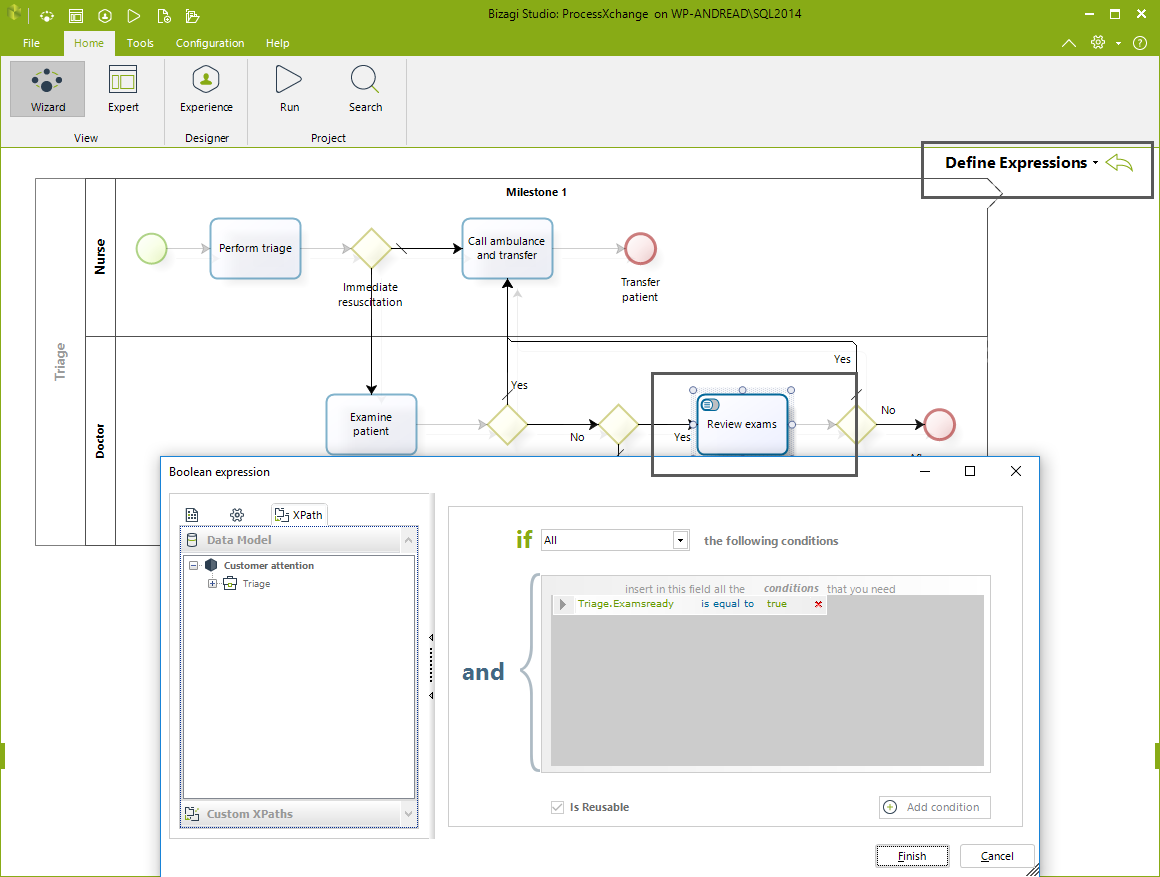
Conditional activities are used in processes to enable or disable specific actions based on data conditions within the process. In this template, we use the Review Exams conditional activity:
When all exams are completed, the Review Exams activity becomes available, but not before.
The condition that enables or disables this activity is configured in the fourth step of the Process Wizard, under Define Expressions, as shown below.
To set the Triage.Examsready attribute to true or false and thus enable or disable the activity, we use a Trigger.
To control whether the activity is enabled or disabled, we use a trigger to set the Triage.ExamsReady attribute to true or false.
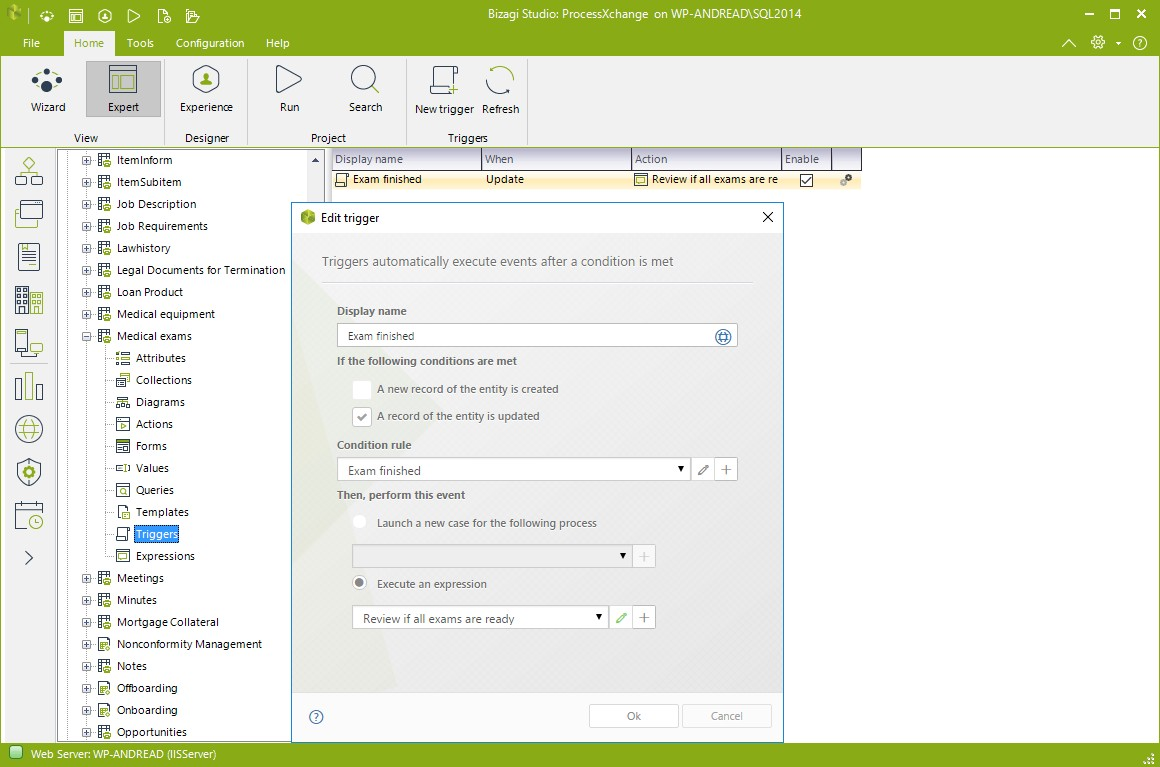
First, we define an expression at the end of each exam process to indicate that it has been completed. When an exam is marked as finished, the trigger is executed and evaluated.
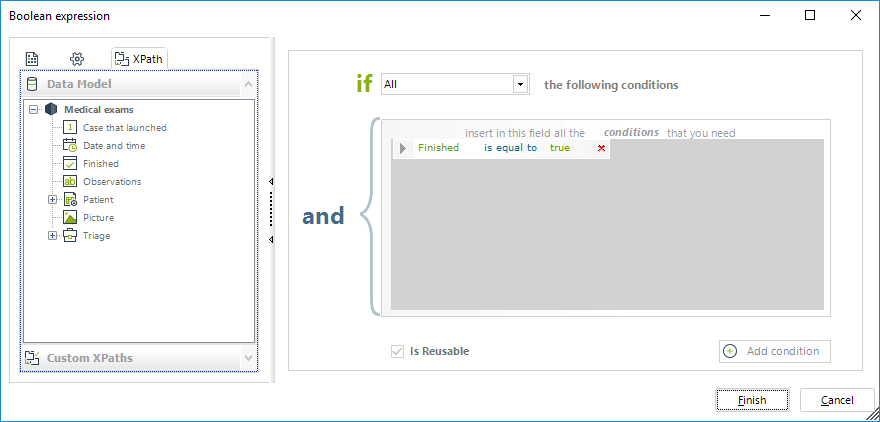
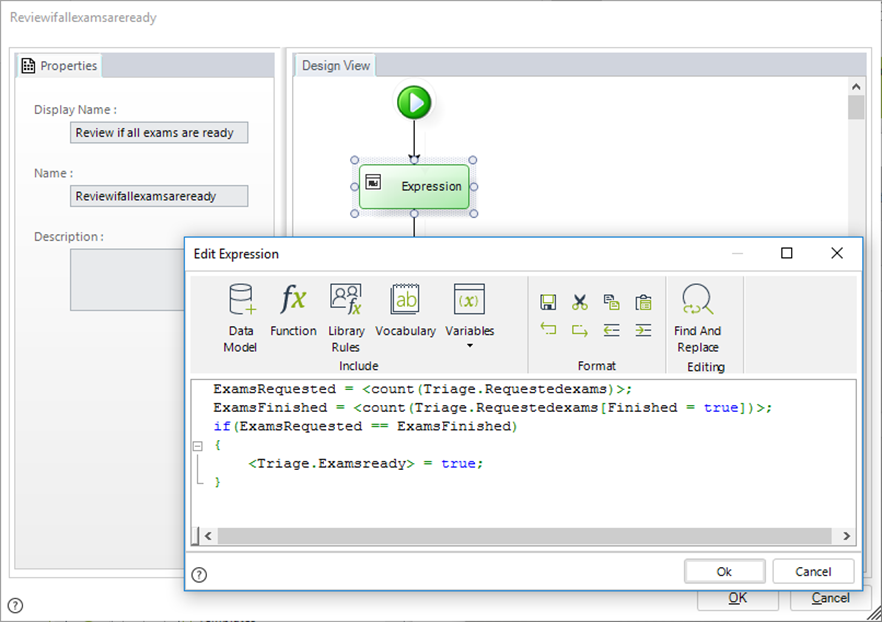
If the exam is confirmed as finished, the trigger executes an expression event to check whether all related exams in the Triage case have been completed. If at least one exam is still pending, the Triage.ExamsReady attribute remains false.
Once all exams are completed, the Triage.ExamsReady attribute is set to true, enabling the Review Exams conditional activity and assigning it to the doctor.
Last Updated 1/19/2026 2:38:45 PM