Overview
Bizagi's Process Xchange provides ready-to-use and run processes that give your organization a boost in its automation initiatives. You can customize these processes to meet your company's specific needs. Follow the steps below to import the Process Templates into Bizagi Studio. Learn, explore, and adapt the Process to suit your requirements.
You can download processes from the Xchange library using the information provided below.
For detailed information about each template, please refer to the Xchange User Guide.
How to open Process Xchange
You can access Bizagi Process Xchange in four ways:
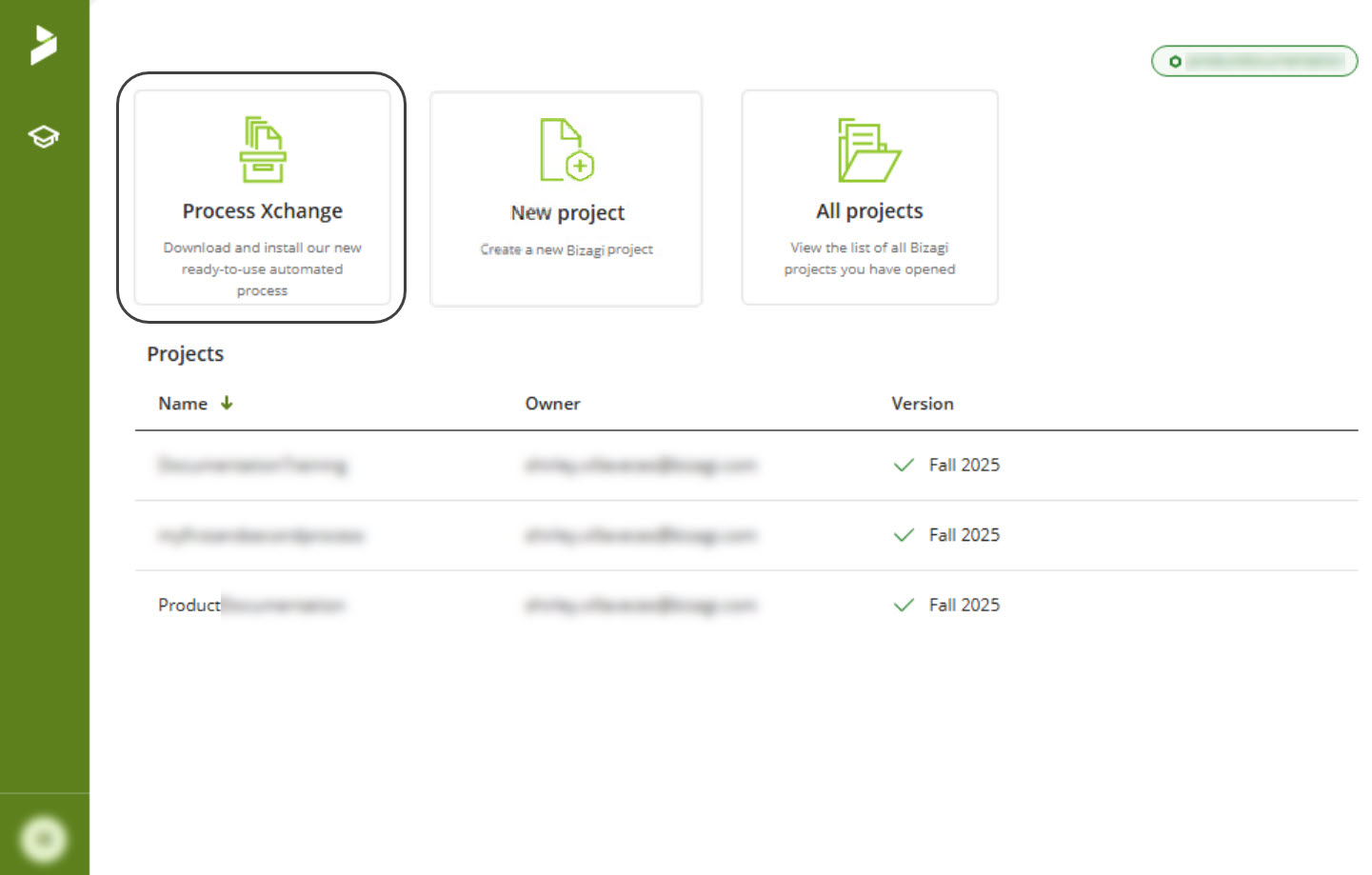
1. From the Bizagi Studio home screen
Open Bizagi Studio. On the project selection page, click on Process Xchange.
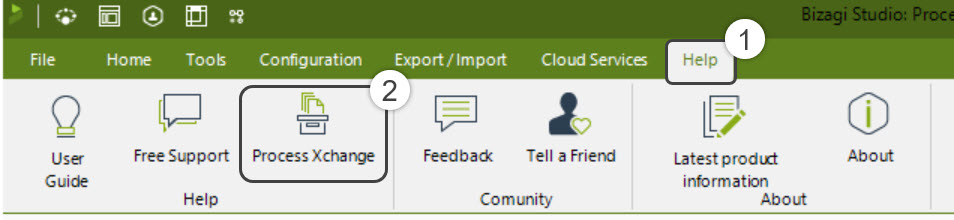
2.1 Help tab
In your open project, go to the Help tab and select the Process Xchange button.
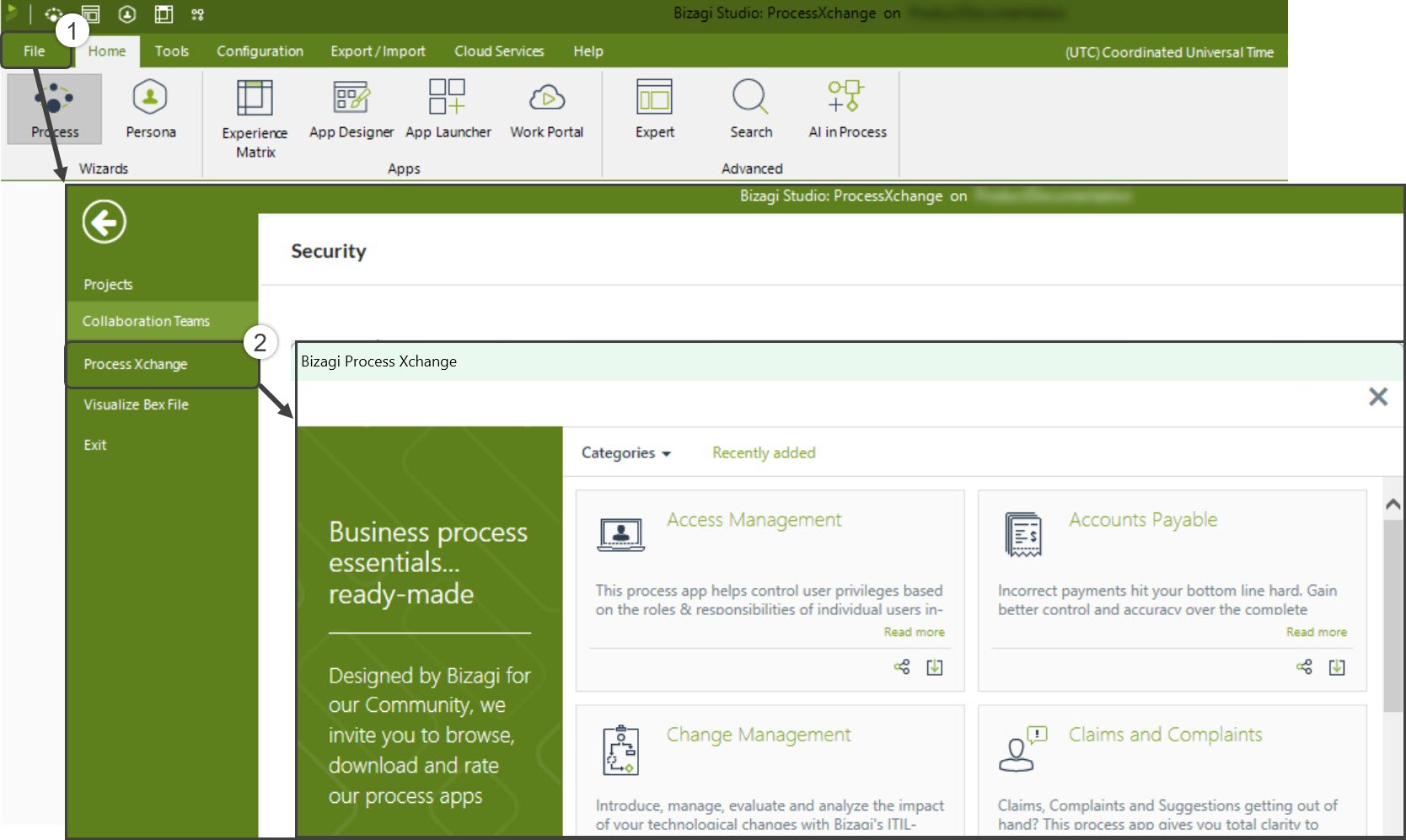
2.2 File Menu
In the open project, go to the File tab and select Process Xchange in the left panel.
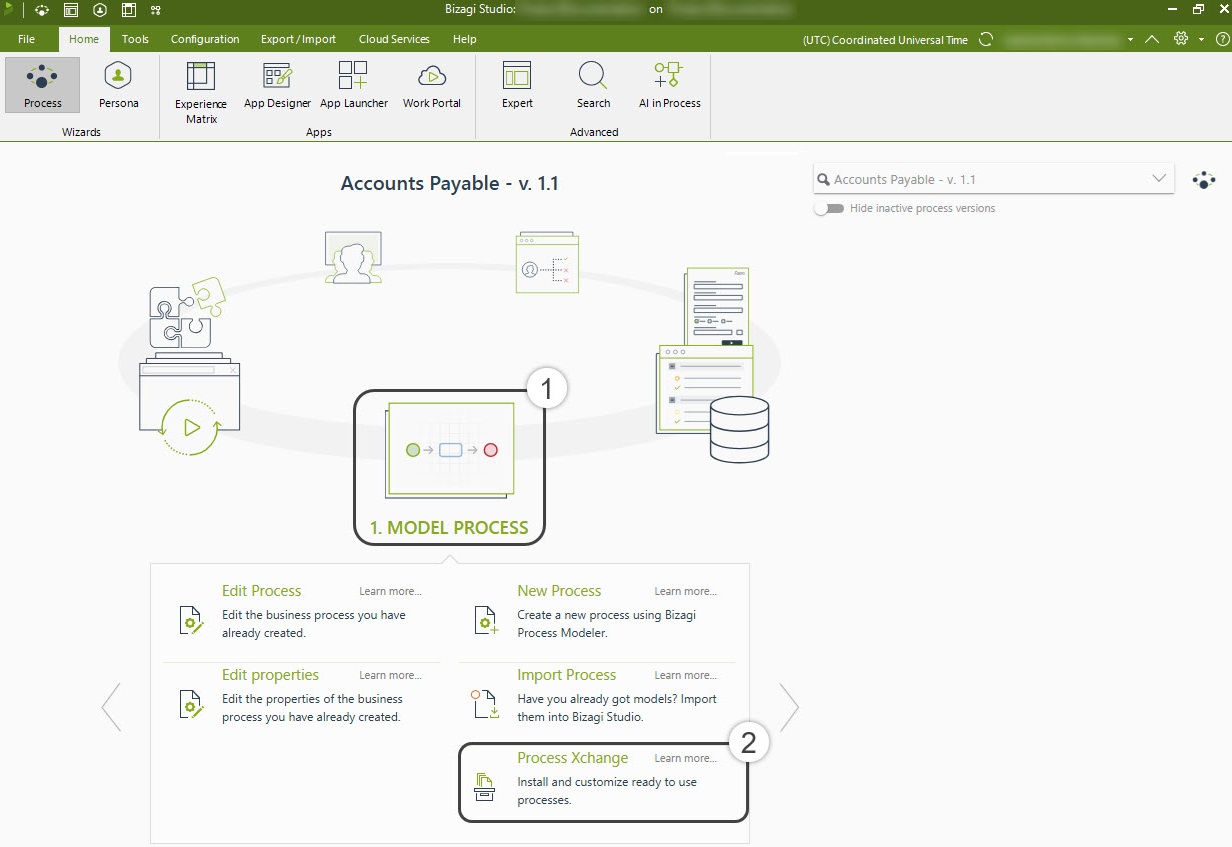
2.3 Process Wizard
In your open project, go to the first step of the Process Wizard, Model Process, and click the Process Xchange button.
|
Before you begin, make sure you have the latest version of Bizagi installed. You will also need an active internet connection. |

Downloading and Installing Templates from Process Xchange
1.After opening the Bizagi Process Xchange window using one of the methods described above, you will see a new window with a list of available templates.
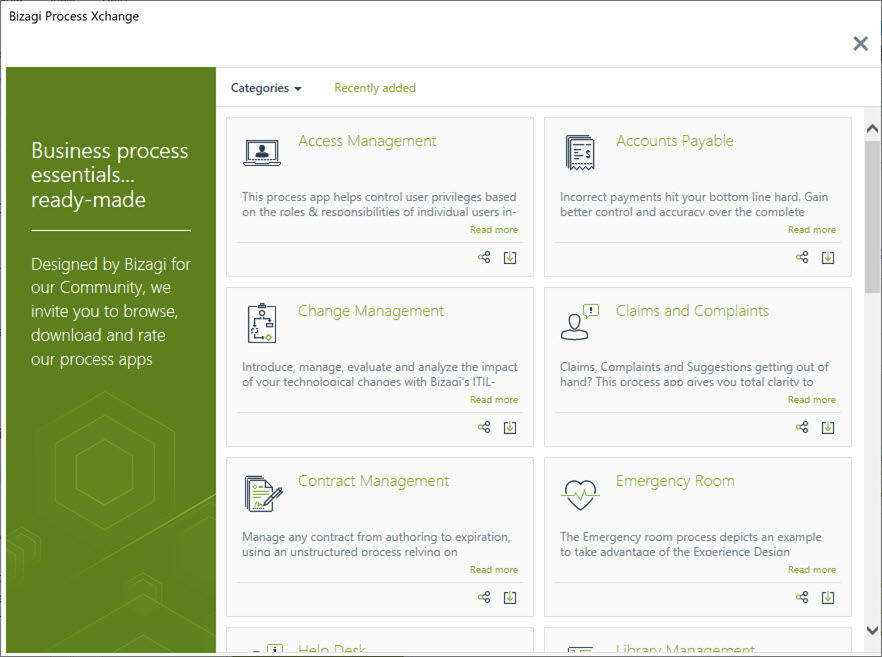
2. Explore Process Xchange and select any process to access its detailed information.
3. Consult the available materials (such as videos, documents, and other resources) to learn more about each process.
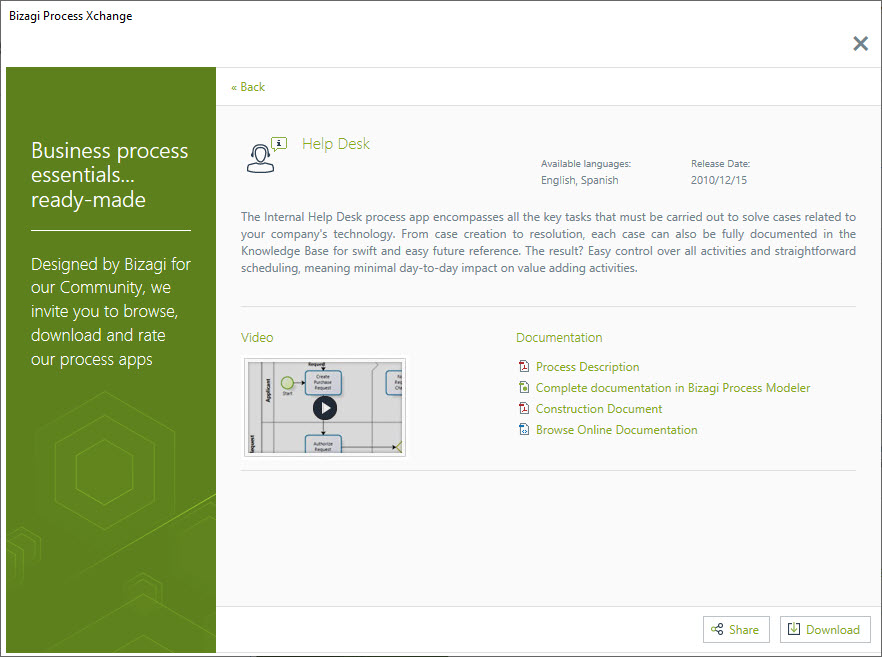
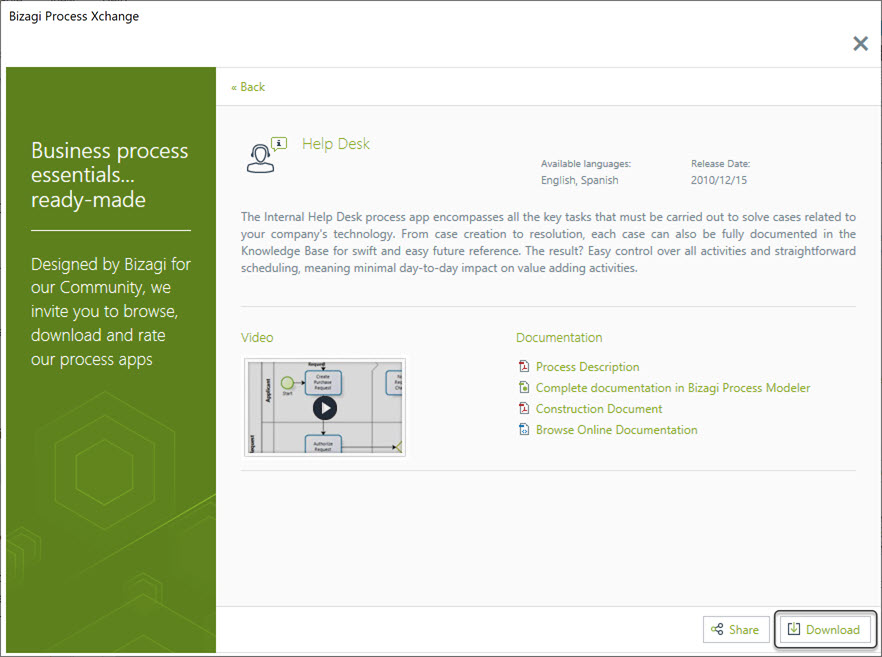
4. When you find a process that suits your needs, you can download it and start using it immediately. Click the Download button to get it for free.
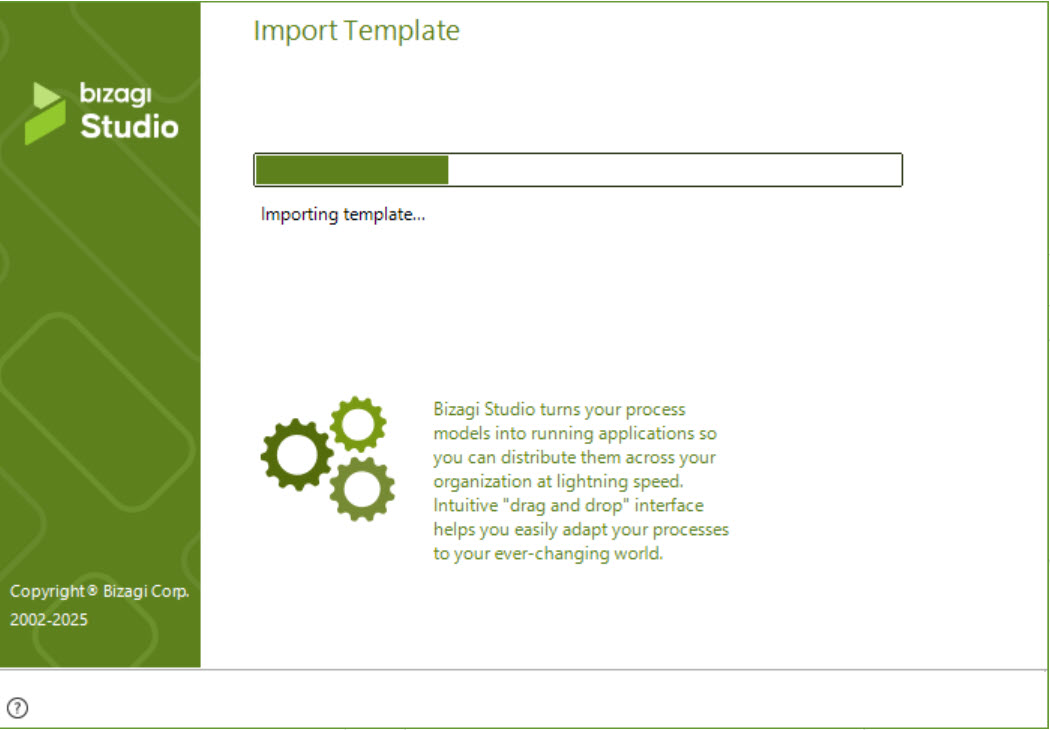
5. An assistant will guide you through the installation process.
|
If you accessed Process Xchange from the Bizagi Studio home screen (i.e., before selecting a project), the wizard will guide you to the project selection step as part of the template installation process. Once inside Bizagi Studio, the template will be installed in the open process.
Note: If you wish to create a new project, please contact your Account Executive to have it included in your contracted package. |
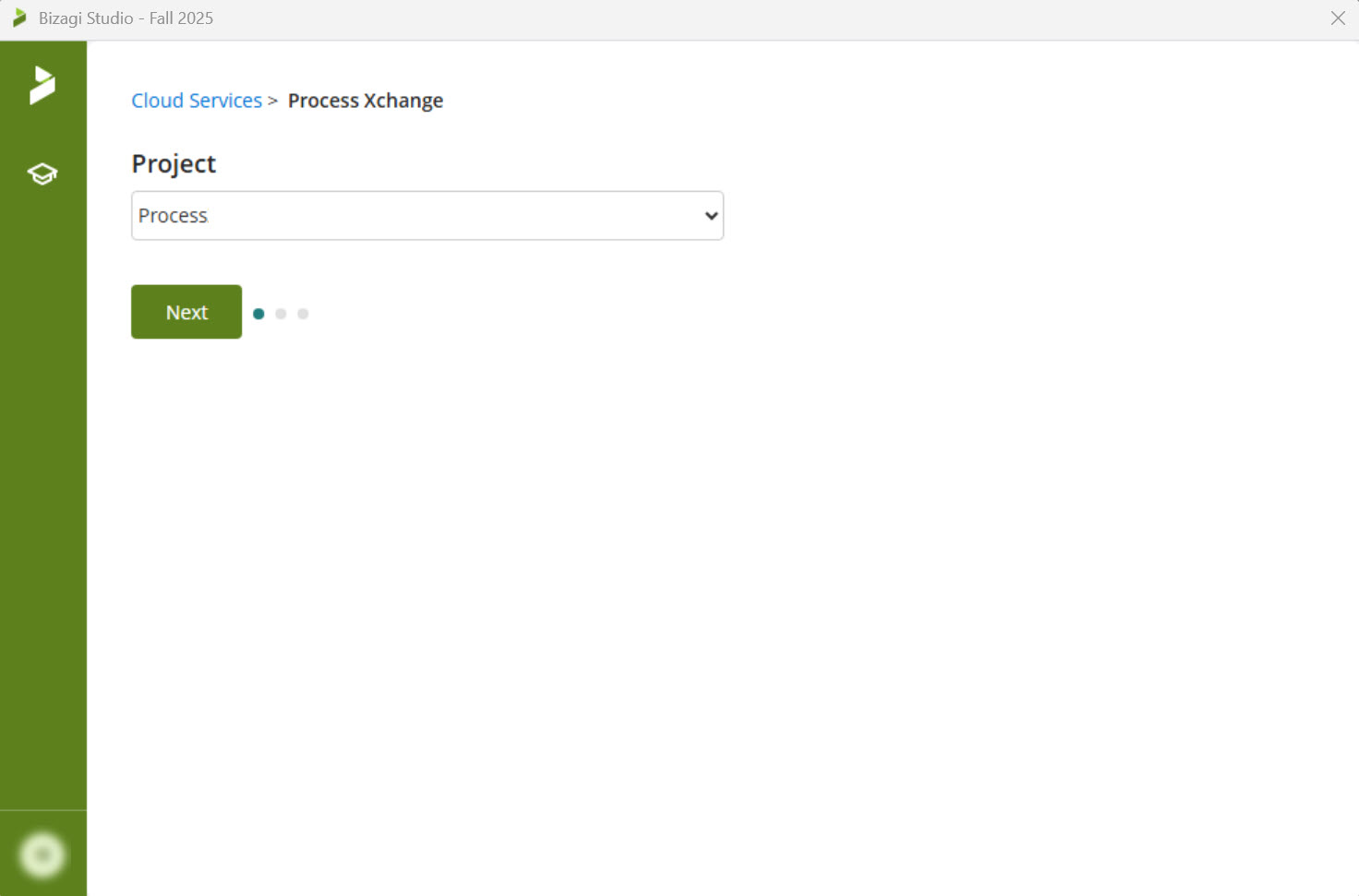
6. Once the download is complete, the template will automatically install in Bizagi Studio. After completing the installation wizard, open the Work Portal to explore the process. You can also locate it by category in Expert view or by searching for it in the Process Wizard. Customize the process to meet your organization's needs.
Note: If you accessed Process Xchange from an open project in Bizagi Studio, the template will be installed in the open process.
Important Considerations
•Templates must be imported one at a time.
•The templates have the email option DISABLED. You must configure your SMTP server to allow email sending to avoid errors in the Work Portal.
•Templates do not import users. You can test the template using the administrator user before creating users.
•To test the assignment rules, you must create users according to the roles defined for each task. Alternatively, you can create your own assignment rules and then create the users that best suit your needs. When creating users, ensure the Notify by Email option is enabled if emails will be sent.
•A template cannot be imported into an existing database if there are entities or processes with the same names.
•If you imported a template and then changed the name or type of an attribute, or modified the name of an entity, you will not be able to import the same template back into that project.
•If you wish to use the Work Portal in Spanish, you must enable the ES language and restart the Work Portal.
•Process Xchange is a service provided and hosted by Bizagi.
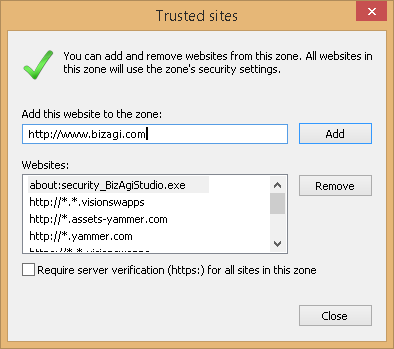
oTo use this functionality directly from Bizagi Studio, you need an active internet connection. We also recommend adding www.bizagi.com as a trusted site in your browser settings.
Last Updated 4/16/2026 1:16:55 PM