Overview
Delta Comparison is a deployment analysis tool that enables you to compare a deployment package created in Bizagi Studio against a target environment before applying it. This feature provides clear visibility into what changes will occur during deployment, helping you make informed decisions about whether to proceed with the package application.
How to use it
Delta Comparison is available through the Management Console of the target environment. From the Environment tab, in the Deployment package option, upload your deployment package.
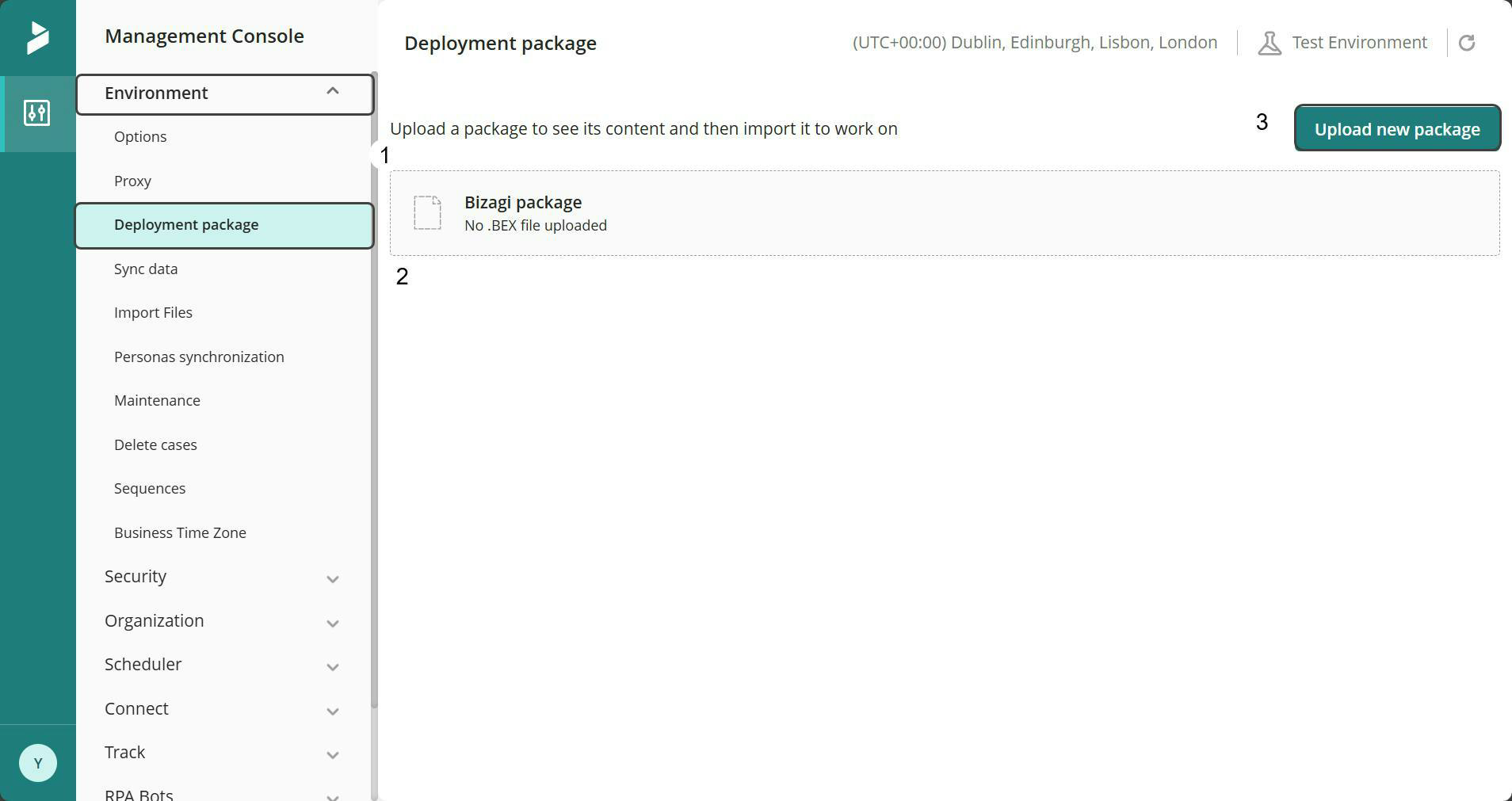
Once uploaded, click Compare with Target to begin the delta analysis.

The tool performs an environment-based comparison, not a file-to-file comparison. It analyzes the package contents versus what currently exists in the target environment, presenting results that help you quickly understand the deployment's impact before applying any changes.
Main features
Intelligent filtering
The comparison window includes contextualized filters that adapt based on the package content, displaying only options relevant to the information included:
•View Mode: allows selecting the Basic mode, which shows most-used Studio objects, and Expert mode that corresponds to the complete object list.
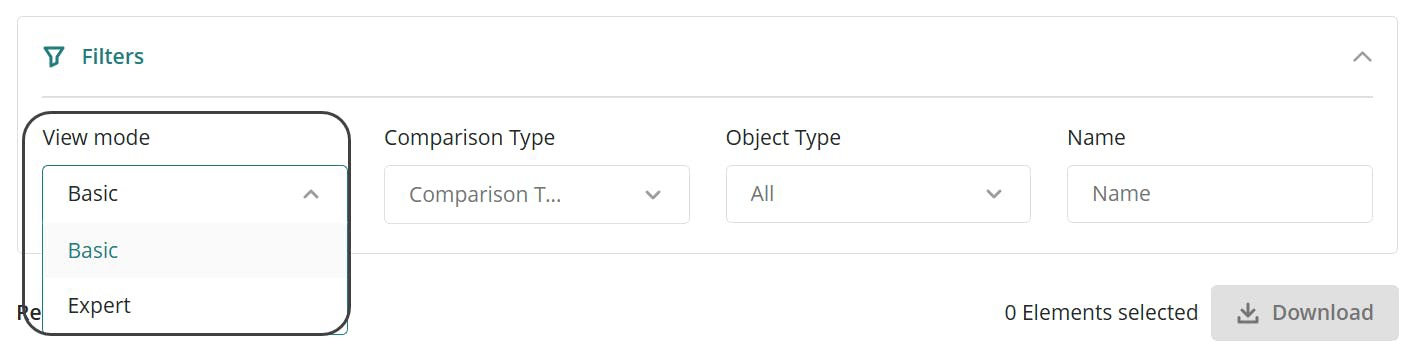
•Comparison Type: indicates the type of change made to the package. It shows the following types depending on whether they apply:
oNew: objects that do not exist in the target environment and will be created.
oEqual: objects that match between the package and target environment.
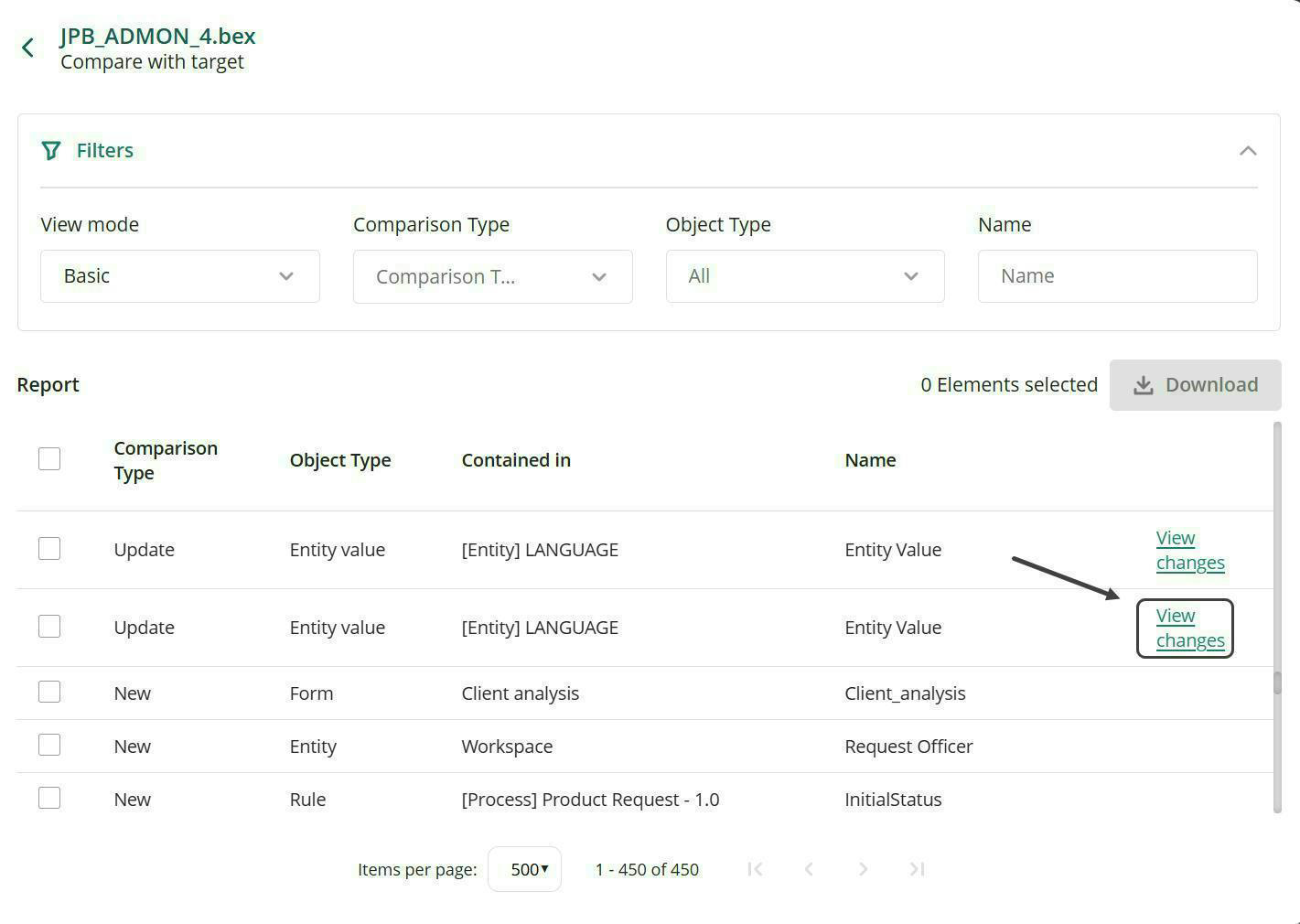
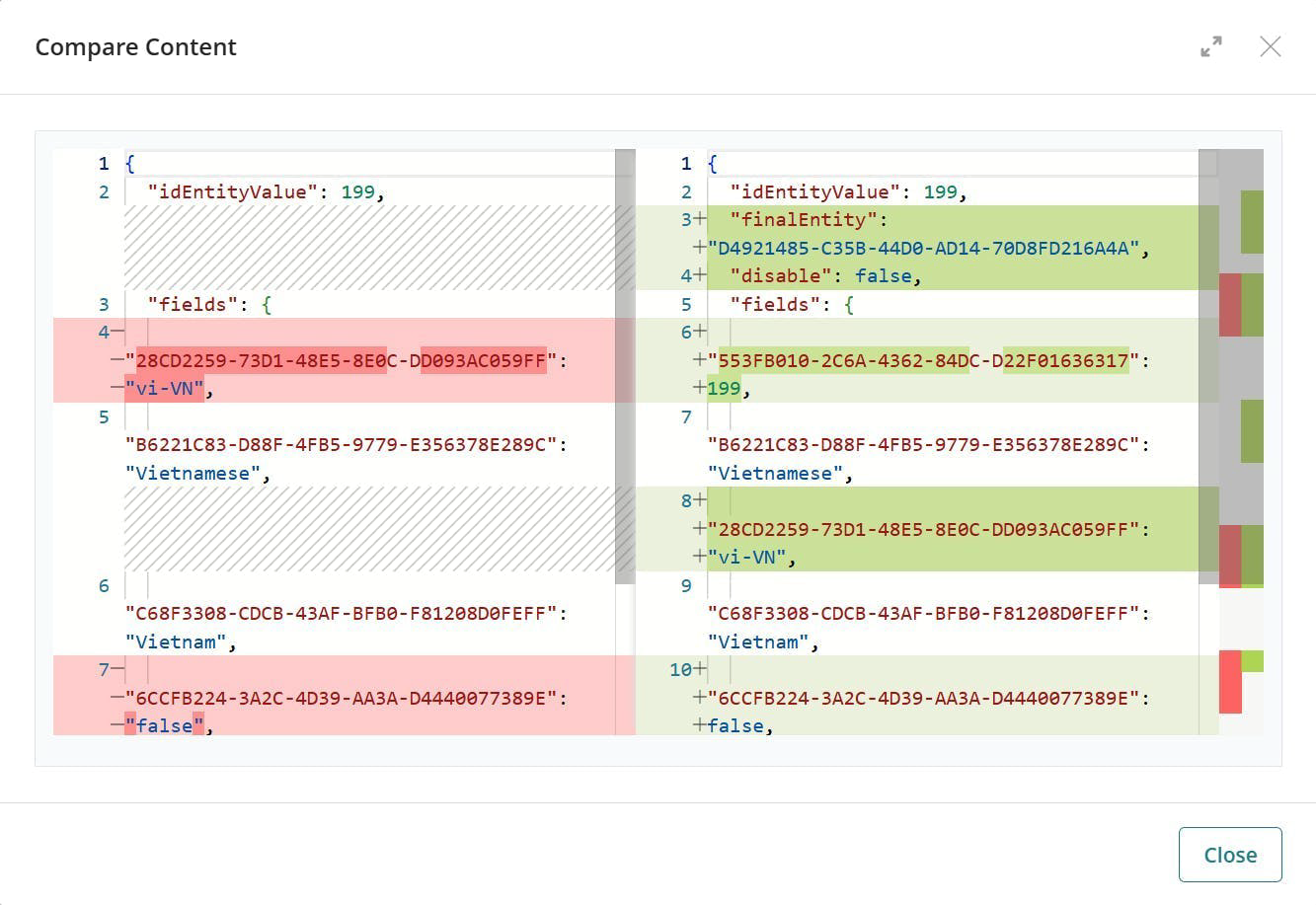
oUpdate: modified objects that will replace existing versions. These include a View Changes button that displays a side-by-side comparison showing the current target value versus the incoming package value, with changes highlighted.
oDelete: objects that will be removed from the target environment.
•Object Type: shows the specific object categories within the package. The following are the available types:
oAll
oApplication
oAttribute
oEntity
oEntity Action
oEntity Value
oForm
oProcess
oProcess Category
oProcess Element
oProcess Lane
oProcess Milestone
oProcess Version
oProcess Provider
oQuery
oRule
•Name: allows searching for objects by entering their name, which typically includes the process, version, and display name.

Impact analysis
By displaying how changes cascade through related objects, you can understand the full scope of a deployment's impact before applying it; for example, a form affected by added or deleted attributes.
Detailed change visualization
For updated objects, click the View Changes button to display how the object properties differ between environments.
Click the Compare Content button to see a code-level comparison showing exactly which attributes have changed.
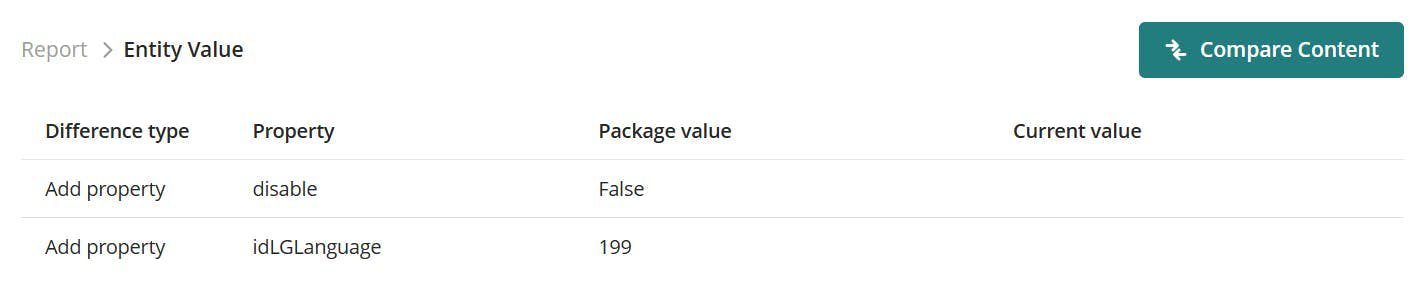
The comparison displays the current state in the target environment on the left side, the changes coming from the package on the right side, and the highlighted differences for easy identification of modifications.
|
New and Delete comparison types do not include the View Changes option, as there is no before-and-after state to compare. |

Export capabilities
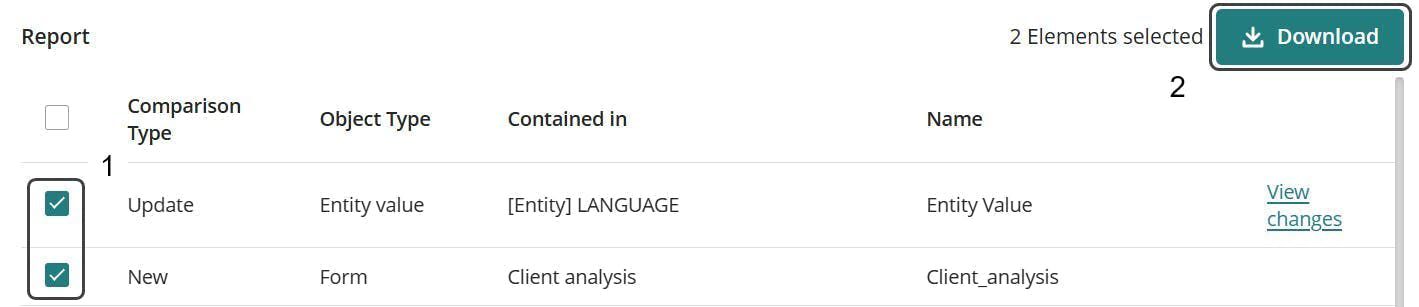
All comparison results can be exported to CSV format for advanced analysis. Click the Download button to generate the file.
The exported CSV includes:
•Object ID
•Object Name
•Parent
•Display Name
•Object Type
•Comparison Type
•Current Content (target environment state)
•Package Content (incoming changes)
You can select individual changes or export all changes in the package. Empty columns in the Current Content or Package Content fields indicate New, Equal, or Delete changes where no comparison data is available.
CSV Structure
The following is an example of the CSV structure:
Object Id,Object Name,Parent,DisplayName,Object Type,Comparison Type,Current Content,Package Content
82003109-d3a5-46fb-b8ed-4554478dbb55,entityValues82003109-D3A5-46FB-B8ED-4554478DBB55,"[Entity] LANGUAGE","Entity Value",Entity Value,Update,"{content}","{updated_content}"
cce53450-69b8-4e7f-8b54-023b54443360,Client_analysiscce53450-69b8-4e7f-8b54-023b54443360,"Client analysis","Client_a
Use cases
Microdeployments
The feature works equally well for small, focused deployments containing only a single object change, with filters adapting accordingly to show only relevant information.
Complex deployments
For packages containing multiple types of changes—such as new attributes, deleted attributes, and form updates—the comparison clearly shows the impact across all affected objects.
Last Updated 7/14/2026 10:50:44 AM