Overview
SAP BTP (Business Technology Platform) connectors allow you to integrate Bizagi with SAP services hosted on BTP infrastructure. You can manage these connectors directly from the Management Console, under the SAP BT Platform section.
When you work in the Management Console, your can update connection settings for SAP BTP connectors. If you need to modify connector logic such as entity sets or service definitions, you must use Bizagi Studio instead.
Accessing SAP BT Platform Connectors
To configure a SAP BT Platform connector, follow these steps:
1.Open the Management Console.
2.In the left panel, expand the Connect section.
3.Click SAP BT Platform.
4.From the connector list, select the connector you want to configure.
This opens the SAP BTP Configuration window, where you enter the connection details.
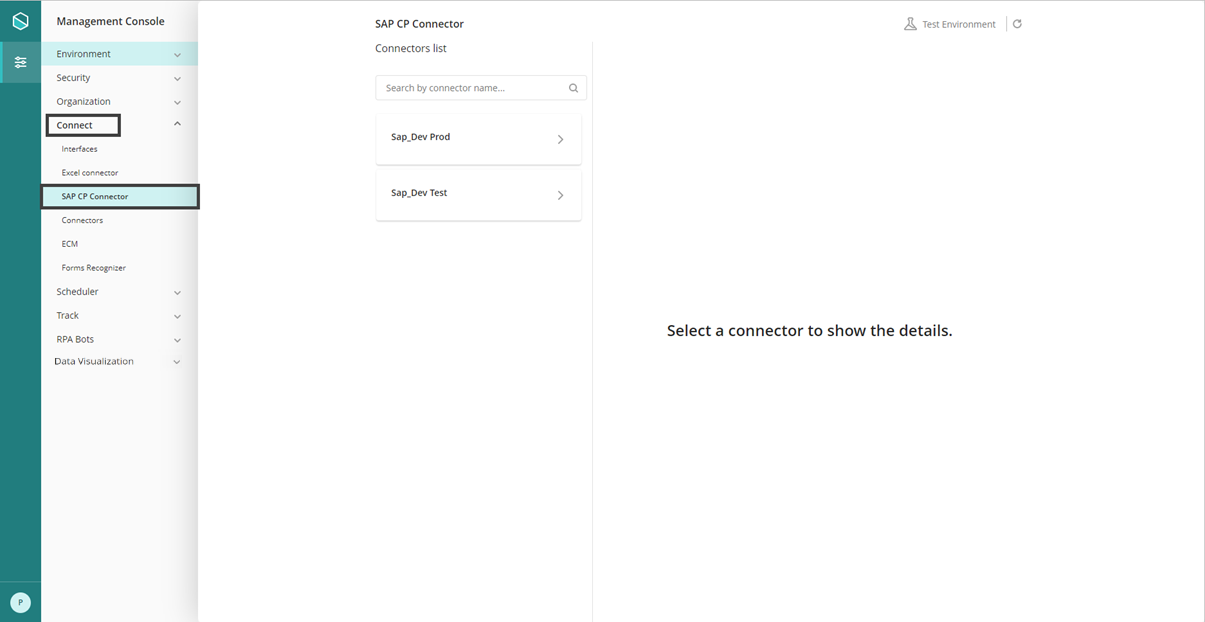
SAP BT Platform Connector configuration
In the configuration window, you will see several fields. Here is what you need to do:
•Name: Assign a clear and descriptive name to identify the connector.
•Dispatcher Host: Enter the dispatcher service URL provided by SAP.
•OData version: Select the version supported by your SAP service, usually version 2.
•Authentication Method: Choose how Bizagi should authenticate with SAP, for example Client Credentials.
•Xsuaa URL: Provide the URL of the authentication service.
•Xsuaa Client ID and Secret: Enter the credentials used for authentication.
•Destination: Specify the SAP destination name you want Bizagi to connect to.
If you need guidance on these fields, refer to step 3 onward in the Configure the SAP BT Platform connector in Bizagi article.
Actions
Once you complete the fields, use the action buttons to finalize the setup:
•Authorize: Starts the authentication process. Bizagi clears the Destination field and removes any previously loaded destinations.
•Get Destinations: Becomes active after successful authorization. Use it to load available destinations. Bizagi automatically selects the first one.
•Save: Commits your changes.
•Cancel: Exits the configuration window without saving.
Last Updated 1/14/2026 9:23:17 AM