Methods
The Me object encompasses a group of functions that get information related to the active case, task, or the element where the rule is executed. That means that the information that is retrieved by the object has the context of the process, case, and task or element where the function is executed., and therefore, information related to each item. This object is the Workitem, as the working BPMN element where the rule uses the Me object.
For example, if you have two processes, and you execute a rule using the Me object at different elements. In the first Rule you execute the Me object in a task, in the second rule you executed the object in a timer of a different process. Each invocation contains the relative information of each element. The Me object contains different information for each execution given the context by the element where the rule is executed. The next figure explains the difference in both situations.
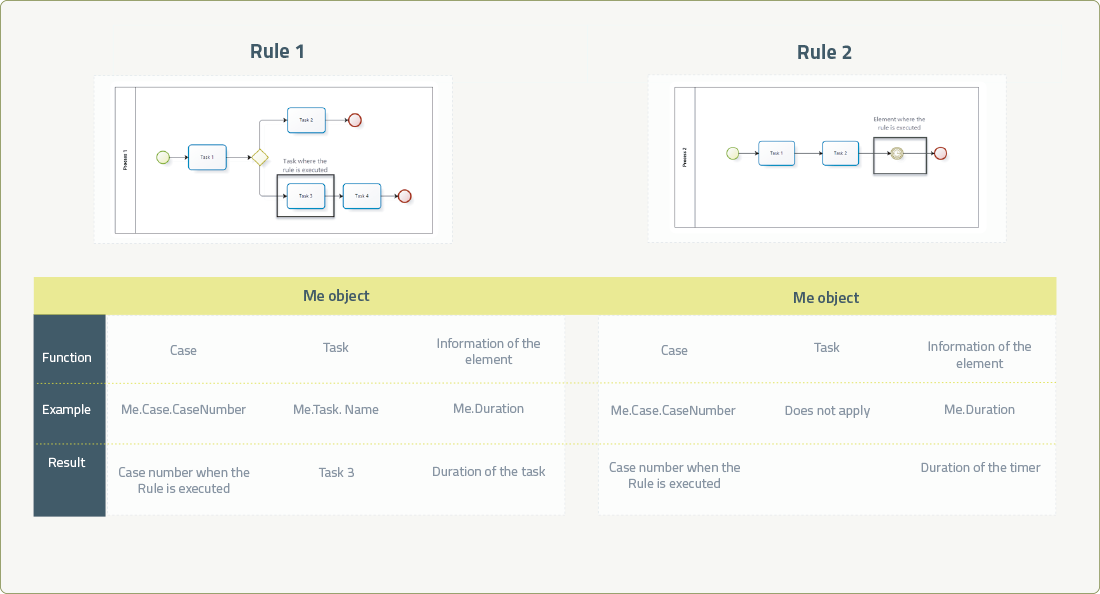
This function returns the current object.
Syntax
MeInheritance
Inherited Members
Namespace: Me
Assembly: BizagiApiDoc.dll
Syntax
public class MethodsFields
View SourceCanRelease
Returns true when the current task can be released.
Syntax
Me.CanReleaseDeclaration
public bool CanReleaseField Value
| Type | Description |
|---|---|
| System.Boolean | True when the current task can be released. Otherwise, it returns false. |
Duration
This function is used to set the duration of a Timer Event or an Activity. The duration is set in minutes.
Syntax
Me.DurationDeclaration
public int DurationField Value
| Type | Description |
|---|---|
| System.Int32 | Duration of a Timer Event or an Activity |
Examples
Tasks duration is used to calculate performance indicators and the status of pending activities in the Work Portal.
Duration can be static, defined in the Process Model or it can be dynamic, evaluated by an expression when the Task is created.
IMPORTANT:
- Dynamic duration has to be defined in minutes or it must return a fixed date.
- Durations MUST be set On Enter of Activities to be taken into consideration. If the duration is not set On Enter, then Bizagi will use the static duration defined in the Process Model.
Set Task duration - defining duration in time
Suppose you have a Travel Request process where the Administrative Department of your company locates and registers the travel bookings on your behalf. You can request a national or an international trip, and based on this locality, the booking administrator will have two or three days respectively to book the hotel and flight.
Since the duration of the task is not static we need an expression to set it.
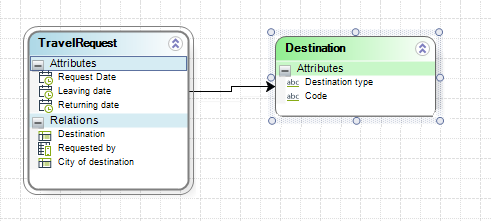
National and international destinations are stored in a Parameter Entity, and are distinguished by a Code: "1" for national and "2" for international.
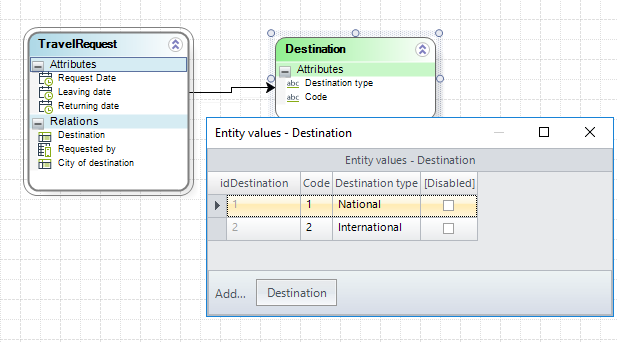
In the fourth step of the Bizagi Process Wizard (Business Rules), select Activity Actions.
Click the Task in which the duration will be calculated and create an On Enter Expression.
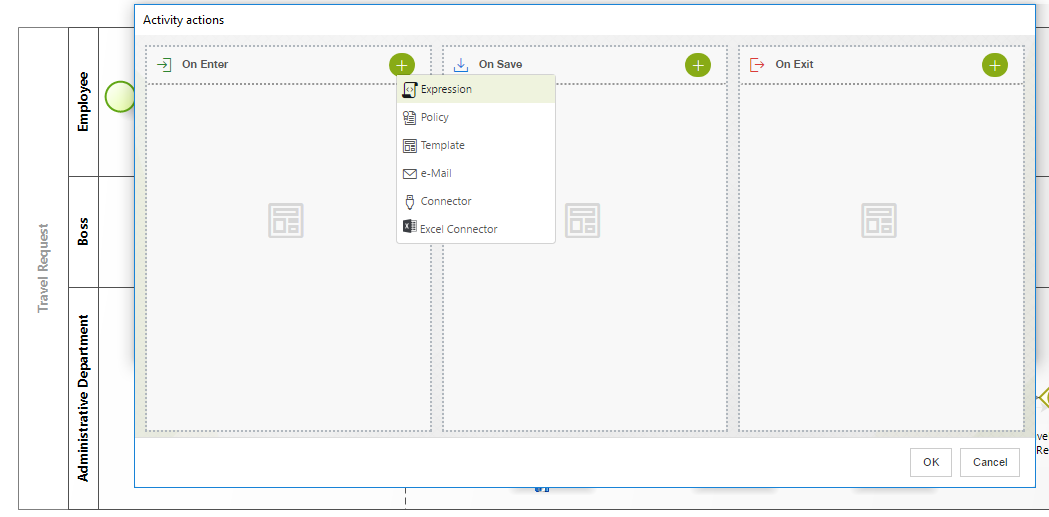
Create the expression to set the duration.
We recommend to use vocabularies to store constant duration for Tasks, to allow for easy modification in the Work Portal if the business condition should change.
In order to use vocabularies, they have to be created prior to the creation of the referencing expression.
We will use two previously defined constant vocabularies. These can be modified at any time by end users in the Work Portal, to respond to changing business needs.
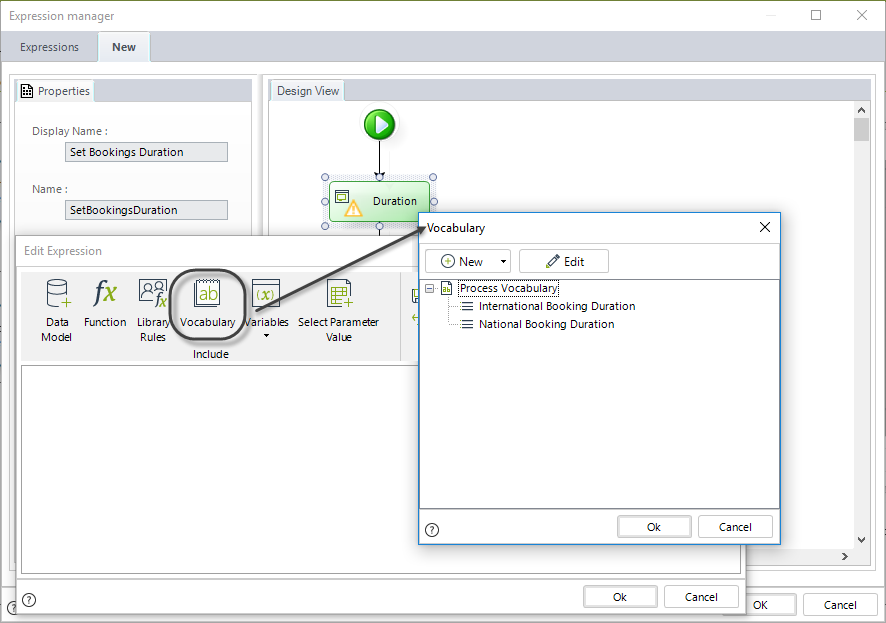
Determine if the request is national or international.
Set the duration to the element in the vocabulary. This is done by using the Task Duration function available in the Function list of the Date & Time category.
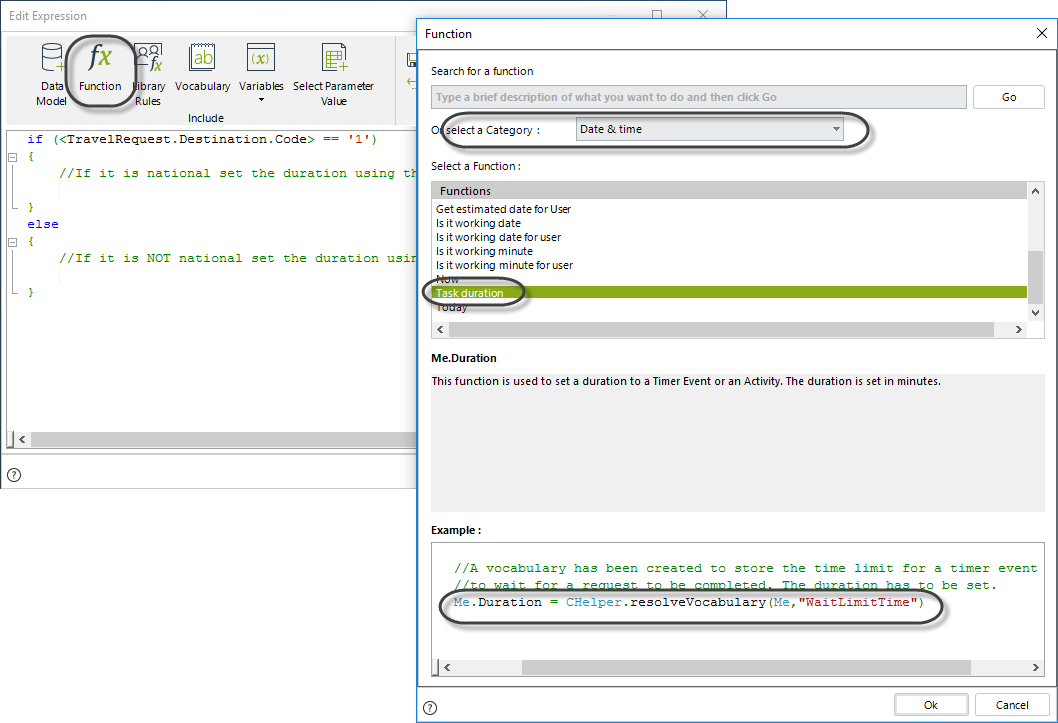
The next image shows the code of the expression:
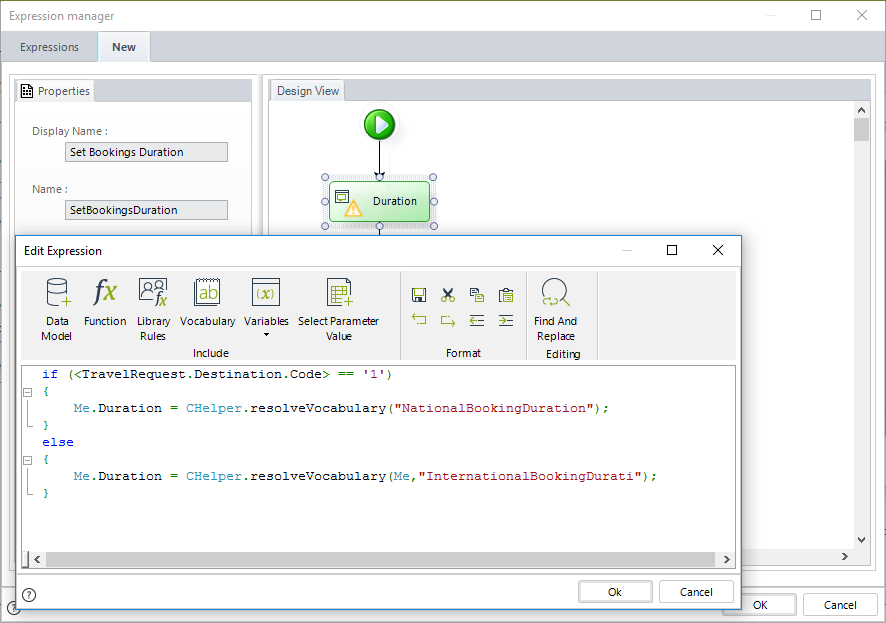
//Identify if the destination is national
if (<TravelRequest.Destination.Code> == '1')
{
    //If it is national set the duration using the National vocabulary
    Me.Duration = CHelper.resolveVocabulary("NationalBookingDuration");
}
else
{
    //If it is NOT national set the duration using the international vocabulary
    Me.Duration = CHelper.resolveVocabulary("InternationalBookingDurati");
}
EntryDate
This function returns the creation date of the current workitem.
Syntax
Me.EntryDateDeclaration
public DateTime EntryDateField Value
| Type | Description |
|---|---|
| System.DateTime | Creation date of the current workitem |
EstimatedSolutionDate
This function is used to assign the date in which a Timer Event or an Activity are due.
Syntax
Me.EstimatedSolutionDateDeclaration
public DateTime EstimatedSolutionDateField Value
| Type | Description |
|---|---|
| System.DateTime | Date in which a Timer Event or an Activity are due |
Examples
Tasks duration is used to calculate performance indicators and the status of pending activities in the Work Portal.
Duration can be static, defined in the Process Model or it can be dynamic, evaluated by an expression when the Task is created.
IMPORTANT:
- Dynamic duration has to be defined in minutes or it must return a fixed date.
- Durations MUST be set On Enter of Activities to be taken into consideration. If the duration is not set On Enter, then Bizagi will use the static duration defined in the Process Model.
Set Task duration - defining duration with a fixed date
Suppose you have a Travel Request process where the Administrative Department of your company locates and registers the travel bookings on your behalf. Based on the locality type of a request (i.e., a national or an international trip), the booking administrator will have up to one day before departure (Leaving Date) to book the hotel and flight.
In the fourth step of the Bizagi Process Wizard (Business Rules), select Activity Actions.
Click the Task in which the duration will be calculated and create an On Enter Expression.
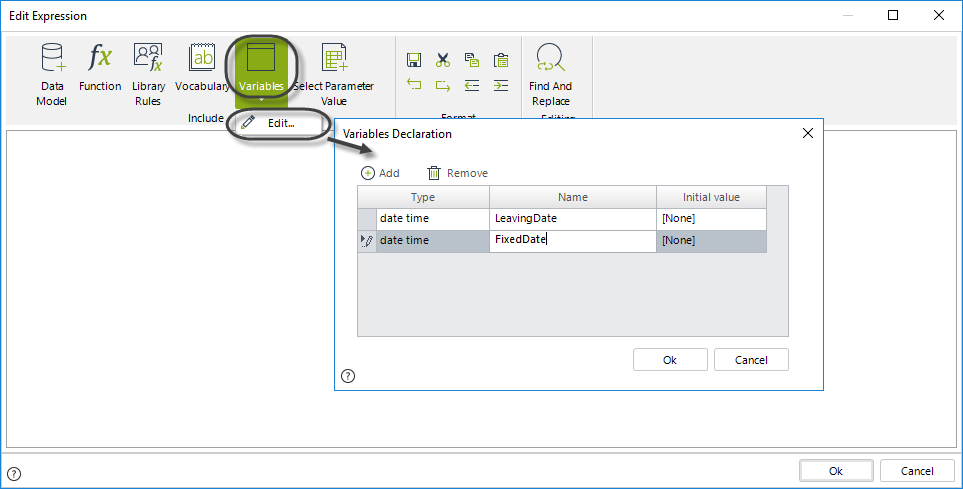
Declare the necessary variables.
In this example we need two variables of the date time type:
- LeavingDate- Stores the value of the Leaving Date attribute
- FixedDate- Stores the derived due date and will be used to set the Task Duration
Create the expression to set the duration.
First retrieve the leaving date from the attribute Leaving Date by navigating the Data Model. The value will be set to the variable declared previously.
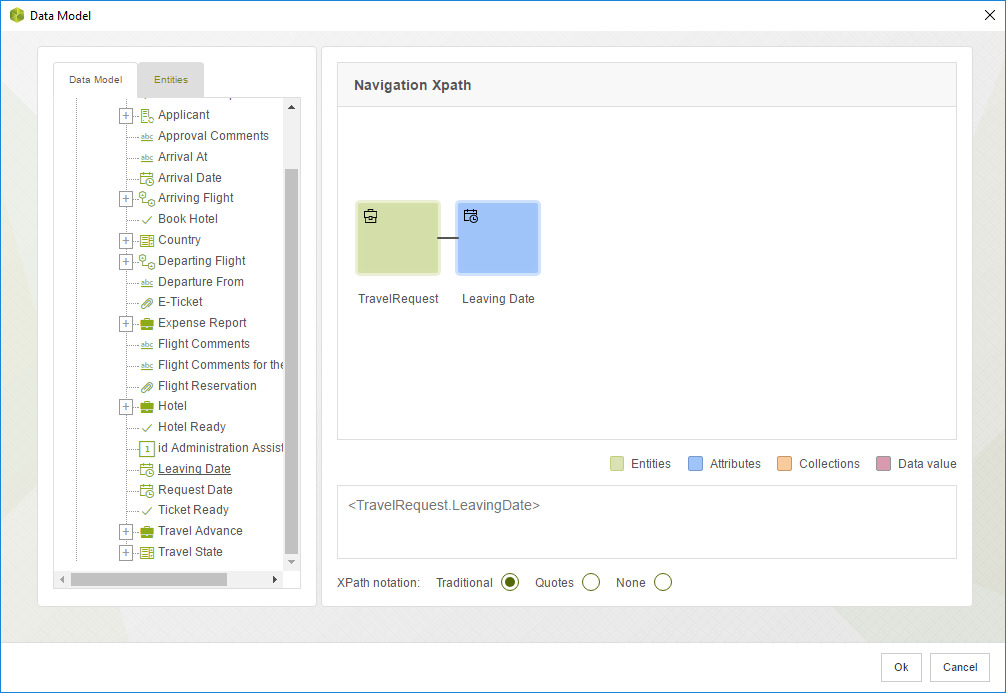
The Task duration will be set to one day prior to the LeavingDate.
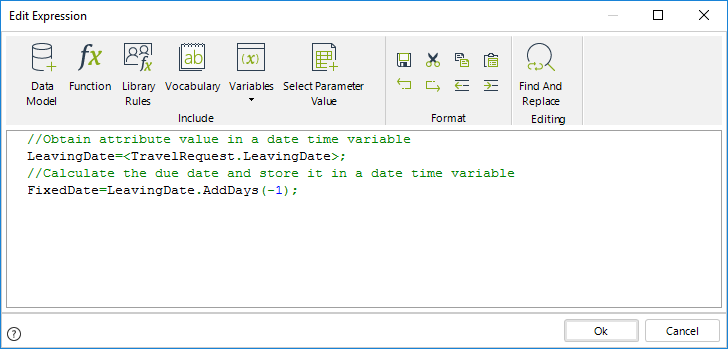
To calculate this fixed date we subtract one day from the date stored in the LeavingDate variable.
The result is then assigned to the FixedDate variable.
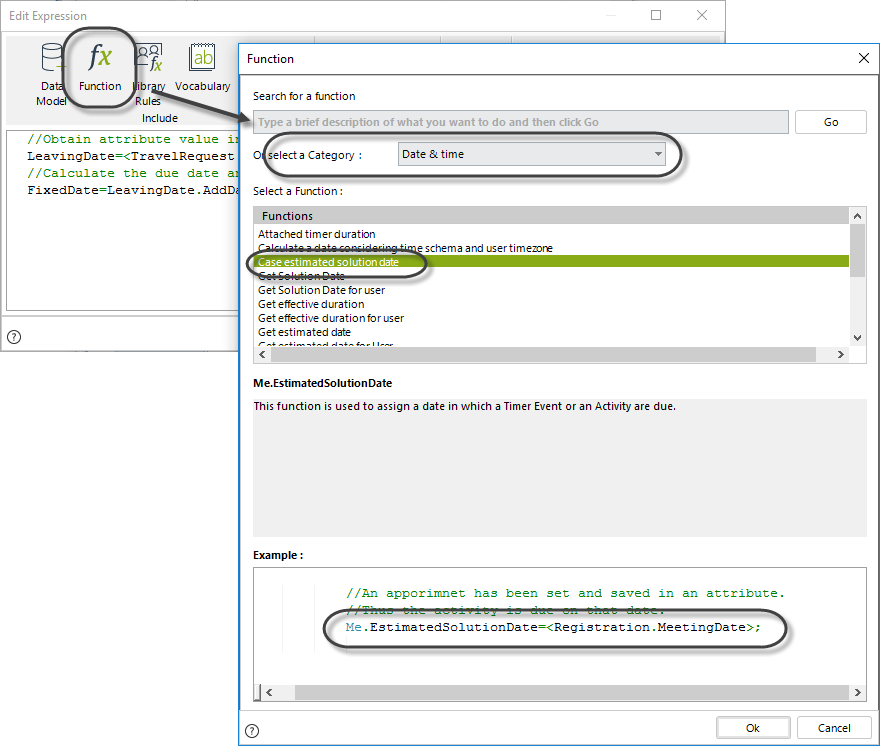
To set the duration to the Task use the function Case estimated solution date found in the Date & Time Category, as shown below.
The next image shows the code of the expression:
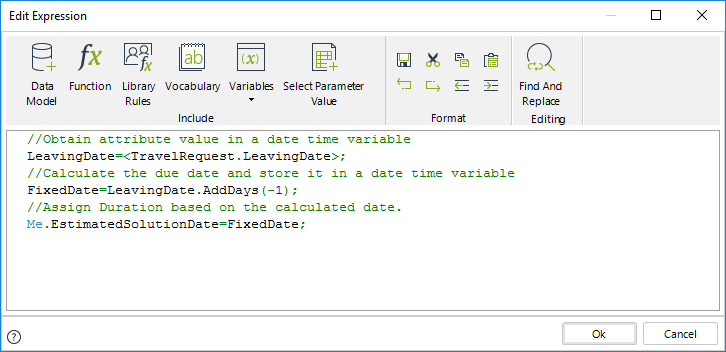
//Obtain attribute value in a date time variable
LeavingDate=<TravelRequest.LeavingDate>;

//Calculate the due date and store it in a date time variable
FixedDate=LeavingDate.AddDays(-1);

//Assign Duration based on the calculated date.
Me.EstimatedSolutionDate=FixedDate;
Set Timers duration
In the Travel Request process, suppose that once the booking flight due date has lapsed (one day before the trip), the booking administrator's supervisor must search for last minute flight offers.
You can use an Event based Gateway to evaluate if the Bookings Task has been reached before the booking due date. If the due date is reached first, the Bookings Task will be disabled and the Perform Last minute actions Task will be enabled for the supervisor (Boss).
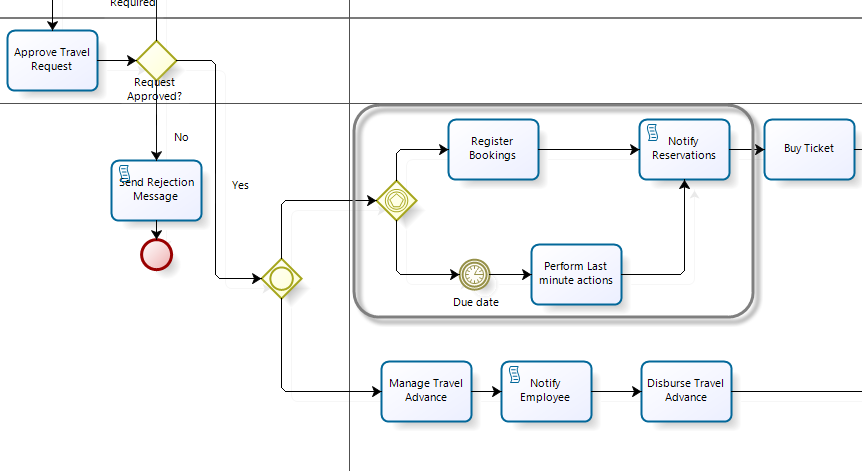
In order to configure the timer duration follow the next steps:
In the fourth step of the Bizagi Process Wizard (Business Rules), select Activity Actions.
Click on the Timer Event in which the duration will be calculated and create an On Enter Expression.
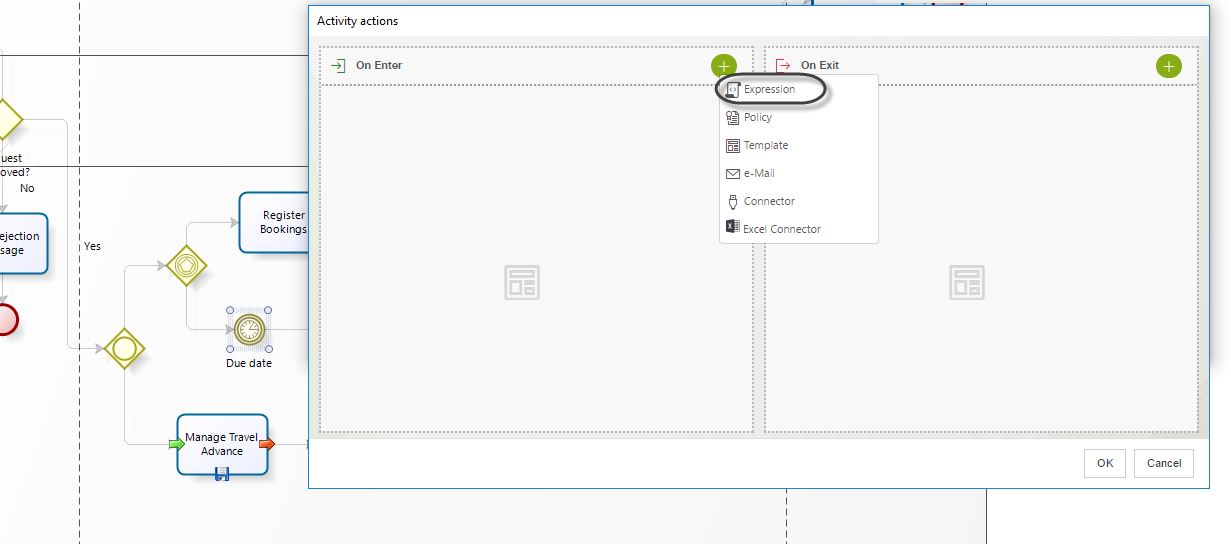
Declare the following variables:
- LeavingDate- Stores the value of the Leaving Date attribute.
- FixedDate- Stores the derived due date and will be used to set the Timer Duration.
Create the expression to set the duration.
First retrieve the leaving date from the attribute Leaving Date in the data model. This value will be set to the variable declared previously.
The Timer duration will be set to one day prior to the LeavingDate.
To obtain this fixed date we subtract one day from the date stored in the LeavingDate variable.
This result is then assigned to the FixedDate variable.
To set the duration to the Timer Event use the function Case estimated solution date in the Date & Time Category, as shown below.
The expression code is as follows:
//Obtain attribute value in a date time variable
LeavingDate=<TravelRequest.LeavingDate>;

//Calculate the due date and store it in a date time variable
FixedDate=LeavingDate.AddDays(-1);

//Assign Duration based on the calculated date.
Me.EstimatedSolutionDate=FixedDate;
 |
Timers durations are defined in the same way as Tasks durations. You can use either the Me.Duration (x minutes) or Me.EstimatedSolutionDate (a fixed date) function according to the Business conditions. |
Set duration to Timers attached to activities
In the Travel Request process, suppose the booking administrator must book the hotel and flight within three days of the request being made. If the due date is reached and the bookings are not done, the booking administrator's supervisor will have to perform the outstanding job(s) last minute.
This situation can be modeled by using a Timer Event attached to the Booking Task.
Events attached to the boundaries of an activity are used to activate exception flows according to defined Business conditions. When using Timer Event attached to activities, an exception flow is enabled once an specified time or a defined date is reached.
In this example, if the bookings are not finalized after three days, an exception flow is activated and the Perform Last Minute Actions Task is enabled for the booking administrator's supervisor. We need to define the timer's duration in order to properly model this business situation.
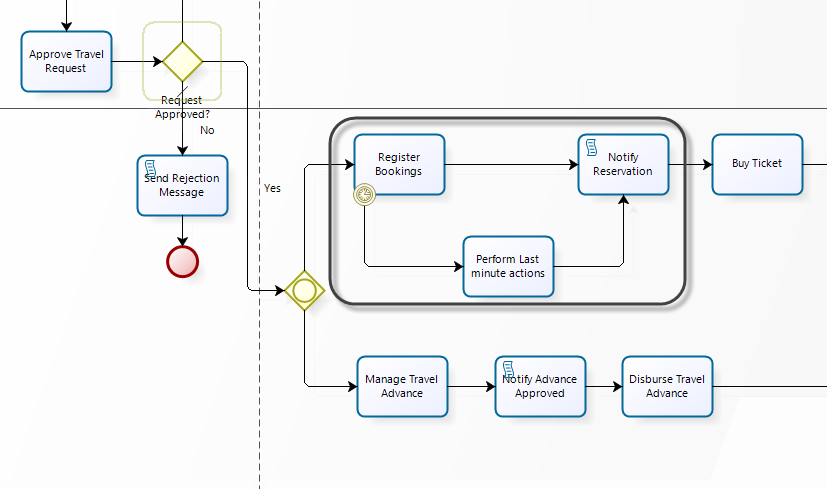
In order to configure the timer duration follow the next steps:
In the fourth step of the Bizagi Process Wizard (Business Rules), select Activity Actions.
Click on the Timer Event in which the duration will be calculated and create an On Enter Expression.
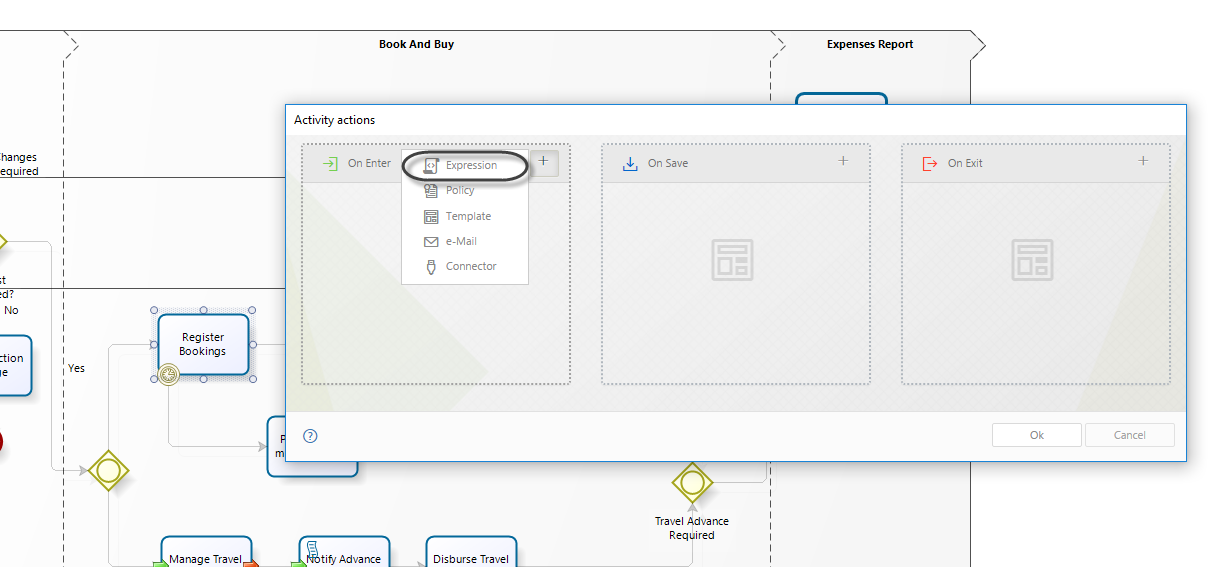
Create the expression to set the duration.
We recommend to use vocabularies to store constant duration for Tasks, to allow for easy modification in the Work Portal if the business condition should change.
In order to use vocabularies, they have to be created prior to the creation of the referencing expression.
A constant has been previously defined in the vocabulary for this purpose (BookingDuration). This duration can be modified at any time by end users in the Work Portal, to respond to changing business needs.
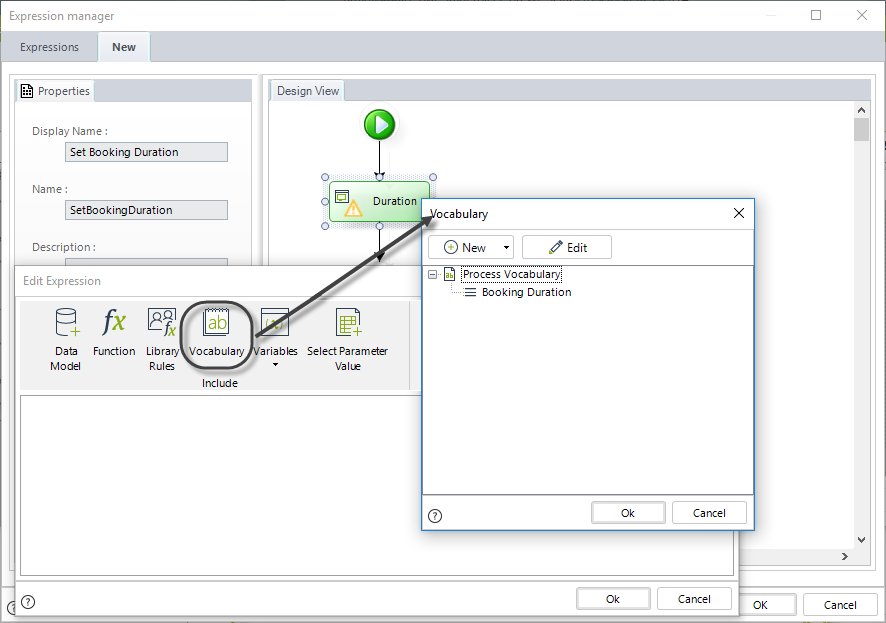
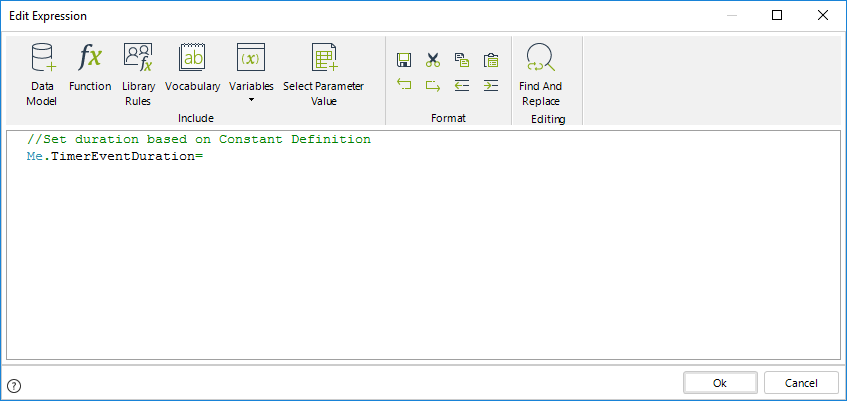
- To set the duration for the Timer use the function Timer Event Duration.
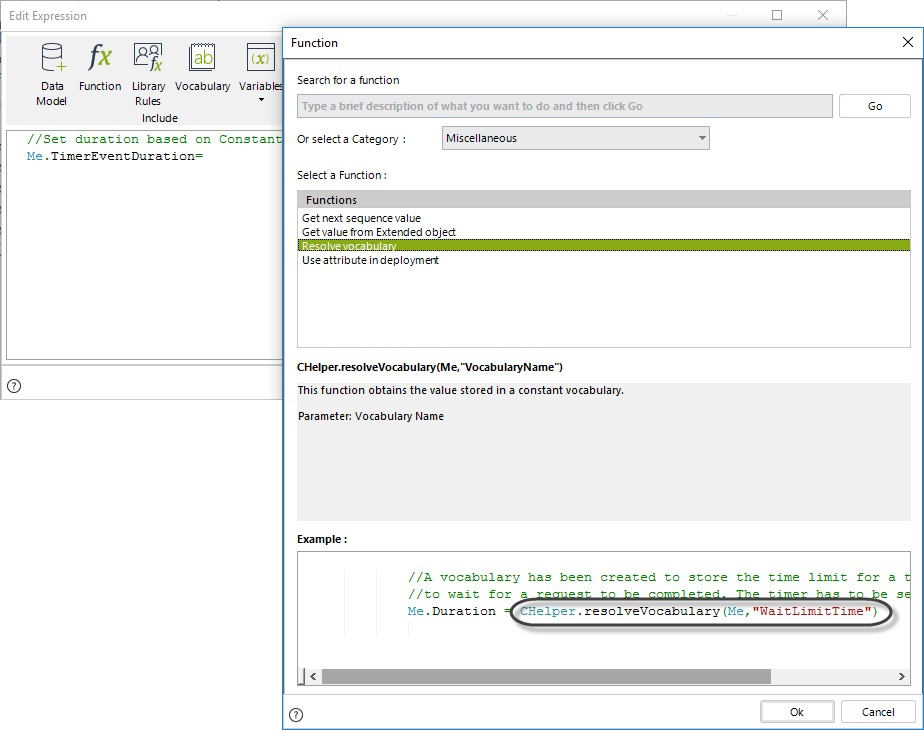
Obtain the constant defined in the vocabulary by using the ResolveVocabulary found in the Function list of the Miscellaneous Category, as shown below.
The next image shows the code of the expression:
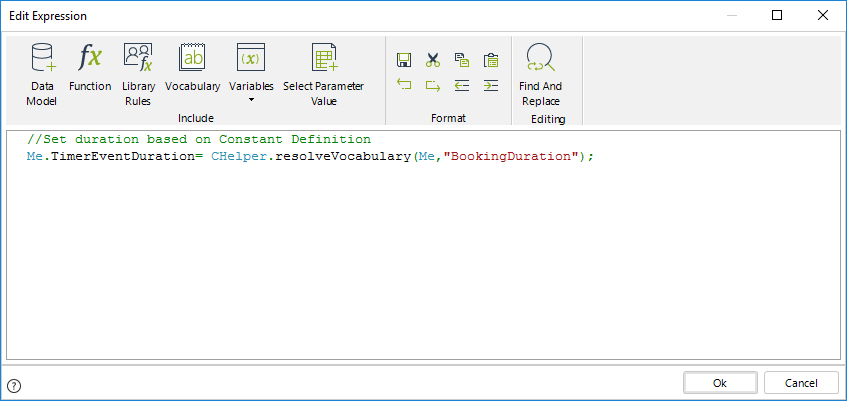
Me.TimerEventDuration= CHelper.resolveVocabulary(Me,"BookingDuration");
Set timer duration considering the Working time schema and the user´s timezone
The Agility Corp manages the customer´s claims and complaints using Bizagi. The company has established that a customer service agent can spend maximum 4 hours to respond a claim or a complaint. Agents work in with different shifts so the due date of the resolution of a task must be set considering the company's working time schema and the agent's timezone.
Bizagi uses a method called Me.EstimatedSolutionDate, that calculates the due date of an activity. However we will use it considering the timezone of the user.
In the fourth step of the Bizagi Process Wizard (Business Rules), select Activity Actions.
Click on the task for which the duration will be set and create an On Enter Expression.
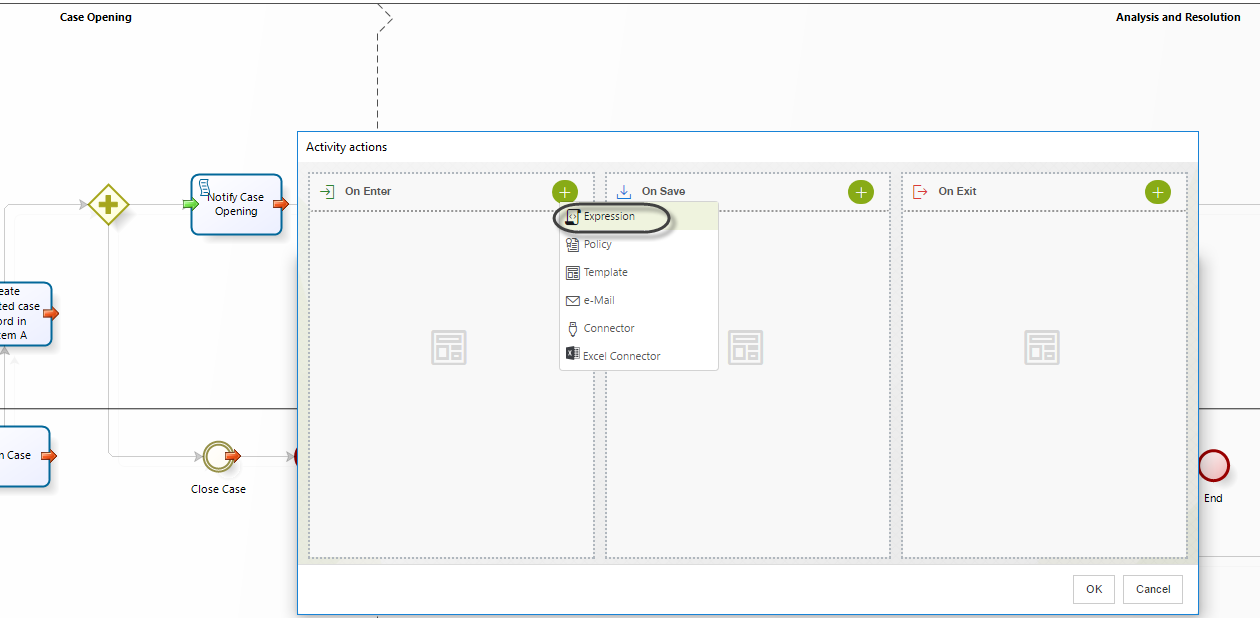
Create an expression.
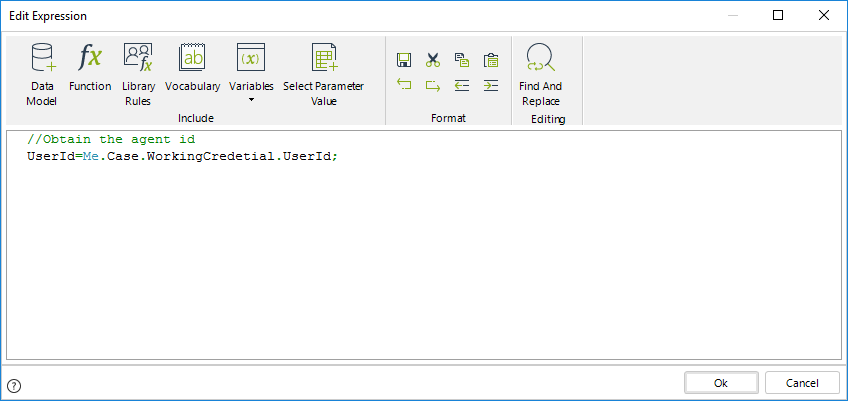
First we must obtain the agent's id using the function User id of the current user.
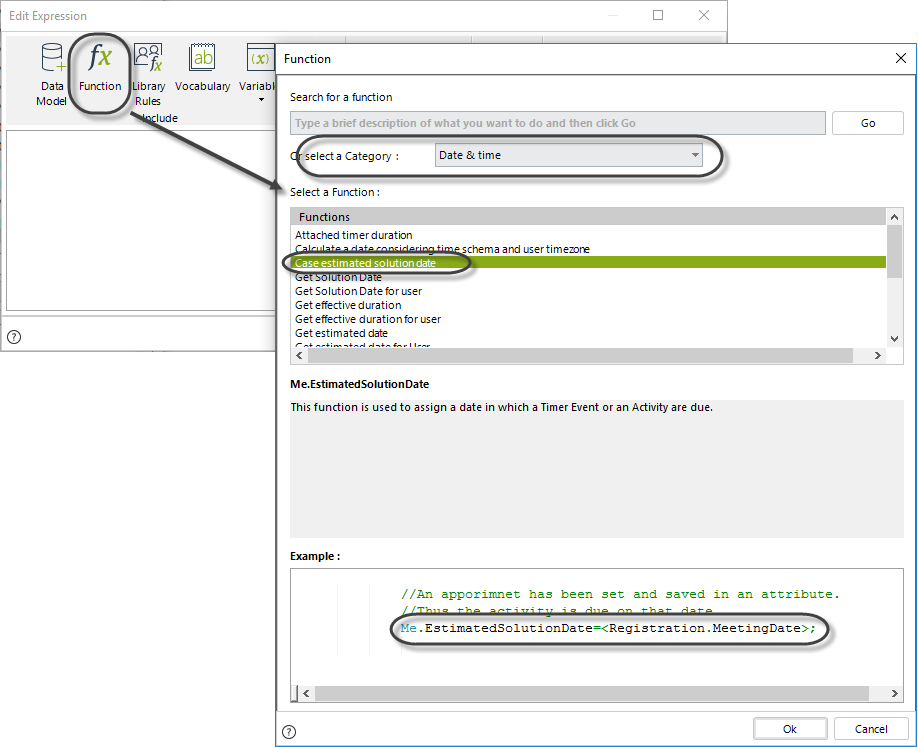
To set the duration to the task, use the function Case estimated solution date in the Date & Time Category.
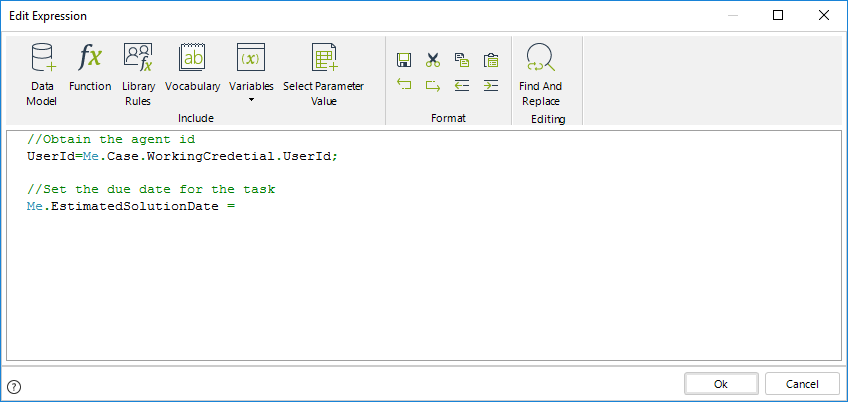
Use the function Calculate a date considering the time schema and user timezone to obtain the due date, considering the Working time schema and the agent's timezone.
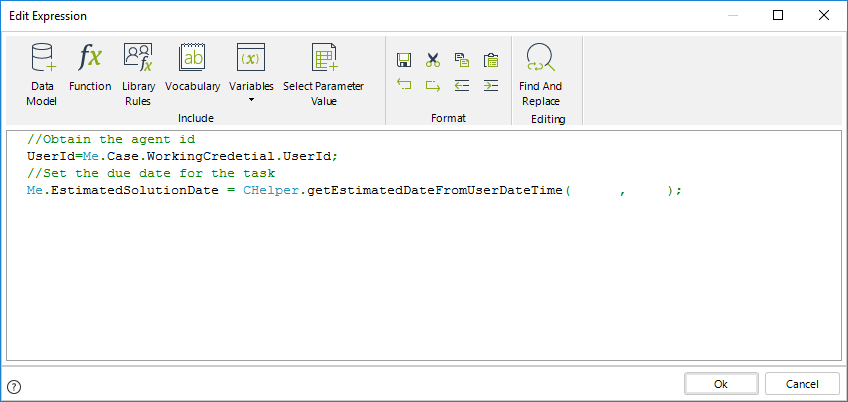
The syntax for the function is:
CHelper.getEstimatedDateFromUserDateTime(UserId,iDuration)Include the parameters of the function. The first parameter is the id of the agent user that we previously obtained, and the second parameter is the time in minutes the agent has to complete the task.
The expression code is as follows:
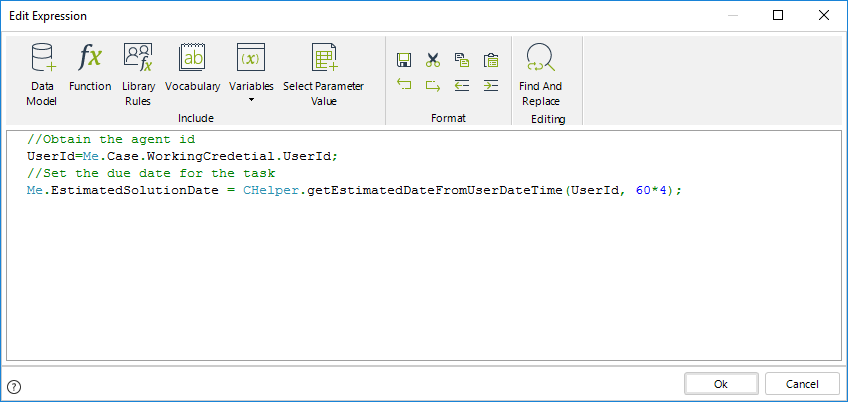
Note that the expression above converts days into minutes.
The conversion is needed as the iDuration parameter expects the duration in minutes. The total minutes in 4 hours is calculated using the formula: 60 minutes in an hour multiplied by 4 hours (i.e. 60*4).
//Obtain the agent id
UserId=Me.Case.WorkingCredetial.UserId;

//Set the due date for the task
Me.EstimatedSolutionDate = CHelper.getEstimatedDateFromUserDateTime(UserId, 60*4);
Id
Returns the id of the current workitem.
Syntax
Me.IdDeclaration
public long IdField Value
| Type | Description |
|---|---|
| System.Int64 | Id of the current workitem |
TimerEventDuration
This function is used to set a duration to a Timer Event attached to the boundaries of an Activity.
The duration is set in minutes.
Syntax
Me.TimerEventDurationDeclaration
public int TimerEventDurationField Value
| Type | Description |
|---|---|
| System.Int32 | Duration of a Timer Event attached to the boundaries of an Activity |
Examples
Set duration to Timers attached to activities
In the Travel Request process, suppose the booking administrator must book the hotel and flight within three days of the request being made. If the due date is reached and the bookings are not done, the booking administrator's supervisor will have to perform the outstanding job(s) last minute.
This situation can be modeled by using a Timer Event attached to the Booking Task.
Events attached to the boundaries of an activity are used to activate exception flows according to defined Business conditions. When using Timer Event attached to activities, an exception flow is enabled once an specified time or a defined date is reached.
In this example, if the bookings are not finalized after three days, an exception flow is activated and the Perform Last Minute Actions Task is enabled for the booking administrator's supervisor. We need to define the timer's duration in order to properly model this business situation.
In order to configure the timer duration follow the next steps:
In the fourth step of the Bizagi Process Wizard (Business Rules), select Activity Actions.
Click on the Timer Event in which the duration will be calculated and create an On Enter Expression.
Create the expression to set the duration.
We recommend to use vocabularies to store constant duration for Tasks, to allow for easy modification in the Work Portal if the business condition should change.
In order to use vocabularies, they have to be created prior to the creation of the referencing expression.
A constant has been previously defined in the vocabulary for this purpose (BookingDuration). This duration can be modified at any time by end users in the Work Portal, to respond to changing business needs.
- To set the duration for the Timer use the function Timer Event Duration.
Obtain the constant defined in the vocabulary by using the ResolveVocabulary found in the Function list of the Miscellaneous Category, as shown below.
The next image shows the code of the expression:
Me.TimerEventDuration= CHelper.resolveVocabulary(Me,"BookingDuration");
WorkItemState
Returns the current status of the current workitem (Inactive, Active, Completed, Aborted, etc.)
Syntax
Me.WorkItemStateDeclaration
public EWorkItemState WorkItemStateField Value
| Type | Description |
|---|---|
| EWorkItemState | State of the current workitem |
Methods
View SourceattachCollectionItem(String, IBaseEntity)
Allows to attach one item (record) from one collection to another collection. The item is not duplicated, it is shared by both collections.
Both collections must belong(be related) to the same entity.
Syntax
Me.attachCollectionItem(string path, IBaseEntity item)Declaration
public void attachCollectionItem(string path, IBaseEntity item)Parameters
| Type | Name | Description |
|---|---|---|
| System.String | path | Collection XPath that will receive the item |
| IBaseEntity | item | Item XPath to be attached |
Examples
Attaching an item of a collection is connecting an existing record from a table to another table, within the same case, sharing the information.
The item(record) will then belong to both tables, not duplicated, just shared.That is, when information of this record is updated, changes will be reflected in both tables.
If you need to move an item from one collection to another, you can do so by attaching the item to the new collection and detaching from the old collection.You don't need to duplicate and re-create.
To attach an item (or record) you have two options:
- Attach some collection items: attaching some items (one or more records) of a collection to another one is done using the attachCollectionItems function. You need to specify the XPath to the collection and the XPath filtering the items you want to attach.
- Attach ONE collection item: attaching ONE item (record) of a collection is done using the attachCollectionItem function. You need to specify the XPath to the collection and the XPath filtering the single item you want to attach.If more than one XPath is found the function will present an error to the end user.
The functions are found in the Collection category.
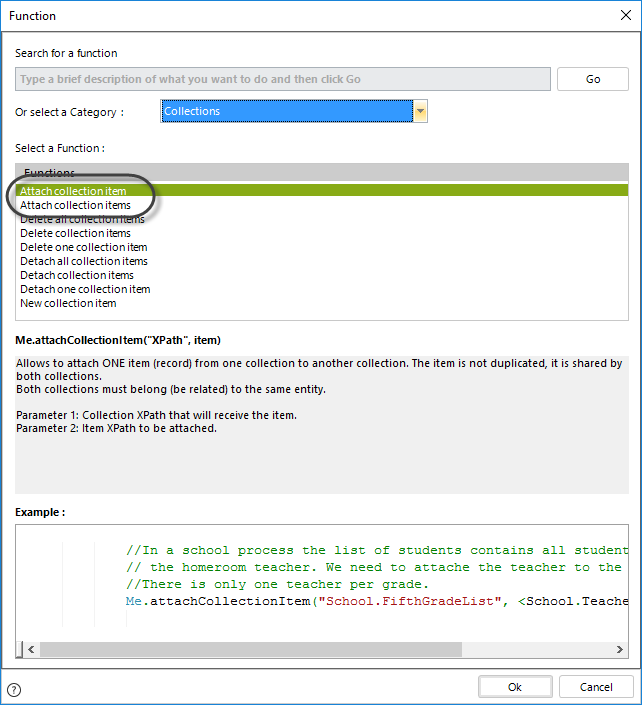
The syntax of the function is as follows:
Me.attachCollectionItem("ProcessEntity.RelationshipToTheCollection",filtered XPath)
Me.attachCollectionItems("ProcessEntity.RelationshipToTheCollection",filtered XPath)
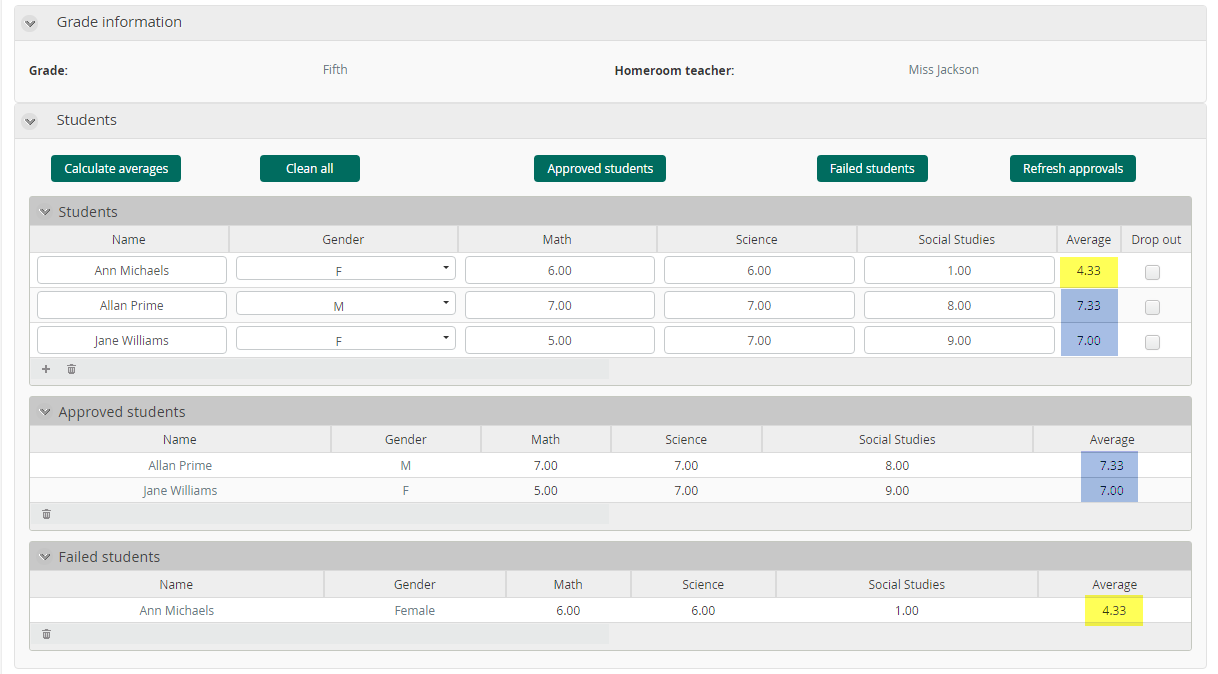
Let's take a School process. Through the year the homeroom teacher is updating the student's grades and seeing who is approving and who is failing. There are three collections, the Student collection, with the updated information, the Approving collection and the Failing collection.
All of the are collections of the same Master entity: Students.
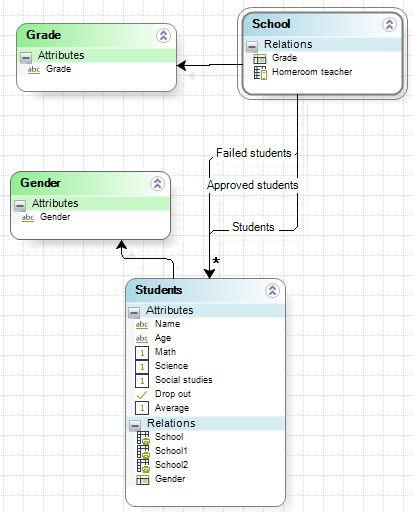
When the Students collection is updated, we want to attach all students with an average over 6 to the Approved students and all students below 6 to the Failing students.
We use the attachCollectionItems function to attach from the Students collection to the Failing list and to the Approving list.
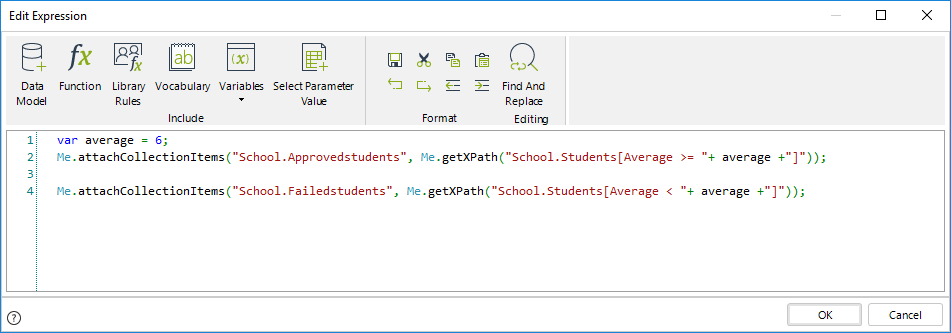
var average = 6;
Me.attachCollectionItems("School.Approvedstudents", Me.getXPath("School.Students[Average >= "+ average +"]"));
Me.attachCollectionItems("School.Failedstudents", Me.getXPath("School.Students[Average < "+ average +"]"));
Below you will find the different ways that elements can be attached depending on the business requirement.
| Example | Result |
|---|---|
| Attaches to the Approved students the ones that have average over 6. |
| Attaches the ONE student whose average is above 6 to the Approved collection, from the Students collection. |
attachCollectionItems(String, Object)
Allows to attach one or more items (records) from one collection to another collection. The items are not duplicated, they are shared by both collections.
Both collections must belong(be related) to the same entity.
Syntax
Me.attachCollectionItems(string path, object itemsToAttach)Declaration
public void attachCollectionItems(string path, object itemsToAttach)Parameters
| Type | Name | Description |
|---|---|---|
| System.String | path | Collection XPath that will receive the item |
| System.Object | itemsToAttach | Items XPath to be attached |
Examples
Attaching an item of a collection is connecting an existing record from a table to another table, within the same case, sharing the information.
The item(record) will then belong to both tables, not duplicated, just shared.That is, when information of this record is updated, changes will be reflected in both tables.
If you need to move an item from one collection to another, you can do so by attaching the item to the new collection and detaching from the old collection.You don't need to duplicate and re-create.
To attach an item (or record) you have two options:
- Attach some collection items: attaching some items (one or more records) of a collection to another one is done using the attachCollectionItems function. You need to specify the XPath to the collection and the XPath filtering the items you want to attach.
- Attach ONE collection item: attaching ONE item (record) of a collection is done using the attachCollectionItem function. You need to specify the XPath to the collection and the XPath filtering the single item you want to attach.If more than one XPath is found the function will present an error to the end user.
The functions are found in the Collection category.
The syntax of the function is as follows:
Me.attachCollectionItem("ProcessEntity.RelationshipToTheCollection",filtered XPath)
Me.attachCollectionItems("ProcessEntity.RelationshipToTheCollection",filtered XPath)
Let's take a School process. Through the year the homeroom teacher is updating the student's grades and seeing who is approving and who is failing. There are three collections, the Student collection, with the updated information, the Approving collection and the Failing collection.
All of the are collections of the same Master entity: Students.
When the Students collection is updated, we want to attach all students with an average over 6 to the Approved students and all students below 6 to the Failing students.
We use the attachCollectionItems function to attach from the Students collection to the Failing list and to the Approving list.
var average = 6;
Me.attachCollectionItems("School.Approvedstudents", Me.getXPath("School.Students[Average >= "+ average +"]"));
Me.attachCollectionItems("School.Failedstudents", Me.getXPath("School.Students[Average < "+ average +"]"));
Below you will find the different ways that elements can be attached depending on the business requirement.
| Example | Result |
|---|---|
| Attaches to the Approved students the ones that have average over 6. |
| Attaches the ONE student whose average is above 6 to the Approved collection, from the Students collection. |
deleteAllCollectionItems(String)
Allows the complete deletion of all items (records) of a collection. The items will be deleted from the collection and from the database.
Syntax
Me.deleteAllCollectionItems(string path)Declaration
public void deleteAllCollectionItems(string path)Parameters
| Type | Name | Description |
|---|---|---|
| System.String | path | Collection XPath |
Examples
Visualize your collection as a table. Deleting an item is removing a row from a table.
Records in a collection can be deleted or detached.
When you delete a record it will be removed form the collection and from the database.
When you detach a record it will be removed from the collection but it will stay in the database.
When a record is shared by two or more collections, we recommend detaching instead of removing.
If you definitely want to delete an item (or record) you have three options:
- Delete all collection items: deletion of all the items (records) of a collection is done using the deleteAllCollectionItems function. You only need to specify the XPath to the collection and all the records will be deleted.
- Delete some collection items: deletion some items (one or more records) of a collection is done using the deleteCollectionItems function. You need to specify the XPath to the collection and the XPath filtering the items you want to delete.
- Delete ONE collection item: deletion of ONE item (record) of a collection is done using the deleteCollectionItem function. You need to specify the XPath to the collection and the XPath filtering the single item you want to delete. If more than one XPath is found the function will present an error to the end user.
The functions are found in the Collection category.
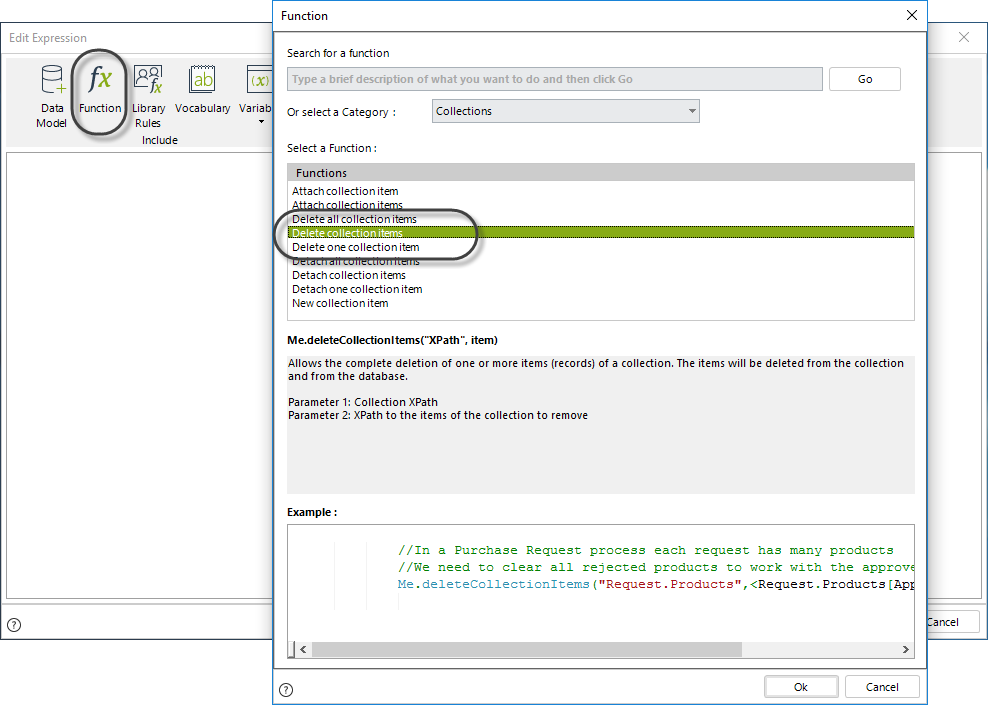
The syntax of the functions is as follows:
Me.deleteAllCollectionItems("ProcessEntity.RelationshipToTheCollection")
Me.deleteCollectionItems("ProcessEntity.RelationshipToTheCollection",filtered XPath)
Me.deleteCollectionItem("ProcessEntity.RelationshipToTheCollection",filtered XPath)
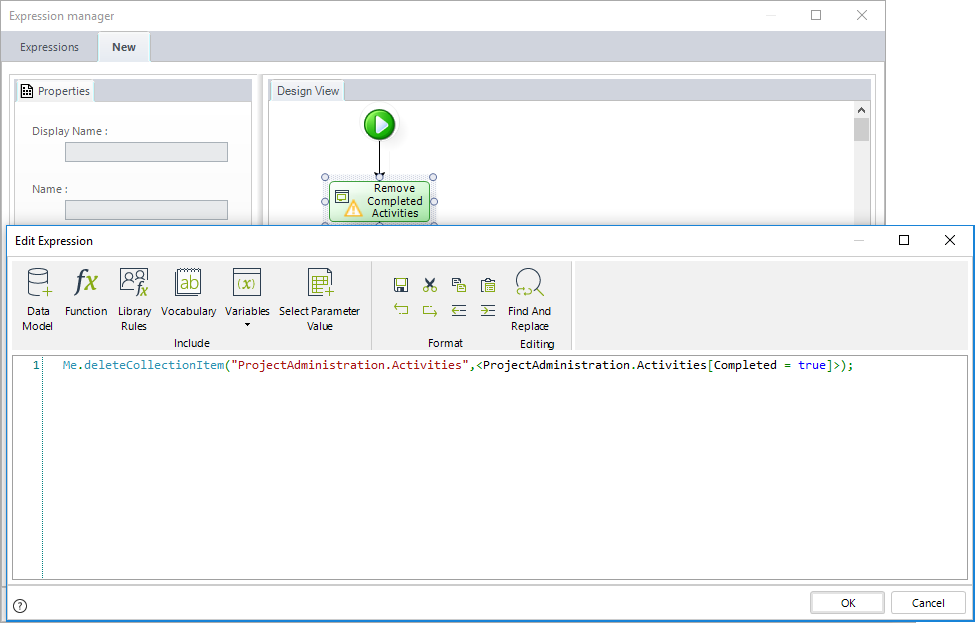
Let's take a Projects Administration process to illustrate how elements from a collection are deleted. Suppose you have tables of the project's activities and you wish to remove some activities according to business conditions.
In order to do this follow the next steps:
- In the fourth step of the Bizagi Process Wizard (Business Rules), select Activity Actions.
Click the Task in which the activities will be deleted and create an On Enter Expression.
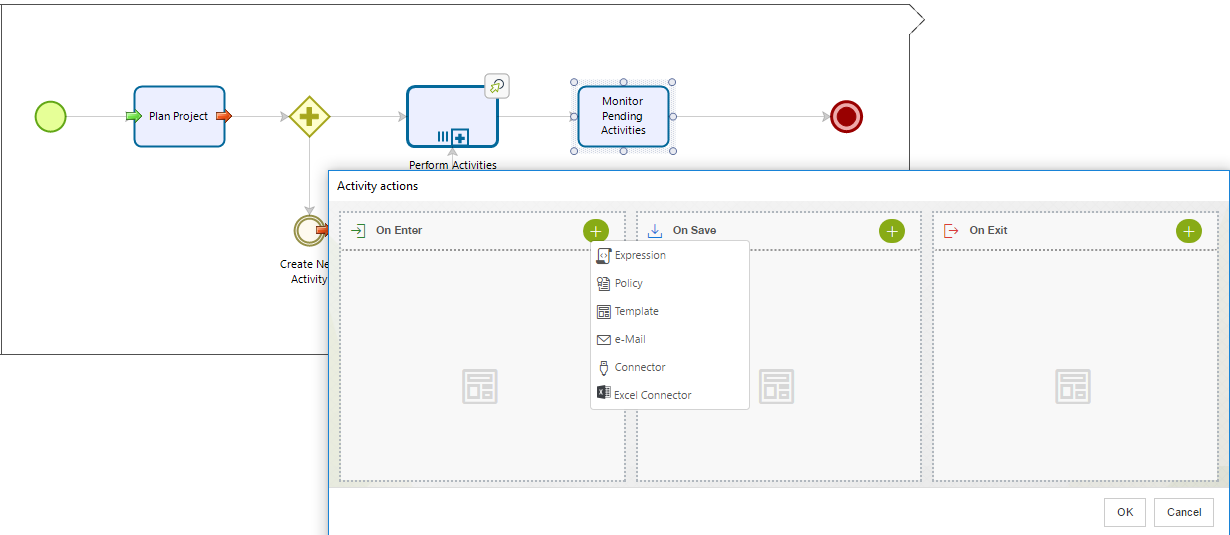
- Create the expression and enter the following code to remove the relation:
- Click OK to save the changes.
Below you will find the different ways that elements can be removed depending on the business requirement.
| Example | Result |
|---|---|
| Removes the only completed activity in the collection, and deletes this record from the data base. |
| Removes all completed activities from the relationship and deletes these records from the data base. |
| Removes all elements from the relationship and also from the data base. |
| Removes all completed activities from the relationship and deletes these records from the data base. |
deleteCollectionItem(String, IBaseEntity)
Allows the complete deletion of one item (record) of a collection. The item will be deleted from the collection and from the database.
Syntax
Me.deleteCollectionItem(string path, IBaseEntity item)Declaration
public void deleteCollectionItem(string path, IBaseEntity item)Parameters
| Type | Name | Description |
|---|---|---|
| System.String | path | Collection XPath |
| IBaseEntity | item | XPath to the item of the collection to remove. This XPath must return ONE and only ONE item. If not, the function will fail. |
Examples
Visualize your collection as a table. Deleting an item is removing a row from a table.
Records in a collection can be deleted or detached.
When you delete a record it will be removed form the collection and from the database.
When you detach a record it will be removed from the collection but it will stay in the database.
When a record is shared by two or more collections, we recommend detaching instead of removing.
If you definitely want to delete an item (or record) you have three options:
- Delete all collection items: deletion of all the items (records) of a collection is done using the deleteAllCollectionItems function. You only need to specify the XPath to the collection and all the records will be deleted.
- Delete some collection items: deletion some items (one or more records) of a collection is done using the deleteCollectionItems function. You need to specify the XPath to the collection and the XPath filtering the items you want to delete.
- Delete ONE collection item: deletion of ONE item (record) of a collection is done using the deleteCollectionItem function. You need to specify the XPath to the collection and the XPath filtering the single item you want to delete. If more than one XPath is found the function will present an error to the end user.
The functions are found in the Collection category.
The syntax of the functions is as follows:
Me.deleteAllCollectionItems("ProcessEntity.RelationshipToTheCollection")
Me.deleteCollectionItems("ProcessEntity.RelationshipToTheCollection",filtered XPath)
Me.deleteCollectionItem("ProcessEntity.RelationshipToTheCollection",filtered XPath)
Let's take a Projects Administration process to illustrate how elements from a collection are deleted. Suppose you have tables of the project's activities and you wish to remove some activities according to business conditions.
In order to do this follow the next steps:
- In the fourth step of the Bizagi Process Wizard (Business Rules), select Activity Actions.
Click the Task in which the activities will be deleted and create an On Enter Expression.
- Create the expression and enter the following code to remove the relation:
- Click OK to save the changes.
Below you will find the different ways that elements can be removed depending on the business requirement.
| Example | Result |
|---|---|
| Removes the only completed activity in the collection, and deletes this record from the data base. |
| Removes all completed activities from the relationship and deletes these records from the data base. |
| Removes all elements from the relationship and also from the data base. |
| Removes all completed activities from the relationship and deletes these records from the data base. |
deleteCollectionItems(String, Object)
Allows the complete deletion of one or more items (records) of a collection. The items will be deleted from the collection and from the database.
Syntax
Me.deleteCollectionItems(string path, object itemsToDelete)Declaration
public void deleteCollectionItems(string path, object itemsToDelete)Parameters
| Type | Name | Description |
|---|---|---|
| System.String | path | Collection XPath |
| System.Object | itemsToDelete | XPath to the items of the collection to remove |
Examples
Visualize your collection as a table. Deleting an item is removing a row from a table.
Records in a collection can be deleted or detached.
When you delete a record it will be removed form the collection and from the database.
When you detach a record it will be removed from the collection but it will stay in the database.
When a record is shared by two or more collections, we recommend detaching instead of removing.
If you definitely want to delete an item (or record) you have three options:
- Delete all collection items: deletion of all the items (records) of a collection is done using the deleteAllCollectionItems function. You only need to specify the XPath to the collection and all the records will be deleted.
- Delete some collection items: deletion some items (one or more records) of a collection is done using the deleteCollectionItems function. You need to specify the XPath to the collection and the XPath filtering the items you want to delete.
- Delete ONE collection item: deletion of ONE item (record) of a collection is done using the deleteCollectionItem function. You need to specify the XPath to the collection and the XPath filtering the single item you want to delete. If more than one XPath is found the function will present an error to the end user.
The functions are found in the Collection category.
The syntax of the functions is as follows:
Me.deleteAllCollectionItems("ProcessEntity.RelationshipToTheCollection")
Me.deleteCollectionItems("ProcessEntity.RelationshipToTheCollection",filtered XPath)
Me.deleteCollectionItem("ProcessEntity.RelationshipToTheCollection",filtered XPath)
Let's take a Projects Administration process to illustrate how elements from a collection are deleted. Suppose you have tables of the project's activities and you wish to remove some activities according to business conditions.
In order to do this follow the next steps:
- In the fourth step of the Bizagi Process Wizard (Business Rules), select Activity Actions.
Click the Task in which the activities will be deleted and create an On Enter Expression.
- Create the expression and enter the following code to remove the relation:
- Click OK to save the changes.
Below you will find the different ways that elements can be removed depending on the business requirement.
| Example | Result |
|---|---|
| Removes the only completed activity in the collection, and deletes this record from the data base. |
| Removes all completed activities from the relationship and deletes these records from the data base. |
| Removes all elements from the relationship and also from the data base. |
| Removes all completed activities from the relationship and deletes these records from the data base. |
detachAllCollectionItems(String)
Allows detaching all items (records) from a collection. The items will no longer be a part of the collection but they will not be deleted from the database.
Syntax
Me.detachAllCollectionItems(string path)Declaration
public void detachAllCollectionItems(string path)Parameters
| Type | Name | Description |
|---|---|---|
| System.String | path | Collection XPath to be detached |
Examples
Visualize your collection as a table. Detaching an item is disconnecting a row from a table but leaving the data in the database to be used after of by another collection.
Records in a collection can be deleted or detached.
When you delete a record it will be removed form the collection and from the database.
When you detach a record it will be disconnected from the collection but it will stay in the database.
When a record is shared by two or more collections, we recommend detaching instead of removing.
If you detach an item (or record) you have three options:
- Detach all collection items: detaching all the items (records) of a collection is done using the detachAllCollectionItems function. You only need to specify the XPath to the collection and all the records will be detached.
- Detach some collection items: detaching some items (one or more records) of a collection is done using the detachCollectionItems function. You need to specify the XPath to the collection and the XPath filtering the items you want to detach.
- Detach ONE collection item: detaching ONE item (record) of a collection is done using the detachCollectionItem function. You need to specify the XPath to the collection and the XPath filtering the single item you want to detach.If more than one XPath is found the function will present an error to the end user.
The functions are found in the Collection category.
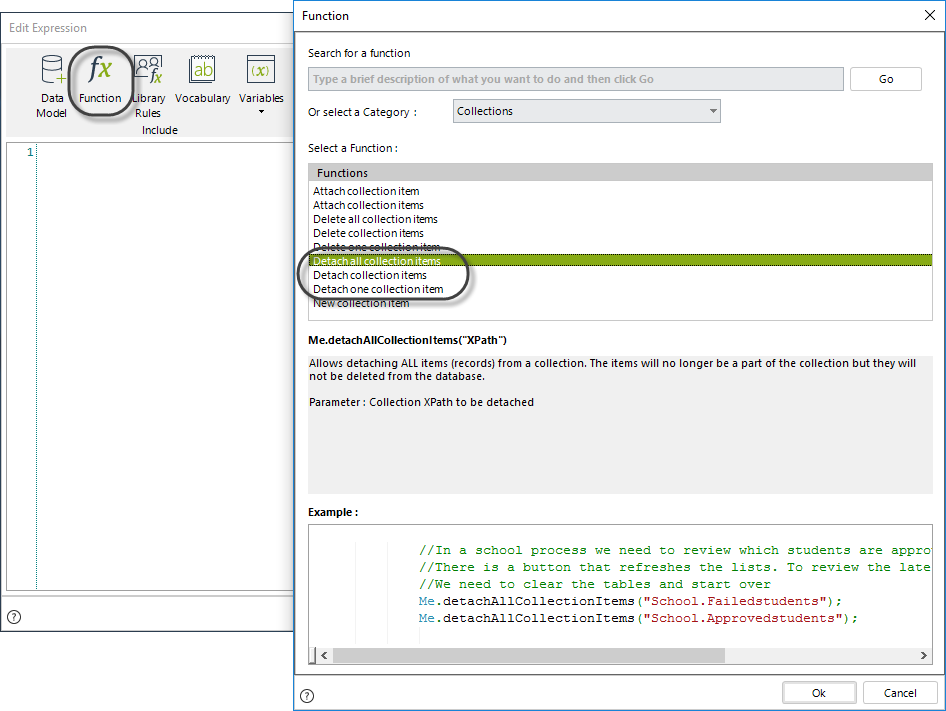
The syntax of the functions is as follows:
Me.detachAllCollectionItems("ProcessEntity.RelationshipToTheCollection")
Me.detachCollectionItems("ProcessEntity.RelationshipToTheCollection",filtered XPath)
Me.detachCollectionItem("ProcessEntity.RelationshipToTheCollection",filtered XPath)
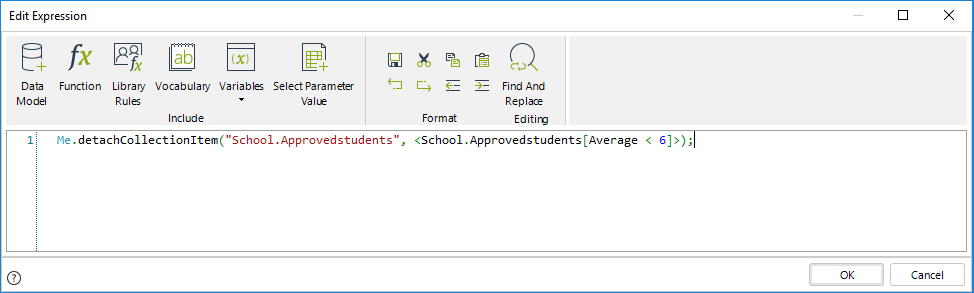
Let's take a School process. Through the year the homeroom teacher is updating the student's grades and seeing who is approving and who is failing. There are three collections, the Student collection, with the updated information, the Approving collection and the Failing collection.
All of the are collections of the same Master entity: Students.
When the Students collection is updated, we want to detach from the Failing collections the ones whose average is now over 6 and another with the ones whose average is under 6.
We use the detachCollectionItems function to detach from the Failing list the students that are now approving.
We don't use the deleteCollectionItems function because we just want to disconnect the items from a collection, but still save them in the database, because they will be attached to the Approving collection, and are part of the main Students collection.
Below you will find the different ways that elements can be detached depending on the business requirement.
| Example | Result |
|---|---|
| Detaches only one student whose average is below six and belongs to the Approved collection. |
|
| Detaches all students that were failing that now are approving. The items (students) will be disconnected from the Failing collection but will still be present in the data base. |
| Detaches all elements from both relationships, but now from the data base. |
| Detaches all the students whose average is below six and that belong to the Approved collection. |
detachCollectionItem(String, IBaseEntity)
Allows detaching one item (record) from a collection. The item will no longer be a part of the collection but it will not be deleted from the database.
Syntax
Me.detachCollectionItem(string path, IBaseEntity item)Declaration
public void detachCollectionItem(string path, IBaseEntity item)Parameters
| Type | Name | Description |
|---|---|---|
| System.String | path | The XPath must be the collection that will lose the item. |
| IBaseEntity | item | XPath to the item of the collection to detach. This XPath must return ONE and only ONE item. If not, the function will fail. |
Examples
Visualize your collection as a table. Detaching an item is disconnecting a row from a table but leaving the data in the database to be used after of by another collection.
Records in a collection can be deleted or detached.
When you delete a record it will be removed form the collection and from the database.
When you detach a record it will be disconnected from the collection but it will stay in the database.
When a record is shared by two or more collections, we recommend detaching instead of removing.
If you detach an item (or record) you have three options:
- Detach all collection items: detaching all the items (records) of a collection is done using the detachAllCollectionItems function. You only need to specify the XPath to the collection and all the records will be detached.
- Detach some collection items: detaching some items (one or more records) of a collection is done using the detachCollectionItems function. You need to specify the XPath to the collection and the XPath filtering the items you want to detach.
- Detach ONE collection item: detaching ONE item (record) of a collection is done using the detachCollectionItem function. You need to specify the XPath to the collection and the XPath filtering the single item you want to detach.If more than one XPath is found the function will present an error to the end user.
The functions are found in the Collection category.
The syntax of the functions is as follows:
Me.detachAllCollectionItems("ProcessEntity.RelationshipToTheCollection")
Me.detachCollectionItems("ProcessEntity.RelationshipToTheCollection",filtered XPath)
Me.detachCollectionItem("ProcessEntity.RelationshipToTheCollection",filtered XPath)
Let's take a School process. Through the year the homeroom teacher is updating the student's grades and seeing who is approving and who is failing. There are three collections, the Student collection, with the updated information, the Approving collection and the Failing collection.
All of the are collections of the same Master entity: Students.
When the Students collection is updated, we want to detach from the Failing collections the ones whose average is now over 6 and another with the ones whose average is under 6.
We use the detachCollectionItems function to detach from the Failing list the students that are now approving.
We don't use the deleteCollectionItems function because we just want to disconnect the items from a collection, but still save them in the database, because they will be attached to the Approving collection, and are part of the main Students collection.
Below you will find the different ways that elements can be detached depending on the business requirement.
| Example | Result |
|---|---|
| Detaches only one student whose average is below six and belongs to the Approved collection. |
|
| Detaches all students that were failing that now are approving. The items (students) will be disconnected from the Failing collection but will still be present in the data base. |
| Detaches all elements from both relationships, but now from the data base. |
| Detaches all the students whose average is below six and that belong to the Approved collection. |
detachCollectionItems(String, Object)
Allows detaching one or more items (records) from a collection. The items will no longer be a part of the collection but they will not be deleted from the database.
Syntax
Me.detachCollectionItems(string path, object itemsToRemove)Declaration
public void detachCollectionItems(string path, object itemsToRemove)Parameters
| Type | Name | Description |
|---|---|---|
| System.String | path | Collection XPath |
| System.Object | itemsToRemove | XPath to the items of the collection to detach |
Examples
Visualize your collection as a table. Detaching an item is disconnecting a row from a table but leaving the data in the database to be used after of by another collection.
Records in a collection can be deleted or detached.
When you delete a record it will be removed form the collection and from the database.
When you detach a record it will be disconnected from the collection but it will stay in the database.
When a record is shared by two or more collections, we recommend detaching instead of removing.
If you detach an item (or record) you have three options:
- Detach all collection items: detaching all the items (records) of a collection is done using the detachAllCollectionItems function. You only need to specify the XPath to the collection and all the records will be detached.
- Detach some collection items: detaching some items (one or more records) of a collection is done using the detachCollectionItems function. You need to specify the XPath to the collection and the XPath filtering the items you want to detach.
- Detach ONE collection item: detaching ONE item (record) of a collection is done using the detachCollectionItem function. You need to specify the XPath to the collection and the XPath filtering the single item you want to detach.If more than one XPath is found the function will present an error to the end user.
The functions are found in the Collection category.
The syntax of the functions is as follows:
Me.detachAllCollectionItems("ProcessEntity.RelationshipToTheCollection")
Me.detachCollectionItems("ProcessEntity.RelationshipToTheCollection",filtered XPath)
Me.detachCollectionItem("ProcessEntity.RelationshipToTheCollection",filtered XPath)
Let's take a School process. Through the year the homeroom teacher is updating the student's grades and seeing who is approving and who is failing. There are three collections, the Student collection, with the updated information, the Approving collection and the Failing collection.
All of the are collections of the same Master entity: Students.
When the Students collection is updated, we want to detach from the Failing collections the ones whose average is now over 6 and another with the ones whose average is under 6.
We use the detachCollectionItems function to detach from the Failing list the students that are now approving.
We don't use the deleteCollectionItems function because we just want to disconnect the items from a collection, but still save them in the database, because they will be attached to the Approving collection, and are part of the main Students collection.
Below you will find the different ways that elements can be detached depending on the business requirement.
| Example | Result |
|---|---|
| Detaches only one student whose average is below six and belongs to the Approved collection. |
|
| Detaches all students that were failing that now are approving. The items (students) will be disconnected from the Failing collection but will still be present in the data base. |
| Detaches all elements from both relationships, but now from the data base. |
| Detaches all the students whose average is below six and that belong to the Approved collection. |
getXPath(String)
This function is used to obtain values of the data model, as using angle brackets <>.
The function has to be used when obtaining values from filtered collections that use variables.
Syntax
Me.getXPath(string xpath)Declaration
public object getXPath(string xpath)Parameters
| Type | Name | Description |
|---|---|---|
| System.String | xpath | XPath. Keep in mind that the XPath is written without inner angle brackets. |
Returns
| Type | Description |
|---|---|
| System.Object | Requested values of the data model, as using angle brackets <>. |
Examples
When collections have to be filtered using variables it is necessary to use setXPath and getXPath functions and NOT the angle brackets.
The following is the correct syntax for the XPath expression using variables:
To obtain values, use the syntax:
Me.getXPath("XPath[filter " + variable +"]")To set values, use the syntax:
Me.setXPath("XPath[filter " + variable +"]", value)
Select all the suppliers where no discount or a discount less than the 10% of the total cost of the purchase was given.
First declare a variable to store the calculation and then filter the collection to retrieve the records.
The expression should look like this:
var MinimumPercentage = <PurchaseRequest.TotalCost>* 0.1
var BadSuppliers = Me.geXPath("PurchaseRequest.Quotation[Discount != true OR QuotationDiscount < " + MinimumPercentage + "]")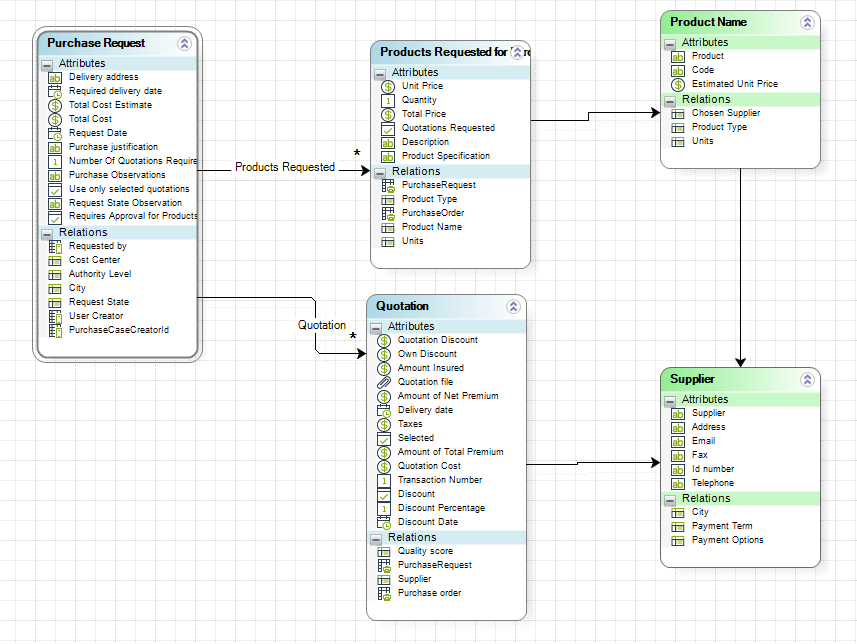
newCollectionItem(String)
Allows the inclusion of a new item (record) to a collection. The item is initially included as a blank entry. You can assign a variable to set values to the new record.
Syntax
Me.newCollectionItem(string path)Declaration
public IBaseEntity newCollectionItem(string path)Parameters
| Type | Name | Description |
|---|---|---|
| System.String | path | Collection XPath |
Returns
| Type | Description |
|---|---|
| IBaseEntity | New item (record) of a given collection |
Examples
In order to create items (records) in a collection using a business rule, Bizagi offers a function called newCollectionItem.
Visualize your collection as a table. Creating a new item is comparable to adding a new row to a table. First you need to create the new row and then set the desired values for each column.
The new record (row) is created using the newCollectionItem function. This function is available in the Functions list of the Collections category.
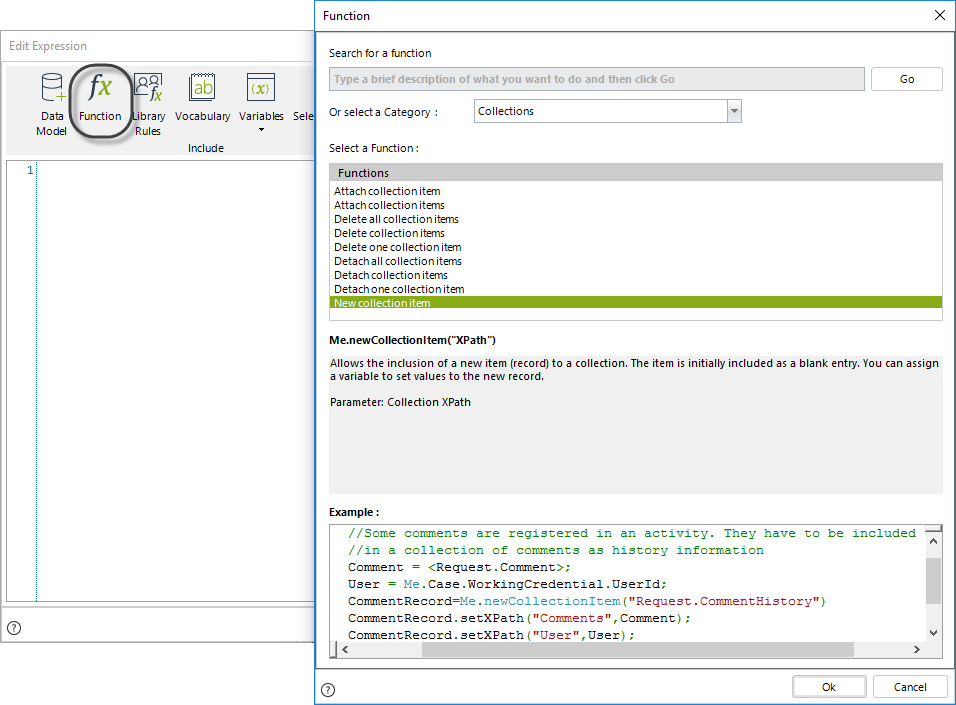
The following shows the syntax of the function:
Me.newCollectionItem ("ProcessEntity.RelationshipToTheCollection")In order to manipulate the new record (row) it must be assigned to a variable:
var Newrecord = Me.newCollectionItem ("ProcessEntity.RelationshipToTheCollection")To set values to the columns (fields) of the new record it is necessary to apply the setXPath function to the variable we just created. This function has the following syntax:
Newrecord.setXPath ("Column",Value)Note the parameters of the setXPath function are: the Column, which is the name of the attribute in the collection, and the Value that will be set.
To illustrate how to add a new item to a collection, suppose you have a Project Administration process where the necessary activities to accomplish a Project are planned and executed. Each project has many activities to perform:
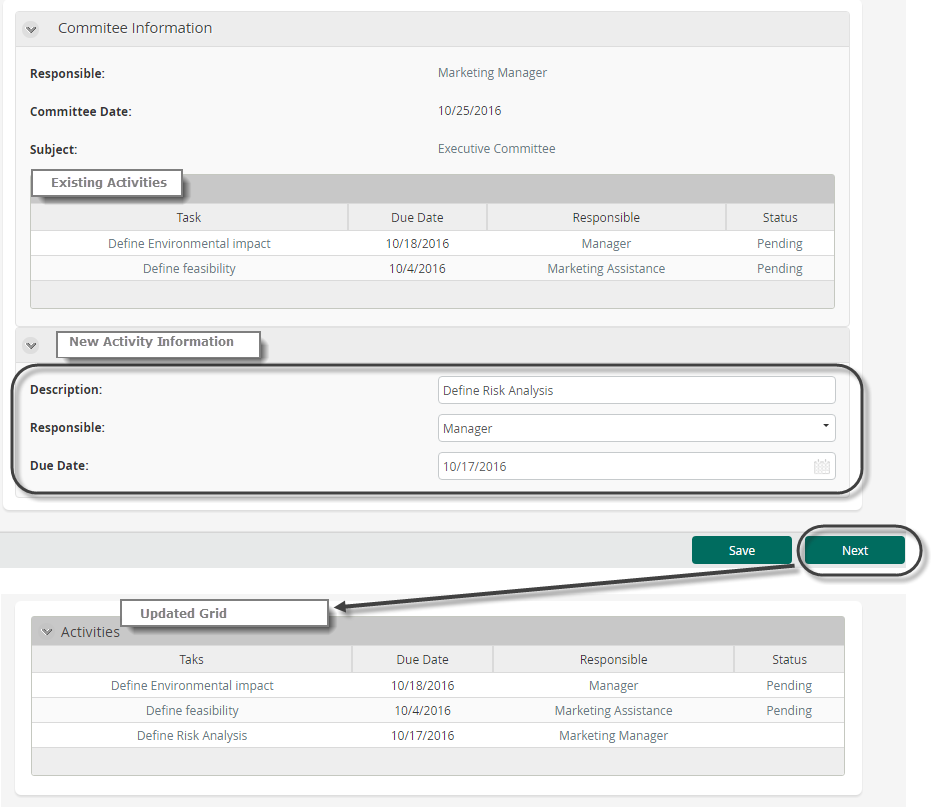
We need to add new activities to an Event called Create new activity. In this event the information of the new activity is entered. When the Next button is clicked this information must be included automatically in the Activities collection table. Instances of the Perform Activities Sub-Process will eventuate for each record in the Activities collection.
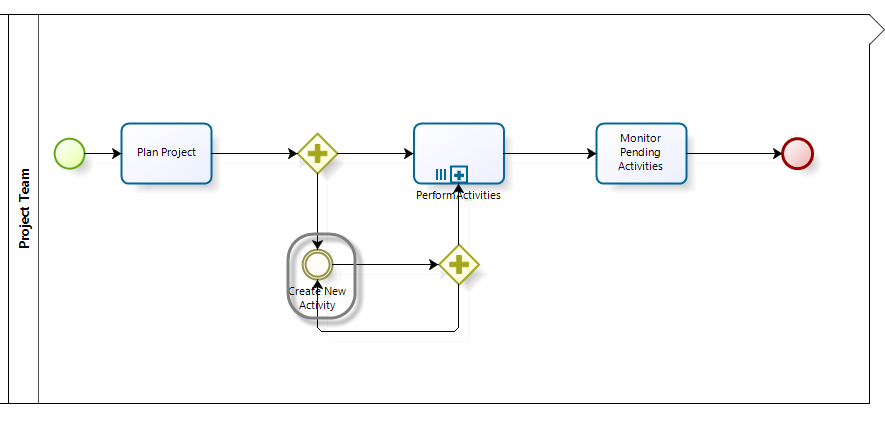
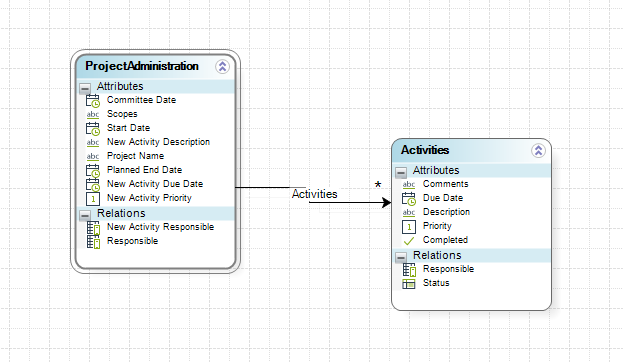
In order to do this follow the next steps:
In the fourth step of the Bizagi Process Wizard (Business Rules), select Activity Actions.
Click the Event in which the project activities will be added and create an On Exit Expression.
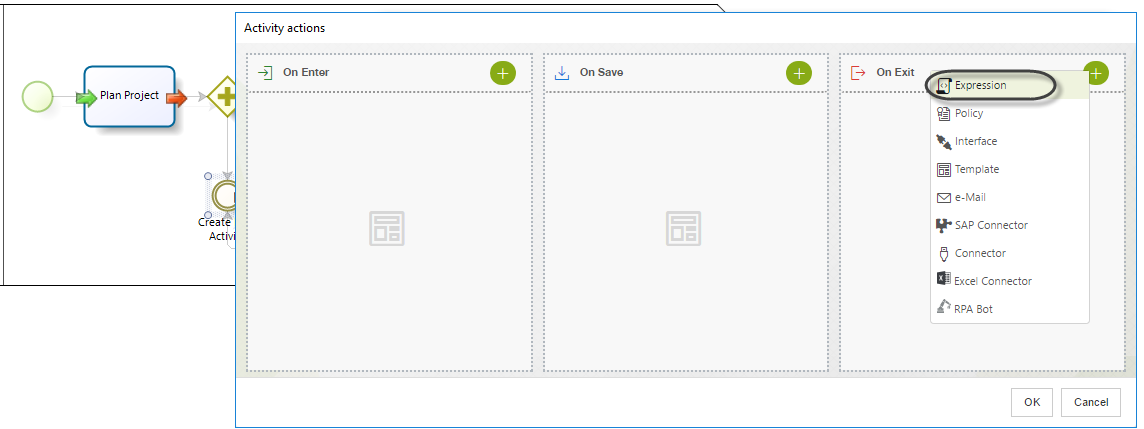
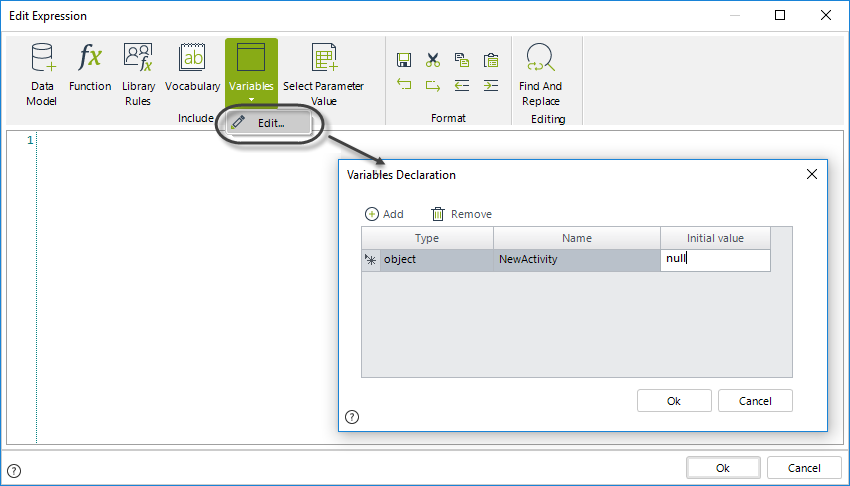
Declare an object type variable.
Build an expression to add an element (a new record) to a collection (one-to-many relationship) and value the attributes of the many entity.
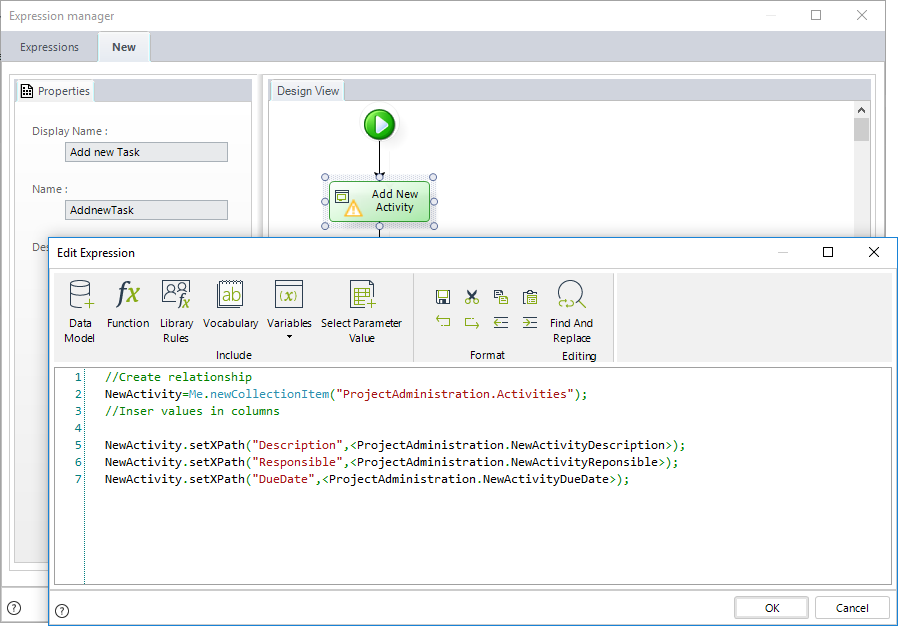
NewActivity=Me.newCollectionItem("ProjectAdministration.Activities");The line above will create a new Activities row. Once the new row is created, the attribute values of the Activities entity can be set:
NewActivity.setXPath("Description",<ProjectAdministration.NewActivityDescription>);
NewActivity.setXPath("Responsible",<ProjectAdministration.NewActivityReponsible>);
NewActivity.setXPath("DueDate",<ProjectAdministration.NewActivityDueDate>);
The following is a graphical representation of the expression's execution:
|
In order to have a better performance, when manipulating data inside a cycle, before entering the cycle extract in a variable the Process entity and then use the variable inside the cycle. Example:
|
removeRelation(String, Boolean)
Allows to delete items from a collection. It is possible to specify whether you want or not to delete the database records in the second parameter.
Syntax
Me.removeRelation(String xpathRelation, bool deleteEntity)Declaration
public void removeRelation(string xpathRelation, bool deleteEntity)Parameters
| Type | Name | Description |
|---|---|---|
| System.String | xpathRelation | Collection XPath that contains the records to delete |
| System.Boolean | deleteEntity | Boolean value that indicates if the method has to delete the records from the database |
Examples
All the calls that have not been marked must be removed.
Me.removeRelation("ClaimsAndComplaints.Calls[Mark = false]",true);Remove the relationship for a given condition on a known ID (200).
Me.removeRelation("NewEntity.ExecutionInstance[Id>"+200+"]",true);setXPath(String, Object)
This function is used to set values to attributes of the data model.
The function has to be used when setting values to filtered collections using variables.
It must also be used to set Today's date (DateTime.Today).
Syntax
Me.setXPath(string xpath, object val)Declaration
public void setXPath(string xpath, object val)Parameters
| Type | Name | Description |
|---|---|---|
| System.String | xpath | XPath. Keep in mind that the XPath is written without inner angle brackets. |
| System.Object | val | Value to set. |
Examples
In order to create items (records) in a collection using a business rule, Bizagi offers a function called newCollectionItem.
Visualize your collection as a table. Creating a new item is comparable to adding a new row to a table. First you need to create the new row and then set the desired values for each column.
The new record (row) is created using the newCollectionItem function. This function is available in the Functions list of the Collections category.
The following shows the syntax of the function:
Me.newCollectionItem ("ProcessEntity.RelationshipToTheCollection")In order to manipulate the new record (row) it must be assigned to a variable:
var Newrecord = Me.newCollectionItem ("ProcessEntity.RelationshipToTheCollection")To set values to the columns (fields) of the new record it is necessary to apply the setXPath function to the variable we just created. This function has the following syntax:
Newrecord.setXPath ("Column",Value)Note the parameters of the setXPath function are: the Column, which is the name of the attribute in the collection, and the Value that will be set.
To illustrate how to add a new item to a collection, suppose you have a Project Administration process where the necessary activities to accomplish a Project are planned and executed. Each project has many activities to perform:
We need to add new activities to an Event called Create new activity. In this event the information of the new activity is entered. When the Next button is clicked this information must be included automatically in the Activities collection table. Instances of the Perform Activities Sub-Process will eventuate for each record in the Activities collection.
In order to do this follow the next steps:
In the fourth step of the Bizagi Process Wizard (Business Rules), select Activity Actions.
Click the Event in which the project activities will be added and create an On Exit Expression.
Declare an object type variable.
Build an expression to add an element (a new record) to a collection (one-to-many relationship) and value the attributes of the many entity.
NewActivity=Me.newCollectionItem("ProjectAdministration.Activities");The line above will create a new Activities row. Once the new row is created, the attribute values of the Activities entity can be set:
NewActivity.setXPath("Description",<ProjectAdministration.NewActivityDescription>);
NewActivity.setXPath("Responsible",<ProjectAdministration.NewActivityReponsible>);
NewActivity.setXPath("DueDate",<ProjectAdministration.NewActivityDueDate>);
The following is a graphical representation of the expression's execution:
|
In order to have a better performance, when manipulating data inside a cycle, before entering the cycle extract in a variable the Process entity and then use the variable inside the cycle. Example:
|